
Guide
How to Choose the Right Hardware
Choosing the right hardware is crucial for AI and creative workloads. This guide explains how to match your needs to the best CPU, GPU, and RAM, with help from the AI GPU Calculator.
Updated 2026-07-05
Understanding Your Hardware Needs
Selecting the right hardware is one of the most important decisions for anyone building or upgrading a PC for AI, deep learning, or creative workloads. Different tasks demand different resources, so a gaming rig may look very different from a workstation designed for training large language models.
Begin by identifying your primary workload. Are you running generative AI models, editing high-resolution video, or training neural networks? Each use case has its own optimal hardware requirements. For AI and deep learning, GPU VRAM and compute power are critical. For video editing or 3D rendering, a balance of CPU speed, RAM, and storage throughput is essential.
Budget also plays a key role. Top-tier GPUs and CPUs can quickly increase costs, but not every project requires the most expensive components. Tools like the AI GPU Calculator can help you quickly estimate the hardware tier you actually need based on your models and workloads, preventing overspending and underperformance.
Another important factor is future-proofing. AI and creative applications are evolving rapidly, and buying slightly above your current needs can extend the useful life of your build. Consider upgradability and compatibility with next-generation hardware as well.
Key Hardware Components for AI and Creative Workloads
The core components that impact performance in AI and creative tasks are the GPU, CPU, RAM, and storage. Each plays a distinct role:
GPU: The graphics card is the heart of AI and deep learning systems. Its VRAM and CUDA core count directly affect the size and speed of models you can run. For image generation and language models, more VRAM is often better. The AI GPU Calculator is designed to help you determine exactly how much VRAM you need for your specific workloads.
CPU: While the GPU handles parallel computations, the CPU manages overall system tasks, data loading, and preprocessing. For many AI workflows, a modern multi-core CPU is sufficient, but some tasks like data wrangling or video encoding benefit from extra cores and threads.
RAM: System memory holds data, intermediate results, and helps with multitasking. Insufficient RAM can bottleneck your workflow, especially with large datasets or multiple applications open at once. For AI, consider at least 32GB, but power users may need 64GB or more.
Storage: NVMe SSDs dramatically reduce loading times for large datasets and models. For creative workloads, high-capacity SSDs are a must. RAID configurations or secondary drives can further improve speed and reliability.
Beyond the basics, consider your motherboard's expansion options, power supply wattage, cooling solutions, and case airflow. Workstation GPUs, like NVIDIA RTX A-series, offer ECC memory and longer support cycles, which can be essential for professional and enterprise environments.
Finally, always validate your planned configuration using the AI GPU Calculator. This tool analyzes your project parameters and recommends the right NVIDIA RTX or workstation GPU tier, optimizing both performance and budget.
Step-by-step
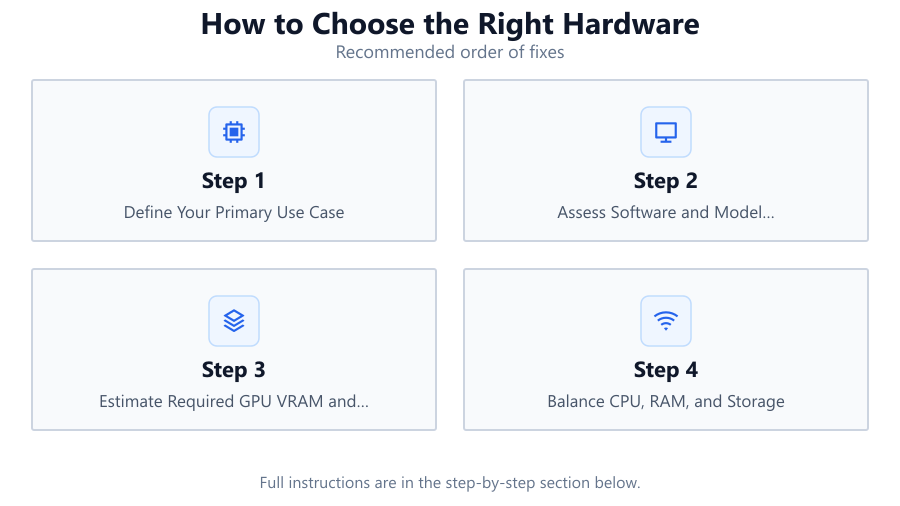
Define Your Primary Use Case
List the main tasks you need your PC to handle, such as AI model training, image generation, video editing, or gaming. This step sets the foundation for all other hardware decisions.
Assess Software and Model Requirements
Check the official requirements of your key applications and AI frameworks. For AI, note the size of models and datasets you plan to use, as this impacts GPU VRAM and RAM needs.
Estimate Required GPU VRAM and Compute Power
Use the AI GPU Calculator to input your model parameters, quantization, and prompt settings. This will give you a recommended GPU tier and minimum VRAM, ensuring your hardware can handle your workloads efficiently.
Balance CPU, RAM, and Storage
Match your CPU and RAM to your GPU and primary use case. For AI and creative tasks, prioritize multi-core CPUs and ample RAM. Opt for fast SSD storage to avoid bottlenecks when loading large files.
Plan for Future Upgrades
Choose a motherboard with extra PCIe slots, RAM capacity, and modern ports. Select a power supply with headroom for future GPU or storage upgrades, and ensure your case supports adequate cooling.
Comparison
| Component | Entry-Level | Professional | Enterprise |
|---|---|---|---|
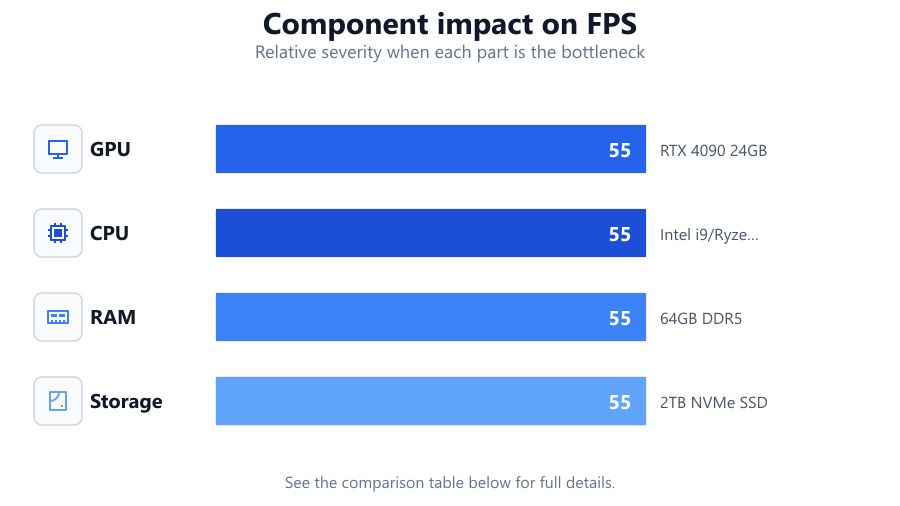
| GPU | RTX 4060 8GB | RTX 4090 24GB | RTX A6000 48GB |
| CPU | Intel i5/Ryzen 5 | Intel i9/Ryzen 9 | Xeon/Threadripper |
| RAM | 16-32GB DDR4 | 64GB DDR5 | 128GB+ ECC DDR5 |
| Storage | 1TB SATA SSD | 2TB NVMe SSD | 4TB+ NVMe RAID |
Common mistakes
Mistake
Overestimating or underestimating GPU VRAM needs
Fix: Use the AI GPU Calculator to calculate the right VRAM for your models rather than guessing or relying on generic advice.
Mistake
Neglecting RAM and storage speed
Fix: Ensure you have enough RAM and opt for fast NVMe SSDs to prevent data bottlenecks, especially in AI and creative tasks.
Mistake
Ignoring power and cooling requirements
Fix: Choose a power supply with extra wattage and invest in quality cooling to support high-performance components and future upgrades.
Troubleshooting
Out of memory errors during model runs
Likely cause: Insufficient GPU VRAM or system RAM for your chosen AI model size
What to do: Reduce model size or quantization, or upgrade to a GPU with higher VRAM as advised by the AI GPU Calculator.
Slow data loading and training times
Likely cause: Using a slow SATA SSD or hard drive for large datasets
What to do: Upgrade to an NVMe SSD and consider RAID for even faster storage performance.
Frequent system crashes under load
Likely cause: Inadequate power supply or overheating components
What to do: Upgrade your PSU to a higher wattage and improve case airflow or add better cooling solutions.
Recommendations
- Always start with your workload requirements before selecting hardware.
- Leverage the AI GPU Calculator to match your GPU VRAM to your AI projects.
- Invest in fast storage and sufficient RAM to avoid common bottlenecks.
- Consider workstation-class GPUs for professional and enterprise environments.
- Choose a motherboard and power supply that support future upgrades.
Frequently asked questions
How do I know how much GPU VRAM I need for AI projects?
The best way is to use the AI GPU Calculator, which analyzes your model parameters and quantization to recommend the optimal VRAM and GPU tier.
Is it better to spend more on the GPU or CPU for AI workloads?
For most AI tasks, investing in a higher-tier GPU with ample VRAM yields the biggest performance gains, while a modern multi-core CPU is usually sufficient.
How important is RAM for creative or AI work?
RAM is crucial for handling large datasets and multitasking. 32GB is a good starting point, but 64GB or more is recommended for demanding workloads.
What makes workstation GPUs different from gaming GPUs?
Workstation GPUs offer features like ECC memory, certified drivers, and longer support cycles, making them ideal for professional and enterprise environments.