
FPS Calculator: Instantly Estimate Your PC's Game Performance
Select your CPU, GPU, and a game to get a free, instant frame rate estimate. We use real benchmark data to help you see how your PC will perform before you even play.
Calculate Your FPS
Enter your hardware and game settings to estimate performance.
How Our FPS Calculator Works
Our calculator uses industry-standard benchmark data and empirically-derived formulas:
- GPU Performance: PassMark G3D Mark scores normalized against RTX 4090
- CPU Performance: CPU Mark scores for understanding bottlenecks
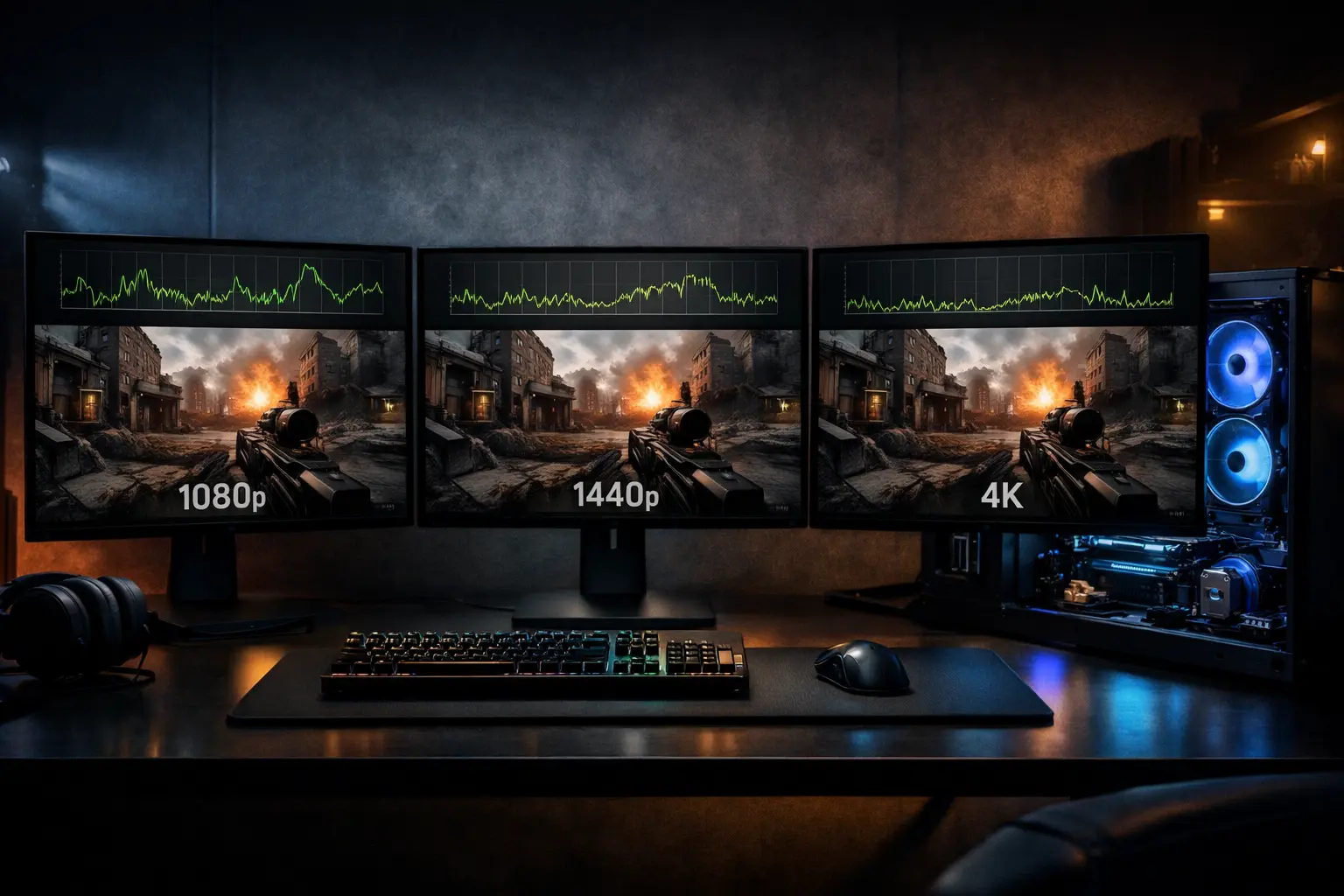
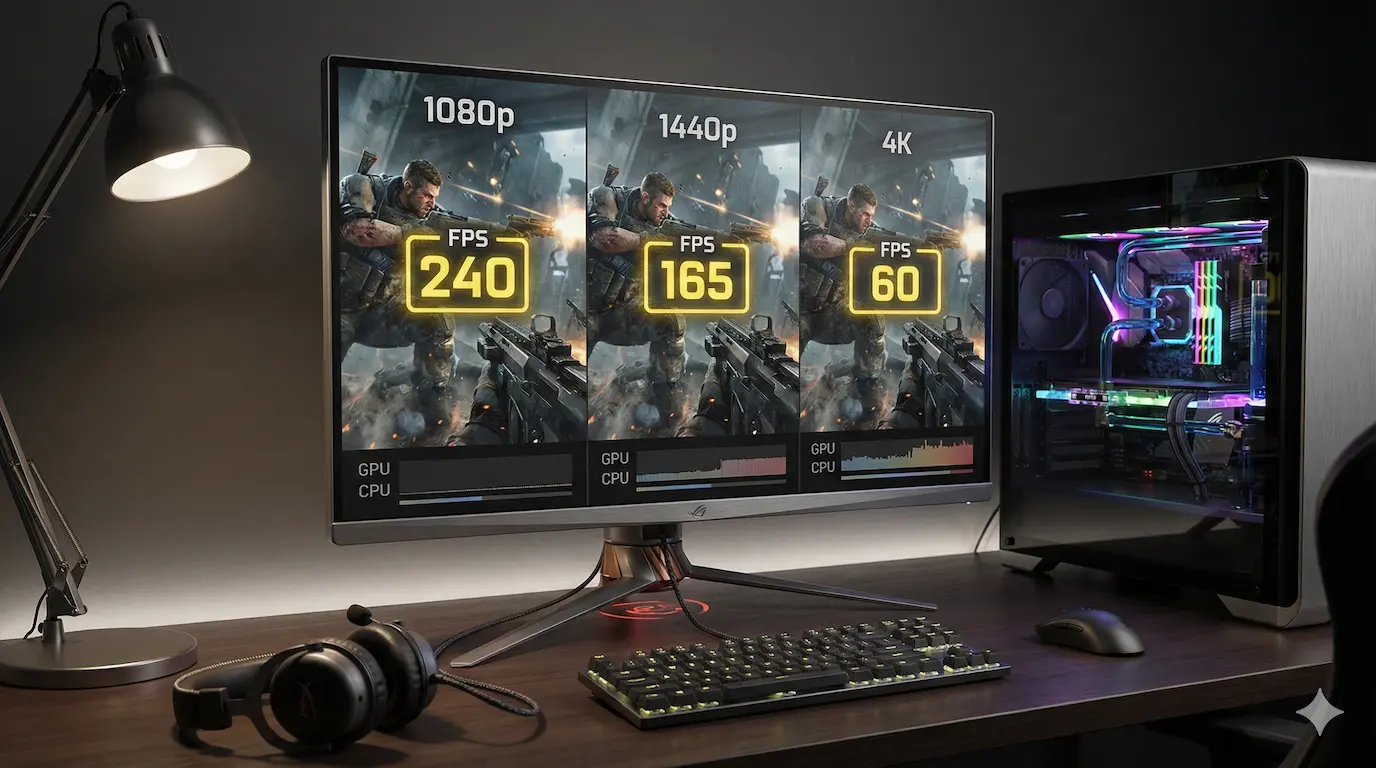
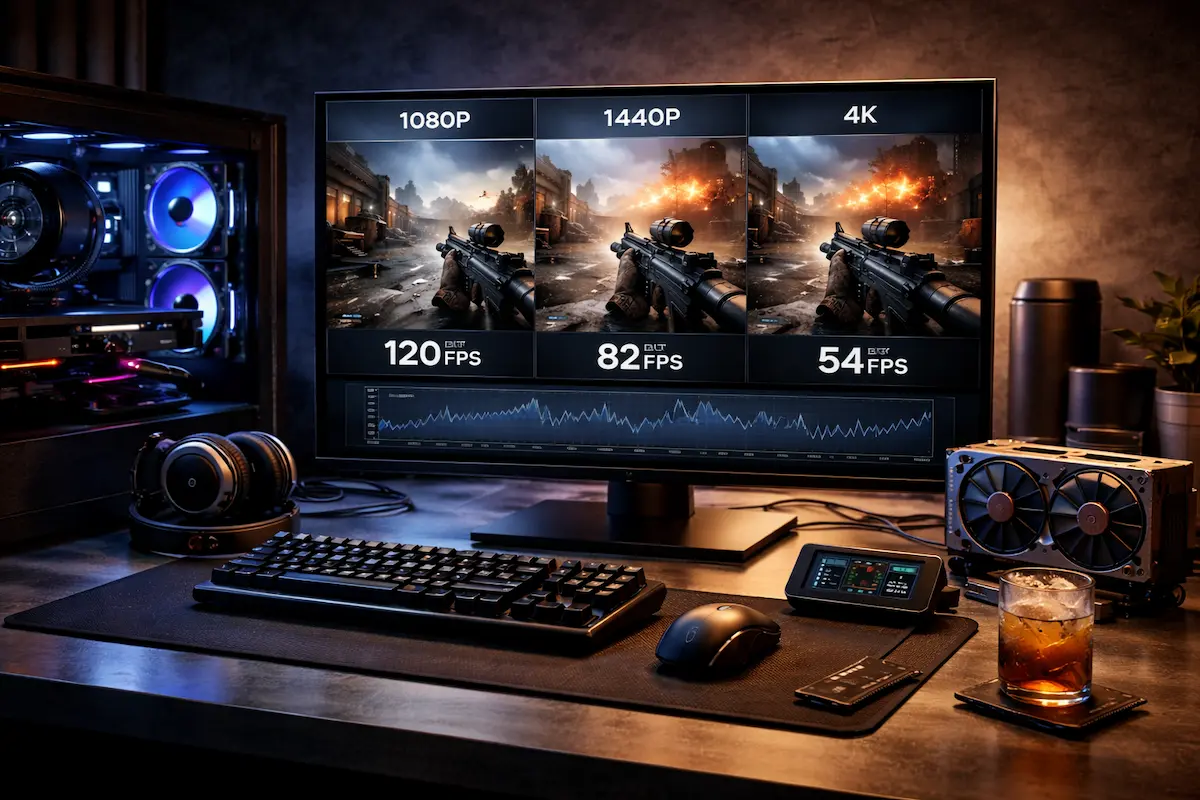
- Resolution Scaling: Empirical data: 1440p = 65%, 4K = 35% of 1080p FPS
- Game Profiles: Each game has unique CPU/GPU weight based on benchmarks
Estimated FPS
Select your hardware and click calculate
What is FPS and Why Does It Matter So Much?
Welcome to our FPS Calculator! If you're a PC gamer, you've heard the term 'FPS' thrown around constantly. It stands for Frames Per Second, and it's the single most important metric for how smoothly a game feels to play. Think of a game as a super-fast flipbook. Each page is a 'frame', a single static image. Your PC's job is to draw these frames as quickly as possible. The more frames it can draw per second, the smoother and more fluid the motion on your screen will appear.
Why does this matter? A low frame rate, say below 30 FPS, can feel choppy and stuttery, like watching a slideshow. It makes aiming difficult in shooters and can completely ruin the immersion in a beautiful open-world game. A high frame rate, like 60 FPS or more, provides a responsive, buttery-smooth experience that makes you feel connected to the game. For competitive players, it's not just a feeling; it's a real advantage. Higher FPS means you see enemy movements sooner and can react faster.

That's where our tool comes in. We built this FPS calculator to give you a solid estimate of how your specific hardware combination will perform in over 800 different games. It's not a magic crystal ball, but it's a powerful guide based on thousands of data points. You can use it to see if your current rig can handle that new title you've been eyeing, or to figure out which component, your CPU or GPU, is the best one to upgrade for more performance. We're PC builders and gamers just like you, and we wanted a straightforward tool that cuts through the marketing fluff and gives you the data you need to make smart decisions.
How Our FPS Calculator Actually Works
You might be wondering how we can predict your frame rate without running the game on your machine. It's a fair question, and we believe in being transparent about our process. Our estimates aren't just random numbers; they're calculated using a combination of standardized benchmark data and game-specific performance profiles.
The foundation of our system is PassMark's extensive database of CPU and GPU benchmark scores. These scores provide a reliable, standardized measure of a component's raw processing power. A high PassMark score generally means better performance. For example, we know that an NVIDIA GeForce RTX 4070 Ti has a G3D Mark score of around 32,000, while an older GTX 1060 scores about 9,500. This gives us a solid baseline for how different tiers of hardware compare.
But raw power isn't the whole story. Every game is different. Some games, like Civilization VI, lean heavily on your CPU for turn processing, while others, like Cyberpunk 2077 with ray tracing enabled, will push your GPU to its absolute limit. This is where our game-specific formulas come into play. We've analyzed performance data from hundreds of sources for each of the 800+ games in our library. We look at how they scale with different hardware, how sensitive they are to CPU vs. GPU power, and how demanding they are at various resolutions. This allows us to create a unique performance model for each game, which we then apply to the hardware scores.
So, when you select an Intel Core i5-13600K, a GeForce RTX 4060, and Elden Ring at 1440p, our calculator does the following: it fetches the benchmark scores for your components, applies our custom performance formula for Elden Ring, and then adjusts that result based on the pixel load of a 1440p resolution. The result is the estimated average FPS you see. It's an educated estimate, but in our testing, it's proven to be a very helpful starting point for understanding your PC's capabilities.
What FPS Do You Actually Need for Gaming?
The 'right' FPS isn't a single number; it depends entirely on the type of games you play and your personal preference for smoothness. We've all seen arguments online about this, but here's our practical breakdown based on years of gaming and testing.
30 FPS: This is often considered the bare minimum for a 'playable' experience, especially on consoles. For slow-paced, cinematic single-player games like A Plague Tale: Requiem, you can get by with 30 FPS. The experience won't be super smooth, but it's functional. However, for any game that requires quick reactions, 30 FPS will feel sluggish and unresponsive.
60 FPS: This is the gold standard for most PC gamers. A locked 60 FPS provides a smooth, fluid, and highly responsive experience that is perfect for the vast majority of games, from action-RPGs like The Witcher 3 to strategy games and most single-player shooters. If you're building a new PC today, 60 FPS should be your minimum target for a great experience.
120-144 FPS: Now we're entering the high-refresh-rate territory, which is a huge deal for competitive gaming. In fast-paced shooters like Counter-Strike 2, Valorant, or Apex Legends, a higher frame rate gives you a tangible advantage. You see information on your screen faster, animations are smoother, and aiming feels incredibly direct and connected. Once you've played a competitive shooter at 144 FPS on a 144Hz monitor, going back to 60 FPS feels like playing in molasses.
240+ FPS: This is the domain of esports professionals and serious competitive players. The difference between 144 FPS and 240 FPS is less noticeable than the jump from 60 to 144, but it's still there. It provides the absolute lowest input lag and the clearest possible picture of motion on a 240Hz or 360Hz monitor. For most people, it's overkill, but if your goal is to compete at the highest level, this is the target.
VR Gaming (90+ FPS): Virtual Reality has its own set of rules. Because the screens are strapped to your head, a low or inconsistent frame rate can cause motion sickness. For a comfortable VR experience in games like Half-Life: Alyx, a steady 90 FPS is the standard. Anything less can be jarring and unpleasant.
How Graphics Settings Affect Your FPS: A Detailed Look
Every game's graphics menu is a wall of options, and each one is a trade-off between visual quality and performance. Understanding what they do is key to tuning your game for the perfect balance. Let's break down the most common settings and their typical impact on your frame rate.

Texture Quality: This setting controls the resolution of the surfaces in the game world. Higher quality textures look sharper and more detailed up close. The main performance hit here isn't on your FPS directly, but on your GPU's Video RAM (VRAM). If a game's textures require more VRAM than your card has, you'll experience massive stuttering as the game is forced to swap data with your system's slower RAM. For a card with 8GB of VRAM, using 'High' instead of 'Ultra' textures at 1440p can prevent this. The direct FPS cost is usually low.
Shadow Quality: This is one of the biggest FPS hogs. Shadows add depth and realism, but calculating how light is blocked by every object in a scene is computationally expensive. Dropping shadows from 'Ultra' to 'High' can often give you a 10-15% FPS boost with a minimal visual downgrade. Dropping to 'Medium' or 'Low' will net you even more frames but at a more noticeable cost to visual fidelity. Ray-traced shadows are a whole other level of demanding and can cut your FPS by 40-60%.
Anti-Aliasing (AA): Jagged, pixelated edges on objects are called 'aliases'. AA is a technique to smooth them out. There are many types: MSAA is very high quality but has a huge performance cost. FXAA and SMAA are less demanding but can sometimes blur the image slightly. TAA (Temporal Anti-Aliasing) is the modern standard, offering a great balance of quality and performance, though it can cause some 'ghosting' on fast-moving objects. Turning AA off completely gives a big FPS boost, but the jagged edges can be very distracting.
Ambient Occlusion (AO): This adds soft contact shadows where objects meet, making the lighting look more realistic and grounded. Techniques like SSAO or HBAO+ can have a moderate performance impact, often costing 5-10% of your FPS. Turning it off can make scenes look flat, so we usually recommend keeping it on a lower setting if possible.
View Distance / Level of Detail (LOD): This controls how far away you can see objects in full detail. In open-world games like Grand Theft Auto V or a battle royale like Warzone, this can be very demanding on your CPU, which has to keep track of all those distant objects. Lowering this setting can significantly improve FPS, especially in CPU-limited scenarios.
The Relationship Between Resolution and FPS
Resolution is simply the number of pixels on your screen, expressed as width by height (e.g., 1920x1080). This number has a direct and dramatic impact on your gaming performance because your Graphics Card (GPU) has to draw every single one of those pixels for every single frame. The more pixels there are, the harder your GPU has to work.
Let's do some quick math to see why this matters so much: - 1080p (1920x1080) = 2,073,600 pixels - 1440p (2560x1440) = 3,686,400 pixels - 4K (3840x2160) = 8,294,400 pixels
As you can see, jumping from 1080p to 1440p increases the pixel count by about 78%. That's a huge jump in workload for your GPU. The jump from 1440p to 4K is even bigger, at a 125% increase. And going from 1080p all the way to 4K means your GPU is pushing four times the number of pixels.

What does this mean for your frame rate? In a perfectly GPU-bound scenario (where the CPU is not a bottleneck at all), the performance scaling is almost directly proportional to the pixel count. For example, if your NVIDIA GeForce RTX 3070 gets a solid 100 FPS in a game at 1080p, you can expect it to get around 55-60 FPS at 1440p, and maybe 25-30 FPS at 4K with the exact same settings. This is why 4K gaming is still so demanding, even for high-end hardware.
This is also why choosing the right monitor for your GPU is so important. If you buy a powerful RTX 4080 but only have a 1080p monitor, you're leaving a massive amount of performance on the table in most games. Your GPU is capable of pushing so many more pixels. Conversely, trying to run a new, graphically intense game on a 4K monitor with a mid-range card like an RTX 4060 is going to be a struggle. You'll likely have to lower many graphics settings or use upscaling technologies like DLSS to get a playable frame rate. Our calculator lets you toggle between these resolutions to see exactly how your hardware choices will be affected.
Your CPU's Role: The Brain of the Operation
When we talk about gaming performance, the GPU gets most of the spotlight. And for good reason, it does the heavy lifting of rendering the graphics. But your CPU, the Central Processing Unit, is the 'brain' that directs the entire operation. Ignoring it is a huge mistake, especially if you're aiming for high frame rates.
So, what does the CPU actually do in a game? A lot more than you might think. It's responsible for:
1. Game Logic and AI: It calculates the behavior of non-player characters (NPCs), enemy pathfinding, and all the underlying rules of the game world. 2. Physics Simulations: When you blow something up in Battlefield or watch cloth physics in a character's cape, the CPU is running the calculations that make it look realistic. 3. Managing Assets: It tells the GPU what to draw and when. It streams textures and models from your storage drive into memory so they're ready when needed. 4. Preparing Draw Calls: This is a big one. The CPU prepares instructions for the GPU on how to render a scene. This is a list of all the objects, their positions, textures, and shaders. The CPU has to get this information to the GPU for every single frame.
When your CPU can't keep up with these tasks, you get a 'CPU bottleneck'. This happens when the GPU is waiting around for instructions from the CPU. You might have a beastly RTX 4090, but if it's paired with an old quad-core processor, your frame rate will be stuck. The GPU has the power to render 200 frames, but the CPU can only prepare instructions for 90 of them. Your FPS will be stuck at 90.
CPU bottlenecks are most common in a few specific scenarios. First, high refresh rate gaming. To get 240 FPS in Valorant, your CPU has to prepare a new set of instructions every 4.16 milliseconds. That requires a CPU with very fast single-core performance. Second, in strategy games like Total War or city builders like Cities: Skylines, which have thousands of individual units or systems to simulate. And third, in open-world games with complex physics and lots of AI. This is why we've seen such a huge benefit in gaming from CPUs with large L3 caches, like AMD's Ryzen 7 7800X3D. That extra cache keeps game data right next to the processing cores, speeding up these tasks immensely.
Your GPU's Role: The Graphics Muscle
If the CPU is the brain, the GPU (Graphics Processing Unit) is the raw muscle. Its job is singular and immense: to take the instructions from the CPU and turn them into the millions of colored pixels you see on your screen, dozens or even hundreds of times per second. For the vast majority of modern games, especially at higher resolutions and settings, the GPU is the single most important component for determining your frame rate.
Let's break down what's happening inside that powerful card. The GPU is essentially a specialized parallel processor with thousands of small cores (called CUDA cores on NVIDIA cards and Stream Processors on AMD cards). Unlike a CPU with a few very powerful cores designed for complex sequential tasks, a GPU has thousands of simpler cores designed to do the same mathematical calculation simultaneously across a huge number of pixels. This is perfect for graphics rendering.
The GPU's main tasks include:
1. Shaders: These are small programs that run on the GPU's cores to calculate lighting, color, and surface effects. This includes everything from how light reflects off a metal surface to the complex patterns of water. 2. Texturing: The GPU takes the 2D texture maps (the 'skins' of objects) and wraps them around the 3D models of characters and environments. 3. Geometry and Rasterization: It takes the 3D models (made of triangles) and converts them into the 2D grid of pixels that fits your screen. This is a massive part of the workload. 4. Post-Processing: After the main scene is rendered, the GPU applies effects like motion blur, depth of field, and color correction to give the game its final cinematic look.
When you increase the game's resolution, you are directly increasing the GPU's workload. When you turn up settings like shadows, anti-aliasing, or enable ray tracing, you are making the shader calculations more complex. In these situations, you become 'GPU bound' or 'GPU limited'. This means your CPU is feeding instructions to the GPU as fast as it can, but the GPU simply can't finish rendering the frame in time. It's working at 99-100% capacity while your CPU might be chilling at 40%.
This is why upgrading your GPU usually gives you the biggest jump in gaming performance. Swapping a GeForce RTX 3060 for an RTX 4070 in a balanced system can nearly double your frame rate at 1440p in many titles. When you use our calculator, you'll see that changing the GPU has a much larger impact on the estimated FPS than changing the CPU for most game and resolution combinations, especially at 1440p and 4K.
Frame Time vs. FPS: Why Consistency is King
We talk a lot about average FPS, and our calculator provides an estimate for it. It's a useful, easy-to-understand metric. However, it doesn't tell the whole story. Two games running at an average of 60 FPS can feel completely different to play. One might feel perfectly smooth, while the other feels stuttery and inconsistent. The reason for this difference is frame time.
Frame time is the measurement of how long it takes your PC to render a single frame, usually measured in milliseconds (ms). It's the inverse of FPS. For example: - 30 FPS = 33.3ms per frame (1000ms / 30) - 60 FPS = 16.67ms per frame (1000ms / 60) - 144 FPS = 6.94ms per frame (1000ms / 144)
An average FPS of 60 is great, but it's just an average. It could mean your PC is rendering 60 frames every second, each one taking exactly 16.7ms. This would feel incredibly smooth. But it could also mean your PC rendered 90 frames in the first half of the second (11.1ms per frame) and only 30 frames in the second half (33.3ms per frame). The average is still 60 FPS, but you would feel a massive, jarring stutter in that second half.
This is why a consistent, stable frame time is often more important than a higher, unstable average FPS. We've all experienced this. You're running through an area in a game and everything feels great, but then you enter a big city or a huge explosion goes off, and the game hitches for a moment. That's a frame time spike. The time to render that one complex frame shot up from 16ms to maybe 50ms or 100ms before returning to normal. Even though your average FPS might still look good, that single spike is what you perceive as a stutter.
Looking at a frame time graph is the best way to visualize performance. A good, smooth experience will show a flat, stable line. A stuttery experience will show a line with lots of sharp spikes. This is also where technologies like G-Sync and FreeSync come in. They synchronize your monitor's refresh rate to your GPU's frame output, which helps to smooth out minor variations in frame time and prevent screen tearing, making the overall experience feel much better even if the frame rate isn't perfectly locked.
Understanding 1% and 0.1% Lows for True Smoothness
Building on the idea of frame time, let's talk about two of the most important metrics for judging real-world gaming performance: 1% low and 0.1% low FPS. If average FPS tells you the typical performance, these 'lows' tell you about the worst-case performance. They are a much better indicator of stutter and inconsistency than an average number will ever be.
So what are they? When you benchmark a game, you're collecting data for thousands of individual frames. To calculate the 1% low FPS, you take all those frame times, sort them from fastest to slowest, and then look at the worst 1%. The FPS value of that percentile is your 1% low. The 0.1% low does the same thing but looks at the worst 0.1% of frames. Essentially, it's a way to quantify your game's most significant stutters.
Let's use an example. Imagine you play a game for a minute and your average frame rate is 90 FPS. That sounds pretty good. But your 1% low is 45 FPS, and your 0.1% low is 20 FPS. What does this tell you? It tells you that while the game is *usually* running well, you're experiencing noticeable dips down to 45 FPS, and occasionally you're getting very jarring stutters that drop you all the way to 20 FPS. These are the moments that ruin the experience.
Conversely, another game might average a slightly lower 85 FPS, but its 1% low is 70 FPS and its 0.1% low is 65 FPS. Even though the average is lower, this second game will feel significantly smoother to play because the performance is far more consistent. The gap between the average and the lows is much smaller.
When we're testing hardware, we pay very close attention to these numbers. A powerful CPU, especially one with a lot of cache like the AMD Ryzen 7 7800X3D, often provides much better 1% lows than its competitors, even if the average FPS is similar. This is because the large cache prevents the CPU from having to wait for data from the main system RAM, which can cause these small delays that show up as frame time spikes. Similarly, having enough VRAM on your graphics card is critical for good 1% lows. If your GPU has to constantly shuffle assets because it's running out of VRAM, your lows will be terrible, resulting in a stuttery mess.
Why Your FPS Target Should Match Your Monitor's Refresh Rate
You can have the most powerful gaming PC in the world, capable of pushing 300 FPS in your favorite shooter, but if you're playing on a standard 60Hz monitor, you're not seeing most of that performance. Your monitor's refresh rate, measured in Hertz (Hz), determines the maximum number of frames it can display per second. It's a critical part of the performance equation that many people overlook.
A 60Hz monitor refreshes its image 60 times per second. This means it can physically display a maximum of 60 unique frames per second. If your GPU is rendering 120 FPS, the monitor is still only showing you 60 of them. You're not getting the full smoothness benefit of that extra performance. You might feel slightly lower input lag, but the visual fluidity is capped by your display.
This is where high-refresh-rate monitors come in. A 144Hz monitor can display up to 144 frames per second. A 240Hz monitor can display 240. When you pair a PC that can produce 144 FPS with a 144Hz monitor, the difference is night and day compared to 60Hz. Motion is incredibly clear, aiming feels instant, and the overall experience is far more immersive and responsive. This is why competitive players invest so heavily in high-refresh-rate displays.
But what happens when your FPS doesn't perfectly match your monitor's refresh rate? This can cause a problem called 'screen tearing'. It happens when the GPU sends a new frame to the monitor in the middle of a refresh cycle. The monitor will display the bottom half of the old frame and the top half of the new one, creating a visible horizontal tear in the image. The old solution was V-Sync (Vertical Sync), which forced your GPU to wait for the monitor, locking your FPS to the refresh rate (or a fraction of it). This fixed tearing but introduced significant input lag, which is terrible for gaming.
The modern solution is Adaptive Sync technology, known as NVIDIA G-Sync and AMD FreeSync. A monitor with one of these technologies can dynamically adjust its refresh rate to match the frame rate your GPU is outputting in real-time. If your FPS drops from 144 to 127, your monitor's refresh rate also drops to 127Hz. This completely eliminates screen tearing and stutter from frame rate fluctuations, providing the smoothest possible experience. If you're building or buying a gaming PC, we strongly recommend getting a monitor with G-Sync or FreeSync. It makes a huge difference.
The Magic of Upscaling: DLSS, FSR, and XeSS
In the past, if your frame rate was too low, your only options were to lower settings or buy new hardware. Today, we have a third option that has completely changed the performance conversation: AI-powered upscaling. The three main technologies in this space are NVIDIA's DLSS (Deep Learning Super Sampling), AMD's FSR (FidelityFX Super Resolution), and Intel's XeSS (Xe Super Sampling).
So how does this 'magic' work? The core idea is simple but brilliant. Instead of rendering the game at your monitor's native resolution (like 1440p), the GPU renders it at a lower internal resolution (like 1080p). This is much easier and faster, resulting in a much higher base frame rate. Then, a specialized AI algorithm takes that lower-resolution image and intelligently 'upscales' it back to your native 1440p resolution, using data from previous frames and trained AI models to fill in the missing detail. The result is an image that looks very close to native resolution, but with a massive performance boost.
NVIDIA's DLSS is currently the most mature of these technologies. It uses dedicated Tensor Cores found on their RTX GPUs to run its AI algorithm, and the image quality is often considered the best. In its 'Quality' mode, the image can be nearly indistinguishable from native resolution while providing a 30-40% FPS increase. In 'Performance' mode, the FPS boost can be 70% or more, though with a slightly softer image.
AMD's FSR works on a wider range of GPUs (including NVIDIA and Intel cards) because it doesn't require dedicated AI hardware. While its image quality in early versions wasn't quite as good as DLSS, the latest versions (FSR 2.0 and beyond) are extremely competitive. Intel's XeSS is similar, using AI and also being open to all brands of GPUs.
Even more impressive is the latest development: frame generation. NVIDIA's DLSS 3, available on their RTX 40 series cards, can use AI to generate entirely new frames and insert them between traditionally rendered frames. This can literally double your frame rate. For example, if your PC can render 60 FPS in Cyberpunk 2077, turning on DLSS 3 Frame Generation can boost that to 120 FPS. It does add a tiny bit of latency, so it's best for single-player games, but the technology is incredible. These upscaling tools are no longer just a crutch for low-end cards; they're a smart feature that even owners of high-end PCs use to max out their high-refresh-rate monitors at 4K.
Game Optimization: Why Some Games Run Better Than Others
Have you ever wondered why a game like Doom Eternal can run at a blistering 200 FPS with stunning visuals, while a brand new, less graphically impressive game struggles to hold 60 FPS on the same hardware? The answer is game optimization. Not all games are created equal in how efficiently they use your PC's resources.
Game optimization is the long and complex process developers go through to make their game run as smoothly as possible on a wide variety of hardware configurations. This involves everything from how 3D models are created (using fewer polygons for distant objects) to how textures are compressed and streamed, and how the game engine manages CPU and GPU workloads.
One of the biggest factors is the game engine itself. Engines like id Tech (used in Doom) or the Decima Engine (used in Death Stranding) are famous for their incredible optimization. They are designed from the ground up to be efficient. Other engines, like Unreal Engine, are incredibly powerful and flexible, but a developer can easily create an unoptimized game if they don't follow best practices. This is especially common with new releases in Early Access on Steam. Developers are often focused on adding features first and optimizing later, which can lead to poor performance even on high-end PCs.
Another key aspect is how well the game can use multiple CPU cores. Older games were often designed to use just one or two cores heavily. Modern games are better at spreading the load across the multiple cores available in today's CPUs from Intel and AMD. A game that can effectively use 6 or 8 cores will generally provide smoother performance and better 1% lows than a game that hammers just one or two cores while the others sit idle.
Finally, the graphics API plays a role. Modern APIs like DirectX 12 and Vulkan give developers lower-level access to the hardware. This allows them to manage resources more efficiently and reduce CPU overhead compared to older APIs like DirectX 11. When implemented well, a DX12 or Vulkan title can achieve better performance than its DX11 counterpart. However, a poor implementation can sometimes lead to stuttering and instability.
This is why you can't just look at hardware specs. A game's performance is a partnership between your hardware and the game's code. Our calculator takes this into account with its game-specific formulas, which is why the same PC might be rated 'Ultra' for a well-optimized shooter but only 'Medium' for a brand new, demanding, and less optimized open-world RPG.
The Role of RAM Speed and VRAM in Your Frame Rate
While the CPU and GPU are the stars of the show, your system's memory plays a critical supporting role. There are two types of memory that are vital for gaming: your main system RAM (Random Access Memory) and your GPU's VRAM (Video RAM). A shortfall in either can cause significant performance problems.
Let's start with system RAM. This is where your computer temporarily stores all the data it's actively working on, including the operating system, background applications, and of course, your game. For modern gaming, 16GB of RAM is generally considered the sweet spot. With 16GB, you have enough room for the game and your essential background tasks like Discord or a web browser. If you only have 8GB, you might find that your system has to constantly swap data to your much slower SSD or hard drive, which can cause major stuttering in games.
But it's not just about the amount of RAM; the speed matters too, especially for your CPU. RAM speed is measured in Megahertz (MHz) or Megatransfers per second (MT/s). Faster RAM allows your CPU to access the data it needs more quickly. This is particularly important for AMD's Ryzen CPUs, as their internal architecture benefits significantly from fast memory. The jump from DDR5-4800 to DDR5-6000 can improve 1% low FPS by 10-15% in some CPU-bound games. It's not a night-and-day difference in every title, but it's a real, measurable improvement in system responsiveness.
Now for VRAM. This is the ultra-fast memory located directly on your graphics card. Its sole purpose is to hold all the graphical assets the GPU needs to render a scene: textures, shaders, and geometry data. The amount of VRAM you need is almost entirely dependent on the resolution you play at and the texture quality settings you use. At 1080p, a card with 8GB of VRAM like the GeForce RTX 4060 is generally sufficient. But if you jump to 1440p or 4K and crank up the textures to Ultra, you can easily exceed that 8GB limit. When this happens, it's called VRAM overflow. The GPU has to fetch the data it needs from your slower system RAM or even your SSD. This causes massive frame time spikes and turns a smooth game into a stuttering disaster. This is why for 1440p gaming, we recommend cards with 12GB of VRAM or more, and for 4K, 16GB is becoming the new standard.
How to Improve Your FPS Without Upgrading Hardware
Getting more performance doesn't always mean spending hundreds of dollars on a new graphics card. There are many free and easy things you can do to squeeze some extra frames out of your current system. Before you open your wallet, try these optimization steps.
1. Update Your Graphics Drivers: This is the number one thing you should do. Both NVIDIA and AMD release new 'Game Ready' drivers regularly, often coinciding with major new game releases. These drivers are specifically optimized to improve performance and fix bugs in the latest titles. We've seen performance boosts of 10% or more from a single driver update. It's free performance, so don't neglect it. Use NVIDIA GeForce Experience or the AMD Software: Adrenalin Edition to keep them up to date.
2. Optimize Your In-Game Settings: As we've discussed, not all graphics settings are created equal. You don't have to just use the 'Low', 'Medium', or 'High' presets. Go into the advanced settings. As a rule of thumb, the settings with the biggest FPS impact are often Shadows, Volumetric Effects (like fog), and some forms of Anti-Aliasing. Dropping just one or two of these from Ultra to High can give you a significant FPS boost with very little noticeable difference in visual quality.
3. Close Background Applications: Your PC is doing a lot of things at once. Before you launch a game, close unnecessary programs. Web browsers with many tabs open, streaming services, and file-downloading clients can all consume precious CPU and RAM resources that your game could be using. Open the Task Manager (Ctrl+Shift+Esc) to see what's running and close what you don't need.
4. Use Windows Game Mode: Modern versions of Windows have a built-in Game Mode. When enabled, Windows will prioritize your game, dedicating more CPU and GPU resources to it and preventing background tasks like Windows Update from interrupting you. You can find it in the Windows Settings under Gaming > Game Mode. Make sure it's turned on.
5. Enable XMP or EXPO in your BIOS: Your RAM might not be running at its advertised speed out of the box. You often need to enter your PC's BIOS/UEFI (usually by pressing the Delete or F2 key on startup) and enable a profile called XMP (for Intel) or EXPO (for AMD). This simple one-click setting can unlock a noticeable amount of performance, especially for your 1% lows.
How to Benchmark Your Own System and Compare Results
Our FPS calculator is a fantastic tool for getting a solid estimate, but the ultimate source of truth is your own PC. Benchmarking your system is the best way to see exactly how it performs and identify potential issues or bottlenecks. The good news is, it's easier than ever to do.
The best all-in-one tool for this is MSI Afterburner paired with RivaTuner Statistics Server (RTSS). They are free to download and work with graphics cards from all manufacturers, not just MSI. Afterburner allows you to monitor your hardware, while RTSS provides the beautiful on-screen display (OSD) that shows you all your stats in real-time while you play.
Here’s a basic guide to setting it up: 1. Download and install MSI Afterburner. It will include an option to install RTSS, make sure you do. 2. Open Afterburner's settings, go to the 'Monitoring' tab. Here you can select which stats you want to see. We recommend selecting 'GPU Temperature', 'GPU Usage', 'Core Clock', 'Memory Usage' (VRAM), 'CPU Temperature', 'CPU Usage', 'CPU Clock', and most importantly, 'Framerate' and 'Frametime'. For each one you want to see, click on it and then check the box that says 'Show in On-Screen Display'. 3. Now, launch a game. You should see the stats displayed in the corner of your screen. Play a demanding section of the game for a few minutes to get a good sample of performance.
What should you look for? Pay attention to your GPU usage. If it's consistently at 98-100%, that means you are 'GPU bound', and your graphics card is the limiting factor. This is generally what you want to see. If your GPU usage is low (e.g., 60%) but your frame rate isn't as high as you want, check your CPU usage. If one or more CPU cores are hitting 100%, you are 'CPU bound'. This tells you that a CPU upgrade would give you more performance in that game, not a GPU upgrade.
You can also use Afterburner to log your performance over time to a file. This log will contain detailed frame time data, which you can then analyze to find your true average FPS and, more importantly, your 1% and 0.1% lows. Comparing these real-world numbers to our calculator's estimates is a great way to verify your PC's health and see how your specific configuration stacks up.
Frequently Asked Questions
Is the FPS calculator 100% accurate?▼
Why is my FPS low even with a good PC?▼
Is 60 FPS good enough for gaming in 2024?▼
Does more VRAM increase FPS?▼
What's more important for gaming: CPU or GPU?▼
How do I check my PC's specs to use the calculator?▼
Will overclocking my CPU or GPU improve FPS?▼
What is a CPU bottleneck?▼
Should I use DLSS or FSR?▼
Why does my FPS drop in big cities or during explosions?▼
Can I trust the FPS numbers shown in YouTube videos?▼
Is it better to have higher settings or higher FPS?▼
Does the calculator differentiate between desktop and laptop (mobile) CPUs and GPUs?▼
My specific CPU or GPU model isn't in your list. What should I do?▼
Why does my estimated FPS change so drastically between 1080p, 1440p, and 4K?▼
What do the 'Low/Medium/High/Ultra' performance tiers in the results represent?▼
How often are new games added to the calculator's database?▼
My PC has 32GB of RAM, but the calculator doesn't ask for it. Does system RAM affect FPS?▼
What if the game I want to check isn't in your list?▼
How are PassMark scores used to estimate my FPS?▼
Do the settings recommendations consider features like ray tracing?▼
My actual in-game FPS is different from your estimate. What could cause this?▼
Explore More PC Tools
Free tools to analyze, compare, and optimize your PC gaming performance
Bottleneck Calculator
Find if your CPU or GPU is limiting performance
Use Tool →PSU Calculator
Calculate the power supply wattage your PC needs
Use Tool →GPU Comparison
Compare NVIDIA and AMD graphics cards side by side
Use Tool →CPU Comparison
Compare Intel and AMD processors with benchmarks
Use Tool →GPU Stress Test
Test your graphics card stability and performance
Use Tool →CPU Stress Test
Push your processor to its limits and test stability
Use Tool →RAM Speed Checker
Measure your memory read and write speeds
Use Tool →Popular Game System Requirements
Check if your PC meets the requirements for these popular games