
Guide
Optimization Guide
Ready to unlock your PC’s full potential? This optimization guide shows you how to fine-tune hardware and software, avoid bottlenecks, and use CPU Comparison for smarter upgrades.
Updated 2026-07-05
What is PC Optimization and Why Does it Matter?
PC optimization is the process of fine-tuning your computer’s hardware and software to achieve the best possible performance for your specific needs. Whether you are a gamer, content creator, or power user, optimizing your PC ensures smooth operation, reduces lag, and extends the lifespan of your components.
Many users experience slowdowns or stutters due to mismatched components, outdated drivers, or inefficient system settings. This optimization guide will help you identify and resolve these issues so you can maximize your system’s capabilities and get the most value from your hardware purchases.
A key part of optimization is matching your CPU to your workloads and other components. Using a tool like CPU Comparison allows you to evaluate over 1000 Intel and AMD processors side-by-side, taking into account benchmarks, core counts, and expert recommendations.
By following this guide, you can eliminate common bottlenecks and ensure every part of your PC is working together efficiently. Let’s dive into the steps that will help you transform your PC’s performance.
In-Depth Optimization Strategies for Every User
Effective optimization goes beyond basic cleaning or software tweaks. It involves careful analysis of your current setup, workload needs, and future upgrade paths. Start by benchmarking your system to establish a performance baseline. Tools like CPU Comparison are invaluable for identifying CPUs that align with your performance goals and budget.
Next, evaluate each component’s contribution to overall speed. The processor, memory, storage, and GPU all play unique roles. For example, upgrading to a faster SSD can reduce boot times, but if your CPU is outdated, you may still encounter slowdowns in demanding applications. Use CPU Comparison to check for potential bottlenecks by comparing your current CPU with recommended options for your use case.
Another critical aspect is keeping your system updated. Regularly update drivers, BIOS, and operating system patches to ensure compatibility and security. For advanced users, consider custom BIOS settings or mild overclocking, but always monitor temperatures and system stability after changes.
Finally, optimize your software environment. Disable unnecessary startup programs, adjust power settings, and manage background processes to free up resources for your primary tasks. By applying these strategies, you can achieve a balanced, high-performing system tailored to your needs.
Step-by-step
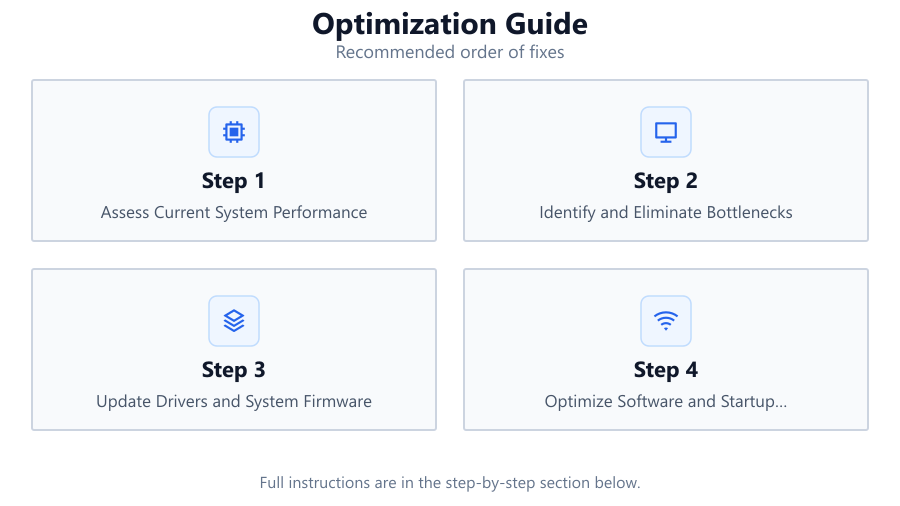
Assess Current System Performance
Begin by running system benchmarks to determine your PC’s strengths and weaknesses. Use tools like Cinebench for CPU, 3DMark for GPU, and CrystalDiskMark for storage. This information will help you pinpoint areas that need improvement.
Identify and Eliminate Bottlenecks
Analyze your benchmark results to spot bottlenecks, such as a CPU holding back your GPU. Use the CPU Comparison tool to compare your processor against recommended models for your tasks. Plan upgrades based on these insights.
Update Drivers and System Firmware
Outdated drivers and BIOS can cause compatibility and performance issues. Download the latest updates from component manufacturers’ websites, and regularly check for new releases to keep your system running smoothly.
Optimize Software and Startup Programs
Uninstall unnecessary applications and disable startup programs that drain resources. Open Task Manager to review which apps launch at boot, and turn off those you do not need. This reduces background load and improves responsiveness.
Adjust BIOS and Power Settings
Configure your BIOS for optimal performance by enabling XMP profiles for memory and ensuring CPU features like Turbo Boost are active. In Windows, set your power plan to High Performance for maximum speed during intensive tasks.
Monitor Temperatures and Stability
Use monitoring tools like HWMonitor or Core Temp to keep an eye on system temperatures. Ensure your cooling is adequate and dust filters are clean. Stability testing after making changes helps prevent unexpected crashes.
Comparison
| CPU Model | Core Count | Use Case |
|---|---|---|
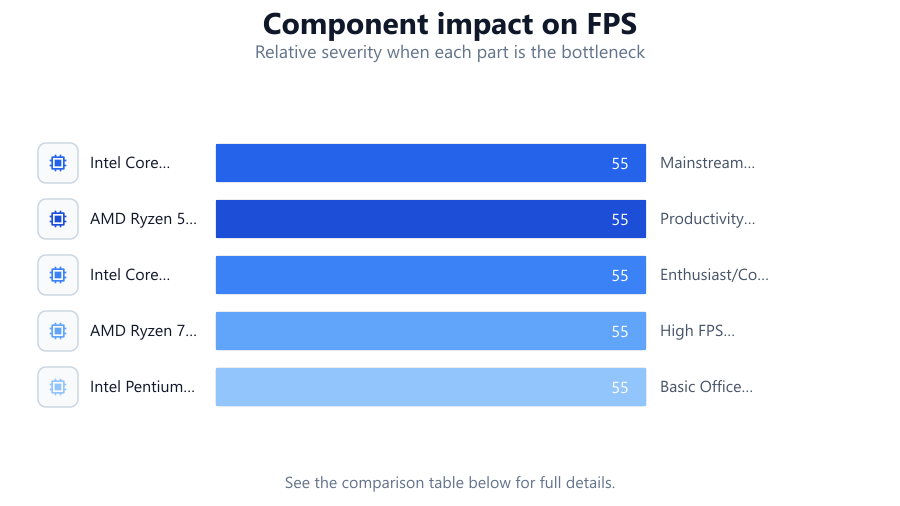
| Intel Core i5-12400F | 6 | Mainstream Gaming |
| AMD Ryzen 5 5600X | 6 | Productivity & Gaming |
| Intel Core i9-13900K | 24 | Enthusiast/Content Creation |
| AMD Ryzen 7 7800X3D | 8 | High FPS Gaming |
| Intel Pentium Gold G6400 | 2 | Basic Office Tasks |
Common mistakes
Mistake
Upgrading the GPU without checking CPU compatibility
Fix: Always compare your CPU with newer GPUs using CPU Comparison to ensure your processor will not bottleneck the graphics card.
Mistake
Neglecting driver and BIOS updates
Fix: Schedule monthly checks for driver and BIOS updates to maintain peak compatibility and performance.
Mistake
Ignoring power and cooling requirements
Fix: Verify your power supply and cooling system are sufficient before upgrading components or overclocking.
Mistake
Overloading system with unnecessary background apps
Fix: Regularly review and disable unneeded startup programs to free up resources.
Troubleshooting
Frequent system crashes under load
Likely cause: Overheating or unstable overclock
What to do: Check CPU and GPU temperatures. Improve cooling or revert overclock settings for stability.
Slow application launches despite fast hardware
Likely cause: Fragmented storage or heavy background tasks
What to do: Defragment HDDs, enable TRIM for SSDs, and disable unnecessary startup apps.
Low in-game FPS after hardware upgrade
Likely cause: CPU bottleneck or outdated drivers
What to do: Use CPU Comparison to verify CPU suitability and update all relevant drivers.
Unrecognized hardware after installing new components
Likely cause: Missing or outdated BIOS/firmware
What to do: Update your motherboard BIOS and reinstall chipset drivers.
Recommendations
- Use CPU Comparison before any major upgrade to ensure component compatibility and avoid bottlenecks.
- Benchmark your system regularly to track improvements and catch issues early.
- Keep your operating system and drivers up to date for security and optimal performance.
- Invest in quality cooling solutions if you plan to overclock or run demanding applications.
- Balance your upgrades across CPU, GPU, memory, and storage for the best overall performance.
Frequently asked questions
How do I know if my CPU is bottlenecking my system?
Compare your CPU to your GPU and workload requirements using CPU Comparison. If your CPU is much weaker than your other components, it may limit your system’s performance.
What are the safest ways to optimize my PC for gaming?
Update all drivers, use High Performance power settings, and disable unnecessary background apps. Consider moderate overclocking if your cooling is adequate.
Is it better to upgrade my CPU or GPU first?
It depends on your workload. Use CPU Comparison to see if your CPU matches your desired GPU. Upgrade the component that is holding back your performance the most.
How often should I update drivers and BIOS?
Check for updates at least once a month, or immediately after installing new hardware, to ensure compatibility and stability.