
Guide
Optimization Guide
Want to lower your gaming PC's electricity usage and save money? This optimization guide shows you step by step how to analyze, reduce, and optimize your power consumption.
Updated 2026-07-05
Understanding PC Power Consumption and Its Impact
Gaming PCs can be power-hungry, especially with high-end components, RGB lighting, and extended gaming sessions. Every watt your system draws not only affects your electricity bill but also contributes to heat and potential hardware wear. Understanding exactly how much power your PC uses is key to optimizing both performance and efficiency.
The first step in any optimization guide is to measure your current power consumption. This is where the Gaming PC Electricity Calculator becomes invaluable. By entering your hardware details, typical gaming hours, and local electricity rates, you get an accurate estimate of daily, monthly, and yearly costs. This data forms the foundation for all optimization efforts.
Once you know your usage, you can target specific hardware or habits that drive up costs. From selecting efficient components to tweaking software settings, every change you make can translate to real savings over time. Optimizing your gaming PC does not mean sacrificing performance; instead, it is about finding the ideal balance between power, cost, and gaming experience.
Advanced Strategies for Optimizing Your Gaming PC's Efficiency
After establishing your baseline with the Gaming PC Electricity Calculator, it is time to dive deeper into actionable optimization strategies. Start by reviewing your hardware: CPUs and GPUs are typically the largest power consumers. Consider undervolting or enabling efficiency modes in your BIOS or GPU software, which can dramatically reduce power draw with minimal impact on frame rates.
Another key area is peripheral management. Monitors, speakers, and RGB accessories also add to your total power consumption. Use smart plugs or power strips to turn off multiple devices when not in use. Optimize your in-game settings to reduce unnecessary GPU load, especially in titles where maximum settings provide diminishing visual returns.
Regular system maintenance, such as dusting fans and ensuring good airflow, prevents overheating and keeps components running efficiently. Finally, always update your drivers and firmware, as manufacturers often include optimizations that can lower power usage. By combining hardware tweaks, software adjustments, and smart usage habits, you can significantly cut electricity costs while maintaining a top-tier gaming experience.
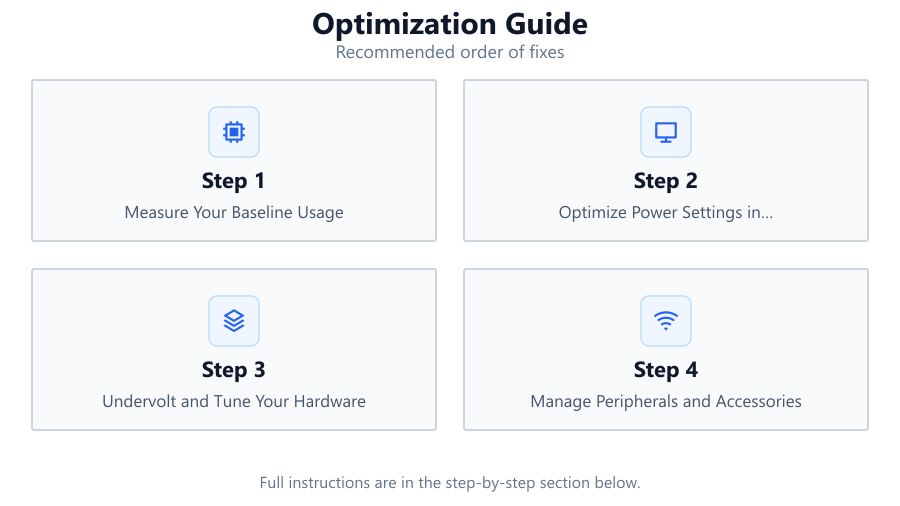
Step-by-step
Measure Your Baseline Usage
Use the Gaming PC Electricity Calculator to input your system specs, gaming habits, and local rates. Record the estimated daily, monthly, and annual electricity consumption and costs. This provides a clear starting point for your optimization efforts.
Optimize Power Settings in Windows and BIOS
Switch to a balanced or power saver profile in your operating system. In your BIOS, enable features like CPU power saving states and adjust fan curves to reduce unnecessary power draw during idle or low-load periods.
Undervolt and Tune Your Hardware
Undervolting your CPU and GPU can lead to significant power savings with minimal performance loss. Use tools like MSI Afterburner or Intel XTU to safely lower voltages and monitor system stability.
Manage Peripherals and Accessories
Unplug or power off monitors, speakers, and RGB lighting when not in use. Use smart power strips to control multiple devices at once and prevent phantom power draw from idle peripherals.
Maintain and Clean Your System
Dust buildup can cause overheating, forcing fans and components to work harder and use more power. Clean your PC regularly and ensure proper airflow to maintain efficiency.
Comparison
| Component | Typical Power (W) | Optimization Potential |
|---|---|---|
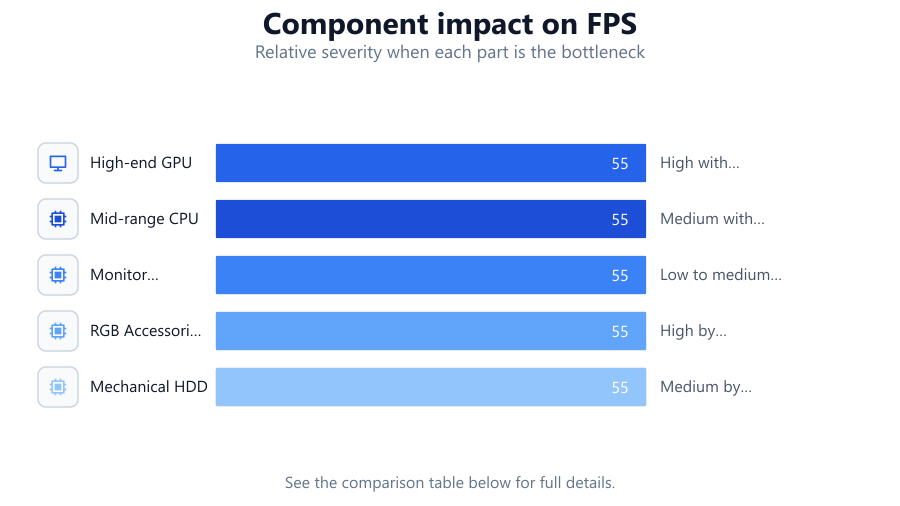
| High-end GPU | 250-350 | High with undervolting and FPS caps |
| Mid-range CPU | 65-125 | Medium with efficiency modes |
| Monitor (27" 144Hz) | 30-50 | Low to medium by lowering brightness |
| RGB Accessories | 10-30 | High by disabling or unplugging |
| Mechanical HDD | 6-9 | Medium by using SSDs and sleep settings |
Common mistakes
Mistake
Ignoring idle and background power usage
Fix: Set your PC and peripherals to sleep or shut down when not in use. Use power management settings to reduce background consumption.
Mistake
Running all games at ultra settings unnecessarily
Fix: Adjust in-game graphics settings to a balanced level that matches your display and desired frame rate. This reduces GPU load and power use.
Mistake
Neglecting to clean dust from components
Fix: Schedule regular cleaning to maintain airflow and cooling efficiency, which keeps power consumption in check.
Mistake
Not using the Gaming PC Electricity Calculator regularly
Fix: Revisit the calculator after hardware or usage changes to ensure your optimizations are effective and up to date.
Troubleshooting
PC runs hotter after optimization steps
Likely cause: Undervolting or power-saving features may have affected fan profiles or airflow
What to do: Recheck fan settings and ensure cooling is adequate. Restore default values if necessary and reapply optimizations gradually.
Unexpected increase in electricity bill
Likely cause: Background programs or peripherals left on when not gaming
What to do: Check for unnecessary startup programs and use power strips or smart plugs to fully shut down accessories.
System instability after undervolting
Likely cause: Undervolting may be too aggressive for your hardware
What to do: Incrementally reduce undervolt values and stress test after each adjustment. Only use stable settings.
Recommendations
- Regularly use the Gaming PC Electricity Calculator to track your progress and identify new optimization opportunities.
- Prioritize undervolting and efficient component selection when building or upgrading your PC.
- Combine software, hardware, and usage optimizations for the best results.
- Educate other household members on basic power-saving habits related to shared gaming PCs.
Frequently asked questions
How much can I realistically save by optimizing my gaming PC's power usage?
Depending on your hardware and habits, you can save anywhere from 10 to 40 percent on electricity costs by following optimization steps in this guide.
Does undervolting my GPU or CPU void the warranty?
Undervolting is generally safe and does not void warranties on most modern hardware, but always check your manufacturer's policy to be sure.
How often should I use the Gaming PC Electricity Calculator?
Use the calculator whenever you change hardware, gaming habits, or electricity rates. Regular checks help ensure your optimizations remain effective.
Do RGB lights really use much power?
RGB accessories can add 10 to 30 watts to your overall consumption. Disabling or unplugging them when not needed can contribute noticeable savings over time.