
Guide
Complete Beginner's Guide
Curious about your GPU temperature? This complete beginners guide explains everything you need to know about safe graphics card temps, why they matter, and how to use the GPU Temperature Estimator for fast answers.
Updated 2026-07-05
What is GPU Temperature and Why Does It Matter?
Your GPU, or graphics processing unit, is one of the most important components in your PC. It handles everything from gaming graphics to video editing and even some AI workloads. Like any electronic part, it generates heat as it works. Monitoring your GPU temperature is vital for the health and performance of your system.
If your GPU gets too hot, it can slow down, crash, or even suffer permanent damage over time. On the other hand, keeping it too cool is unnecessary and can lead to extra noise and energy usage. Most modern GPUs are designed to operate safely up to 80-85°C under heavy load, but the exact "safe" range depends on your specific model, case airflow, and room temperature.
The GPU Temperature Estimator is a specialized tool designed to help you quickly figure out what temperature range is normal for your hardware and environment. By inputting your GPU model, workload, room temp, and airflow, you get a data-driven estimate tailored to your setup. This gives you a clear idea of whether your GPU is running as expected, or if you need to take steps to improve cooling.

For beginners, understanding where your GPU stands is the first step to preventing problems before they start. This guide will walk you through the basics, show you how to use the estimator, and provide practical tips for keeping your graphics card in top shape.
How to Check and Manage Your GPU Temperature
To get started, you need to know how to actually check your GPU temperature. Most graphics cards have built-in sensors, and you can see their readings using tools like GPU-Z, HWMonitor, or even built-in software from NVIDIA and AMD. However, these tools only show you the current temperature, not what is normal for your specific situation.
This is where the GPU Temperature Estimator comes in. By factoring in your card model, what you are doing (gaming, rendering, idle), your room's temperature, and your PC's airflow, it provides a range you should expect to see. This helps you easily spot if your GPU is running hotter than it should, or if everything is actually fine.
Managing your GPU temperature often comes down to three main factors: airflow, workload, and dust. Make sure your PC case has enough fans and that they are set up to move air efficiently. Regularly clean your case and GPU fans to remove dust, which can act like a blanket and trap heat. Also, be aware of how demanding your tasks are. Games and 3D rendering will naturally make your GPU hotter than browsing the web or watching videos.
If you notice your GPU consistently running hotter than the estimator suggests, it may be time to upgrade your case fans, reapply thermal paste, or even consider a better aftermarket GPU cooler. Remember, maintaining healthy GPU temps is not just about avoiding damage. It can also improve performance and extend the lifespan of your entire system.
Step-by-step
Identify Your GPU Model
Open Device Manager or use tools like GPU-Z to find out the exact model of your graphics card. This is the first step in getting accurate temperature estimates.
Check Your Workload
Are you gaming, rendering, or just browsing? The type of activity heavily impacts your GPU temperature. Take note of what you are doing when you check temps.
Measure Ambient Room Temperature
Room temperature affects your GPU's cooling. Use a thermometer or a smart home sensor to measure the air near your PC, especially if your room gets hot.
Assess Case Airflow
Inspect your PC case for intake and exhaust fans. Make sure nothing is blocking airflow and that fans are free of dust.
Use the GPU Temperature Estimator
Visit the GPU Temperature Estimator tool and enter your GPU model, workload, ambient temperature, and airflow rating. Review the recommended temperature range to see if your GPU is within safe limits.
Monitor and Take Action
Regularly check your GPU temp, especially after changes like new hardware or moving your PC. If temps are high, follow recommendations to improve cooling.
Comparison
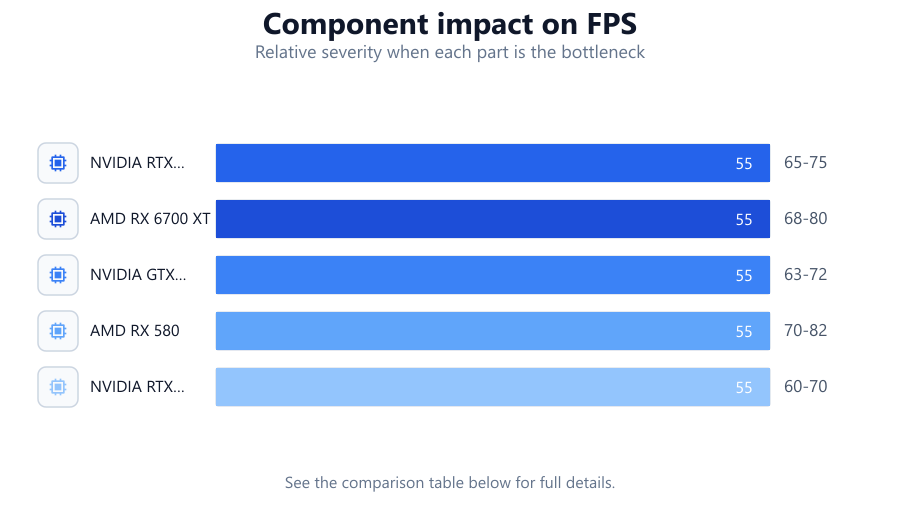
| GPU Model | Idle Temp (°C) | Gaming Temp (°C) |
|---|---|---|
| NVIDIA RTX 3060 | 35-45 | 65-75 |
| AMD RX 6700 XT | 38-48 | 68-80 |
| NVIDIA GTX 1660 | 33-42 | 63-72 |
| AMD RX 580 | 35-46 | 70-82 |
| NVIDIA RTX 4080 | 37-47 | 60-70 |
Common mistakes
Mistake
Ignoring GPU temperature altogether
Fix: Regularly check your GPU temps, especially during gaming or heavy workloads. Use the GPU Temperature Estimator to understand safe ranges.
Mistake
Assuming all GPUs have the same safe temperature
Fix: Different models and manufacturers have different safe limits. Always check your specific GPU's recommended range using the estimator.
Mistake
Believing that low temperatures are always better
Fix: Too much cooling can mean more noise and energy use without any real benefit. Aim for safe, manufacturer-recommended temperatures.
Mistake
Not cleaning dust from fans and heatsinks
Fix: Regularly clean your case and GPU fans to maintain optimal airflow and cooling performance.
Troubleshooting
GPU temperature spikes suddenly during gaming
Likely cause: Poor case airflow or blocked intake/exhaust
What to do: Check for dust buildup, clear any obstructions, and ensure all fans are working properly.
System crashes or shuts down under load
Likely cause: GPU overheating due to inadequate cooling
What to do: Compare your temps to the GPU Temperature Estimator. Upgrade cooling if temps are above recommended ranges.
Fan noise increases dramatically
Likely cause: Fans working harder to compensate for high temps
What to do: Clean your fans, check thermal paste, and improve case airflow to reduce temperatures.
GPU temperature readings are inconsistent or missing
Likely cause: Outdated drivers or monitoring software
What to do: Update your GPU drivers and use reliable monitoring tools compatible with your hardware.
Recommendations
- Use the GPU Temperature Estimator to determine the safe temperature range for your specific setup.
- Clean your PC and GPU fans at least every three months to prevent dust buildup.
- Ensure proper airflow by having at least one intake and one exhaust fan in your case.
- Monitor your GPU temperature regularly, especially after hardware changes or when using new demanding software.
- If your GPU often exceeds the recommended range, consider upgrading your cooling solution or improving your case airflow.
Frequently asked questions
What is a safe temperature for my GPU?
Most GPUs are safe up to 80-85°C under load, but the ideal range depends on your specific card. Use the GPU Temperature Estimator for a tailored recommendation.
How often should I check my GPU temperature?
Check your GPU temp regularly during gaming or heavy workloads, and always after system changes or cleaning.
Will high GPU temperature damage my graphics card?
Consistently high temperatures can shorten your GPU's lifespan and cause instability. Keeping temps within recommended ranges is key to long-term reliability.
Does room temperature really affect GPU cooling?
Yes, higher room temperatures mean your GPU will run hotter. The GPU Temperature Estimator factors this in for accurate recommendations.