
Guide
Common Buying Mistakes
Avoid the most common buying mistakes when shopping for SSDs. Learn what to watch for and how the SSD Speed Calculator can save you from costly errors.
Updated 2026-07-05
Understanding Common Buying Mistakes for SSDs
Choosing the right SSD can be overwhelming, especially with dozens of models and technical specs to sift through. Many buyers fall into common traps like overpaying for unnecessary speed, ignoring compatibility, or misreading manufacturer specs. These mistakes can lead to wasted money and disappointing performance.
The SSD Speed Calculator helps you evaluate real-world transfer times and compare NVMe and SATA drives before you buy. With this tool, you can see how much speed actually matters for your use case, and avoid paying for features you may never use.
Knowing the common buying mistakes and how to avoid them is essential, whether you are upgrading an older PC or building a new system from scratch. This guide details the most frequent errors, how to spot them, and practical steps to ensure your next SSD purchase delivers the value and performance you expect.
How to Avoid the Biggest SSD Buying Mistakes
One of the most frequent mistakes is assuming higher numbers always mean better performance. While NVMe SSDs can offer blazing speeds on paper, the real-world benefits depend on your motherboard, workload, and even the type of files you transfer. Relying solely on marketing claims can lead to frustration if you do not understand the bottlenecks in your system.
Another common pitfall is ignoring the form factor and interface. Not all SSDs fit every laptop or desktop, and buying the wrong type can mean costly returns or even incompatible upgrades. Always check your device's compatibility and consider both the physical connector (M.2, SATA, PCIe) and protocol (NVMe, AHCI).
Some users overlook endurance ratings and warranty terms, only to face premature drive failure or limited support later on. Others forget to account for real-world usage patterns, like frequent large file transfers or heavy multitasking, which can expose hidden weaknesses in cheaper drives. The SSD Speed Calculator allows you to simulate actual transfer times and see the impact of different drive choices, helping you avoid these and other classic mistakes.
Step-by-step
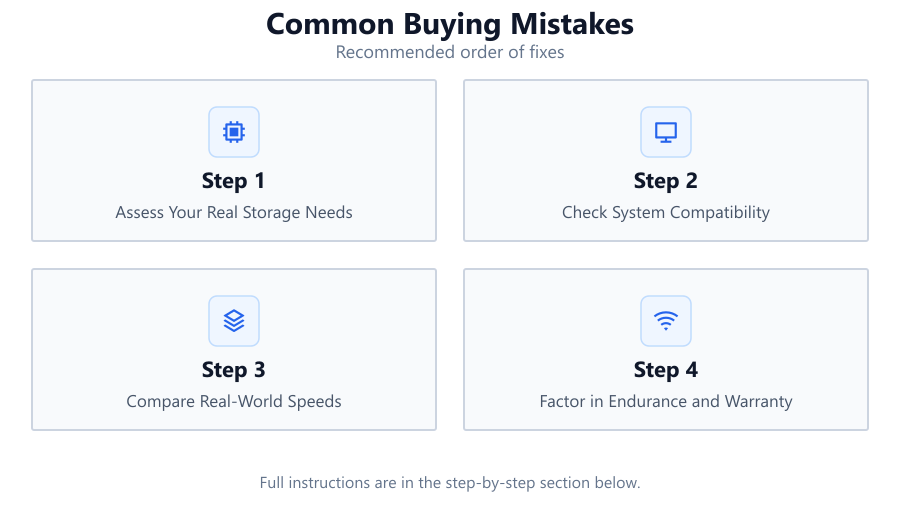
Assess Your Real Storage Needs
Before buying, determine how much storage space you truly need. Consider your operating system, applications, games, and personal files. Overestimating can lead to overspending, while underestimating may cause headaches down the line.
Check System Compatibility
Verify your motherboard or laptop supports the SSD type you want. Look at slots (M.2, SATA), interface (PCIe, SATA), and protocol (NVMe, AHCI) compatibility. Consult your device manual or manufacturer website for details.
Compare Real-World Speeds
Use the SSD Speed Calculator to estimate how fast different drives will transfer your typical files. This helps you spot diminishing returns and see if paying extra for high-end NVMe makes sense for your workflow.
Factor in Endurance and Warranty
Look for SSDs with sufficient TBW (terabytes written) or DWPD (drive writes per day) ratings for your usage. A longer warranty provides peace of mind, especially for heavy users.
Balance Budget and Performance
Set a realistic budget and prioritize features that matter most for your workload. Avoid flashy specs that do not align with your actual needs. Remember, the fastest drive is not always the best value.
Comparison
| Drive Type | Sequential Read (MB/s) | Typical Use Case |
|---|---|---|
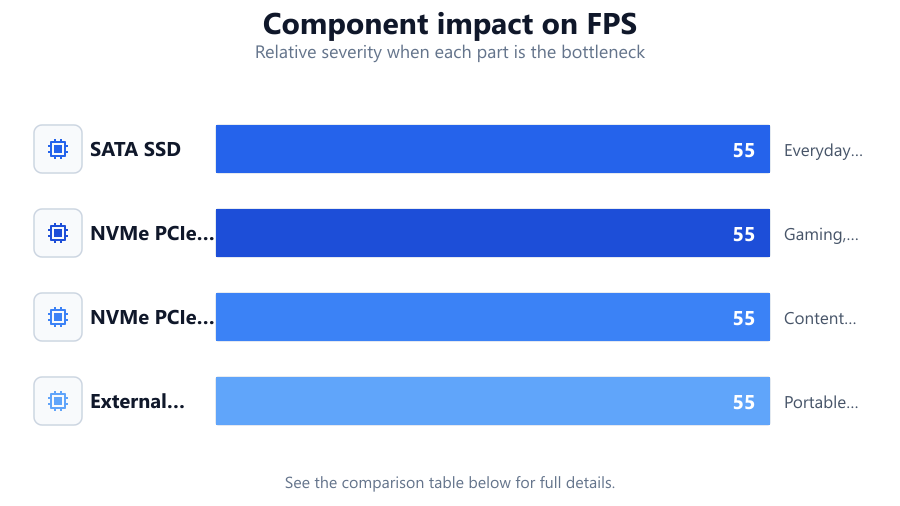
| SATA SSD | 500-550 | Everyday computing, OS drives |
| NVMe PCIe Gen 3 | 2000-3500 | Gaming, large file transfers |
| NVMe PCIe Gen 4 | 5000-7500 | Content creation, high-end builds |
| External USB SSD | 400-1000 | Portable storage, backups |
Common mistakes
Mistake
Buying the fastest SSD available without checking system compatibility
Fix: Always verify your motherboard and device support the drive type and protocol before purchasing.
Mistake
Focusing only on peak speeds in marketing materials
Fix: Use tools like the SSD Speed Calculator to estimate real-world performance for your tasks.
Mistake
Ignoring endurance ratings and warranty length
Fix: Choose SSDs with higher TBW or DWPD ratings and longer warranties for demanding workloads.
Mistake
Overestimating storage needs and overspending
Fix: Assess your actual usage and buy only as much storage as you realistically need.
Troubleshooting
SSD not detected during installation
Likely cause: Incompatible interface or missing BIOS support
What to do: Check device compatibility, update BIOS, and ensure correct slot and protocol are used.
Slower than expected file transfer speeds
Likely cause: System bottlenecks, outdated drivers, or connecting NVMe drives to slower PCIe lanes
What to do: Update drivers, verify drive placement, and use the SSD Speed Calculator to identify bottlenecks.
Frequent crashing or data errors
Likely cause: Low endurance SSDs wearing out or firmware issues
What to do: Check SMART data, update firmware, and consider drives with higher endurance ratings.
Recommendations
- Always use the SSD Speed Calculator to compare real-world transfer times before buying.
- Check your system's compatibility with the SSD type and protocol to avoid installation headaches.
- Balance your storage needs, performance expectations, and budget for the best value.
- Consider endurance ratings and warranty terms, especially for heavy or professional use.
- Do not be swayed by marketing numbers alone. Real-world performance matters most.
Frequently asked questions
What is the most common buying mistake with SSDs?
The most common mistake is buying the fastest or most expensive SSD without checking if your system can use its full speed or if you actually need that level of performance.
How do I know if an SSD will fit my laptop or desktop?
Check your device's specifications for supported form factors (like M.2 or 2.5-inch), interface (SATA or PCIe), and protocol (NVMe or AHCI). Consult your motherboard or laptop manual if unsure.
Do SSD endurance ratings really matter?
Yes. Endurance ratings like TBW indicate how much data can be written before possible failure. For heavy users, choosing a drive with a higher endurance rating and longer warranty is important.
Will a faster SSD improve my gaming or everyday performance?
For most games and daily tasks, the difference between SATA and NVMe SSDs is minimal. Use the SSD Speed Calculator to see if faster transfer speeds will actually benefit your specific workload.