
Guide
How to Choose the Right Hardware
Selecting the right hardware for Stable Diffusion can be overwhelming. This guide breaks down everything you need to know to make the best choice for your AI image generation workflow.
Updated 2026-07-05
Understanding Your Hardware Needs for Stable Diffusion
Stable Diffusion is a powerful AI tool that generates stunning images, but it demands the right hardware to run efficiently. Before investing in any components, it is crucial to understand how your hardware choices affect both speed and quality. The right CPU, GPU, RAM, and storage can mean the difference between smooth, fast image generation and frustrating bottlenecks.
The most critical component for Stable Diffusion is the GPU. This is where most of the model's computations happen, and your GPU's VRAM directly limits the image size and batch settings you can use. However, your system's CPU, RAM, and storage also play essential supporting roles. An underpowered CPU or insufficient RAM can slow down workflows or even cause errors when generating images.
Other factors to consider include the compatibility of your hardware components, your power supply's capacity, and the cooling solutions required to keep your system stable during long AI art sessions. Balancing your budget across these components is key to maximizing performance without overspending.
Key Factors: GPU, CPU, RAM, and Beyond
The GPU is the heart of any Stable Diffusion workstation. When choosing a GPU, focus on VRAM capacity first, most AI art models require at least 8GB for basic image generation, while larger models or higher batch sizes can need 12GB, 16GB, or more. The Stable Diffusion GPU Calculator is an essential tool for estimating your specific VRAM needs based on your intended workflow.
Beyond VRAM, GPU architecture and CUDA core count affect processing speed. NVIDIA cards are currently the most widely supported for AI workloads, with recent RTX and Quadro models offering the best performance per dollar. If you want to generate large images or use advanced models, prioritize GPUs with more VRAM, even if their raw speed is slightly lower.
The CPU should not be neglected. While not as critical as the GPU, a recent multi-core processor (such as an Intel i5/i7 or AMD Ryzen 5/7 from the last few generations) ensures your GPU is not held back by data transfer or pre-processing tasks. RAM requirements vary, but 16GB is the minimum recommended, with 32GB or more preferred for heavy multitasking or larger models.
Storage also matters: SSDs dramatically reduce model load times and speed up workflows. Make sure your power supply can handle the combined wattage of your components, and invest in good cooling to prevent thermal throttling. Lastly, always check compatibility between your motherboard, GPU, and other parts before buying.
Step-by-step
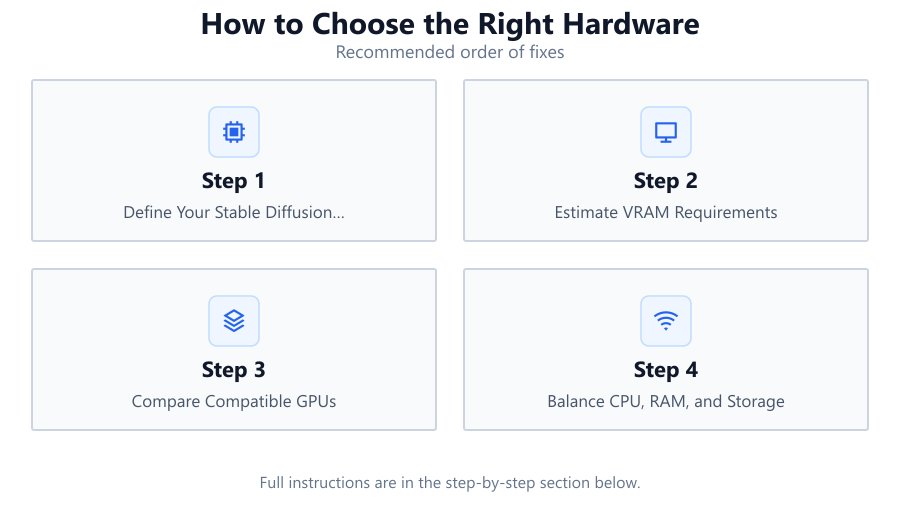
Define Your Stable Diffusion Workflow
List the models you plan to use, the typical image sizes, and how many images you want to generate at once. More demanding workflows will require more powerful hardware.
Estimate VRAM Requirements
Use the Stable Diffusion GPU Calculator to input your workflow details and get an instant estimate of the minimum VRAM needed. This will guide your GPU selection.
Compare Compatible GPUs
Research GPUs that meet or exceed your VRAM needs. Consider factors like CUDA core count, energy efficiency, and current market pricing to find the best fit.
Balance CPU, RAM, and Storage
Select a modern CPU and at least 16GB RAM. Opt for an SSD with sufficient space for models and data. Make sure all components are compatible and within your budget.
Check Power and Cooling
Verify that your power supply can support your GPU and CPU. Invest in quality cooling solutions to maintain performance during long image generation sessions.
Test and Optimize
After assembly, test your hardware with Stable Diffusion. Monitor temperatures and performance. Adjust settings or upgrade components if you encounter bottlenecks.
Comparison
| GPU Model | VRAM (GB) | Best For |
|---|---|---|
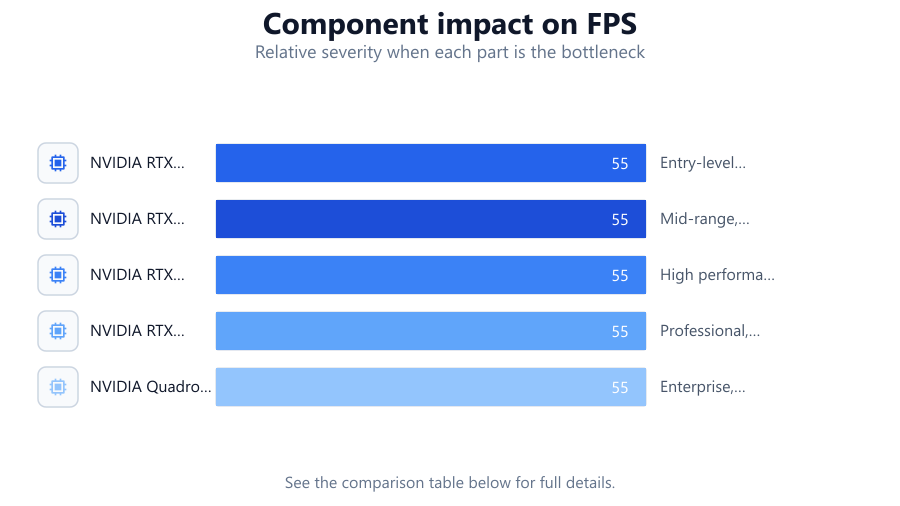
| NVIDIA RTX 3060 | 12 | Entry-level AI art, basic models |
| NVIDIA RTX 4060 Ti | 16 | Mid-range, larger images and models |
| NVIDIA RTX 4070 Super | 12 | High performance, faster workflows |
| NVIDIA RTX 4090 | 24 | Professional, large batch or complex models |
| NVIDIA Quadro RTX 6000 | 24 | Enterprise, research, advanced AI |
Common mistakes
Mistake
Choosing a GPU with too little VRAM
Fix: Always use the Stable Diffusion GPU Calculator to check your workflow requirements before buying.
Mistake
Neglecting CPU and RAM
Fix: Ensure your CPU and RAM are modern and sufficient to avoid bottlenecks, especially for multitasking or larger models.
Mistake
Forgetting about power and cooling
Fix: Upgrade your power supply and install good cooling to prevent crashes or performance drops during heavy use.
Mistake
Overlooking component compatibility
Fix: Double-check motherboard, GPU, and power supply compatibility before purchasing any parts.
Troubleshooting
Stable Diffusion runs out of memory during image generation
Likely cause: GPU VRAM is insufficient for the selected model or batch size
What to do: Reduce image size or batch settings, or upgrade to a GPU with more VRAM as indicated by the Stable Diffusion GPU Calculator.
System crashes or freezes under load
Likely cause: Insufficient power supply or inadequate cooling
What to do: Upgrade your power supply unit and ensure all components are properly cooled.
Slow image generation speeds
Likely cause: Underpowered CPU or slow storage
What to do: Upgrade to a recent multi-core CPU and use an SSD for model storage and swap files.
Recommendations
- Use the Stable Diffusion GPU Calculator before selecting any GPU to ensure it meets your needs.
- Prioritize GPUs with higher VRAM if you plan to work with large images or advanced models.
- Pair your GPU with at least 16GB RAM and a recent multi-core CPU for the best experience.
- Invest in a high-quality power supply and cooling solution to protect your components and maintain performance.
- Check for compatibility between all parts, especially if building a new system from scratch.
Frequently asked questions
How much VRAM do I need for Stable Diffusion?
Most users need at least 8GB of VRAM for basic models, but 12GB or more is recommended for larger images or advanced workflows. Use the Stable Diffusion GPU Calculator to get a precise estimate.
Is CPU or GPU more important for AI art generation?
The GPU is the most important component for Stable Diffusion, but the CPU still matters. A weak CPU can bottleneck your system, so use a recent multi-core processor.
Can I run Stable Diffusion on a laptop?
Yes, if the laptop has a dedicated GPU with enough VRAM (ideally 8GB or more). However, desktops offer better performance and upgrade options.
Do I need a specific GPU brand for Stable Diffusion?
NVIDIA GPUs are most widely supported for Stable Diffusion due to their CUDA support. Some AMD cards work, but compatibility and performance may vary.