
Guide
How to Choose the Right Hardware
Not sure how to choose the right hardware for your PC or device? This guide breaks down every key factor, compares options, and shows you how to use the USB Speed Calculator to make smarter buying decisions.
Updated 2026-07-05
Understanding Hardware Choices: What Matters Most
Choosing the right hardware is crucial for performance, reliability, and future-proofing your PC or device. Whether you are building a new system, upgrading an existing one, or simply shopping for peripherals, understanding what matters most will save you time and money.
Start by defining your use case. Are you a gamer, content creator, office worker, or casual user? Each use case demands different priorities: a gamer may focus on GPUs and fast storage, while an office user benefits more from efficiency and reliability.
Budget is another core factor. It is tempting to buy the most powerful hardware, but balancing cost with actual needs leads to better satisfaction. Compare the return on investment for each component, and remember that spending more on one part may limit your options elsewhere.
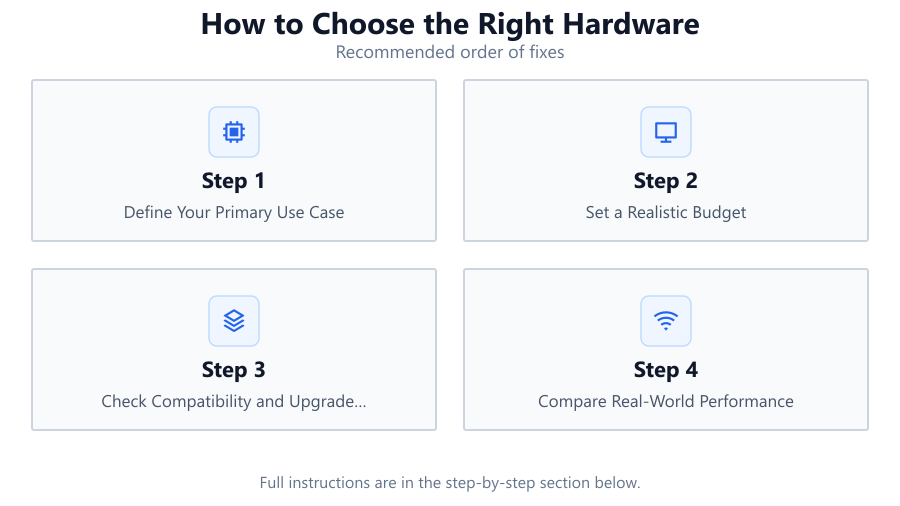
Compatibility is also vital. Check that all parts work together, from CPU socket types to power supply ratings. Always consult the motherboard manual for supported hardware, and use online tools to double-check compatibility before you buy.
Key Specs, Real-World Performance, and USB Considerations
Dig deeper into the specs that matter. For processors, look at core count and clock speed, but also consider architecture and thermal design power (TDP). For memory, capacity is important, but so is speed and latency. Storage types (SSD vs HDD) impact speed, durability, and cost.
Graphics cards are essential for gaming and creative work. Compare not just VRAM and clock speeds, but also cooling solutions, power requirements, and supported features like ray tracing. For motherboards, prioritize expansion slots, USB ports, and networking capabilities.
Do not overlook peripherals like keyboards, monitors, and especially USB devices. USB versions differ greatly in speed and reliability. Choosing the right USB standard is critical for fast data transfers and future compatibility.
Use the USB Speed Calculator to estimate how long file transfers will take with different USB versions and storage devices. This helps you avoid bottlenecks and select hardware that matches your workflow. Real-world speeds can be much lower than theoretical maximums, so always check for protocol overhead and device limitations.
Step-by-step
Define Your Primary Use Case
Identify what you plan to do with your hardware. Gaming, office work, video editing, and general use all have different requirements. Make a list of your main activities and prioritize them before shopping.
Set a Realistic Budget
Determine how much you can spend overall. Allocate more funds to components that impact your tasks most, such as the GPU for gaming or the CPU for productivity. Remember to include the cost of accessories and future upgrades.
Check Compatibility and Upgrade Paths
Ensure that all parts will work together. Verify CPU socket, RAM type, power supply wattage, and case size. Look for motherboards with extra slots or headers if you plan to upgrade later.
Compare Real-World Performance
Do not rely solely on spec sheets. Look for benchmark results and user reviews that reflect actual performance in tasks similar to yours. Tools like the USB Speed Calculator can help you understand real-world transfer times for storage devices.
Evaluate Connectivity and Expansion
Check that your system supports the latest USB standards, Wi-Fi versions, and display outputs. If you frequently transfer large files, prioritize USB 3.2 or USB4 ports, and use the USB Speed Calculator to estimate transfer times.
Comparison
| Component | Key Spec | Real-World Impact |
|---|---|---|
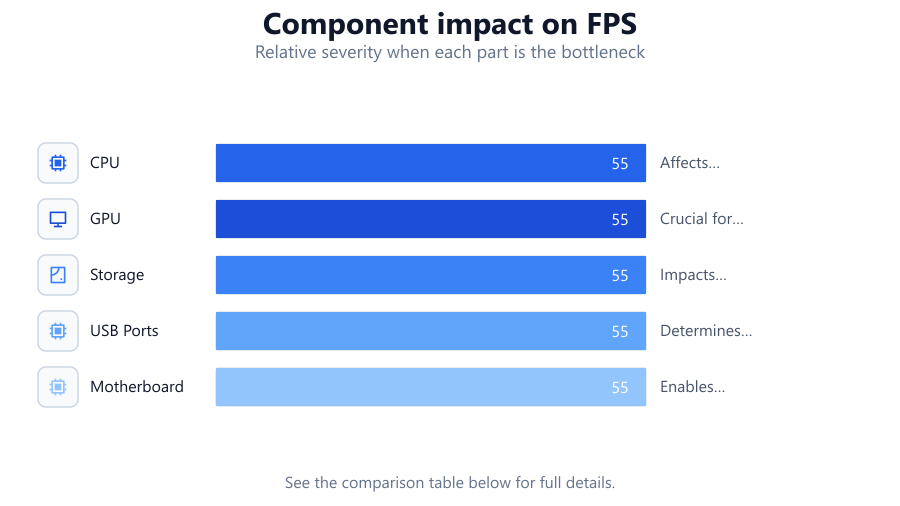
| CPU | Core Count, Clock Speed | Affects multitasking and speed in demanding apps |
| GPU | VRAM, Architecture | Crucial for gaming, 3D, and video work |
| Storage | SSD vs HDD, Interface | Impacts boot times and file transfer speed |
| USB Ports | Version (2.0, 3.0, 3.2, USB4) | Determines how fast you can move data |
| Motherboard | Chipset, Expansion Slots | Enables future upgrades and connectivity |
Common mistakes
Mistake
Overpaying for high-end hardware you do not need
Fix: Assess your real needs and avoid buying top-tier parts for basic tasks. Use benchmarks and user reviews to match performance to your workload.
Mistake
Ignoring compatibility between components
Fix: Double-check CPU sockets, RAM types, and power supply requirements before purchase. Use compatibility checkers and manufacturer support lists.
Mistake
Underestimating the importance of USB and storage speed
Fix: Choose the right USB version for your needs and use the USB Speed Calculator to understand how long large file transfers will actually take.
Troubleshooting
PC does not power on after hardware upgrade
Likely cause: Component incompatibility or incorrect installation
What to do: Re-check all cable connections, ensure components are fully seated, and verify compatibility in the motherboard manual.
File transfers are much slower than expected
Likely cause: Using an older USB port or cable
What to do: Connect devices to USB 3.0 or newer ports, and use the USB Speed Calculator to confirm expected transfer times.
System crashes or freezes under load
Likely cause: Insufficient power supply or overheating
What to do: Verify that your power supply meets the required wattage and ensure all cooling fans are working properly.
Recommendations
- Prioritize components that directly impact your main tasks. For gaming, invest in a good GPU and fast storage. For office work, focus on reliability and efficiency.
- Always check compatibility before purchasing new hardware. When in doubt, consult manufacturer support pages or forums.
- Use the USB Speed Calculator to estimate real file transfer times and avoid slowdowns in your workflow.
- Plan for future needs by choosing hardware with room for upgrades, such as extra RAM slots or newer USB ports.
Frequently asked questions
What is the most important factor when choosing hardware?
The most important factor is matching your hardware to your actual use case. Identify your main tasks and choose components that directly improve performance for those activities.
How do I know which USB version I need?
Choose a USB version based on your transfer speed needs. For large file transfers, USB 3.2 or USB4 is recommended. Use the USB Speed Calculator to compare transfer times for different USB versions.
Can I mix old and new hardware in the same system?
In many cases yes, but you must verify compatibility. Some older components may bottleneck performance or may not physically fit in newer systems.
How can I future-proof my hardware purchase?
Select a motherboard with extra expansion slots, opt for higher USB standards, and buy a power supply with some headroom. This allows for easier upgrades down the line.