
Guide
How to Choose the Right Hardware
Choosing the right hardware is essential for smooth AI video generation. This guide breaks down specs, pitfalls, and strategies so you can make the smartest investment.
Updated 2026-07-05
Understanding Your AI Video Generation Needs
AI video generation has exploded in popularity, but getting high-quality results depends heavily on your hardware choices. Whether you are an aspiring creator, a business owner, or a tech enthusiast, knowing how to choose the right hardware is key to saving time, money, and frustration.
The most important components are your GPU (graphics card), VRAM (video memory), CPU, RAM, and storage speed. Each of these plays a unique role in the workflow, but your GPU and VRAM are the biggest factors for rendering speed and final quality. Before you buy, assess your project’s requirements: target resolution, video duration, and the complexity of the AI models you plan to use.
Many users underestimate just how demanding AI video generation can be. The difference between a smooth workflow and endless bottlenecks often comes down to matching your hardware to your ambitions. Use tools like the AI Video Generation GPU Calculator to get a tailored recommendation based on your actual project specs, not guesswork.
Key Hardware Specs for AI Video Generation
Let’s break down the most critical hardware specs:
- GPU (Graphics Processing Unit): The GPU is the primary engine for AI video generation. Performance is determined by its core count, architecture, and most importantly, VRAM. High-end NVIDIA RTX cards (such as the 4090 or A6000) are often preferred for their CUDA core count and wide support in AI frameworks.
- VRAM (Video Memory): VRAM determines the maximum resolution and complexity of your projects. For most modern AI video models, 12GB is the bare minimum for HD, with 24GB or more recommended for 4K or longer videos. Insufficient VRAM causes crashes or forces you to lower quality.
- CPU: While the GPU does the heavy lifting, a fast CPU (with high core/thread count) ensures data is fed to the GPU efficiently. For multi-tasking or simultaneous video generation, invest in at least a modern 8-core processor.
- RAM: System memory buffers data between your storage, CPU, and GPU. 32GB is a safe baseline, but 64GB is recommended for larger projects or when multitasking.
- Storage: Fast NVMe SSDs vastly reduce load times and speed up asset caching. Do not rely on traditional hard drives for active project files.
By understanding these specs, you can avoid overspending on the wrong component or being held back by a bottleneck. The AI Video Generation GPU Calculator can help you balance these elements for your exact use case.
Step-by-step
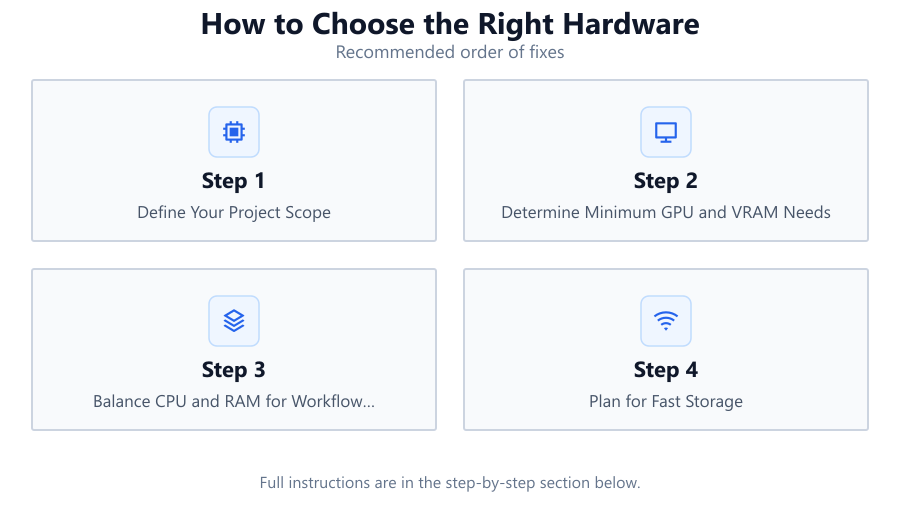
Define Your Project Scope
Start by outlining your typical video project. Note the target resolution (HD, 4K, 8K), average video length, and whether you will use basic or advanced AI models. This information will shape your hardware requirements more than any generic advice.
Determine Minimum GPU and VRAM Needs
Consult the documentation for your preferred AI video tools to find their GPU and VRAM recommendations. For most, 12GB VRAM is the minimum for basic HD projects, while 24GB or more is ideal for 4K or complex effects. Use the AI Video Generation GPU Calculator to quickly estimate the ideal GPU for your needs.
Balance CPU and RAM for Workflow Efficiency
Choose a recent multi-core CPU (at least 8 cores) to prevent data bottlenecks. Pair it with 32GB RAM minimum. If you plan to run multiple generation tasks or edit while generating, 64GB RAM provides more headroom.
Plan for Fast Storage
Install your AI video tools and project files on a fast NVMe SSD. This speeds up asset loading and decreases generation times. Consider a secondary SSD for scratch space if you work with very large files.
Future-Proof Your Build
AI models are evolving rapidly. If your budget allows, get a GPU and VRAM configuration that exceeds your current needs by at least 20%. This ensures your system remains relevant for longer and can handle new, more demanding models.
Comparison
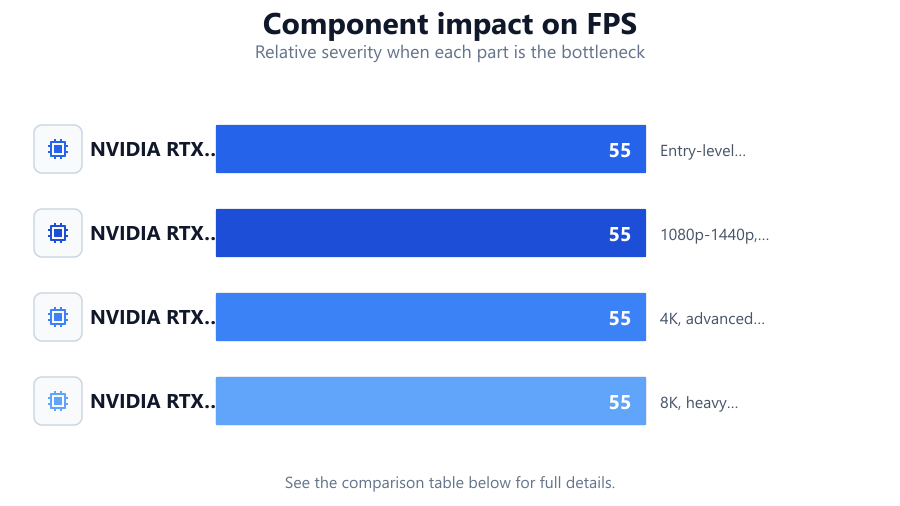
| GPU Model | VRAM (GB) | Best For |
|---|---|---|
| NVIDIA RTX 4060 | 8 | Entry-level HD video generation |
| NVIDIA RTX 4070 Ti | 12 | 1080p-1440p, moderate complexity |
| NVIDIA RTX 4090 | 24 | 4K, advanced models, professional use |
| NVIDIA RTX A6000 | 48 | 8K, heavy workloads, studio pipelines |
Common mistakes
Mistake
Underestimating VRAM requirements
Fix: Always check the minimum VRAM needed for your target resolution and model. Use the AI Video Generation GPU Calculator to avoid costly missteps.
Mistake
Focusing only on GPU and ignoring CPU/RAM
Fix: A slow CPU or insufficient RAM can bottleneck even the best GPU. Invest in balanced components for optimal performance.
Mistake
Using slow storage for project files
Fix: Move active projects to a fast NVMe SSD to prevent slowdowns during video generation and editing.
Troubleshooting
Video generation crashes or fails to start
Likely cause: Insufficient VRAM for the selected resolution or model
What to do: Lower your project resolution or switch to a GPU with more VRAM, as recommended by the AI Video Generation GPU Calculator.
Slow rendering speeds despite a high-end GPU
Likely cause: CPU or RAM bottleneck
What to do: Upgrade to a faster CPU or add more RAM to ensure data keeps up with your GPU.
Long load times for assets and models
Likely cause: Project files stored on a traditional hard drive
What to do: Move files to an NVMe SSD for significantly faster loading and caching.
Recommendations
- Use the AI Video Generation GPU Calculator to get a hardware estimate that matches your project’s demands.
- Prioritize VRAM over raw GPU core count for AI video generation.
- Choose a balanced system with a modern CPU and at least 32GB RAM.
- Invest in fast NVMe SSD storage for all active project files.
- Plan for future software updates by getting hardware that exceeds your minimum requirements.
Frequently asked questions
How much VRAM do I need for 4K AI video generation?
For most 4K AI video projects, 24GB VRAM is recommended. Some advanced models or longer videos may require even more.
Can I use a gaming GPU for AI video generation?
Yes, modern gaming GPUs like NVIDIA RTX cards work well for AI video tasks, but focus on VRAM and CUDA core count for best results.
Is CPU or GPU more important for AI video generation?
The GPU is most important for rendering, but a strong CPU ensures data keeps up with the GPU, especially in complex workflows.
How can I estimate the right hardware for my project?
Use the AI Video Generation GPU Calculator with your project specs for a tailored recommendation that removes the guesswork.