
Guide
Optimization Guide
Unlock your display's full potential with this comprehensive optimization guide. Learn how to analyze, calibrate, and fine-tune your screen settings using tools like What Is My Screen Size for accurate results.
Updated 2026-07-05
Understanding Display Optimization
Optimizing your display goes beyond adjusting brightness or resolution. It involves a holistic approach to ensure your monitor delivers sharp visuals, accurate colors, and efficient use of screen space. Whether you are gaming, designing, or browsing, the right settings can make a significant difference in your experience.
Many users overlook the actual usable screen area, device pixel ratio, and aspect ratio, which can impact readability and performance. Tools like What Is My Screen Size provide instant, browser-based analysis of these metrics, allowing you to assess your display’s true capabilities without installing drivers or extra software.
By understanding your current configuration, you can tailor optimizations to suit your needs. This guide will walk you through key steps, common mistakes, and strategic adjustments to maximize your screen's performance and comfort.
Advanced Techniques for Screen Optimization
Once you have a baseline understanding of your monitor’s specs with What Is My Screen Size, it’s time to dive deeper. Advanced optimization involves calibrating color profiles, adjusting refresh rates, and fine-tuning scaling settings for clarity and consistency across apps.
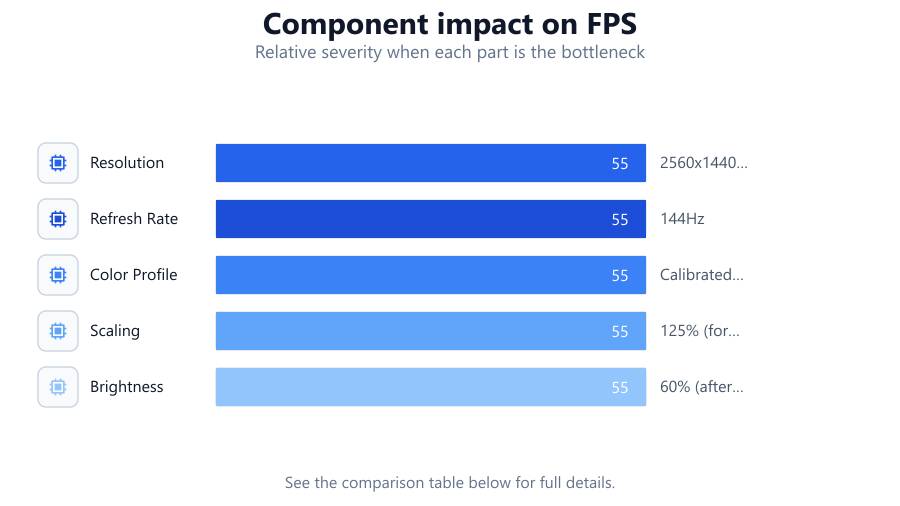
Monitor calibration ensures colors are accurate across devices, which is essential for designers and content creators. Refresh rate optimization can reduce eye strain and improve fluidity in motion, especially for gamers. Managing scaling and DPI settings is critical for high-resolution displays, ensuring that interface elements and text remain legible.
Combining these advanced adjustments with regular assessments using What Is My Screen Size will help you maintain optimal display performance as your needs or environment change.
Step-by-step
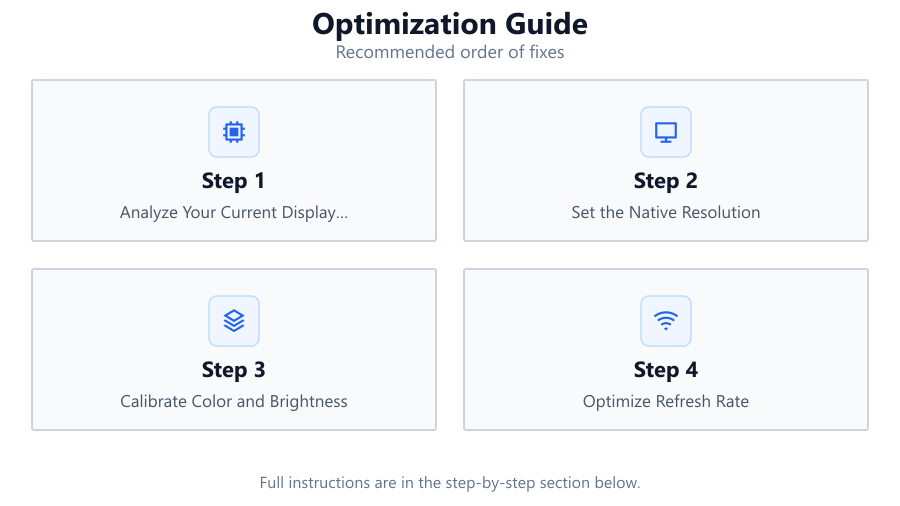
Analyze Your Current Display Settings
Start by visiting What Is My Screen Size to get an instant readout of your monitor's resolution, device pixel ratio, and viewport dimensions. Record this data as your optimization baseline.
Set the Native Resolution
Adjust your operating system settings to use your monitor's native resolution. This ensures the sharpest image and prevents scaling artifacts.
Calibrate Color and Brightness
Use built-in calibration tools or colorimeter devices to adjust gamma, white balance, and brightness. Accurate calibration can reduce eye strain and improve color fidelity.
Optimize Refresh Rate
Set your display to its highest supported refresh rate, especially if you are gaming or working with fast-moving visuals. This enhances smoothness and responsiveness.
Adjust Scaling and DPI Settings
For high-DPI screens, configure scaling so text and interface elements are readable. In Windows, use the Display Settings panel. On macOS, adjust the 'Scaled' option in Display Preferences.
Reassess with What Is My Screen Size
After adjustments, revisit What Is My Screen Size to confirm changes have taken effect and your display outputs the intended settings.
Comparison
| Setting | Default | Optimized |
|---|---|---|
| Resolution | 1920x1080 | 2560x1440 (native) |
| Refresh Rate | 60Hz | 144Hz |
| Color Profile | sRGB | Calibrated Custom |
| Scaling | 100% | 125% (for high-DPI) |
| Brightness | 80% | 60% (after calibration) |
Common mistakes
Mistake
Ignoring native resolution
Fix: Always set your monitor to its native resolution for the sharpest visuals and proper aspect ratio.
Mistake
Overlooking color calibration
Fix: Run a calibration tool or use built-in OS utilities to ensure colors are accurate and consistent.
Mistake
Using incorrect scaling settings
Fix: Configure scaling and DPI settings to match your screen size and resolution, preventing blurry text or UI elements.
Mistake
Not verifying changes after adjustment
Fix: After making changes, use What Is My Screen Size to confirm your display is running at the intended settings.
Troubleshooting
Text and icons appear blurry
Likely cause: Incorrect scaling or non-native resolution
What to do: Set your display to its native resolution and adjust scaling to recommended values.
Colors look washed out or oversaturated
Likely cause: Poor or missing color calibration
What to do: Use a calibration tool or built-in OS feature to correct color settings.
Screen flickers or stutters
Likely cause: Low refresh rate or incompatible settings
What to do: Increase refresh rate in display settings and ensure cables or adapters support the desired rate.
Screen area does not match physical monitor
Likely cause: Overscan or underscan settings in GPU or monitor menu
What to do: Disable overscan or adjust underscan in your graphics control panel or monitor on-screen menu.
Recommendations
- Regularly check your display settings using What Is My Screen Size to catch any unintentional changes.
- Calibrate your monitor every few months or after major system updates.
- Use high-quality cables and adapters to support higher resolutions and refresh rates.
- If you use multiple monitors, optimize each one individually for the best overall experience.
- Update your graphics drivers regularly to ensure compatibility with the latest display technologies.
Frequently asked questions
Why should I use my monitor's native resolution?
Using the native resolution ensures the display shows crisp, clear images without scaling artifacts or distortion.
How can I check if my scaling settings are optimal?
Compare the readability of text and clarity of UI elements. What Is My Screen Size can help you verify if the viewport matches your intended settings.
Do refresh rates affect everyday tasks or just gaming?
Higher refresh rates can make all motion look smoother, reducing eye strain and improving overall experience, not just in games.
How often should I calibrate my display?
For most users, calibrating every few months or after major updates is sufficient. Designers or color-critical work may require more frequent calibration.