
FREE KEYBOARD TEST
Keyboard Tester: Test Every Key Online Free
If you suspect some keys on your keyboard are not working or want to verify key responsiveness before gaming or work, this tool gives you instant visual feedback. Test every key on your keyboard and verify key responsiveness directly in your browser, with a live key layout, heatmap, and clear progress tracking.
What Does This Tool Do?
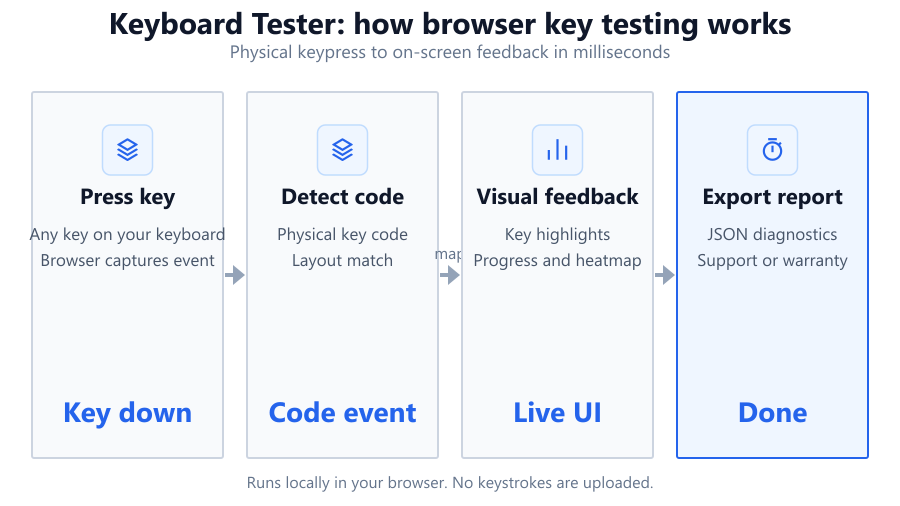
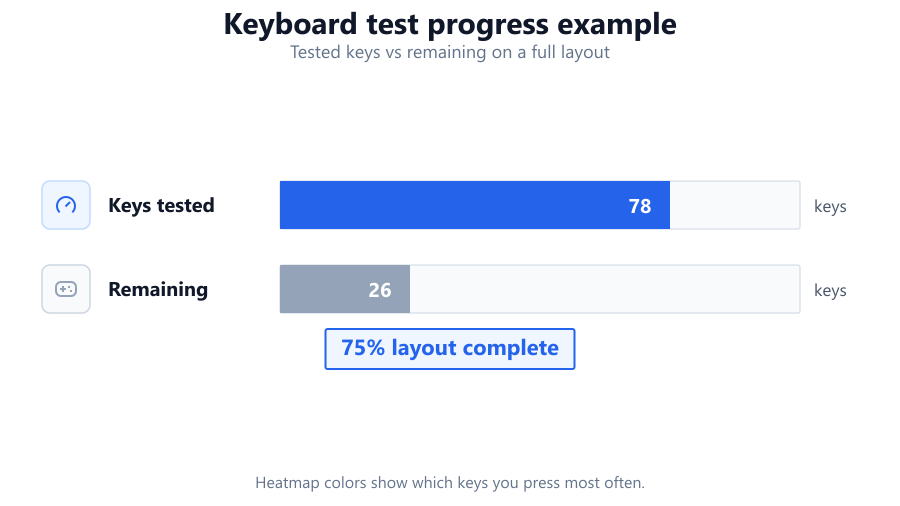
This browser-based keyboard tester lets you check the function of every key on your keyboard, all without installing anything. The tool displays a full ANSI keyboard layout on your screen, highlighting each key as you press it. You can see which keys have been tested, which are still untested, and track your progress with a visual bar. There is a real-time press heatmap that shows which keys you touch most, plus a sidebar displaying key codes and a log of recent key presses. You can switch between ANSI and ISO layouts using a label toggle. For advanced users, you can export your diagnostics as a JSON file to keep records or share results. Keep in mind, this tool is designed for basic key presence and responsiveness checks: it does not detect stuck keys, ghosting, or complex rollover issues. For advanced rollover and ghosting diagnostics, use a dedicated tool like keyboard-ghosting-test.
How to Use This Tool
Start by opening the tool in your browser on the device you want to test. The on-screen keyboard layout will match a standard compact ANSI setup by default. If you have a European or other ISO-style keyboard, use the layout toggle label to match your hardware. Press each key one by one. As you tap a key, it will light up on the virtual layout, and the progress bar will fill to show how much of your keyboard you have checked. The sidebar shows the key code for each press and logs recent activity, making it easy to spot double activations or missed inputs. The heatmap will update to reflect which keys you press most. Once you finish, you can export your session as a JSON file to document which keys were tested, along with their codes and any missed inputs. This is especially useful if you need to report issues or compare results between different keyboards. Remember, browser permissions or OS-level shortcuts can sometimes prevent certain special keys from registering in the browser. If a key does not appear to work here but functions elsewhere, try a different browser or check your operating system’s keyboard settings.
Understanding Your Results
After testing, the progress bar and key highlights let you know if all keys have registered. Keys that remain unhighlighted may indicate a hardware issue, OS setting, or browser limitation. The heatmap shows which keys you pressed the most, useful for identifying stuck or sticky keys during repeated testing. The key code panel displays the unique code your browser received, which is useful for developers or troubleshooting compatibility issues. The recent presses log captures the order and timing of each input, helping you spot accidental double presses or missed commands. If you export your results as JSON, you will have a record of all tested keys, their codes, and timestamps. If certain keys are consistently missing, like multimedia keys, function keys, or the Print Screen key, that is often a browser or OS restriction rather than a keyboard failure. Some keys, especially on gaming keyboards like the Corsair K70 or the Logitech G Pro, can be remapped or blocked by manufacturer software, so double-check your configuration if results seem off.
Common Problems This Helps Diagnose
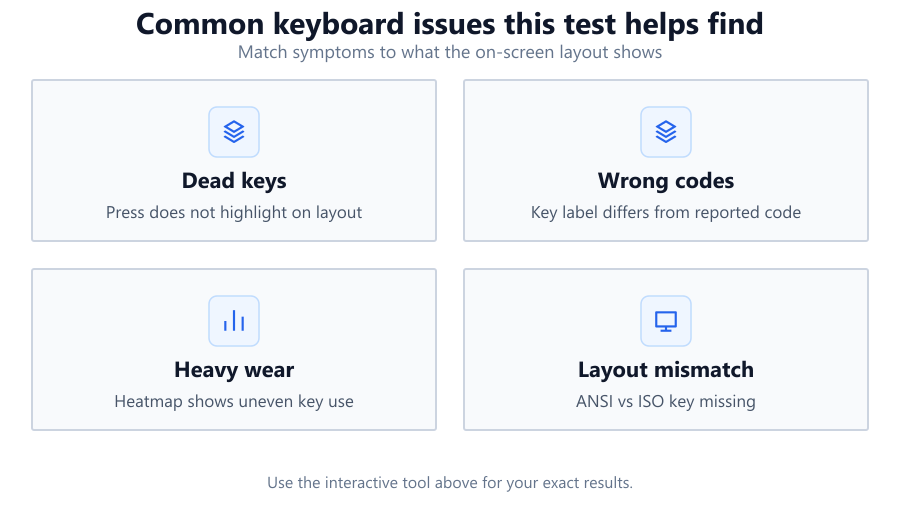
If you are experiencing missing keystrokes, stuck keys, or inconsistent input when typing or gaming, this tester can help isolate the problem. Common scenarios include: a single key that never registers, several keys clustered together that fail (possible hardware trace damage), modifier keys (Ctrl, Alt, Shift) not detected due to OS shortcuts, or inconsistent activation of frequently used keys like spacebar, Enter, or arrow keys. This tool can also help after spilling liquid on your keyboard, to check which keys survived. For those buying used keyboards or testing after cleaning, verifying each key's responsiveness is essential. If you use external keyboards with laptops, or hot-swap devices between USB ports or systems, the tester quickly shows if the device is recognized and if all keys are functional. While it cannot check for stuck keys or ghosting, it is ideal for confirming basic hardware functionality on models like the Razer BlackWidow, Dell desktop keyboards, or integrated laptop keyboards.
Examples and Scenarios
- Office Laptop Key Failure
You notice your Dell Latitude laptop spacebar is not working reliably. After opening the keyboard tester in Chrome, you press every key. All highlight except the spacebar. The progress bar stops just short of 100 percent. The spacebar never lights, confirming hardware failure. You export the JSON and send it to IT for documentation.
- Pre-Purchase Check of Used Mechanical Keyboard
You buy a used Corsair K70 online. Before committing, you plug it into your PC and run the keyboard tester. You systematically press every key, toggling to ISO layout to match the board. The tester highlights every key, progress bar hits 100 percent, and the heatmap shows expected usage. You know the keyboard is fully functional before handing over payment.
- Verifying Key Remapping on a Gaming Keyboard
Your Logitech G Pro is set up with remapped macro keys. Using the tester, you press each custom key. The sidebar key code panel shows the underlying code sent to the browser. One key triggers multiple codes, as expected. You confirm your macros are sending the correct inputs to Windows.
- Diagnosing Issues After a Liquid Spill
You accidentally spill coffee on your Lenovo ThinkPad. After drying, you open the tester. Several keys in one area do not light up. The heatmap is blank for those spots, and the progress bar lags. You identify exactly which keys need repair or replacement.
- Checking External Keyboards on a Dell Monitor Dock
You use a Dell monitor with a USB hub to switch between a desktop and a laptop. Sometimes, your external keyboard misses inputs after switching. Using the tester, you see that after switching, the F-keys do not register. Switching USB ports or reconnecting resolves the issue, as confirmed by the progress bar reaching 100 percent after re-testing.
Tips for Accurate Testing
For the most accurate results, use the latest version of Chrome, Edge, or Firefox. Some browsers may block certain system keys for security reasons, especially Print Screen, Windows key, or custom function keys. Disable any keyboard remapping or macro software (like Logitech G HUB or Corsair iCUE) during testing to ensure you are seeing raw input. Test with your keyboard connected directly to your PC or laptop, not through an unpowered USB hub, as some hubs can drop signals. If certain keys do not register, try another browser or test on a different operating system to rule out software conflicts. Clean your keyboard first to prevent stuck keys, and press each key individually, avoiding rolling your fingers to ensure each press is detected. If you use a non-standard layout, toggle the ANSI/ISO label to match your hardware. For laptop users, make sure your function lock (Fn) is off, as some keys may be hidden behind Fn combinations that browsers cannot always detect. Always check your OS keyboard settings if keys are missing, especially for language or layout mismatches.
Browser vs Desktop Software
Browser-based keyboard testers like this offer fast, easy checks without installation. They are ideal for everyday troubleshooting, buying or selling keyboards, and verifying repairs. However, browsers limit access to certain keys for security. OS-level shortcuts, accessibility settings, and security policies can prevent some keys from registering. Dedicated desktop diagnostic tools or manufacturer utilities (like Microsoft's Keyboard Ghosting Demo or tools bundled with Razer Synapse) can access more low-level hardware data, test for n-key rollover, ghosting, and stuck keys, and run background monitoring. If you need lab-grade testing for gaming keyboards or specialty hardware, use a desktop app. For most users, the browser tester is accurate enough for functional checks, but always be honest about its limits. If you are troubleshooting on a school or work PC with restricted permissions, the browser test is often your only option. For full diagnostics, combine browser and desktop tools as needed.
Summary
This online keyboard tester provides a quick, visual way to verify every key on your keyboard works as intended. With a live layout, progress tracking, heatmap, and key code panel, it covers most troubleshooting needs for home, office, or gaming users. While it cannot detect stuck keys or analyze ghosting, it is perfect for basic diagnostics, pre-purchase checks, and documenting hardware issues. For advanced testing or rollover diagnostics, use a dedicated tool or manufacturer software. Always account for browser and OS limitations, and use direct connections and up-to-date browsers for the best results. Whether you are fixing a laptop after a spill, testing a new gaming keyboard, or verifying repairs, this tool gives you clear answers, fast.
Frequently Asked Questions
How do I test every key on my keyboard online?
Open the Keyboard Tester tool in your browser. The on-screen layout will show all standard keys. Press each key on your physical keyboard, and the corresponding key should light up on the display. The progress bar tracks which keys have been tested. If a key does not register, check your keyboard, browser, or OS settings. Some special keys may not be detected due to browser security restrictions. For a complete test, try all keys, including modifiers like Ctrl, Alt, and Shift.
Why doesn’t my Print Screen or Windows key show up in the tester?
Browsers often block certain keys, such as Print Screen, Windows (Super), or system-specific functions, for security reasons. These keys may trigger OS-level shortcuts or commands that browsers cannot intercept. If these keys work in other applications but not in the browser tester, your hardware is likely fine. To test these keys, use desktop-based diagnostic tools or manufacturer utilities that can access low-level keyboard input outside the browser environment.
Can this tool detect stuck keys or keyboard ghosting?
No, this browser tool does not detect stuck keys or keyboard ghosting. It only registers when a key is pressed and released in real time. Ghosting and rollover issues require specialized testing, as they involve detecting multiple simultaneous key presses or keys registering without being pressed. To check for ghosting or n-key rollover, use a dedicated test like keyboard-ghosting-test or a desktop application designed for advanced keyboard diagnostics.
How accurate is a browser-based keyboard tester?
A browser-based tester is very accurate for basic key detection and responsiveness. It is ideal for checking if each key is recognized by your system. However, browsers have limitations: they may block certain keys, introduce small delays, or not detect rapid repeated presses due to OS or browser processing. For normal troubleshooting, it is reliable, but it is not intended for lab-grade input lag testing or advanced gaming diagnostics. For critical use cases, supplement with dedicated software.
What should I do if some keys are not detected in the tester?
First, try another browser, as some browsers block more keys than others. Next, make sure your keyboard is connected directly to your computer, not through a low-power USB hub. Check your OS keyboard settings for language or layout mismatches. If only one or two keys fail, this may indicate a hardware problem. If entire sections or groups of keys do not register, it could be a hardware matrix or trace failure, especially after a spill or drop. Use the JSON export from the tester to document your results for support or repairs.
How does the heatmap feature help in diagnosing keyboard issues?
The heatmap visually tracks which keys you press most during the test session. It is especially useful for spotting keys that might be sticky, double-triggering, or unresponsive. For example, if you suspect a stuck key, repeatedly tapping it should make it light up more intensely on the heatmap. If the heatmap remains blank for a key you are pressing, it likely indicates a hardware or connection issue. This feature is particularly handy for gamers or writers who rely on certain keys more heavily.
Can I use this tool to test my laptop’s built-in keyboard?
Yes, the tool works with internal laptop keyboards, including those on Dell, HP, Lenovo, or Apple laptops. Just open the tool in your browser and press each key as you would on a desktop. Be aware that some laptops use function layers (Fn key) to access certain features, which may not always register in a browser environment. If keys do not light up, check your function lock and try disabling any custom keyboard utilities before testing.
Is it safe to use this keyboard tester in my browser?
Yes, it is safe. The tool runs entirely in your browser and does not send keystroke data to any server unless you explicitly export and share the results. There is no installation required, and your keypresses remain local. However, avoid entering sensitive information during testing, as with any web-based tool. Always use trusted websites and clear your browser history if you are concerned about privacy.
How do I test a non-standard or ISO keyboard layout?
The tester includes an ANSI/ISO layout toggle label. Switch to the layout that matches your keyboard. This ensures the on-screen display lines up with your hardware, making it easier to track which keys have been tested. If your keyboard has extra keys (like a 65% or 75% compact layout), those may not be shown on the default layout, but you can still test them by checking the key code panel in the sidebar to verify detection.
Can I export my keyboard test results?
Yes, the tester allows you to export your diagnostics as a JSON file. This export includes details on which keys were pressed, their codes, and timestamps. It is helpful for submitting support tickets, documenting repairs, or comparing results between multiple keyboards. To export, finish testing your keyboard, then use the export function in the sidebar. You can share or store this file as needed.
Why do some multimedia or macro keys not register?
Multimedia keys (volume, play/pause, brightness) and custom macro keys often use non-standard codes or are handled directly by your operating system or manufacturer software. Browsers may ignore or block these keys for security reasons. If these keys work in dedicated software (like Logitech G HUB, Corsair iCUE, or Razer Synapse), your hardware is fine. For browser testing, only standard key codes are detected. Use manufacturer utilities if you need to test special keys.
Will this tester work on all operating systems?
Yes, it works on Windows, macOS, and Linux, as long as you have a modern browser. However, OS-specific shortcuts or accessibility settings may block certain key events. For example, Command on macOS or AltGr on some European layouts may not register as expected. Always check OS and browser compatibility if you run into missing keys. For full compatibility, use the latest browser version and consider testing on multiple platforms if you suspect an OS issue.
Do I need to install anything to use this tool?
No installation is required. Simply visit the tool’s page in your web browser and start testing. This makes it ideal for quick diagnostics, especially on systems where you do not have admin rights or cannot install new software. For advanced diagnostics, such as ghosting or n-key rollover checks, you may need to download a dedicated application.
How do I check if my mechanical keyboard is fully functional before buying?
Plug the mechanical keyboard into your PC or laptop, open the keyboard tester, and press every key sequentially. Watch the on-screen layout to ensure every key lights up and the progress bar reaches 100 percent. Pay special attention to function keys, number pad, and any custom keys. If all keys are detected and respond as expected, the keyboard is likely in good working order. You can export your results to document the successful test before purchase.
My keyboard works in some programs but not in the tester. What should I do?
If keys work in word processors or games but not in the tester, it may be due to browser or OS limitations. Some browsers block system-level keys, or custom keyboard software may remap inputs in a way the browser does not recognize. Try another browser, disable remapping utilities, or test on a different computer. If issues persist across all platforms, there may be a hardware or firmware problem with your keyboard.
Related Tools
Free tools to analyze, compare, and optimize your PC gaming performance
Keyboard Ghosting Test
Test keyboard ghosting, N-key rollover (NKRO) and simultaneous key presses using an interactive keyboard.
Use Tool →Keyboard Double Click Test
Detect unwanted double key presses and keyboard chatter with detailed per-key timing analysis.
Use Tool →Keyboard Latency Test
Measure keyboard input latency, event timing, jitter and response consistency online.
Use Tool →Keyboard Polling Rate Test
Measure keyboard polling rate, repeat rate in Hz and input responsiveness with live measurements.
Use Tool →Popular Game System Requirements
Check if your PC meets the requirements for these popular games
Benchmark data from PassMark and publisher specs. Calculators run locally in your browser — we never upload your hardware info.