
FREE MOUSE TEST
Mouse Scroll Test: Wheel Speed & Direction Checker
Wondering if your mouse scroll wheel is working as it should? This tool measures your scroll speed, direction accuracy, and responsiveness live in your browser. It displays real-time data like scroll delta, smooth versus stepped movement, and latency for troubleshooting or comparison.
What Does This Tool Do?
The Mouse Scroll Test is a browser-based tool designed to measure and display your mouse’s scroll wheel performance in real time. It tracks scroll delta values, identifies the direction of each scroll, and distinguishes between smooth and stepped (notched) scrolling. The tool also captures scroll latency and consistency, giving you a sense of how responsive your scroll wheel is. Horizontal scroll detection is included for mice with tilt wheels, and a live 3D mouse visual highlights wheel direction during the test. You can view scroll events plotted in a bar chart, making it easy to spot irregularities or compare different devices. While the tool relies on browser event reporting and your device’s polling rate, it provides practical insight into how your mouse behaves in typical usage scenarios. Use it to check for hardware defects, compare new mice, or adjust your settings for optimal performance.
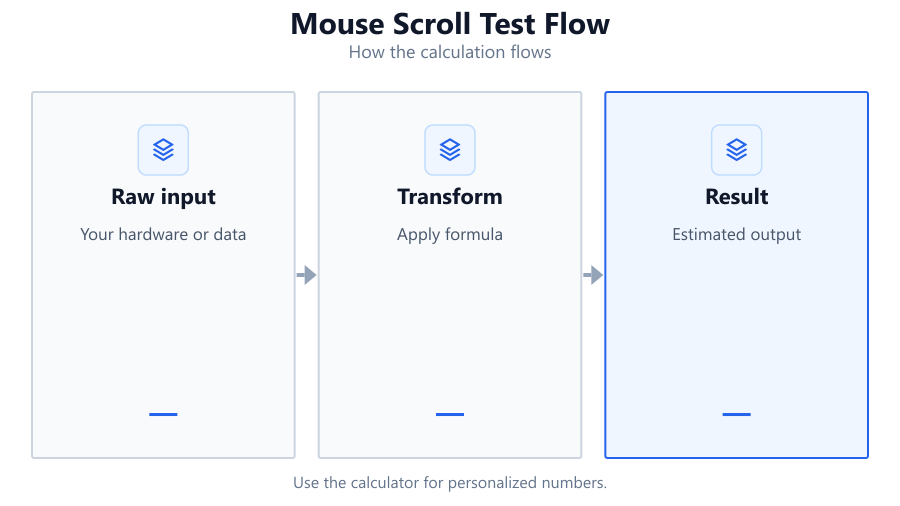
How to Use This Tool
Begin by connecting your mouse to your computer and ensuring drivers are up to date. Open the Mouse Scroll Test in a modern browser such as Chrome, Firefox, or Edge. In the test zone, start scrolling using your mouse’s wheel. The tool responds instantly, displaying direction (up, down, left, right), delta values (how much each step moves), and whether your wheel reports smooth (continuous) or stepped (notched) events. Watch the 3D mouse visual to see real-time wheel movement, and observe the scroll event bar chart for a graphical breakdown of your input. For horizontal scroll, try tilting the wheel if your mouse supports it (common on models like the Logitech MX Master series). Test at different speeds and directions to check consistency. For best results, avoid using touchpads or simulated scroll devices, as these may not report events as accurately as physical mouse wheels.
Understanding Your Results
Scroll delta shows how much your wheel moves with each step. Stepped scrolling means you feel and register individual wheel clicks, typical for gaming mice like the Logitech G Pro or Razer DeathAdder. Smooth scrolling, found on productivity mice like the Logitech MX Master 3, produces continuous delta values instead of discrete jumps. Direction accuracy indicates whether the wheel consistently registers up, down, left, or right. Latency measures the delay between your scroll action and the browser registering the event, giving you a sense of responsiveness. Consistency shows whether each scroll action produces similar values or if there are jumps and skips. The bar chart helps you visualize these patterns. While browser-based testing is practical, remember that event timing can be influenced by your browser, OS, and background processes. For absolute accuracy, use dedicated desktop utilities, but for most users, this tool is more than sufficient to spot issues or compare devices.
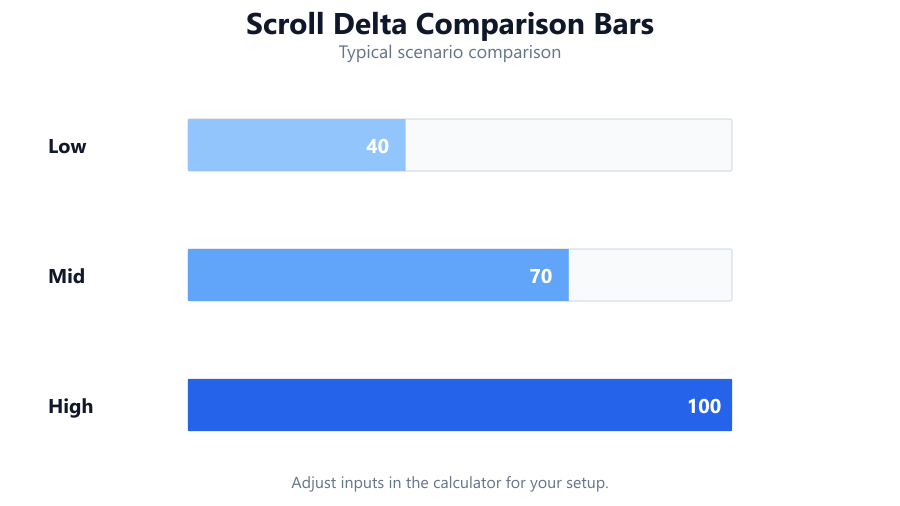
Common Problems This Helps Diagnose
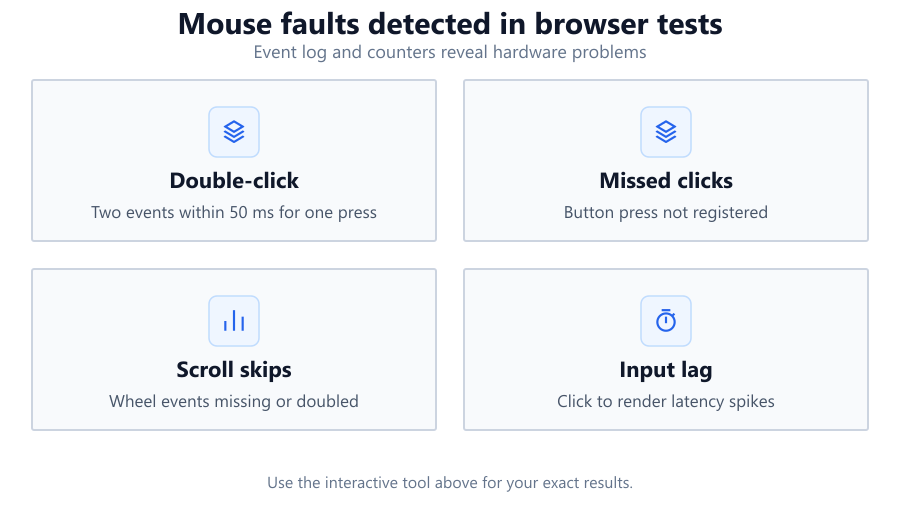
Inconsistent scroll registration: Sometimes a wheel skips steps or doubles inputs, especially on older mice or after heavy use.
Scroll direction errors: If your mouse registers the wrong direction, it could be a hardware fault or a driver conflict.
Unresponsive or delayed scrolling: High latency values may point to USB polling issues, outdated drivers, or browser performance bottlenecks.
Smooth vs stepped confusion: Mice with selectable wheel modes (like the Logitech MX Master series) can be stuck between modes or misreport due to mechanical wear.
Horizontal scroll not detected: Not all mice or browsers support horizontal scroll, but if your mouse should and does not register, this tool can help confirm.
Testing after accidental drops or cleaning mishaps: If your scroll wheel becomes unreliable after a fall or cleaning, this tool quickly reveals mechanical or electrical issues.
Examples and Scenarios
Scenario 1: Diagnosing a Failing Scroll Wheel on a Logitech G Pro X Superlight A gamer notices their Logitech G Pro X Superlight sometimes skips a scroll when switching weapons. Using the tool, they see occasional missing delta steps and inconsistent event bars, confirming a hardware issue.
Scenario 2: Comparing Smooth vs Stepped Modes on Logitech MX Master 3 A productivity user toggles between ratchet and smooth scrolling. The tool shows stepped, regular delta values in ratchet mode and smooth, variable deltas in free-spin. The 3D mouse visual accurately reflects both behaviors.
Scenario 3: Verifying Horizontal Scroll on a Dell Premier Wireless Mouse A user with spreadsheet-heavy workflows tests horizontal scroll by tilting the wheel. The tool immediately registers left and right scrolls, with distinct delta values, confirming hardware and browser support.
Scenario 4: Checking Latency After USB Hub Installation A streamer adds a USB hub and notices delayed scrolling on their Corsair K70 keyboard’s media wheel. Scroll latency spikes in the tool, suggesting the hub introduces extra delay. Direct connection solves the issue.
Scenario 5: Troubleshooting Scroll Problems After Cleaning a Razer DeathAdder After cleaning, the mouse scroll wheel feels sticky and sporadic. The tool shows erratic delta values and missed events, helping the user confirm a physical problem and decide on repair or replacement.
Scenario 6: Testing Scroll Consistency Across Browsers A developer compares scroll event reporting in Chrome, Firefox, and Edge using a Logitech M720 Triathlon. Small differences in delta values and latency highlight how browser choice can impact scroll performance.
Tips for Accurate Testing
Use a wired connection for your mouse if possible, as wireless interference can cause missed scroll events or increased latency. Close other applications, especially those using heavy system resources, to minimize background impact on browser event processing. Run the test in multiple browsers for comparison: Chrome, Firefox, and Edge may handle scroll events differently. Test on a stable surface to avoid accidental mouse movement interfering with scroll input. If your mouse has adjustable polling rate settings (common on gaming mice from Razer, Logitech, and Corsair), set it to the highest supported value for more precise reporting. Avoid using virtual machines or remote desktop sessions, as these often introduce input lag and inconsistent scroll detection. Regularly update your mouse drivers and firmware to ensure compatibility with your OS and browser. For horizontal scroll, verify that your mouse and browser both support the feature, some drivers may need to be enabled or updated.
Browser vs Desktop Software
Browser-based scroll testing is quick and convenient, requiring no downloads or installation. It leverages JavaScript event listeners to capture scroll input, which is generally accurate for most troubleshooting and comparison tasks. However, browser timing is subject to frame rate limitations (typically 60 Hz), input event handling, and possible throttling by the OS or browser security features. High-precision needs, such as diagnosing intermittent faults or measuring exact polling rates, might require dedicated desktop software like USB Mouse Rate Checker, MouseTester, or manufacturer utilities (Logitech G HUB, Razer Synapse). These applications access lower-level hardware data, sometimes even at the driver or firmware level, bypassing browser constraints. For most users, though, browser-based tools provide actionable insights and are ideal for quick diagnostics or comparing devices. Always consider testing on a clean user profile or a different PC to rule out environmental or software-specific issues.
Summary
The Mouse Scroll Test is a practical tool for evaluating your mouse’s scroll wheel performance directly in your browser. It measures scroll speed, direction, smoothness, latency, and consistency, providing real-time feedback through visualizations and detailed metrics. While browser-based testing has its limitations compared to dedicated desktop software, it is fast, simple, and effective for most troubleshooting and comparison scenarios. Use it to diagnose failing hardware, verify horizontal scroll support, or compare smooth versus stepped scrolling modes on popular mice like the Logitech G Pro, MX Master series, or Razer DeathAdder. For pinpoint accuracy or persistent issues, supplement browser testing with manufacturer utilities or third-party desktop tools. With the right approach, you can quickly identify and resolve most mouse scroll problems, ensuring smooth navigation and reliable performance in games, productivity apps, and everyday browsing.
Frequently Asked Questions
How accurate is a browser-based mouse scroll test compared to dedicated software?
Browser-based mouse scroll tests use JavaScript event listeners, which are accurate enough for most troubleshooting and comparison tasks. However, browsers process input events at a limited frame rate (often 60 Hz) and may introduce slight delays due to OS scheduling or background processes. Dedicated desktop software, such as MouseTester or USB Mouse Rate Checker, can access lower-level hardware data, offering more precise timing and polling rate measurement. For most users, browser-based tests provide reliable results, but those needing lab-grade precision should use specialized software.
Can this tool detect if my mouse scroll wheel is failing?
Yes, the tool can reveal failing scroll wheels by highlighting inconsistent delta values, missed scroll events, or incorrect direction registration. If you notice skipped steps, double inputs, or erratic behavior in the live measurements and event bar chart, it often indicates mechanical or electrical issues with the wheel. While the test cannot diagnose every internal fault, it is effective for spotting common problems like worn encoders or dirty contacts.
Why does my scroll wheel feel smooth but the tool reports stepped scrolling?
Some mice offer selectable wheel modes, such as the Logitech MX Master series, which can switch between ratchet (stepped) and free-spin (smooth) scrolling. Occasionally, the mechanical switch does not fully engage, or the firmware continues to report discrete steps even in smooth mode. This tool detects what the browser receives, so if events still look stepped, there may be a hardware or software setting to adjust. Check your mouse’s utility software or try toggling wheel modes again.
Does horizontal scroll work on all mice with this test?
Horizontal scroll detection depends on both your mouse hardware and browser support. Many modern mice, like the Logitech MX Master or Dell Premier Wireless Mouse, feature tilt wheels or side buttons for horizontal movement. However, not all browsers or OS configurations recognize these events. If your mouse supports tilt scrolling but the tool does not register left or right scrolls, ensure you have the latest drivers installed and try testing in another browser.
How can I improve the accuracy of my mouse scroll test results?
To improve accuracy, use a wired connection, close background applications, and test in multiple browsers. Set your mouse polling rate to its maximum (if supported), and ensure drivers are up to date. Test on a flat, stable surface and avoid using virtual machines or remote desktops. Some wireless mice may exhibit small delays or missed inputs, especially if batteries are low or there is interference. For the most reliable data, test on a clean OS profile.
What do the scroll delta values mean?
Scroll delta values represent how far your scroll wheel moves in each detected step. Stepped wheels, like those on gaming mice such as the Logitech G Pro or Razer Basilisk, produce regular, predictable delta values. Smooth wheels, like the Logitech MX Master 3, generate variable delta values. Large or inconsistent values could indicate hardware issues, while small, steady changes are typical of healthy, properly configured wheels.
Why is there a delay between scrolling and the tool registering movement?
Delays between scroll input and tool feedback can be caused by browser performance, OS scheduling, or USB polling rate limitations. Wireless mice may also add latency due to signal processing. Using a wired connection, closing unnecessary apps, and testing in different browsers can help reduce delays. For ultra-low-latency needs, consider using dedicated desktop software to bypass browser and OS constraints.
Can this tool help with diagnosing scroll issues on a laptop touchpad?
While the tool can register scroll events from a touchpad, accuracy varies widely depending on driver implementation and browser support. Many touchpads use gesture-based scrolling, which may not report discrete wheel events or may smooth out inputs differently than a physical mouse. For diagnosing touchpad-specific issues, use manufacturer utilities or OS settings panels in addition to browser-based testing.
How does browser choice affect scroll wheel test results?
Different browsers handle scroll events with slight variations in timing, event granularity, and input smoothing. For example, Chrome, Firefox, and Edge may register delta values and latency differently due to their rendering engines and event models. Testing in multiple browsers helps identify whether inconsistencies are due to your hardware or specific to your browser environment.
Is it normal for scroll delta values to vary slightly between scrolls?
Yes, minor variations in scroll delta are normal, especially with smooth-scrolling wheels or if you scroll at inconsistent speeds. Stepped wheels typically produce near-identical delta values, while smooth wheels may show a range. Large or erratic differences could signal hardware wear, dirt, or mechanical faults. Consistency is key for accurate scrolling in gaming and productivity tasks.
Can OS settings affect mouse scroll test results?
Absolutely. Operating system settings, such as scroll lines per notch and acceleration, can influence how scroll events are delivered to the browser. Custom drivers or manufacturer utilities like Logitech G HUB or Razer Synapse may further modify scroll behavior. For consistent results, use default settings or document any active customizations when comparing different mice or troubleshooting issues.
Why does my scroll wheel sometimes scroll in the wrong direction?
Incorrect scroll direction can result from hardware faults (such as worn encoders), driver conflicts, or OS-level settings like 'natural scrolling.' Some users accidentally enable reverse scrolling in their mouse utility software. If the tool consistently shows direction errors, check your settings and try the mouse on another device to isolate the problem.
Does the Mouse Scroll Test work on macOS and Linux?
Yes, the Mouse Scroll Test works on macOS, Linux, and Windows as long as you use a modern browser. However, event handling or scroll delta values may differ slightly depending on the OS and driver stack. For best results, ensure your mouse drivers are up to date and compare results across platforms if you suspect OS-specific issues.
Can this tool identify double-scrolling issues?
Yes, double-scrolling (where a single wheel movement registers as two or more steps) will appear in the tool as rapid, closely spaced events with unexpectedly large or doubled delta values. This is a common symptom of worn scroll wheel encoders or noisy electrical contacts. If you see this pattern, cleaning or replacing the mouse may be necessary.
Is it possible to test scroll wheels on keyboards or other input devices?
Some keyboards, such as the Corsair K70 or Logitech G915, include media wheels that function similarly to mouse scroll wheels. These can be tested with the Mouse Scroll Test as long as the device sends standard scroll events recognized by your OS and browser. Not all input devices register as mouse wheels, so results may vary depending on hardware and driver support.
Should I use this tool before buying a new mouse?
Testing your current mouse with this tool is a great way to determine if scroll issues are due to hardware faults or software settings. If you experience irregular scrolling, latency, or direction errors, the tool can help you decide whether cleaning, adjusting settings, or replacing the mouse is needed. When evaluating a new mouse, use the tool to compare scroll behavior, speed, and smoothness to your old device.
Related Tools
Free tools to analyze, compare, and optimize your PC gaming performance
Mouse Tester
Test every mouse button, scroll wheel, clicks per second and double-click performance in one online tool.
Use Tool →Mouse Button Test
Test every mouse button online including left, right, middle, side buttons and scroll wheel. Detect faulty switches, dou
Use Tool →Mouse Double Click Test
Detect mouse double-click issues, switch chatter and faulty clicks using our free online mouse testing tool.
Use Tool →Mouse Drift Test
Detect unwanted mouse drift, sensor movement and hardware issues while your mouse is stationary.
Use Tool →Popular Game System Requirements
Check if your PC meets the requirements for these popular games
Benchmark data from PassMark and publisher specs. Calculators run locally in your browser — we never upload your hardware info.