
FREE CLICK SPEED TEST
Right Click CPS Test: Right-Click Speed Counter
Testing your right-click speed can help you spot mouse issues or improve your gaming performance. Our free CPS counter tracks your live, average, and maximum clicks per second, using only right-clicks while blocking the context menu for accurate results.
What Does This Tool Do?
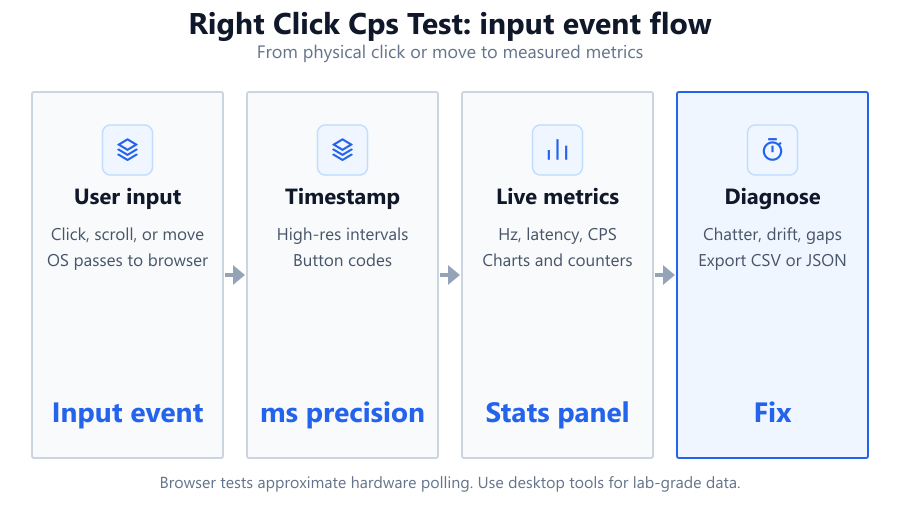
The Right Click CPS Test measures how many times you can right-click your mouse in one second. Unlike standard CPS tests that record left-clicks, this tool focuses exclusively on right-clicks. It blocks the default context menu, so you can click rapidly without interruptions. The tool records your live CPS, average CPS over the test duration, and your highest CPS achieved in a session. This helps you benchmark your own performance, compare mice, or check for hardware issues. The results are approximate, since browser-based tools rely on the refresh rate and mouse events detected by your operating system. This test does not access low-level hardware data, but for most users, it provides a reliable way to see how responsive your mouse is for right-click-heavy tasks.
How to Use This Tool
Using the Right Click CPS Test is straightforward. Visit the web page on a desktop or laptop with a physical mouse. Most touchpads and touchscreens do not register right-clicks accurately, so a standard mouse like the Logitech G Pro or Corsair M65 is recommended. Once the test loads, you'll see a large clickable area. Right-click on this area as quickly as possible. The context menu will not appear, so you won't be interrupted. The timer starts with your first click and stops after a set duration, usually between 5 and 15 seconds depending on settings. The tool displays your live CPS (clicks per second), your average CPS over the test period, and your maximum CPS achieved in any one-second interval. For best results, close other tabs and apps that could slow down your system. Try several runs to see how consistent your results are.
Understanding Your Results
After you finish a test, you'll see three key numbers: live CPS, average CPS, and maximum CPS. Live CPS updates in real-time, showing how quickly you are clicking right now. Average CPS measures your overall performance during the entire test. Maximum CPS highlights your fastest one-second burst. These numbers help you understand both your sustained and peak clicking abilities. If your average CPS is much lower than your maximum, you might be tiring quickly or your mouse could be missing clicks. Results can also reveal if your mouse button is double-clicking, sticking, or not registering consistently. Remember, browser-based tests cannot match the precision of specialized software due to factors like browser refresh rate, system load, and OS-level input handling. Use these numbers as a baseline for comparison with other mice or before/after cleaning or repairs.
Common Problems This Helps Diagnose
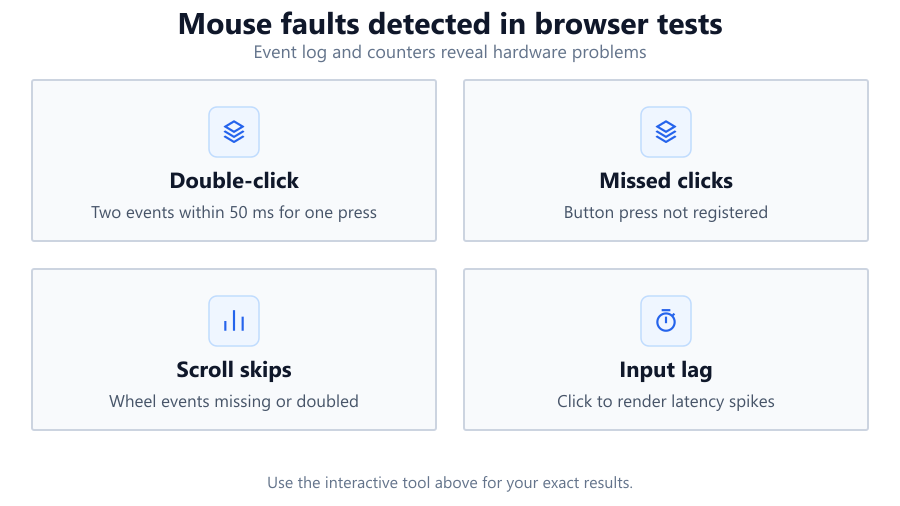
A right-click CPS test can help you spot several mouse issues. If your CPS is unexpectedly low, your mouse button might be wearing out or suffering from switch bounce. In gaming, missed right-clicks can mean lost actions or missed abilities, especially in fast-paced titles like League of Legends or Fortnite. This tool can also reveal if your mouse is double-clicking unintentionally, a common problem with older or heavily-used switches. Some users notice their CPS drops after firmware or driver updates, or when switching USB ports. Testing after these changes can confirm if your hardware or software is at fault. The tool also helps compare different mice, such as a Razer DeathAdder vs a Glorious Model O, to see which feels more responsive for your needs. Lastly, it can check if OS settings or browser limitations are capping your input speed, which is useful for diagnosing lag in web games or remote desktop sessions.
Examples and Scenarios
Scenario 1: Diagnosing a Sticky Right Button Jenny notices her right-clicks in Minecraft are inconsistent. She runs the test with her Corsair M65 and sees her maximum CPS is 8, but her average is only 3. The tool shows missed clicks, confirming her right button is sticking.
Scenario 2: Comparing Mouse Performance Alex owns both a Logitech G Pro and a generic office mouse. He tests both and sees the G Pro hits a maximum CPS of 12, while the office mouse maxes out at 7. This helps him decide which to use for competitive gaming.
Scenario 3: Testing After Mouse Cleaning Priya cleans her Razer Basilisk's right button, which felt gritty. Before cleaning, her average CPS was 4. After cleaning, it jumps to 9, confirming the fix.
Scenario 4: Checking for Double-Click Issues Mike suspects his SteelSeries Rival 3 is double-clicking. The tool shows erratic spikes in live CPS, often above 15. This pattern suggests a double-click issue, prompting him to request a warranty replacement.
Scenario 5: Evaluating Browser Impact Sasha tries the test on Chrome and Firefox with her Logitech MX Master 3. Chrome reports an average CPS of 10, while Firefox only reaches 7. The difference suggests browser processing affects input tracking, especially on older hardware.
Scenario 6: Verifying After a Driver Update Lucas updates his mouse drivers and runs the test. His average CPS drops from 11 to 6. He rolls back the driver and CPS returns to normal, showing the update caused a problem.
Tips for Accurate Testing
Use a wired mouse for the most consistent results. Wireless mice can introduce slight delays, especially on low battery. Close other browser tabs and resource-heavy applications to minimize input lag. Test on a stable surface and avoid resting your wrist too heavily, as this can slow your clicking speed. Run the test several times and look for consistent scores. If your scores vary widely, there could be hardware issues or background processes interfering. Make sure your browser is up to date. Some browser extensions or security software may block mouse events or cause delays. If you use a high-refresh-rate monitor, like a Dell 240Hz display, browser limitations may still cap the test's accuracy. For best results, use the latest version of Chrome or Edge, as they typically process mouse events fastest. If you see the context menu appear during the test, check if your browser or OS accessibility settings are overriding the tool's menu-blocking code.
Browser vs Desktop Software
Browser-based CPS tests are convenient, require no installation, and work on any modern OS. However, they rely on the browser's event polling, which is affected by system load, browser refresh rate, and OS-level input handling. This means results are approximate and can vary between browsers or machines. Desktop software like CPS Testers or MouseTester can access lower-level hardware data and offer higher precision, including logging debounce time, switch bounce, and detailed timing graphs. If you need lab-grade accuracy for hardware reviews or professional eSports, use dedicated software. For most users, browser tests are sufficient for spotting hardware problems, comparing mice, or casual benchmarking. Remember, some anti-cheat systems may flag desktop click testers if run alongside games, so use browser tools for quick diagnostics when gaming is involved.
Summary
The Right Click CPS Test offers a fast, free way to measure your right-click speed and spot mouse performance issues. It tracks live, average, and maximum CPS, helping you benchmark hardware or diagnose problems like missed clicks or double-clicking. While browser-based tests are limited by OS and browser input handling, they provide a reliable baseline for most users. For the most precise measurements, desktop software is better, but for quick checks and comparisons, this tool is ideal. Whether you are troubleshooting a sticky button, evaluating a new mouse, or just curious about your clicking speed, this test gives you actionable data without needing to install anything.
Frequently Asked Questions
How accurate is a browser-based right click CPS test?
Browser-based CPS tests offer a good estimate of your clicking speed but are not 100 percent precise. They rely on your browser and operating system to detect mouse events. Factors like browser refresh rate, system load, and background processes can cause slight delays or missed clicks. High-end mice like the Logitech G Pro may perform better, but results can still vary between browsers and hardware. For most users, accuracy is sufficient for diagnosing issues or comparing hardware, but professional testers should use dedicated desktop software for the most precise measurements.
Why does the context menu not appear during the test?
The tool blocks the context menu to prevent interruptions during rapid right-clicking. When you right-click in most browsers, the context menu pops up and can interfere with testing speed. By disabling it during the test, you can click as fast as possible without accidental pop-ups. If you still see the context menu, it may be due to browser extensions, OS accessibility settings, or outdated browser versions overriding the tool's prevention code.
Can I use this tool with a laptop touchpad?
Most laptop touchpads support right-clicking, usually by tapping with two fingers or pressing the bottom-right corner. However, touchpads are less consistent for rapid right-clicking compared to physical mice. The test may show lower CPS and missed clicks due to touchpad hardware limitations. For the most accurate results, use a dedicated mouse such as the Corsair K70 or Logitech MX Master series.
Does this test measure double-clicking issues?
Yes, this tool can help detect double-clicking issues. If your mouse is double-clicking when you perform a single right-click, you may see sudden spikes in your CPS or inconsistent results. This is a common problem with aging switches, especially in heavily-used gaming mice. If you notice erratic CPS readings, it may be time to clean your mouse, replace the switch, or seek a warranty replacement.
What is a good right-click CPS score?
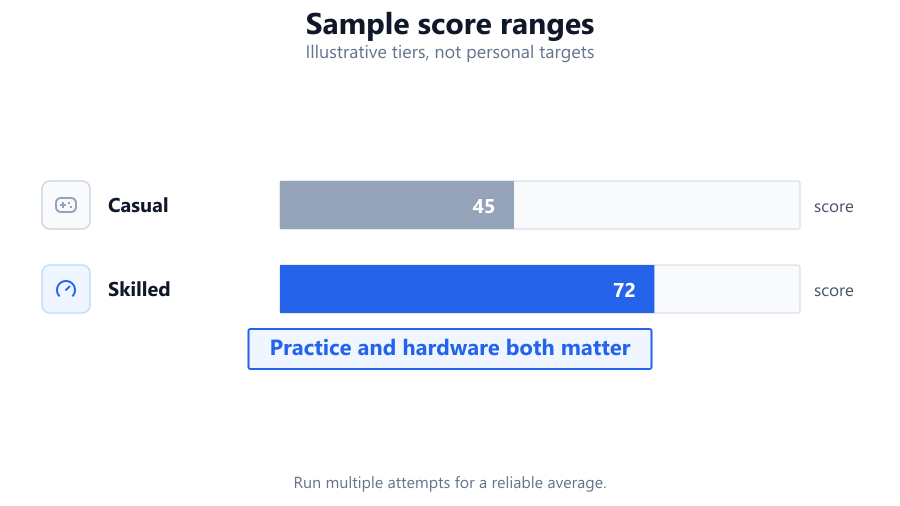
A typical CPS score for right-clicking ranges from 4 to 8 for most users. Skilled gamers or users with fast reflexes may reach 10 or higher, especially with mice like the Glorious Model O. Keep in mind, right-clicking is generally slower than left-clicking due to button design and hand positioning. Comparing your score to others can help, but focus on consistency and comfort rather than just raw speed.
Why does my CPS change between browsers?
Different browsers process mouse events at different speeds. For example, Chrome may report a higher CPS compared to Firefox or Safari due to differences in rendering engines and event handling. Background processes, browser extensions, and system load can also affect your results. For best consistency, use the same browser and close unnecessary tabs or apps during testing.
Can this tool help compare two mice?
Absolutely. By running the test with each mouse under the same conditions, you can compare live, average, and maximum CPS scores. This can highlight differences in switch quality, button feel, or input lag. For example, you might find your Logitech G Pro delivers higher and more consistent scores than a generic office mouse, helping you choose the best device for your needs.
How do operating system settings affect the test?
Operating system settings, such as mouse sensitivity, double-click speed, and accessibility features, can impact how clicks are registered in the browser. Some settings may filter or slow down rapid input, while others could cause missed or extra clicks. If you notice inconsistent results, check your OS mouse settings and reset them to default for the most accurate testing.
Should I use a wired or wireless mouse for this test?
A wired mouse typically offers lower latency and more consistent performance, making it ideal for CPS testing. Wireless mice, like the Logitech G Pro Wireless, can perform well but may introduce slight delays if battery is low or if there's wireless interference. For the most reliable results, use a wired connection and ensure your mouse firmware is up to date.
Is there any benefit to a high-refresh-rate monitor for CPS testing?
High-refresh-rate monitors, such as Dell 240Hz displays, can make your desktop feel smoother, but browser-based CPS tests are usually limited by browser frame rates and event polling. While a high-refresh-rate display may help in games, it does not significantly improve CPS test accuracy in browsers. Your mouse's polling rate and the browser's input handling are bigger factors.
Why is my CPS lower after a recent mouse driver update?
Driver updates can sometimes change how your mouse communicates with your operating system. If your CPS drops after an update, it could be due to new debounce settings, firmware changes, or conflicts with existing software. Try rolling back the driver or checking for newer updates from the manufacturer. Testing before and after updates can help you spot these issues early.
How does this compare to desktop CPS testing software?
Desktop CPS software can access lower-level hardware data and provide more precise measurements, including detailed timing and debounce analysis. Browser tests are easier to use and require no installation, but results are approximate due to browser and OS limitations. For casual testing, browser tools are sufficient. For professional reviews or hardware tuning, desktop software is recommended.
Can this tool be used on Mac or Linux?
Yes, the Right Click CPS Test works on any modern browser, regardless of operating system. On Mac, right-clicking may require holding Control or using two fingers on a trackpad, which can affect test accuracy. For best results, use a standard mouse on Windows, Mac, or Linux. Browser support and OS mouse settings may affect performance, so check for compatibility issues if you get unexpected results.
Why does my CPS fluctuate between test runs?
CPS scores can fluctuate due to hand fatigue, changes in clicking technique, or background applications consuming system resources. Mouse hardware issues, like dirty or worn switches, can also cause inconsistent results. Try to run multiple tests and look for a consistent average. If fluctuations are extreme, consider cleaning your mouse or testing on a different computer.
Can this tool help improve my gaming performance?
While the CPS test itself does not train you, it can help you monitor your progress as you practice faster or more consistent clicking. High right-click speed is useful in games that use right-click for actions, like building in Fortnite or casting abilities in MOBAs. Use the tool to benchmark improvements over time, compare different mice, or spot hardware issues affecting your gameplay.
Is there a risk of damaging my mouse by using this test?
Normal use, even at high speeds, should not damage a quality mouse like the Corsair M65 or Logitech G Pro. However, excessive or aggressive clicking can accelerate wear on the button switches, especially in cheaper or older mice. If you hear unusual noises or feel increased resistance, take a break and inspect your mouse. Regular cleaning and moderate use help extend its lifespan.
Related Tools
Free tools to analyze, compare, and optimize your PC gaming performance
CPS Test
Measure your clicks per second with customizable test durations, live tracking and detailed statistics.
Use Tool →Mouse Button Test
Test every mouse button online including left, right, middle, side buttons and scroll wheel. Detect faulty switches, dou
Use Tool →Mouse Double Click Test
Detect mouse double-click issues, switch chatter and faulty clicks using our free online mouse testing tool.
Use Tool →Mouse Tester
Test every mouse button, scroll wheel, clicks per second and double-click performance in one online tool.
Use Tool →Popular Game System Requirements
Check if your PC meets the requirements for these popular games
Benchmark data from PassMark and publisher specs. Calculators run locally in your browser — we never upload your hardware info.