
Guide
How to Choose the Right Hardware
Choosing the right hardware for your backup solution ensures your data stays safe and your investment pays off. Get clear, step-by-step advice here.
Updated 2026-07-05
Why Hardware Choice Matters for Backups
Selecting the right hardware is the foundation of any reliable backup strategy. Your hardware decisions directly impact backup speed, capacity, cost, and long-term data integrity. Whether you are a home user or managing enterprise-level data, matching your hardware to your backup needs is critical.
Many people underestimate their storage requirements or overpay for unnecessary features. With the right approach, you can avoid these pitfalls and build a backup system that is both efficient and cost-effective. The Backup Storage Calculator is an invaluable tool to help determine your exact storage needs before making a purchase.
Hardware selection is not only about storage drives. You must also consider controllers, interfaces, power supplies, and even chassis design. Each component plays a role in ensuring your backups run smoothly and your data is always recoverable.
Key Factors When Choosing Backup Hardware
When evaluating hardware for backups, start with a clear understanding of your data volume. Estimate both current and future storage needs, considering backup frequency and retention policies. The Backup Storage Calculator simplifies this process by letting you input your data types and retention schedules, instantly showing you the minimum storage required.
Performance is another crucial factor. Faster drives and interfaces (such as SSDs or NVMe) can drastically reduce backup windows, especially for large datasets. However, spinning hard drives (HDDs) remain the most cost-effective for high-capacity, long-term storage. Balance speed and cost based on your backup schedule and recovery time objectives.
Reliability is non-negotiable. Choose enterprise-grade drives for mission-critical data, and always consider redundancy options such as RAID arrays. The enclosure and power supply should be rated for continuous operation and have proper cooling to extend hardware lifespan.
Do not overlook connectivity and compatibility. Ensure your hardware interfaces (USB, SATA, SAS, or network) match your existing infrastructure. Finally, factor in scalability: will your backup solution grow easily as your data expands, or will you need to replace major components down the line?
By carefully weighing these factors, you can select hardware that meets your needs today and adapts to tomorrow's challenges.
Step-by-step
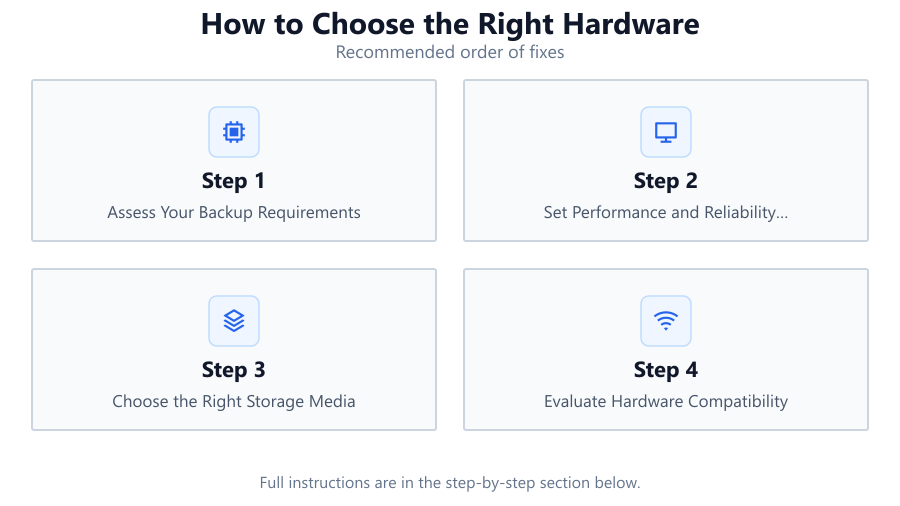
Assess Your Backup Requirements
List all data types you need to back up, including documents, media, databases, and system images. Estimate their combined size and growth rate over time. Use the Backup Storage Calculator to get a precise storage estimate based on your actual data and retention policies.
Set Performance and Reliability Goals
Decide how quickly you need backups to complete and how fast you must restore data in an emergency. Choose hardware, such as SSDs for speed or RAID arrays for redundancy, that aligns with these goals.
Choose the Right Storage Media
Consider HDDs for cost-effective, high-capacity storage or SSDs for speed and durability. For large organizations, tape drives or network-attached storage (NAS) may be ideal. Match the media type to your budget and performance needs.
Evaluate Hardware Compatibility
Ensure that drives, controllers, and enclosures are compatible with your existing systems. Check interface types (SATA, SAS, USB, Thunderbolt) and make sure you have the necessary ports and drivers.
Plan for Scalability and Future Growth
Select hardware that can expand as your backup needs grow. Modular systems, additional drive bays, or scalable NAS units can save money and prevent future headaches.
Comparison
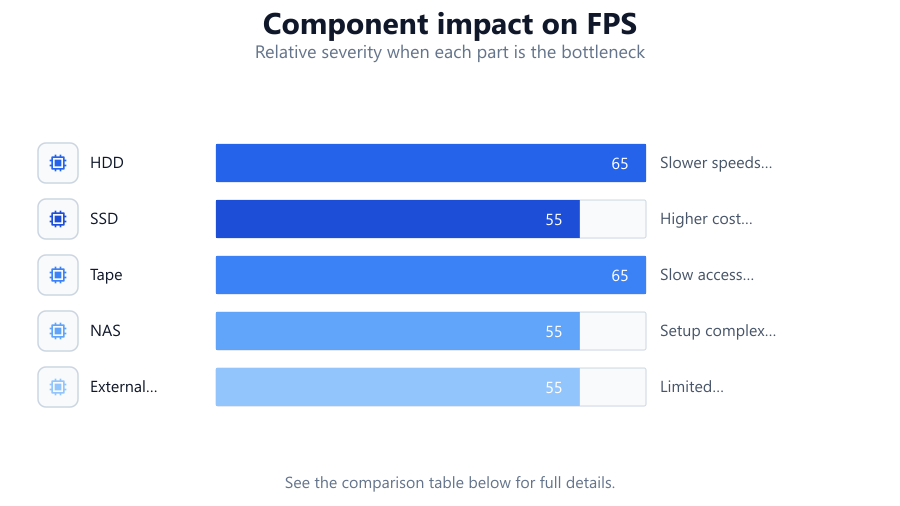
| Storage Type | Pros | Cons |
|---|---|---|
| HDD | High capacity. Affordable. Widely available. | Slower speeds. Mechanical failure risk. |
| SSD | Fast performance. Durable. Lower power use. | Higher cost per GB. Limited write endurance. |
| Tape | Very high capacity. Long shelf life. Low cost per GB. | Slow access times. Requires special drives. |
| NAS | Network access. Centralized backups. Scalable. | Setup complexity. Higher initial cost. |
| External Drives | Portable. Easy setup. Versatile. | Limited scalability. Risk of loss or theft. |
Common mistakes
Mistake
Underestimating future data growth
Fix: Always plan storage needs at least 12-24 months ahead using tools like the Backup Storage Calculator.
Mistake
Ignoring hardware compatibility
Fix: Double-check interface types and system requirements before purchasing any backup hardware.
Mistake
Choosing consumer-grade drives for business backups
Fix: Invest in enterprise-grade hardware for critical or large-scale backup operations.
Mistake
Neglecting redundancy
Fix: Implement RAID or other redundancy solutions to protect against hardware failure.
Troubleshooting
Backups are failing or incomplete
Likely cause: Insufficient storage space or hardware incompatibility.
What to do: Recalculate required storage with the Backup Storage Calculator and verify hardware compatibility.
Backup process is very slow
Likely cause: Storage medium is too slow or interface bottleneck.
What to do: Upgrade to faster drives or interfaces, such as SSDs or USB 3.2.
Frequent hardware failures
Likely cause: Using consumer-grade drives or poor cooling.
What to do: Switch to enterprise-grade hardware and improve ventilation.
Cannot access backup storage device
Likely cause: Driver issues or incompatible connections.
What to do: Update drivers and ensure all hardware uses supported interfaces.
Recommendations
- Use the Backup Storage Calculator before buying to precisely size your storage.
- Opt for enterprise-grade hardware for mission-critical backups.
- Plan for at least 20 percent more capacity than your current needs to accommodate growth.
- Implement redundancy with RAID or offsite backups for added protection.
- Regularly test your backup and restore process to ensure hardware reliability.
Frequently asked questions
Why is hardware choice important for backup systems?
The right hardware ensures data reliability, faster backups, and cost savings, reducing the risk of data loss or system downtime.
How can I calculate my backup storage needs?
Use the Backup Storage Calculator to input your data types and retention policies. It instantly provides a precise storage size recommendation.
Should I use HDDs or SSDs for backups?
HDDs are ideal for high-capacity, low-cost storage, while SSDs offer speed and durability for frequent or rapid backups.
What is the benefit of using enterprise-grade drives?
Enterprise-grade drives are built for reliability, longer lifespans, and better performance in demanding backup environments.