
Guide
How to Test Correctly
Want to ensure your monitor displays color, brightness, and pixels perfectly? Learn how to test correctly with proven steps and avoid common pitfalls.
Updated 2026-07-05
Understanding Monitor Testing and Why It Matters
Testing your monitor correctly is essential for anyone looking to achieve accurate color reproduction, spot dead pixels, or ensure overall display health. Whether you are editing photos, gaming, or just want a flawless visual experience, knowing how to test correctly saves time and frustration.
Color Screen Test is a browser-based tool that helps users display solid color backgrounds, making it easy to identify color uniformity issues, dead pixels, and contrast problems. It lets you cycle through over 15 preset colors or enter custom RGB and HEX values, providing flexibility for every diagnostic scenario.
If you are serious about your display's performance, proper testing should be your first step before any calibration or troubleshooting. A structured testing process reveals issues that are otherwise hard to spot, allowing for informed decisions about adjustments or repairs.
Best Practices: Detailed Steps for Accurate Monitor Testing
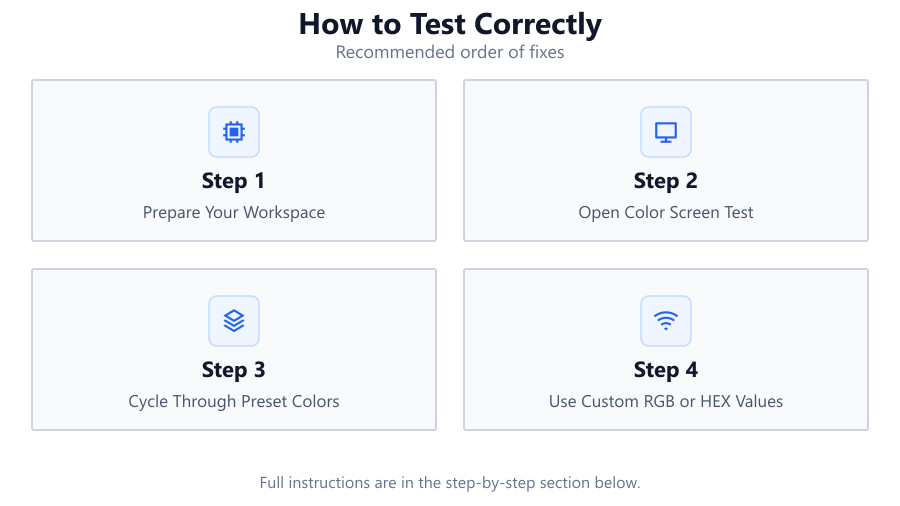
To test a monitor effectively, you need to approach diagnostics systematically. Start by preparing your workspace: clean your screen, set ambient lighting to a neutral level, and ensure your graphics drivers are up to date. The Color Screen Test tool is designed for efficiency and simplicity, eliminating the need for additional software downloads.
When you launch Color Screen Test, use fullscreen mode to minimize distractions and maximize visibility. Cycle through different color backgrounds, paying close attention to each corner and edge of your display. Look for color inconsistencies, dim spots, or stuck pixels. Use both preset and custom colors to expose subtle problems that may not show up under typical usage.
For an even more thorough assessment, test your monitor at different brightness levels. Take notes on any anomalies and, if possible, compare results with a reference monitor. Following these steps ensures you are not missing hidden defects that could impact your work or entertainment.
Step-by-step
Prepare Your Workspace
Turn off harsh room lighting and clean your monitor thoroughly. Set up your viewing environment to resemble your typical usage for more accurate results.
Open Color Screen Test
Launch Color Screen Test in your browser. Make sure to maximize the window or use fullscreen mode for the most accurate evaluation.
Cycle Through Preset Colors
Use the tool's built-in color options to display solid red, green, blue, white, black, and other shades. Carefully inspect the entire screen for obvious issues.
Use Custom RGB or HEX Values
Input specific colors using the RGB or HEX fields. This can help reveal subtle uniformity problems or pixel anomalies not visible with standard colors.
Document and Compare Results
Take notes or photos of any detected issues. If possible, compare your findings with another display or a calibration reference to determine if your monitor requires further adjustment.
Comparison
| Testing Method | Ease of Use | Ideal For |
|---|---|---|
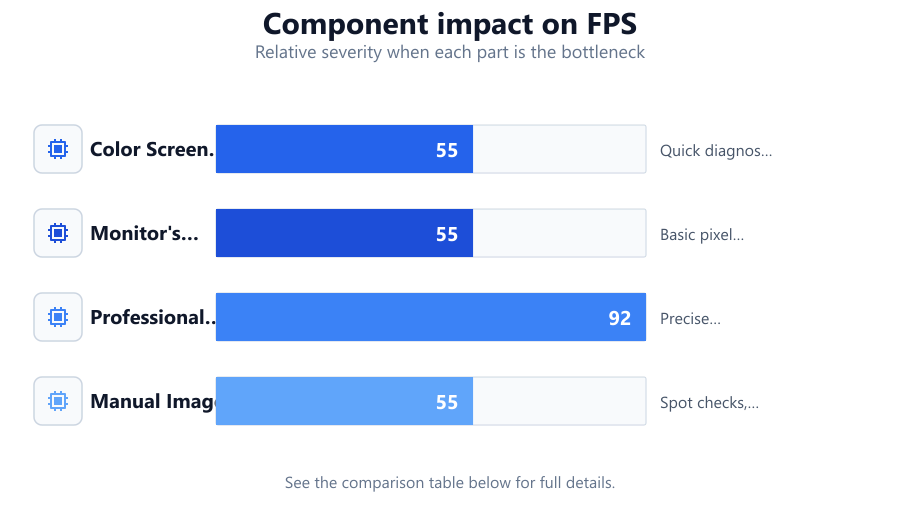
| Color Screen Test | Very easy | Quick diagnostics, color checks |
| Monitor's Built-in Diagnostics | Moderate | Basic pixel and color tests |
| Professional Calibration Hardware | Advanced | Precise calibration, color-critical work |
| Manual Image Files | Basic | Spot checks, limited flexibility |
Common mistakes
Mistake
Testing with poor ambient lighting or screen glare
Fix: Use neutral, consistent lighting and avoid direct reflections during testing.
Mistake
Skipping custom color tests
Fix: Always use custom RGB or HEX values in Color Screen Test to catch subtle issues.
Mistake
Not using fullscreen mode
Fix: Enable fullscreen in Color Screen Test to reveal edge and corner anomalies.
Troubleshooting
Colors appear uneven across the display
Likely cause: Panel uniformity issues or backlight inconsistencies
What to do: Note affected areas and consider professional calibration or contacting support if severe.
Stuck or dead pixels visible on solid colors
Likely cause: Manufacturing defects or pixel failure
What to do: Try gentle pixel massage for stuck pixels or check warranty options for dead pixels.
Tool colors do not match expected output
Likely cause: Incorrect display color profile or outdated graphics drivers
What to do: Update your graphics drivers and calibrate your display using a trusted reference.
Recommendations
- Test your monitor regularly, especially after transport or installation.
- Use both preset and custom colors in Color Screen Test for comprehensive results.
- Document any issues with photos for easier support or warranty claims.
- Consider professional calibration if you work with color-sensitive tasks.
Frequently asked questions
What is the best way to test for dead pixels?
Use solid color backgrounds in Color Screen Test and inspect the screen closely for any pixels that stay fixed on a single color or remain dark.
Can I test my laptop screen as well as my desktop monitor?
Yes, Color Screen Test works in any modern browser, making it suitable for both laptop and desktop monitors.
How often should I test my monitor?
Test your monitor every few months, or after any physical movement or noticeable change in display quality.
Do I need special hardware to use Color Screen Test?
No additional hardware is needed. The tool runs directly in your browser and is effective for basic diagnostics and color checks.