
FREE DISPLAY TEST
Full Screen Color Test: Solid Color Display Patterns
Need to check your monitor for color uniformity, dead pixels, or accurate colors before editing photos? This tool displays fullscreen solid color patterns, letting you cycle through 15+ colors or pick custom RGB and HEX values. Use it for quick display diagnostics, calibration reference, or background color testing, all right in your browser.
What Does This Tool Do?
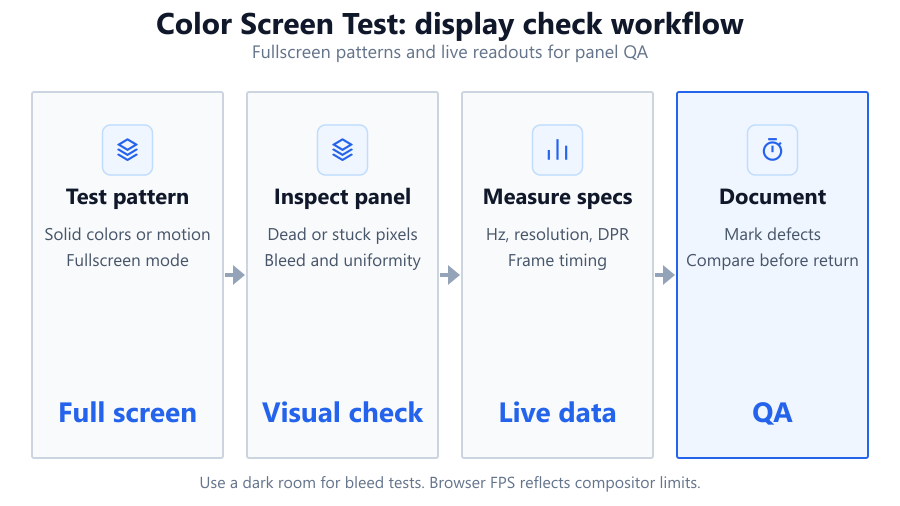
The Full Screen Color Test tool turns your browser window into a giant color swatch. It displays solid color backgrounds across your entire screen, maximizing the area for visual inspection. You can switch between over 15 preset colors or customize your own using RGB or HEX codes. Use your keyboard to navigate colors, zoom in, or activate a grid overlay. Unlike downloadable utilities, this requires no installation and works on any modern browser. Useful for anyone who needs to spot dead pixels, check for backlight bleed, analyze color uniformity, or set up consistent studio lighting for photography. While it does not measure color accuracy scientifically, it is a fast, accessible way to visually evaluate your display.
How to Use This Tool
Start by opening the tool in your browser on the monitor you want to test. For best results, maximize your browser window or use the fullscreen shortcut to fill the display. Select a solid color from the provided palette or enter a custom RGB/HEX value. Use keyboard shortcuts to navigate between colors quickly. The zoom feature lets you focus on pixel-level detail, while the grid overlay can help reveal pixel and subpixel structure. Cycle through white, black, red, green, blue, and other colors to spot stuck or dead pixels. For color uniformity, scan the screen at different brightness settings. When finished, exit fullscreen mode or close the browser tab. The tool works on Windows, macOS, Linux, and even mobile browsers, but for color-critical work, pair it with a hardware calibrator like the Datacolor SpyderX.
Understanding Your Results
The tool visually reveals display issues but does not produce quantitative scores. If you see uneven patches on a solid color, that may indicate backlight bleed or panel uniformity problems. A pixel that remains off on all colors is likely a dead pixel, while one that stays on a single color may be stuck. Color shifts or banding could suggest aging panels or low color depth. Keep in mind that browser rendering is affected by your OS, GPU settings, and monitor calibration, so colors may not be perfectly accurate. For precise calibration, combine this tool with a colorimeter and dedicated software. However, for quick checks or comparisons between monitors (for example, comparing a Dell U2720Q to a budget panel), this browser-based test is convenient and fast.
Common Problems This Helps Diagnose
Dead pixels: Black, white, or colored dots that do not change.
Stuck pixels: Pixels showing a single color regardless of input.
Backlight bleed: Light leaks around the display's edges, especially visible on black.
Color uniformity: Visible shifts or blotches in color or brightness across the screen.
Banding: Sudden jumps between color shades, often due to limited color depth.
Dirty screen effect: Mottled appearance on solid colors, common on some VA and IPS panels.
Subpixel issues: Lines or patterns from stuck red, green, or blue subpixels.
Panel aging: Yellowing or fading in certain regions, usually seen on older LCDs. This tool will not detect response time or refresh rate issues, use motion blur or frame test tools for those.
Examples and Scenarios
Monitor uniformity check (Dell UltraSharp U2720Q): Choose medium gray and look for any dark or bright patches. Uniformity issues might appear as uneven shading toward the corners or edges.
Dead pixel hunt (Acer Predator XB271HU): Cycle through black, white, red, green, and blue. Carefully scan the screen for any non-changing dots. A white dot on a black background is a classic dead pixel.
Backlight bleed test (LG 34GN850-B ultrawide): Set the screen to pure black in a dark room. Observe the corners and edges for glowing light leaks. Take photos for warranty claims if needed.
Photography backdrop setup (MacBook Pro 16-inch, M2): Use the custom color picker to match your preferred background for product shots. Check that lighting and monitor brightness are consistent for each shoot.
Color calibration check (BenQ SW271C): After calibrating with a SpyderX, use this tool to confirm that neutral grays and whites appear consistent across the display. Any color tint may indicate calibration drift or a hardware issue.
Gaming setup ambiance test (Corsair K70 RGB, Logitech G Pro X): Pick a solid color to see how your RGB peripherals match your monitor's output. Useful for themed streaming setups.
Tips for Accurate Testing
Test in a dimly lit room to better spot backlight bleed and color uniformity issues. Set your monitor to its native resolution and default color profile. Disable any adaptive brightness or ‘night light’ OS features, as these may alter the colors onscreen. If possible, reset any monitor image enhancements (like Samsung MagicBright or Dell ComfortView) to neutral. For portable devices, ensure battery saver modes are off, as these can affect brightness and color. When comparing multiple monitors, use the same browser and color settings for each. Remember that browser color management varies by OS and browser, Chrome and Firefox are generally reliable, but Edge or Safari may render colors differently. For color-critical photo or video work, always check your results against a calibrated reference display.
Browser vs Desktop Software
Browser-based tests like this are fast and platform-agnostic. You do not need to install anything, and you can run them on Windows, macOS, Linux, or even Chrome OS. However, browsers do not always use full 10-bit color, and their rendering depends on your OS color management and GPU drivers. This limits accuracy for professional calibration. Desktop software such as DisplayCAL or manufacturer tools (like Dell Color Calibration) can interface with colorimeters and access lower-level display features. For home users and quick checks, browser tests are usually enough. Power users, photographers, and video editors should use hardware calibration for best results. Remember: browser tests are best for quick diagnostics, not scientific measurement.
Summary
The Full Screen Color Test tool is a practical, browser-based solution for anyone needing to check a monitor for dead pixels, backlight bleed, or basic color uniformity. It provides instant access to multiple solid colors and a custom picker, with keyboard shortcuts for navigation and grid overlays. While it cannot replace dedicated calibration hardware or deliver lab-grade results, it is ideal for fast diagnostics, photography setups, and comparing displays. For best results, combine it with a colorimeter if color accuracy is critical. Otherwise, it is a convenient way to spot common display issues using just your browser.
Frequently Asked Questions
How do I check for dead pixels using a browser color test?
To check for dead pixels, open the Full Screen Color Test tool and cycle through solid backgrounds: black, white, red, green, and blue. Carefully scan your display for tiny dots that look out of place. Dead pixels appear as black dots on every color or as stuck, brightly colored dots. Use the zoom feature if available to inspect suspicious areas. For best results, view the screen from different angles and in varied lighting. If you find a dead pixel, consult your monitor's warranty policy, many brands require several dead pixels for replacement, but premium models like Dell UltraSharp or Eizo ColorEdge may have stricter guarantees.
What is backlight bleed and how can this tool help detect it?
Backlight bleed is excess light leaking around the edges or corners of an LCD screen, most visible on dark backgrounds. It can appear as bright spots or glows, especially in a dark room. With the Full Screen Color Test, set the background to pure black and examine your display in low ambient light. Notice any uneven brightness along the sides or corners. Some minor bleed is normal with IPS and VA panels, but severe cases can be distracting, especially during movies or gaming. If you spot excessive bleed, take photos for warranty claims or consider adjusting your display's placement to minimize visibility.
Can this tool help calibrate my monitor for photography or video editing?
While the Full Screen Color Test is helpful for visual checks, it is not a substitute for calibration with a hardware colorimeter like the Datacolor SpyderX or X-Rite i1Display Pro. This tool helps you inspect for color uniformity, tinting, and basic accuracy by displaying solid backgrounds. You can use it as a reference to spot obvious issues before or after calibration. For serious color work, always calibrate with dedicated software and hardware. After calibration, use this browser tool to confirm that grays, whites, and primaries appear consistent and free from color cast or banding.
Do browser-based color tests show true monitor colors?
Browser tests are convenient but not perfectly accurate. Browsers rely on your operating system's color management, graphics driver settings, and monitor calibration. Most browsers display in 8-bit color and may not represent extended gamuts like Adobe RGB or DCI-P3. Some features, like color profiles or HDR, are not fully supported in all browsers. For casual checks and diagnostics, browser tools are fine. For precise color work, use dedicated calibration hardware and software that can access your monitor's full capabilities.
How do I use the custom color picker for RGB or HEX values?
The Full Screen Color Test includes a custom color picker that lets you enter any RGB or HEX code. Click the custom color option, then either type in the desired HEX value (for example, #FF6600 for orange) or adjust the RGB sliders. This allows you to test specific shades, match brand colors, or simulate special backgrounds for photography. The custom picker is especially useful for checking how your monitor handles subtle gradients, skin tones, or branded colors. Always verify color accuracy with a calibrated reference if your work is color-critical.
What types of monitors benefit most from this test?
All monitor types can benefit, from budget TN panels to high-end IPS and OLED displays. The test is especially valuable for new purchases (like a Dell UltraSharp, ASUS ProArt, or LG Ultragear) to catch manufacturing defects early. It is also useful for gaming monitors, ultrawides, laptops, and even TVs connected to your PC. OLED panels may show different issues, like pixel retention or uniformity problems. If you use your display for creative work, streaming, or competitive gaming, running a color test is a quick way to spot issues before they affect your workflow.
Can I use this tool on dual monitor or multi-monitor setups?
Yes, the tool works on any monitor your browser can access. Open the tool in a window and drag it to the desired display, then maximize or set it to fullscreen. Run the test separately on each monitor to compare color uniformity, brightness, and potential issues. This is useful for multi-monitor setups with mixed models, such as pairing a BenQ SW271C with a budget secondary display. For best results, ensure both monitors are set to their native resolutions and similar brightness profiles. Note that color differences may be due to panel technology, age, or calibration.
What keyboard shortcuts does this tool support?
The Full Screen Color Test offers keyboard shortcuts for fast navigation. You can cycle through preset colors using the arrow keys, activate or exit fullscreen with F11 (or another key, depending on your OS), and toggle features like grid overlays and zoom. These shortcuts make it easy to inspect multiple colors quickly, especially when comparing displays or searching for subtle artifacts. Check the tool's instructions for a full list of available shortcuts. If you use a programmable keyboard like the Corsair K70 or Logitech G Pro X, you can map these shortcuts for even faster access.
Is this tool safe to use? Does it require any downloads?
Yes, the tool is safe and runs entirely in your browser, no downloads or installations required. It does not access your files, webcam, or system settings. There are no scripts that run outside the browser sandbox. You can use it on any operating system, including Windows, macOS, Linux, or Chrome OS. Just close the tab when you are finished. For additional privacy, use your browser’s incognito or private mode. If you ever need to clear any settings (like custom colors), refresh the page or clear your browser cache.
Why do my monitor’s colors look different in different browsers?
Color rendering can vary between browsers due to differences in color management, support for ICC profiles, and how each browser handles GPU acceleration. For example, Chrome and Firefox generally offer better color consistency, while older versions of Edge or Safari may not recognize monitor profiles properly. Your operating system and graphics drivers also play a role. If color accuracy is important, use a color-managed browser and ensure your OS is set up with the correct color profile for your monitor. For critical work, always calibrate your monitor and check results with dedicated software.
How do I spot color banding or uniformity problems?
Set the tool to display solid midtones, such as 50% gray or neutral beige. Slowly scan the entire screen, looking for abrupt transitions, lines, or patchy areas. Banding appears as visible steps between shades, while uniformity problems show up as brighter or darker regions. These issues are more common on cheaper panels, or if your monitor is set to a limited color depth. Try adjusting your monitor’s color profile and gamma settings for improvement. Severe banding may indicate a hardware limitation or that your GPU is outputting in 6-bit or 8-bit mode instead of 10-bit.
What should I do if I find a dead or stuck pixel?
If you spot a dead or stuck pixel, check your monitor’s warranty and pixel policy. Many brands tolerate a small number of defective pixels, but premium monitors often have zero-dead-pixel guarantees. Sometimes, gentle pressure or running a pixel exerciser (rapidly cycling colors) can revive a stuck pixel, but dead pixels are usually permanent. Avoid pressing too hard, as this can damage the panel. Document the issue with photos if you plan to request a replacement. If you purchased from a retailer with a return policy, contact them promptly for support.
Can I use this tool on my TV or projector?
Yes, as long as you can connect your TV or projector to your computer and open a web browser, you can use this tool to check for color uniformity, dead pixels, and backlight bleed. This is especially useful for large displays or home theater setups. Some TVs may have overscan or scaling settings that crop the image, so disable those for accurate results. If using a projector, make sure the room is darkened and the display is in its default picture mode. While this is not a replacement for professional calibration, it is a quick way to spot major display flaws.
Does this tool work on mobile devices?
Yes, the Full Screen Color Test is browser-based and works on most smartphones and tablets, including iPhones, iPads, and Android devices. Open the tool in your mobile browser, set it to fullscreen, and cycle through colors just as you would on desktop. This is helpful for spotting screen issues on portable devices, especially after drops or repairs. Keep in mind that color accuracy on mobile screens varies widely, and mobile browsers may not support all desktop features. For best results, disable any adaptive brightness or night mode features on your device.
Will this tool help identify color drift or panel aging?
Yes, displaying solid grays, whites, and skin tones can help you spot color drift or signs of panel aging. Look for yellowing, pink tint, or uneven color patches that did not exist when the monitor was new. This is common on older LCDs, especially those left on for many hours daily. If you notice color drift, recalibrate your display if possible, or consider replacing it for color-critical work. The browser tool is a quick way to monitor these changes over time, but use a colorimeter for scientific tracking.
Related Tools
Free tools to analyze, compare, and optimize your PC gaming performance
Dead Pixel Test
Test your monitor for dead, stuck or hot pixels using fullscreen color patterns. Free online dead pixel checker.
Use Tool →Display Test
Test your monitor for dead pixels, color accuracy, gradients, response time, sharpness and display quality in one place.
Use Tool →Backlight Bleed Test
Detect backlight bleeding, IPS glow and display uniformity issues using fullscreen dark patterns and display tests.
Use Tool →Dead Pixel Fixer
Try to fix stuck pixels using fullscreen color cycling patterns. Free browser-based dead pixel repair tool.
Use Tool →Popular Game System Requirements
Check if your PC meets the requirements for these popular games
Benchmark data from PassMark and publisher specs. Calculators run locally in your browser — we never upload your hardware info.