
FREE DISPLAY TEST
Dead Pixel Test: Free Online Monitor Pixel Checker
Worried about dead or stuck pixels on your monitor, laptop, or TV? This tool displays fullscreen color patterns so you can easily spot pixel issues and mark them for later reference.
What Does This Tool Do?
The Dead Pixel Test tool helps you quickly identify dead, stuck, or hot pixels on any LCD, OLED, or LED monitor, including laptops and TVs. By cycling through a set of solid colors and patterns in fullscreen mode, the tool makes defective pixels easy to spot against uniform backgrounds. You can switch between 12 different patterns: solid white, black, pure red, green, blue, yellow, cyan, magenta, gray, a smooth gradient, and two high-contrast patterns (checkerboard and grid overlay). The test is entirely browser-based, so there is no software to install and no system requirements beyond a modern web browser. The tool is ideal for checking displays before warranty claims, verifying a new monitor, or troubleshooting graphics issues. It is suitable for use with all major brands like Dell, ASUS, LG, Samsung, Acer, and even gaming models like the Alienware AW3423DW or portable screens such as the ASUS ZenScreen.
How to Use This Tool
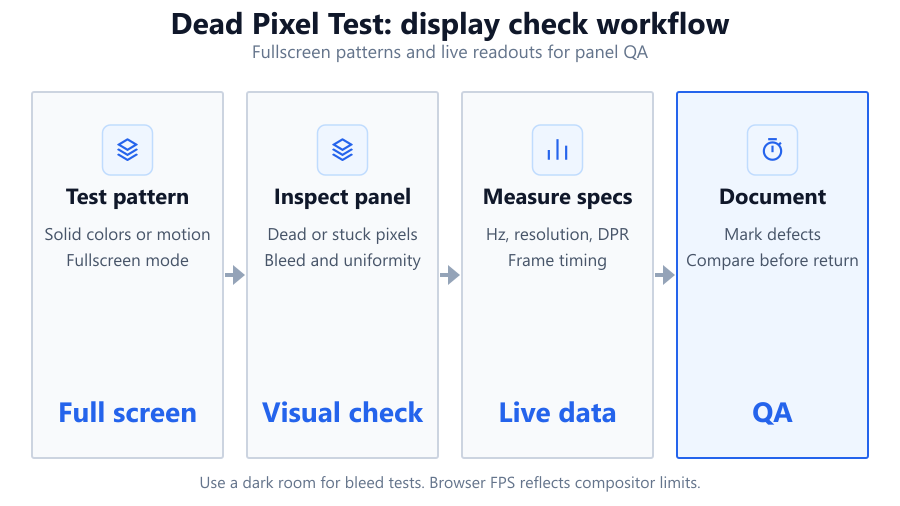
Start by visiting the Dead Pixel Test page on SystemRequirements.net. Click the 'Enter Fullscreen' button to eliminate distractions and use your entire screen area. With your monitor running at its native resolution, use the left and right arrow keys to cycle through the 12 available patterns. This includes solid colors (white, black, red, green, blue, yellow, cyan, magenta, gray), a smooth gradient for subtle issues, and high-contrast checkerboard and grid overlays for hard-to-spot defects.
To scan for defects, look closely at the display for pixels that stand out or do not match the surrounding color. Switch patterns rapidly with the arrow keys to catch stuck or hot pixels that may only appear on certain backgrounds. If you spot a suspicious pixel, press the M key to enter Marking Mode and click directly on the display to save its position for later review. Zoom in with the Z key for close inspection of small or high-resolution screens, and toggle a grid overlay using the G key if you need help tracking locations. You can enable an auto-slideshow mode to cycle through patterns automatically, which is useful for hands-free testing or batch checking multiple displays. Once finished, press ESC to exit fullscreen mode.
Test your monitor in a dark room if possible, and clean the screen beforehand to avoid confusing dust or debris with pixel defects. No installation is required, and the tool runs on Windows, macOS, Linux, and Chromebooks as long as your browser supports fullscreen APIs.
Understanding Your Results
After cycling through all patterns, note any pixels that remain out of place on one or more backgrounds. A dead pixel usually appears as a tiny black or unlit dot that does not change on any pattern. Stuck pixels are most visible on certain colors: for example, a pixel stuck on red will show up clearly against a white or black background. Hot pixels often glow white or unusually bright, especially in dark scenes.
The marking feature lets you log the exact locations of any defects you find. This is especially useful for warranty claims or communicating issues to support teams from brands like Dell or Samsung. Remember, browser-based tools cannot measure exact subpixel behavior or advanced panel diagnostics, but they provide a clear visual check for most common pixel issues. If you are unsure whether a spot is a pixel defect, try cleaning the screen first and double-check on multiple background patterns.
Common Problems This Helps Diagnose
The Dead Pixel Test is designed to reveal several types of pixel issues:
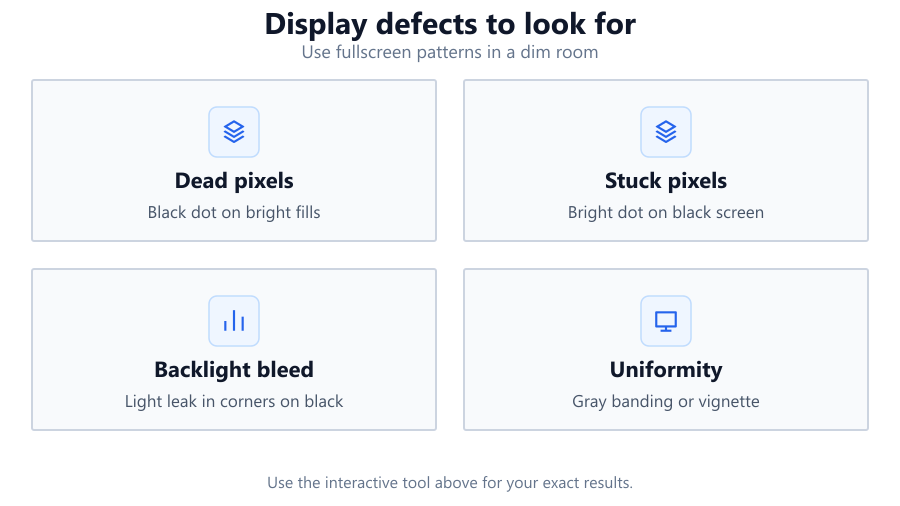
Dead pixels: These appear as permanently black or unlit dots that do not react to any color or pattern. They are the most common defect in LCD and OLED panels, including models from HP, ASUS, and LG.
Stuck pixels: These are pixels that remain fixed on a single color (red, green, or blue) and show up especially well on contrasting backgrounds. Stuck pixels are often fixable through panel cycling but can persist on some displays.
Hot pixels: These appear as always-on white or bright spots, visible mainly on dark patterns. Hot pixels can be more distracting than dead pixels, particularly on gaming monitors like the BenQ Zowie series.
Subtle uniformity issues: The gradient and gray patterns can help reveal color banding, poor backlight uniformity, or areas of uneven brightness. This is useful for creative professionals using monitors like the ASUS ProArt or Dell Ultrasharp series.
Checkerboard and grid overlays are ideal for spotting clusters of bad pixels or evaluating large-format displays such as TVs or ultrawides. The tool does not diagnose hardware faults or electronic circuitry issues, but it is effective for basic pixel-level screening.
Examples and Scenarios
Scenario 1: Checking a New Monitor (Dell S2721DGF) You have just unboxed a Dell S2721DGF and want to ensure the panel is flawless before your return window closes. Enter fullscreen mode and cycle through solid black, white, and the primary RGB patterns. You spot a single black dot on every color. This confirms a dead pixel. Mark its position for reference and contact Dell support for their pixel policy.
Scenario 2: Diagnosing a Stuck Pixel (ASUS TUF Gaming VG259QM) While gaming, you notice a tiny green spot that does not go away. Using the test tool, you cycle to a solid blue background. The spot stands out as bright green. This is a classic stuck pixel. You try cycling colors quickly and running an online pixel refresher to see if it clears, then mark it if it remains.
Scenario 3: Spotting Hot Pixels on a Laptop (Lenovo Legion 5) On your Lenovo Legion 5 laptop, you notice bright specks during Netflix marathons. The tool's black and gray backgrounds make three small white dots visible. These are hot pixels, which may be covered by Lenovo's warranty if above the allowed threshold.
Scenario 4: Evaluating Uniformity on a Graphics Monitor (BenQ PD3200U) As a photographer, you need even color reproduction. Using the gray and gradient patterns, you notice a faint yellow tint on the left edge of your BenQ PD3200U. This is not a pixel defect but a backlight uniformity issue. The test helps you decide whether the panel meets your standards for photo editing.
Scenario 5: Inspecting a Second-Hand Monitor (Samsung Odyssey G5) You are buying a used Samsung Odyssey G5. Before paying, you run the Dead Pixel Test tool. Cycling through patterns reveals no dead or stuck pixels, but the grid overlay shows slight pixel misalignment in the lower right. You negotiate with the seller or decide if the flaw is acceptable given the price.
Scenario 6: Verifying Multiple Monitors in a Dual-Setup (HP Omen 27i and MSI Optix MAG272CQR) You want to make sure both screens are free from defects. Using the auto-slideshow feature, you check both screens with minimal effort. Mark any issues and compare them side by side for consistent quality across your setup.
Tips for Accurate Testing
Clean your screen before starting, as dust, fingerprints, or smudges can mimic pixel defects. Test in a well-lit environment or a dark room, depending on the pattern you are using, but avoid direct reflections that can hide faint issues. Always set your monitor to its native resolution and refresh rate in Windows, macOS, or your GPU control panel. Disable any OS-level features like Night Light, f.lux, or HDR that might alter color output temporarily. For accurate color, set your monitor to sRGB mode if available. Turn off dynamic contrast, sharpening, and local dimming features, especially on TVs or monitors with aggressive image processing.
If you are using a laptop or portable USB-C display, make sure battery-saving modes are disabled, as they can dim the backlight and mask issues. For ultrawide or curved monitors (like the Samsung Odyssey Neo G9), inspect the entire viewing area by moving your head to different angles. If you notice a spot, use the Zoom feature (Z key) to check at pixel level, and use the Marking Mode to record the location. When in doubt, cross-check using another device or have someone else verify your findings. The more patterns you test, the more likely you are to catch subtle or intermittent pixel issues.
Browser vs Desktop Software
The Dead Pixel Test tool works entirely in your browser, requiring no installation or admin permissions. It is quick, safe, and compatible with modern browsers like Chrome, Firefox, Edge, and Safari. While browser-based tools are excellent for quick pixel checks, they have some limitations: they cannot access hardware-level information or control monitor settings directly. Color accuracy and fullscreen coverage may be influenced by OS-level scaling, color profiles, or browser rendering quirks. For lab-grade diagnostics, firmware flashing, or advanced uniformity analysis, dedicated desktop software like PassMark MonitorTest or EIZO Monitor Test may be required.
If you are a professional calibrator, need to test refresh rates, or want to measure pixel response times, standalone tools offer more features. However, for most users, including gamers, remote workers, or IT staff, the browser-based Dead Pixel Test is fast, effective, and accessible from any device. Always double-check results on another machine or operating system if you suspect a browser issue. For warranty claims, screenshots or marked locations from the tool are usually sufficient when reporting to brands like LG, ASUS, or Acer.
Summary
The Dead Pixel Test is a simple but powerful browser-based tool for finding pixel defects on any monitor, laptop, or TV. By cycling through 12 fullscreen patterns and using features like marking, zoom, and grid overlays, you can quickly spot and document dead, stuck, or hot pixels. The tool is compatible with all major operating systems and display brands, and requires no installation. While it does not offer lab-grade precision, it is more than adequate for everyday troubleshooting, purchase inspections, and warranty documentation. For more advanced diagnostics, consider pairing it with desktop software or professional calibration hardware. Use this tool whenever you need fast, visual confirmation of your screen's health.
Frequently Asked Questions
How do I test for dead pixels on my monitor or laptop?
To test for dead pixels, use the Dead Pixel Test tool in fullscreen mode. Cycle through solid colors like white, black, red, green, and blue using the arrow keys. Check for any dots or spots that remain unchanged on all patterns. Mark any suspicious locations using the tool's marking mode (M key). Clean your screen first to avoid mistaking debris for defects. This method works for monitors, laptops, and even TVs, regardless of brand.
Does this online dead pixel test work for OLED and mini-LED screens?
Yes, the Dead Pixel Test works on OLED, mini-LED, QLED, and traditional LCD screens. It displays solid colors and patterns that highlight defects regardless of the backlight technology. For OLED panels, hot pixels may appear as always-lit dots, while stuck or dead pixels behave similarly to LCDs. The test is effective for brands like LG, Samsung, ASUS, and Sony.
Can a browser-based pixel test be trusted for warranty claims?
While browser-based tests like this one are not lab-grade, they provide clear visual evidence of pixel defects. Marked locations and screenshots are usually sufficient for initial warranty claims with manufacturers like Dell, Acer, or HP. For final approval, some brands may request further diagnostics or in-person inspection. Always check your warranty terms for the number of allowed dead pixels.
What is the difference between dead, stuck, and hot pixels?
A dead pixel appears as a black or unlit spot that never changes color, no matter the pattern. A stuck pixel is fixed on one color (red, green, or blue) and is visible on most backgrounds except those that match. Hot pixels are always-on and shine bright white or another color, especially noticeable on black screens. All three can be detected with this tool by cycling through different patterns.
How do I use the marking and zoom features in the Dead Pixel Test?
To mark a suspected pixel, press the M key to enter Marking Mode, then click the location on your screen. The tool will save the position for later review or documentation. Use the Z key to zoom in on your display, making it easier to inspect high-resolution or small panels. These features are especially helpful for warranty claims or comparing results across multiple tests.
Can the Dead Pixel Test fix stuck pixels on my display?
The Dead Pixel Test is designed for detection, not repair. It helps identify stuck pixels, but it does not include cycling or flashing functions to attempt to fix them. Some stuck pixels may recover with repeated color cycling or by using dedicated pixel refresher tools, but persistent defects may be permanent and require warranty service.
Are browser-based dead pixel tests accurate on all operating systems?
Browser-based tests are accurate for visual inspection but can be affected by OS settings like scaling, color profiles, or accessibility features. Always set your display to native resolution and disable features like Night Light or f.lux for best results. The test works on Windows, macOS, Linux, and Chromebooks, but slight color shifts or pattern rendering differences may occur between systems.
Will this test work on smart TVs and external monitors?
The Dead Pixel Test works on any device with a web browser and fullscreen support. For smart TVs, use the built-in browser, but be aware that some models limit color depth or pattern accuracy. For external monitors, run the test from your connected PC or laptop. Always use the monitor’s native resolution and check manufacturer settings for best results.
Can this tool detect pixel issues on gaming monitors like the ASUS ROG Swift or Alienware AW2521H?
Yes, the tool is suitable for all gaming monitors, including high-refresh-rate models like the ASUS ROG Swift, Alienware AW2521H, and BenQ Zowie series. Use the solid color and grid patterns to check for pixel issues at both 60Hz and higher refresh rates. For best accuracy, set your monitor to its gaming mode and native refresh rate.
What should I do if I find a dead or stuck pixel?
First, confirm the issue by cycling through all patterns and cleaning your screen. If the pixel remains unchanged, use the marking feature to document its location. Check your monitor’s warranty policy, most brands allow a small number of dead pixels, but some premium models offer zero-pixel guarantees. Contact the manufacturer with your findings for further support.
Why do some pixels only appear defective on certain patterns?
Some pixel defects are only visible against specific backgrounds. A stuck red pixel, for example, is easy to spot on a blue or white background but may blend in on red. Hot pixels usually stand out on black or dark patterns. Cycling through all patterns ensures you catch every type of defect, even those that are intermittent.
Is there a minimum number of dead pixels required for warranty replacement?
Warranty policies vary by manufacturer and model. Some brands, like Dell’s UltraSharp series, offer zero dead pixel guarantees. Others may allow a few dead or stuck pixels before approving a replacement. Check your product’s documentation or the manufacturer’s website for specific coverage details. Marking pixel locations with this tool helps make your case.
Can the Dead Pixel Test assess color uniformity or backlight bleed?
While primarily designed to detect pixel defects, the tool’s gradient and gray patterns can reveal color uniformity problems, backlight bleed, and clouding. These show up as patches or uneven brightness across the screen. For detailed uniformity measurements or professional calibration, use dedicated hardware or software, but this tool is excellent for quick visual checks.
Does the Dead Pixel Test store any data or require installation?
No, the tool is browser-based and does not store any user data, screenshots, or personal information. It requires no installation, admin rights, or registration. All marking and pattern changes happen locally in your browser session and are reset when you refresh or close the page.
How do I know if a spot is a pixel defect or just dust on the screen?
Always clean your screen before testing. If a spot stays in the same position on every pattern and does not move when you gently wipe the area, it is likely a pixel defect. If it disappears or moves, it is probably dust or debris. Zooming in and marking the location can help verify persistent issues.
What are some real-world examples of using this tool before buying or selling a used monitor?
Before purchasing or selling a used monitor, run the Dead Pixel Test to ensure there are no hidden defects. Sellers can provide screenshots or marked locations as proof of condition. Buyers can verify pixel health during in-person meetings. This is especially useful for high-value models like the LG UltraGear, Dell Alienware, or ASUS ProArt series.
Related Tools
Free tools to analyze, compare, and optimize your PC gaming performance
Backlight Bleed Test
Detect backlight bleeding, IPS glow and display uniformity issues using fullscreen dark patterns and display tests.
Use Tool →Display Test
Test your monitor for dead pixels, color accuracy, gradients, response time, sharpness and display quality in one place.
Use Tool →Color Screen Test
Display fullscreen color patterns for monitor testing, photography, calibration and display diagnostics.
Use Tool →Dead Pixel Fixer
Try to fix stuck pixels using fullscreen color cycling patterns. Free browser-based dead pixel repair tool.
Use Tool →Popular Game System Requirements
Check if your PC meets the requirements for these popular games
Benchmark data from PassMark and publisher specs. Calculators run locally in your browser — we never upload your hardware info.