
Guide
Should You Return a Monitor for One Dead Pixel?
Wondering if you should return a monitor for one dead pixel? Learn when a single dead pixel justifies a return, what manufacturers allow, and how to diagnose your display.
Updated 2026-07-05
Understanding Dead Pixels and Your Options
A dead pixel is a single point on your monitor that does not light up, remaining black or a fixed color regardless of the image displayed. While most modern displays undergo strict quality control, no manufacturing process is perfect. Even premium monitors can ship with one or more dead or stuck pixels.
The moment you spot a dead pixel, you may wonder if it is worth returning the display or if you are being overly picky. The answer depends on several factors: your monitor's price, its intended use, your tolerance for visual flaws, and the policies of both the manufacturer and the retailer.
Most manufacturers allow a small number of dead or stuck pixels before they will authorize a return or replacement. Some brands guarantee zero dead pixels, but many set a threshold, often two to five defective pixels, before considering a monitor "defective" for warranty claims. These policies are not always clear at the point of sale, so knowing your coverage is essential before making a decision.
How to Decide: Factors, Policies, and Practical Steps
Before you initiate a return, consider how the dead pixel impacts your daily use. If you never notice it during gaming or work, it may not be worth the hassle. However, for graphic designers, video editors, and anyone sensitive to pixel-perfect accuracy, even one defective pixel can be distracting.
First, review your monitor's warranty and the store's return policy. Retailers often allow returns for any reason within a short window, but after that, you will rely on the manufacturer's terms. These policies are usually found on the company's support website, often under "pixel policy" or "warranty information."
Use a tool like Dead Pixel Test to verify the issue. This tool displays solid colors across your screen, making it easy to spot and mark problem pixels. Take clear photos of the defect and note its location. Some manufacturers require this evidence before approving a return.
If the pixel is merely stuck (displaying red, green, or blue at all times), you may be able to fix it using pixel-repair software or gentle manual techniques. True dead pixels (always black) are rarely recoverable. Before returning the monitor, try running a pixel-fixing tool for several hours and check if the pixel revives. If not, and if you are within your warranty window, decide whether the defect is significant enough to warrant a swap.
Step-by-step
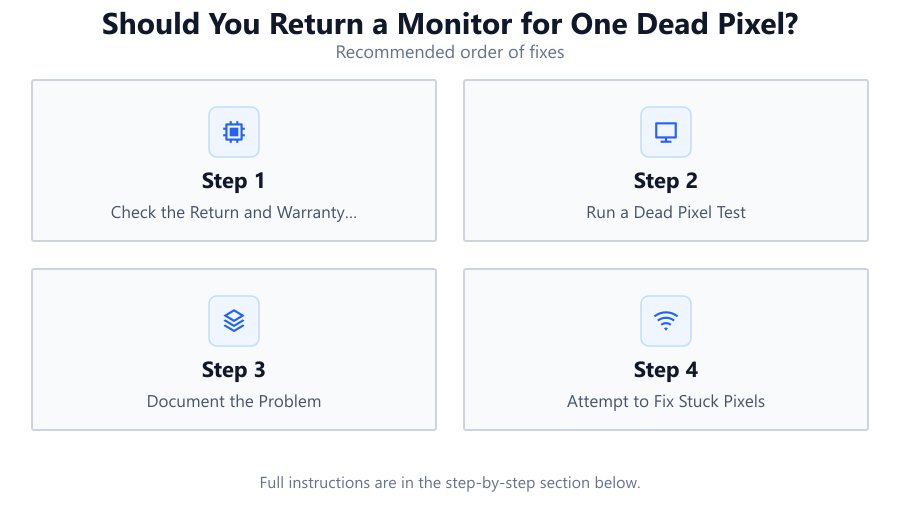
Check the Return and Warranty Policies
Visit both your retailer's and manufacturer’s support pages. Look for sections about dead pixel coverage, return windows, and shipping processes. Some brands allow a return for even a single dead pixel, while others set a minimum threshold.
Run a Dead Pixel Test
Open the Dead Pixel Test tool to display solid colors across your monitor. Carefully scan the entire screen for stuck or dead pixels under good lighting. Mark any issues you find for documentation.
Document the Problem
Take clear, close-up photos of the dead pixel with your phone or camera. Note its exact location on the display. Save or print these as proof for your claim.
Attempt to Fix Stuck Pixels
If the pixel is stuck (not black), try running pixel-fixing software or gently massaging the area with a soft cloth. This can sometimes revive the pixel if it is not truly dead.
Contact Support and Initiate Return if Needed
If the pixel remains dead and the policy allows, contact support to request a return or replacement. Provide your documentation and follow their instructions. Be prepared for possible shipping costs or restocking fees.
Comparison
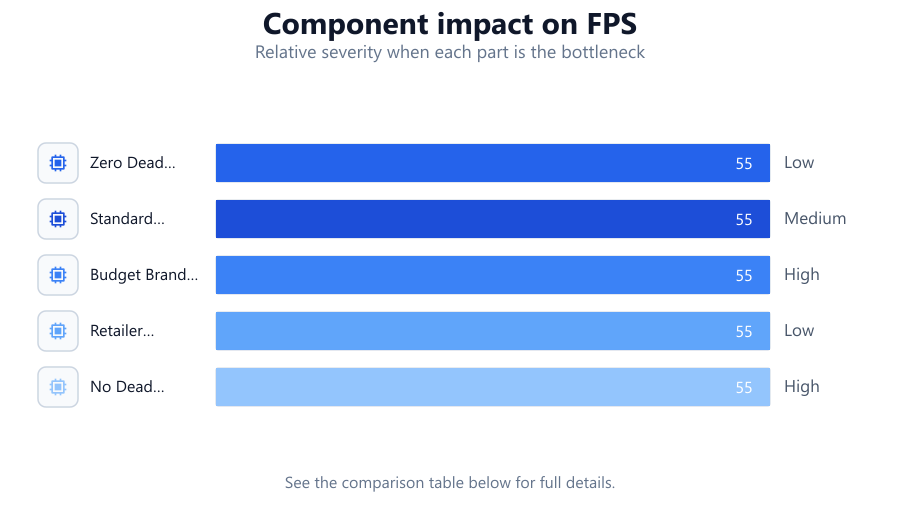
| Brand Policy | Dead Pixel Threshold | Return Hassle |
|---|---|---|
| Zero Dead Pixel Guarantee | 0 | Low |
| Standard Manufacturer Policy | 2-5 | Medium |
| Budget Brand Policy | 5+ | High |
| Retailer 30-Day Return | Any | Low |
| No Dead Pixel Coverage | Not covered | High |
Common mistakes
Mistake
Assuming all dead pixels are covered by warranty
Fix: Always check the manufacturer's pixel policy before expecting a free replacement. Many brands allow several dead pixels before approving a warranty claim.
Mistake
Returning a monitor before verifying with a pixel test
Fix: Use a tool like Dead Pixel Test to confirm the issue and document its location. This speeds up the claim process and avoids unnecessary returns.
Mistake
Ignoring the return window
Fix: Act quickly if you discover a dead pixel. Retailers often allow hassle-free returns only within a limited time after purchase.
Mistake
Not attempting to fix stuck pixels
Fix: Try pixel-fixing software or gentle pressure techniques for stuck pixels before pursuing a return, as these can sometimes restore proper function.
Troubleshooting
Pixel appears black on all backgrounds
Likely cause: Dead pixel with no voltage response
What to do: Document the issue and check warranty coverage. Dead pixels are rarely fixable, so replacement may be necessary.
Pixel is always red, green, or blue
Likely cause: Stuck pixel with partial voltage response
What to do: Run a pixel-fixing tool or gently massage the area. Stuck pixels can sometimes be revived.
Several pixels malfunction after unboxing
Likely cause: Manufacturing defect or shipping damage
What to do: Immediately contact the retailer for a replacement. Take photos as evidence.
Pixel issue only visible on certain colors
Likely cause: Subtle stuck or dead pixel
What to do: Use Dead Pixel Test to display various colors and better identify the problematic pixel. Document findings for support.
Recommendations
- Always run a Dead Pixel Test within the first 48 hours of receiving a new monitor.
- Check both retailer and manufacturer pixel policies before making a return decision.
- Attempt to fix stuck pixels using recommended software before returning the display.
- If you are sensitive to display flaws, consider only purchasing monitors with a zero dead pixel guarantee.
- Document all issues with photos and detailed notes to streamline support requests.
Frequently asked questions
Is one dead pixel enough to return a monitor?
It depends on the manufacturer and retailer policies. Some brands allow returns for a single dead pixel, while others require multiple defective pixels before approving a claim.
How can I check for dead or stuck pixels?
Use a tool like Dead Pixel Test to display solid colors and spot any problematic pixels. This makes it much easier to identify and document issues.
Can a dead pixel be fixed?
True dead pixels (always black) are usually not fixable. Stuck pixels (always a color) can sometimes be revived with pixel-fixing software or gentle pressure.
Will a dead pixel get worse over time?
A single dead pixel does not typically spread, but it can be distracting. If multiple pixels fail over time, it may indicate a larger defect.
What is a zero dead pixel guarantee?
A zero dead pixel guarantee means the manufacturer will replace or repair the monitor if even one dead or stuck pixel is present. These guarantees are usually found on higher-end models.