
Guide
Dead Pixel vs Stuck Pixel
Wondering if that annoying dot on your monitor is a dead pixel or a stuck pixel? Learn the differences, causes, and how to fix them with our expert guide.
Updated 2026-07-05
Understanding Dead and Stuck Pixels
If you have ever noticed a tiny colored or black dot on your monitor that will not go away, you are not alone. Both dead pixels and stuck pixels are common LCD display issues, but they are not the same thing. Understanding the distinction can help you choose the right solution and avoid unnecessary replacements.
A dead pixel appears as a permanently black dot. This usually means the pixel is not receiving power or has a hardware failure. In contrast, a stuck pixel shows up as a single color, typically red, green, or blue, and occurs when one or more subpixels remain on while others function normally.
Most modern LCD panels are susceptible to both types, and causes can include manufacturing defects, physical pressure, or aging components. Sometimes, pixels may appear to be dead but are actually stuck, and vice versa. Pinpointing the difference is essential for troubleshooting and repair.
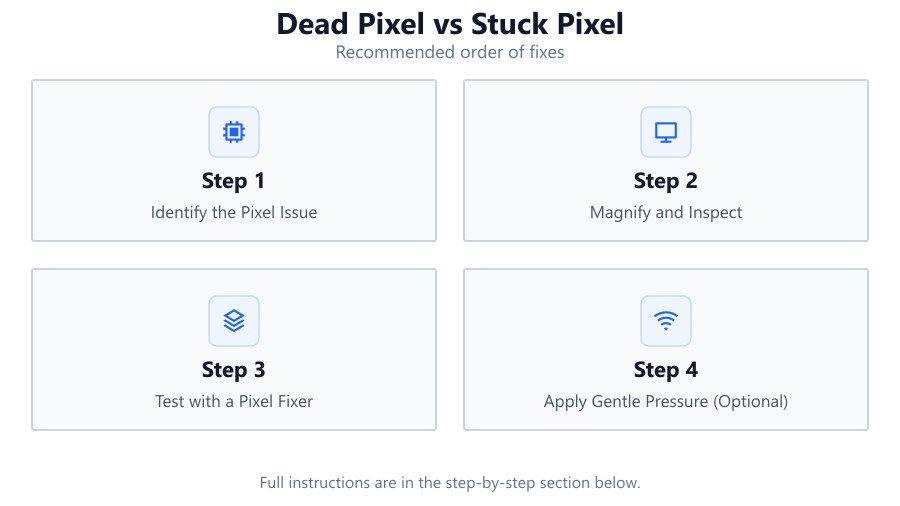
Knowing whether you have a dead or stuck pixel guides your next steps. Stuck pixels can sometimes be fixed with software-based tools like Dead Pixel Fixer, while dead pixels are often permanent.
Technical Differences and Fixing Methods
The core difference between dead and stuck pixels lies in their electrical and mechanical state. Each pixel on an LCD screen comprises three subpixels: red, green, and blue. When all three subpixels fail to light up, you get a dead pixel. This is usually the result of a manufacturing fault or physical damage that has cut off power to that pixel entirely, making it appear black regardless of screen content.
A stuck pixel, on the other hand, results when one or more subpixels remain constantly on or off. For example, a stuck red pixel will stay red even when it should be displaying other colors. This is generally caused by a transistor malfunction or signal error, but the pixel may still be physically intact.
Dead pixels are rarely fixable through software means. However, stuck pixels can often be resolved using rapid color cycling or flashing techniques, which is exactly what our Dead Pixel Fixer tool does in your browser. By rapidly changing colors over the affected area, it can sometimes reactivate stuck subpixels and restore normal operation. The success rate depends on the pixel's condition and how long it has been stuck.
If you are unsure which type you are facing, try using a pixel tester pattern: a dead pixel will remain black on all backgrounds, while a stuck pixel will show as colored regardless of content. Dead Pixel Fixer is designed to help unstick pixels, and it is safe to try before considering hardware replacement.
Step-by-step
Identify the Pixel Issue
Display a solid color background (white, black, red, green, blue) and note the dot's appearance. A black dot on all backgrounds is likely a dead pixel, while a colored dot suggests a stuck pixel.
Magnify and Inspect
Use a magnifying glass or zoom in with your phone's camera. Look closely at the affected area to confirm if the pixel is truly black or showing a color.
Test with a Pixel Fixer
Run a pixel fixing tool like Dead Pixel Fixer. Set it to flash rapid RGB patterns over the affected area for several minutes. Monitor the pixel to see if it changes or disappears.
Apply Gentle Pressure (Optional)
If software fails and the pixel is stuck, turn off your monitor, wrap your finger in a soft cloth, and gently press the pixel area. Turn the monitor back on while maintaining gentle pressure, then release. Do not apply this method to dead pixels.
Check Manufacturer Warranty
If the pixel remains dead or stuck after all attempts, check your warranty policy. Some brands offer pixel guarantees or allow for returns based on the number and type of faulty pixels.
Comparison
| Feature | Dead Pixel | Stuck Pixel |
|---|---|---|
| Appearance | Always black | Colored (red, green, blue) |
| Cause | No power or hardware failure | Subpixel stuck on/off |
| Fixable? | Rarely | Often with tools like Dead Pixel Fixer |
| Location Sensitivity | Anywhere on screen | Anywhere on screen |
| Response to Pixel Fixers | No effect | Possible improvement |
| Warranty Coverage | Sometimes | Sometimes |
| Prevalence | Less common | More common |
| Impact on Use | May be distracting | May be distracting |
Common mistakes
Mistake
Assuming all non-functioning pixels are dead pixels
Fix: Test with solid color backgrounds and pixel fixing tools like Dead Pixel Fixer to confirm if the pixel is stuck or dead.
Mistake
Using excessive physical pressure on the screen
Fix: Apply only gentle pressure and only for stuck pixels, not dead pixels. Too much force can damage more pixels.
Mistake
Neglecting manufacturer warranty options
Fix: Always check your display's warranty coverage for pixel defects before attempting risky fixes or giving up.
Mistake
Not running pixel fixer tools for a long enough session
Fix: Let Dead Pixel Fixer run for at least 10 to 30 minutes, as short bursts may not be effective for stubborn stuck pixels.
Troubleshooting
Pixel remains black on all test backgrounds
Likely cause: Likely a dead pixel due to failed pixel circuitry
What to do: Try pixel fixer once, but replacement or warranty claim is often the only solution.
Pixel shows red, green, or blue dot on all backgrounds
Likely cause: One or more subpixels are stuck on
What to do: Run Dead Pixel Fixer tool for an extended session. Use gentle pressure method if safe.
Pixel alternates between working and being stuck
Likely cause: Intermittent subpixel electrical issue
What to do: Repeat pixel fixing cycles with Dead Pixel Fixer and monitor for changes.
Multiple adjacent pixels are dead or stuck
Likely cause: Panel manufacturing defect or physical damage
What to do: Check warranty and consider panel replacement if many pixels are affected.
Recommendations
- Always try a software-based pixel fixing tool like Dead Pixel Fixer before considering hardware repair or replacement.
- Document the location and appearance of pixel defects for warranty claims.
- Avoid pressing too hard or using sharp objects on your screen to prevent further damage.
- If buying a new monitor, check the manufacturer's pixel policy and warranty terms.
Frequently asked questions
Can stuck pixels turn into dead pixels over time?
While rare, stuck pixels can sometimes fail completely and become dead pixels, especially if caused by underlying hardware issues.
How long should I run Dead Pixel Fixer to unstick a pixel?
It is recommended to run Dead Pixel Fixer for at least 10 to 30 minutes. Some stubborn pixels may need multiple sessions.
Is it safe to use physical pressure to fix a stuck pixel?
Gentle pressure can sometimes help, but it should only be used on stuck pixels and with caution. Never use sharp objects or excessive force.
Can Dead Pixel Fixer repair dead pixels?
No, Dead Pixel Fixer is designed to unstick pixels with electrical issues. Dead pixels are usually the result of hardware failure and are not fixable with software.