
Guide
Should You Return a Monitor for One Dead Pixel?
Wondering if you should return a monitor for one dead pixel? This guide covers your options, warranty details, and practical fixes to help you decide confidently.
Updated 2026-07-05
Understanding Dead Pixels and Your Options
A dead pixel appears as a tiny, unmoving black or colored dot on your monitor. It can be distracting, especially if you have just unboxed a new display. But before you rush to return or exchange your monitor, it is important to understand what a dead pixel is and how common they are.
Dead pixels are individual pixels that fail to display the correct color. They can be stuck (showing one color) or completely unresponsive (black). Manufacturing processes are not perfect, so even high-end monitors might ship with one or two pixel defects. Most brands have specific pixel policies in their warranties, only accepting returns if a certain threshold is exceeded.
If you spot a dead pixel, your first step should be to check your monitor’s warranty and pixel defect policy. Some manufacturers allow a return for even one dead pixel, but many require two or more. Retailer policies may differ from the manufacturer’s, so always check both. Understanding these terms will save you time and frustration if you choose to pursue a return or exchange.
Assessing Impact and Exploring Solutions
A single dead pixel on a large monitor may go unnoticed during regular use, especially if it is near the edge. However, if it is in the center or you are sensitive to visual flaws, it can be distracting. The decision to return the monitor depends on your tolerance and how much the pixel affects your experience.
Before considering a return, try to fix the issue. Sometimes, what appears to be a dead pixel is actually a stuck pixel, which can respond to certain repair techniques. Tools like Dead Pixel Fixer use rapidly cycling colors to try and revive stuck pixels. This process is easy, free, and does not require any installation. Simply open Dead Pixel Fixer in your browser, choose your settings, and let it run for several minutes.
If the pixel remains after multiple attempts, weigh the inconvenience of a return against the defect’s impact. For expensive or color-critical work, even one dead pixel might be unacceptable. For general use, it may not justify the hassle. Always document the defect with photos in case you decide to pursue a warranty claim or return.
Step-by-step
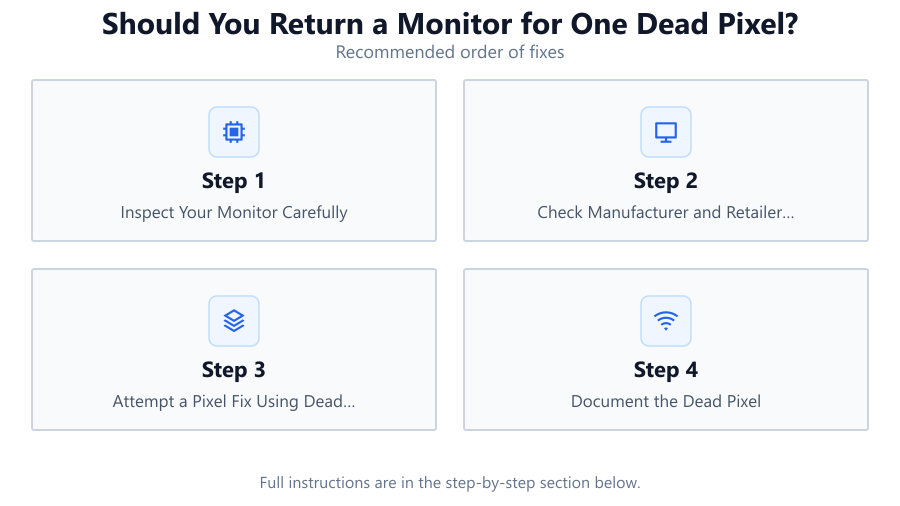
Inspect Your Monitor Carefully
Turn on your monitor and display solid colors (red, green, blue, black, white) to locate dead or stuck pixels. Use test images or tools to help with detection.
Check Manufacturer and Retailer Policies
Review your monitor’s warranty and pixel defect policy. Some brands allow returns for a single dead pixel, while others have stricter thresholds.
Attempt a Pixel Fix Using Dead Pixel Fixer
Open Dead Pixel Fixer in your browser. Run the tool, cycling through colors at different speeds for at least 10 to 30 minutes. Repeat if necessary to try and unstick the pixel.
Document the Dead Pixel
Take clear, high-resolution photos of the dead pixel. Capture the monitor’s serial number and purchase information for warranty or return requests.
Decide Whether to Return or Keep
Evaluate how noticeable the pixel is in daily use. If the defect remains and is bothersome, contact the retailer or manufacturer to start a return or exchange based on their policy.
Comparison
| Return Option | Pros | Cons |
|---|---|---|
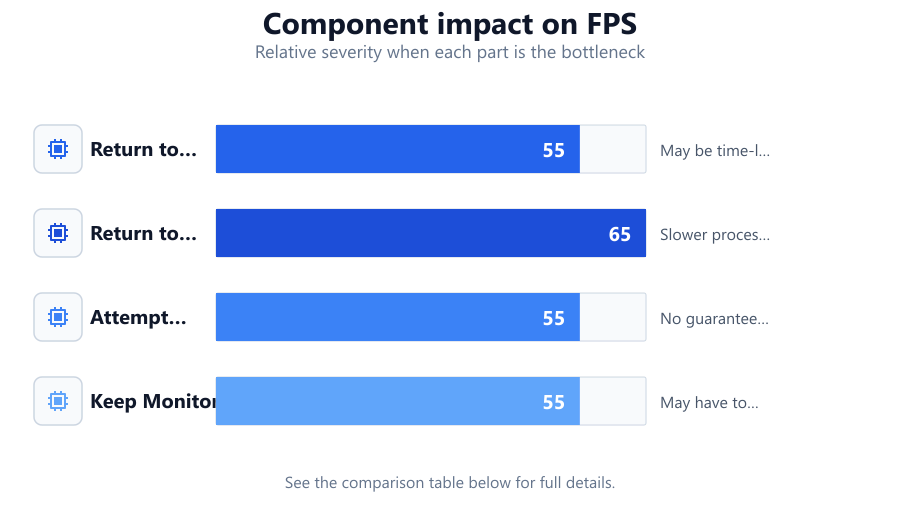
| Return to Retailer | Quick exchange, often lenient policies | May be time-limited, restocking fees possible |
| Return to Manufacturer | Covers warranty period, may allow for repair | Slower process, stricter pixel policy |
| Attempt Pixel Fix | Free, instant results with tools like Dead Pixel Fixer | No guarantee of success, may not work for true dead pixels |
| Keep Monitor | No downtime, avoids hassle | May have to live with defect, possible resale value impact |
Common mistakes
Mistake
Assuming all dead pixels are unfixable
Fix: Try using Dead Pixel Fixer or similar tools to see if the pixel is simply stuck before returning the monitor.
Mistake
Not checking the pixel policy before returning
Fix: Always review both retailer and manufacturer policies to avoid unnecessary returns and possible fees.
Mistake
Failing to document the issue
Fix: Take clear photos and keep all purchase documentation before starting a return or warranty claim.
Troubleshooting
Pixel is always black or colored
Likely cause: Could be a dead or stuck pixel
What to do: Run Dead Pixel Fixer for at least 10-30 minutes. If unchanged, consult warranty options.
Pixel flickers or changes color
Likely cause: Likely a stuck pixel
What to do: Use Dead Pixel Fixer with rapid color cycling. Try gentle pressure technique with a soft cloth if safe.
Multiple dead pixels appear over time
Likely cause: Possible panel defect or damage
What to do: Check if the number exceeds warranty thresholds. Contact manufacturer for repair or replacement.
Recommendations
- Try Dead Pixel Fixer before returning your monitor. Many stuck pixels can be revived with this simple tool.
- Check both retailer and manufacturer pixel policies before starting a return. Policies differ widely.
- If you use your monitor for graphic design, photography, or other color-critical work, consider returning for even one dead pixel.
- For general use, a single dead pixel in an unobtrusive spot may not justify the inconvenience of a return.
Frequently asked questions
Is one dead pixel enough to return a monitor?
It depends on the manufacturer and retailer pixel policy. Some allow returns for a single dead pixel, but many require two or more. Always check your warranty details.
Can a dead pixel be fixed?
Some stuck pixels can be fixed using tools like Dead Pixel Fixer, which cycles colors to try and revive them. True dead pixels, however, are usually permanent.
Will one dead pixel get worse over time?
A single dead pixel typically stays unchanged, but if more appear, it could indicate a larger panel issue. Monitor the display and contact support if the problem grows.
Does Dead Pixel Fixer require installation?
No. Dead Pixel Fixer runs entirely in your browser, with no downloads or installations required. Just open the tool and start the repair process.