
Guide
How to Test Correctly
Learn how to test your monitor correctly using Display Test. Get precise results on dead pixels, color accuracy, and overall screen performance with easy browser-based tools.
Updated 2026-07-05
Why Accurate Testing Matters for Your Monitor
Modern monitors can look impressive out of the box, but looks can be deceiving. Subtle flaws like dead pixels, poor color uniformity, or blurry motion can go unnoticed until you run proper tests. Whether you are a gamer, designer, or everyday user, knowing how to test correctly helps ensure your display is living up to its full potential.
Display Test is a browser-based suite designed for anyone who wants to evaluate their monitor quickly and thoroughly. Without needing to install any software, you can run a variety of visual tests, including solid color screens for spotting dead pixels, gradients for color banding, sharpness patterns, and more. This approach saves time and is accessible on any device with a web browser.
Accurate testing is not just for troubleshooting. It can help you calibrate your display for creative work, verify the quality of a new monitor, or catch issues before warranty periods expire. The right approach gives you confidence in your setup and can help you make informed decisions about upgrades or replacements.
Understanding the Display Test Suite and Key Test Types
Display Test offers a comprehensive set of visual checks, each designed to reveal specific strengths or weaknesses in your monitor. Here is a breakdown of the main tests and what each reveals:
- •Dead Pixel Test: Displays solid colors to expose stuck or dead pixels.
- •Color Uniformity: Checks if colors stay consistent across the entire screen.
- •Gradient and Banding: Shows smooth transitions to uncover poor color depth or processing.
- •Contrast and Black Levels: Evaluates how well your monitor handles dark and bright scenes.
- •Sharpness and Resolution: Ensures text and images appear crisp without blurring.
- •Motion Smear: Assesses how well fast-moving visuals are rendered, important for gaming and video.
Each test is easy to run in your browser. For best results, run these tests in a darkened room and set your monitor to its native resolution. If possible, allow your monitor to warm up for at least 30 minutes before testing to get a stable reading. Using Display Test, you can cycle through these tests methodically and record your findings for future reference.
Understanding the results is just as important as running the tests. For example, a single dead pixel may not be noticeable in daily use, but widespread color uniformity issues can impact photo editing or media consumption. Knowing how to test correctly empowers you to interpret these outcomes and take action if needed.
Step-by-step
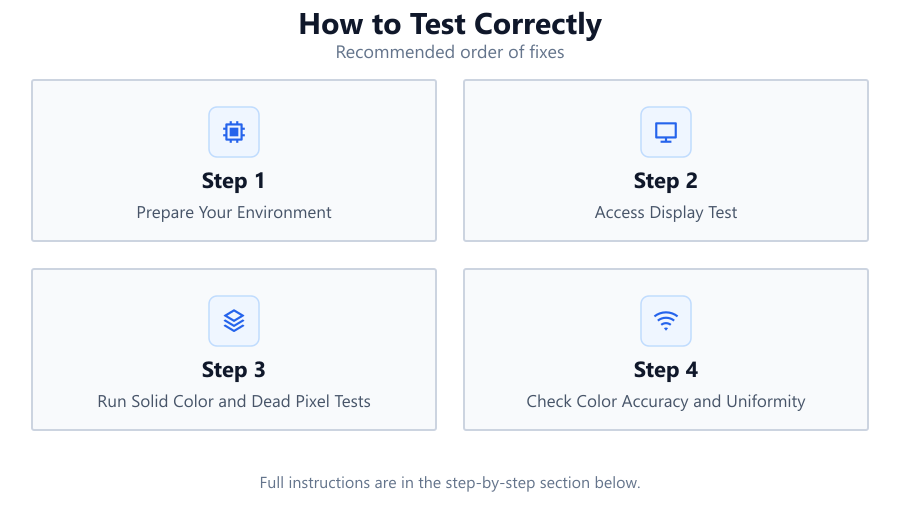
Prepare Your Environment
Dim the lights in your room to minimize reflections and glare. Set your monitor to its native resolution and default color settings. Allow the display to warm up for 30 minutes for consistent results.
Access Display Test
Open your web browser and navigate to Display Test. Make sure to maximize your browser window and hide any toolbars or overlays that could obscure test patterns.
Run Solid Color and Dead Pixel Tests
Cycle through solid color screens, red, green, blue, white, and black, and look for any stuck or dead pixels. Move your head slightly to check from different angles.
Check Color Accuracy and Uniformity
Use the color uniformity and gradient tests to spot any patches, banding, or discoloration. Pay special attention to the edges and corners of your screen.
Evaluate Sharpness, Contrast, and Motion
Run the sharpness and resolution patterns to check for blur or ghosting. Use the motion smear test to see how your display handles fast-moving objects. Record any issues you observe.
Comparison
| Test Type | What It Detects | When to Use |
|---|---|---|
| Dead Pixel Test | Stuck or dead pixels | After purchase or suspected defects |
| Color Uniformity | Uneven color, patches | For photo/video work or quality checks |
| Gradient/Banding | Color banding, poor depth | When calibrating for color accuracy |
| Contrast/Black Level | Washed-out blacks, poor contrast | For movies, games, dark scenes |
| Sharpness/Resolution | Blur, unclear text | Routine maintenance or after upgrades |
| Motion Smear | Ghosting, blurring in motion | For gaming or fast video playback |
Common mistakes
Mistake
Testing with room lights on or sunlight hitting the screen
Fix: Always test in a dim or dark environment to avoid glare and reflections that hide flaws.
Mistake
Not using the monitor’s native resolution
Fix: Set your display to its native resolution in your operating system settings before testing.
Mistake
Skipping warm-up time for your monitor
Fix: Allow your monitor to run for at least 30 minutes to reach stable temperature and brightness.
Mistake
Ignoring browser or software overlays during tests
Fix: Maximize your browser window and hide toolbars or notifications to ensure full-screen test patterns.
Troubleshooting
Dead pixels visible on solid color screens
Likely cause: Manufacturing defects or pixel failure
What to do: Check manufacturer’s warranty for possible replacement. Some stuck pixels can be fixed with pixel-fixing tools.
Uneven colors or noticeable patches during uniformity test
Likely cause: Panel inconsistencies or aging components
What to do: Try adjusting brightness or color settings. If persistent, contact support if under warranty.
Blurry text or images during sharpness test
Likely cause: Incorrect resolution or scaling settings
What to do: Set monitor to native resolution and check display scaling in your operating system.
Motion smear or ghosting during fast-moving tests
Likely cause: Slow response time or overdrive settings not optimized
What to do: Enable or adjust overdrive in your monitor menu. If problem persists, consider a monitor with a faster panel.
Recommendations
- Use Display Test regularly, especially after purchasing a new monitor or making display adjustments.
- Document your test results with screenshots or written notes for future reference or warranty claims.
- Test both before and after calibration to evaluate the impact of your adjustments.
- Check for firmware updates for your monitor, as some issues can be resolved by manufacturers.
- If you find persistent issues, compare your results with another device to rule out software or cable problems.
Frequently asked questions
Do I need special equipment to test my monitor accurately?
No, Display Test provides browser-based tools that are effective for most users. For precise calibration, hardware colorimeters can be used, but are not required for basic checks.
Can Display Test help me spot all types of monitor problems?
Display Test covers major visual issues like dead pixels, color uniformity, contrast, and motion. For hardware faults like backlight flicker, specialized tools may be needed.
How often should I test my monitor?
Test every few months, after major hardware changes, or if you notice visual issues. Frequent testing is especially important during warranty periods.
Is it safe to use Display Test on any device?
Yes, Display Test runs in your browser and does not install software or make system changes. It is safe for all computers and monitors.