
Guide
Optimization Guide
Discover proven strategies to reduce your PC's electricity costs, optimize your energy usage, and get the most out of every watt. This optimization guide provides actionable steps and expert tips, with help from our PC Electricity Cost Calculator.
Updated 2026-07-05
Understanding PC Electricity Cost Optimization
Optimizing your PC's electricity consumption is about balancing performance with efficiency. Whether you are a gamer, creative professional, or business user, reducing energy usage can lower your power bill and extend your hardware's lifespan. This optimization guide will walk you through key steps for minimizing power draw without sacrificing the experience you want.
Many users overlook the impact of inefficient hardware settings, outdated components, or poor power management. Even a high-performance PC can be energy efficient if configured correctly. By understanding your system's power profile and identifying high-consumption components, you can make smarter decisions on upgrades and daily usage.
Begin by measuring your current electricity cost using the PC Electricity Cost Calculator. Accurate data lets you see where your power budget goes. With this information, you can set realistic savings goals and track improvements as you apply optimization strategies.
Actionable Steps to Optimize Your PC's Power Usage
The real savings start with targeted changes. Focus on both hardware and software optimizations for the best results. Modern systems offer extensive control over power states, and even small tweaks can yield significant reductions in electricity use. Always balance your need for speed with your budget for power.
Hardware upgrades are one of the most effective ways to reduce energy consumption. Switching to efficient power supplies, SSDs, and modern CPUs can cut your electricity costs year-round. On the software side, leveraging built-in power plans and updating drivers can also make a measurable difference.
Routine maintenance is also crucial. Cleaning fans, managing background processes, and disabling unnecessary startup programs all contribute to lower usage. Use the PC Electricity Cost Calculator regularly to see how your changes translate into real-world savings.
Step-by-step
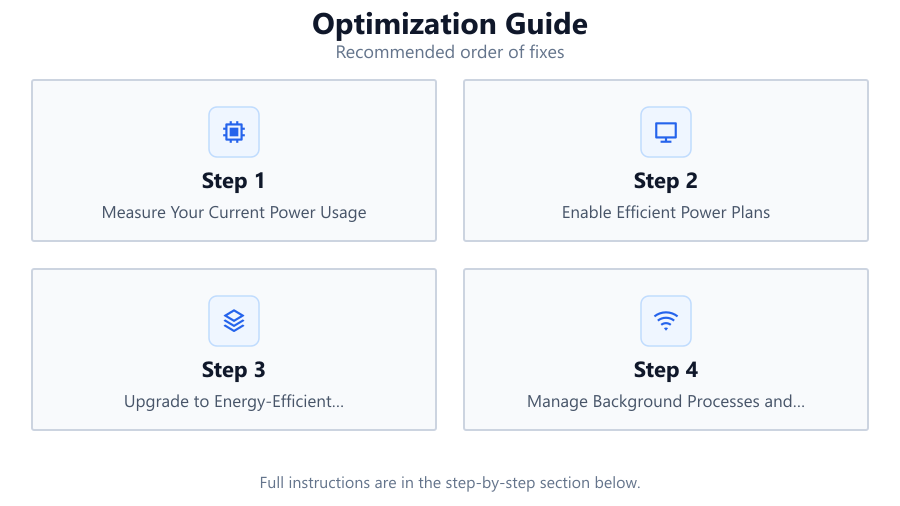
Measure Your Current Power Usage
Start by using the PC Electricity Cost Calculator to determine your PC's daily, monthly, and yearly power consumption. Enter your system's wattage, average hours of use, and local electricity rate for accurate results.
Enable Efficient Power Plans
Switch your operating system to a balanced or power saver plan. These settings automatically reduce power to hardware components when full performance is not needed, saving energy during light workloads.
Upgrade to Energy-Efficient Components
Consider replacing older hardware with energy-efficient alternatives. Modern CPUs, GPUs, SSDs, and certified 80 Plus power supplies provide better performance per watt and can significantly lower your electricity costs.
Manage Background Processes and Startup Apps
Disable unnecessary background programs and startup applications. Fewer active processes mean your CPU and RAM will consume less power, especially during idle or low-demand periods.
Regular Maintenance and Cleaning
Dust buildup causes fans and components to work harder, increasing power usage. Clean your PC regularly and ensure all cooling systems are functioning efficiently to maintain optimal airflow and energy performance.
Monitor and Adjust Usage Habits
Review your daily usage patterns. Shut down or sleep your PC when not in use rather than leaving it running. Use the PC Electricity Cost Calculator to see how these small changes affect your monthly bill.
Comparison
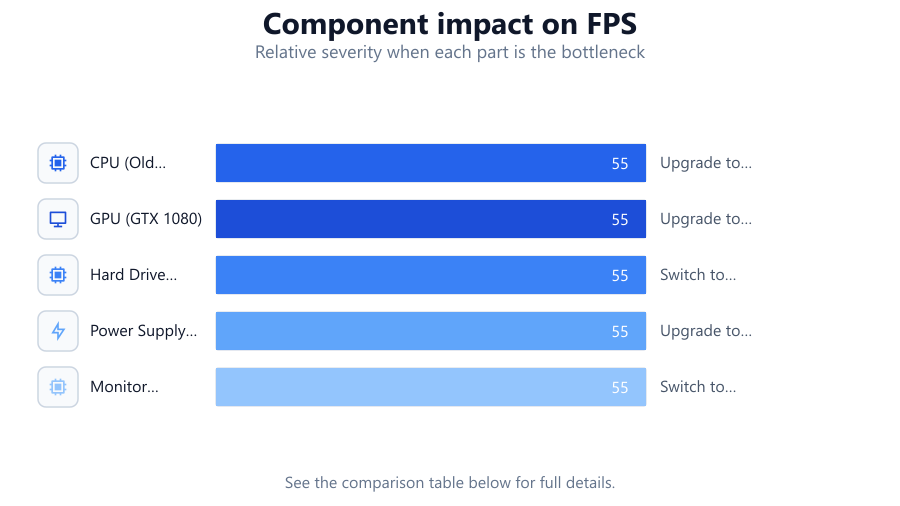
| Component | Typical Wattage | Energy Saving Upgrade |
|---|---|---|
| CPU (Old Quad Core) | 95W | Upgrade to 12th Gen Intel (65W) |
| GPU (GTX 1080) | 180W | Upgrade to RTX 4060 (115W) |
| Hard Drive (HDD) | 8W | Switch to SSD (2W) |
| Power Supply (Bronze) | 80% Efficiency | Upgrade to Platinum (92%) |
| Monitor (24" LCD) | 30W | Switch to LED Monitor (15W) |
Common mistakes
Mistake
Leaving the PC on 24/7 without sleep or shutdown
Fix: Use sleep mode or shut down your PC when not in use to save electricity.
Mistake
Using outdated hardware with high power consumption
Fix: Upgrade to modern, energy-efficient components for better performance and lower energy bills.
Mistake
Ignoring background processes and unnecessary startup apps
Fix: Regularly check and disable unused applications to reduce power draw.
Mistake
Not cleaning dust from fans and vents
Fix: Clean your PC at least every few months to maintain efficient cooling and airflow.
Troubleshooting
Electricity bill has not decreased after optimizations
Likely cause: Optimizations were not applied system-wide or energy-intensive components remain unchanged
What to do: Review all optimization steps, ensure hardware upgrades are in place, and use the PC Electricity Cost Calculator to recheck your settings.
PC runs hotter after changing power settings
Likely cause: Incorrectly configured power plans causing excessive performance mode usage
What to do: Switch to balanced or power saver mode and monitor temperatures with system tools.
Unexpected shutdowns or instability after hardware upgrades
Likely cause: Power supply is insufficient for new components or not properly connected
What to do: Ensure your power supply meets the requirements of your upgraded system and all cables are securely connected.
Fans running at high speed constantly
Likely cause: Dust buildup or blocked airflow causing the system to overheat
What to do: Clean out dust from fans and vents, and rearrange cables for better airflow.
Recommendations
- Use the PC Electricity Cost Calculator before and after optimizations to track your savings.
- Upgrade key components like your power supply, CPU, and GPU for the biggest efficiency gains.
- Adopt good habits like shutting down or sleeping your PC when not in use.
- Perform regular software and hardware maintenance to ensure ongoing efficiency.
- Monitor your local electricity rates and adjust your usage during off-peak hours if possible.
Frequently asked questions
How do I calculate my PC's electricity cost?
Use the PC Electricity Cost Calculator by entering your system's wattage, hours of use, and electricity rate to estimate your daily, monthly, and yearly costs.
What are the most effective upgrades for reducing PC power usage?
Upgrading to a modern CPU, an efficient GPU, and an 80 Plus certified power supply are the most effective ways to reduce your PC's energy consumption.
Does sleep mode save electricity compared to leaving my PC on?
Yes, sleep mode significantly reduces power draw by shutting down most components while allowing quick resume. This can save you a substantial amount on your electricity bill.
How often should I clean my PC for optimal efficiency?
Clean your PC every 2-3 months or more frequently if you are in a dusty environment. Keeping fans and vents clear ensures efficient cooling and lower energy usage.