
Guide
Optimization Guide
Unlock peak performance from your gaming setup with this optimization guide. Learn how to pair your GPU with the perfect monitor settings for a smoother, sharper gaming experience.
Updated 2026-07-05
Understanding Gaming Monitor Optimization
Choosing the right gaming monitor is one of the most impactful upgrades for any gamer. A monitor that matches your GPU and gaming preferences can elevate your visual experience, minimize input lag, and maximize the capabilities of your system. Many gamers overlook how critical it is to align monitor specs with their hardware, and end up with mismatched components that underperform.
Optimization is not just about buying the most expensive display. It is about understanding the interplay between screen size, resolution, refresh rate, and panel type. These factors must be balanced with your graphics card's capabilities and the genres you play most. For instance, competitive FPS players may prioritize high refresh rates, while RPG fans might prefer a higher resolution and richer colors.
The Gaming Monitor Calculator can help demystify these choices by analyzing your GPU, favorite games, and optimal play style. This tool provides tailored recommendations so you can avoid bottlenecks and wasted performance. In this optimization guide, we will break down the key factors to consider and provide practical steps to ensure your monitor setup is truly optimized.
Key Factors in Monitor Optimization
To get the most out of your gaming monitor, it is essential to examine each variable that impacts your experience. These include resolution, refresh rate, panel type, and screen size. Each of these elements interacts with your system in unique ways.
Resolution determines the clarity of your images. While 1080p may be sufficient for many, those with powerful GPUs can benefit from 1440p or 4K displays for sharper visuals. However, higher resolution puts more demand on your graphics card, which can lower your frame rates if your hardware is not up to the task.
Refresh rate, measured in hertz (Hz), controls how many frames per second your monitor can display. Higher refresh rates (120Hz, 144Hz, or 240Hz) are vital for fast-paced games and reduce motion blur. But if your GPU cannot push enough frames, you will not see the benefits of a high-refresh display.
Panel technology (IPS, VA, TN) impacts color reproduction, viewing angles, and response time. IPS panels offer vibrant colors and wide angles, while TN panels provide faster response times but lower color accuracy. VA panels strike a balance but may have slower response times.
Screen size influences immersion and clarity. Larger monitors are more immersive, but if resolution is too low for the size, images can appear pixelated. The Gaming Monitor Calculator can help you find the sweet spot, ensuring neither your GPU nor your eyes are overwhelmed.
By understanding these variables and using the Gaming Monitor Calculator, you can make informed choices that enhance your gaming performance and satisfaction.
Step-by-step
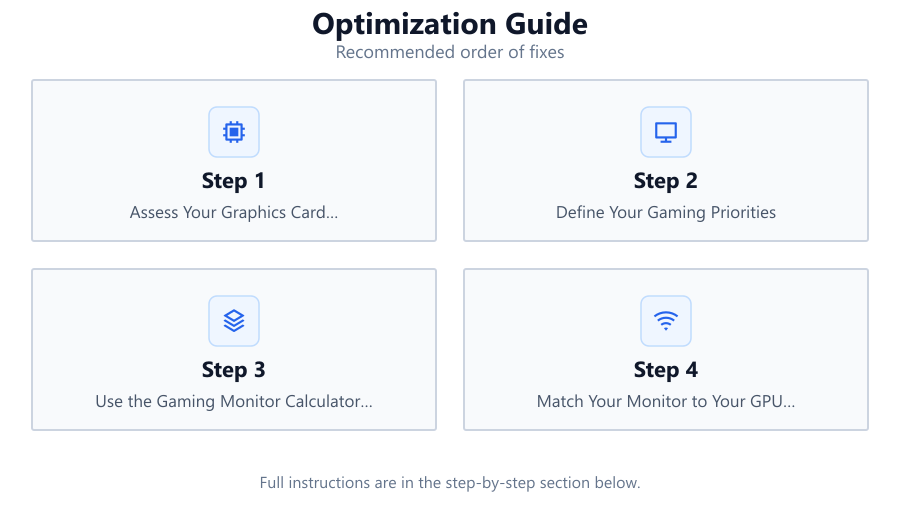
Assess Your Graphics Card Capabilities
Start by checking your GPU's performance in your favorite games. Use benchmarking tools or in-game performance metrics to determine average frames per second at different resolutions and settings. This baseline will help you understand what resolutions and refresh rates your system can handle.
Define Your Gaming Priorities
Decide whether you prioritize fast response and high frame rates or richer visuals and higher resolutions. Competitive gamers may lean toward lower resolutions with high refresh rates, while single-player or story-driven gamers might prefer higher resolutions and better color reproduction.
Use the Gaming Monitor Calculator for Recommendations
Input your GPU model, preferred game genres, and current setup into the Gaming Monitor Calculator. The tool will analyze your inputs and suggest optimal combinations of resolution, refresh rate, panel type, and screen size that suit your system and preferences.
Match Your Monitor to Your GPU Output
After receiving recommendations, compare your GPU's maximum supported resolution and refresh rate with monitor specs. Make sure your chosen monitor does not exceed what your graphics card can reliably output, otherwise you risk underutilizing your hardware.
Fine-Tune In-Game and System Settings
Once your monitor is set up, adjust in-game graphics settings and enable technologies like G-Sync or FreeSync if supported. Tweak color profiles, response times, and motion blur settings to further optimize performance and image quality for your preferences.
Comparison
| Resolution | Refresh Rate | Ideal GPU Power | Best For |
|---|---|---|---|
| 1920x1080 (1080p) | 144Hz+ | Entry to Mid-Range | Competitive FPS, eSports |
| 2560x1440 (1440p) | 120Hz-165Hz | Mid-Range to High-End | Action, RPG, Mixed |
| 3840x2160 (4K) | 60Hz-120Hz | High-End | Single Player, Visuals |
| 3440x1440 (UltraWide) | 100Hz-144Hz | High-End | Simulation, Immersion |
| 1920x1080 (1080p) | 60Hz | Low-End | Casual, Older Titles |
Common mistakes
Mistake
Choosing a 4K monitor with a mid-range GPU
Fix: Select a 1440p or 1080p monitor that matches your GPU's capabilities to ensure smooth gameplay.
Mistake
Buying high refresh rate monitors without enough GPU power
Fix: Use the Gaming Monitor Calculator to check if your GPU can deliver high frame rates at your desired resolution.
Mistake
Ignoring panel type
Fix: Consider your preferred game genres and viewing environment to choose the right panel technology for your needs.
Mistake
Overlooking connectivity and compatibility
Fix: Verify that your GPU and monitor both support the necessary ports and features like G-Sync or FreeSync.
Troubleshooting
Screen tearing during fast-paced games
Likely cause: Monitor refresh rate and GPU frame output are not synchronized
What to do: Enable G-Sync or FreeSync, or cap frame rates to match monitor refresh rate.
Blurry or washed-out colors
Likely cause: Incorrect color profile or panel type not suited for your use
What to do: Calibrate your monitor and select a panel type (such as IPS) that offers better color accuracy.
Input lag affecting gameplay
Likely cause: High response time or incorrect monitor settings
What to do: Set your monitor to 'gaming' or 'fast' mode and reduce post-processing settings in the OSD.
Low frame rates at high resolution
Likely cause: GPU not powerful enough for selected monitor resolution
What to do: Lower resolution or in-game graphics settings, or consider upgrading your GPU.
Recommendations
- Always match your monitor's resolution and refresh rate to your GPU's real-world performance.
- Use the Gaming Monitor Calculator before any display upgrade to avoid bottlenecks or wasted investment.
- Regularly update your graphics drivers and monitor firmware to ensure optimal compatibility.
- Experiment with in-game settings and monitor OSD features to fine-tune performance and visuals.
Frequently asked questions
How do I know if my GPU can handle a 144Hz monitor?
Check your GPU's performance in your favorite games at your desired resolution. If it consistently pushes over 120-144 FPS, a 144Hz monitor will be beneficial. The Gaming Monitor Calculator can help you verify this compatibility.
Is higher resolution or refresh rate more important?
It depends on your priorities. For competitive gaming, refresh rate is more important for fast response. For immersive single-player or visual experiences, resolution may take precedence.
What panel type is best for gaming?
IPS panels offer the best colors and viewing angles, while TN panels provide the fastest response times. VA panels balance both but may show some ghosting. Choose based on your preferred genres and personal preference.
Can the Gaming Monitor Calculator help with ultrawide or curved monitors?
Yes, the Gaming Monitor Calculator can recommend optimal specifications for ultrawide and curved displays based on your GPU and use case.