FREE GAMING MONITOR CALCULATOR

Gaming Monitor Recommendation Calculator Find the Best Display

Choosing the right gaming monitor is critical for getting the most out of your graphics card and games. This tool analyzes your GPU, gaming preferences, and setup to recommend the optimal resolution, refresh rate, panel type, and screen size - taking the guesswork out of your next display upgrade.

Your Setup

How It Works

We match your GPU's performance tier to monitor specs that avoid wasted refresh rate or unplayable resolutions. Competitive players get high refresh 1080p; visual-focused setups prioritize resolution over extreme FPS.

Monitor Recommendation

Enter GPU score and preference, then calculate

What Does This Calculator Do?

The Gaming Monitor Calculator helps you select the best monitor for your gaming PC by factoring in your GPU’s capabilities, preferred visual experience, target resolution, desired refresh rate, screen size, and game genres. Rather than relying on generic recommendations, it provides data-driven, tailored suggestions - so you won’t overspend on features your setup can’t fully utilize or bottleneck your hardware with mismatched specs.

For example, if you have an RTX 3070 and mainly play competitive shooters, the calculator might suggest a 1080p 240Hz IPS display in the 24 - 27 inch range, balancing speed and clarity. But if you prefer open-world RPGs and a cinematic experience, it could recommend a 32-inch 1440p or 4K panel with a lower refresh rate but higher color accuracy and contrast.

This tool also demystifies technical specs - like G-Sync, FreeSync, and panel types - helping you understand what matters for your specific setup.

How to Use This Calculator

Start by entering your GPU’s name or its PassMark score (GPU Mark). This allows the calculator to estimate your graphics card’s performance ceiling at different resolutions and refresh rates. Next, select your gaming preference:

  • Competitive: Prioritizes high frame rates and low latency (e.g., esports titles, shooters)
  • Balanced: Mix of fast-paced action and visually rich games
  • Visual: Prioritizes image quality and immersion over maximum speed

Then, specify your current or desired screen size, and optionally list your most played game genres. The calculator processes this data to recommend:

  • Optimal native resolution (1080p, 1440p, 4K, etc.)
  • Maximum effective refresh rate your GPU can sustain
  • Suggested panel type (IPS, VA, TN, OLED)
  • Screen size best suited for your setup

You’ll receive a clear breakdown of your recommended specs, plus alternative options if you prefer more visuals or speed.

How Are the Results Calculated?

The calculator’s core logic combines empirical GPU performance data, display technology characteristics, and competitive gaming benchmarks. Here’s how each parameter is processed:

GPU Mark Input: Your GPU’s PassMark score is mapped to average in-game FPS at various resolutions (1080p/1440p/4K) using a reference database.

RTX 3060 (GPU Mark
~17000): 1080p = 120 - 180 FPS, 1440p = 80 - 120 FPS, 4K = 45 - 65 FPS
RTX 4070 (GPU Mark
~24000): 1080p = 200+ FPS, 1440p = 140 - 180 FPS, 4K = 70 - 110 FPS
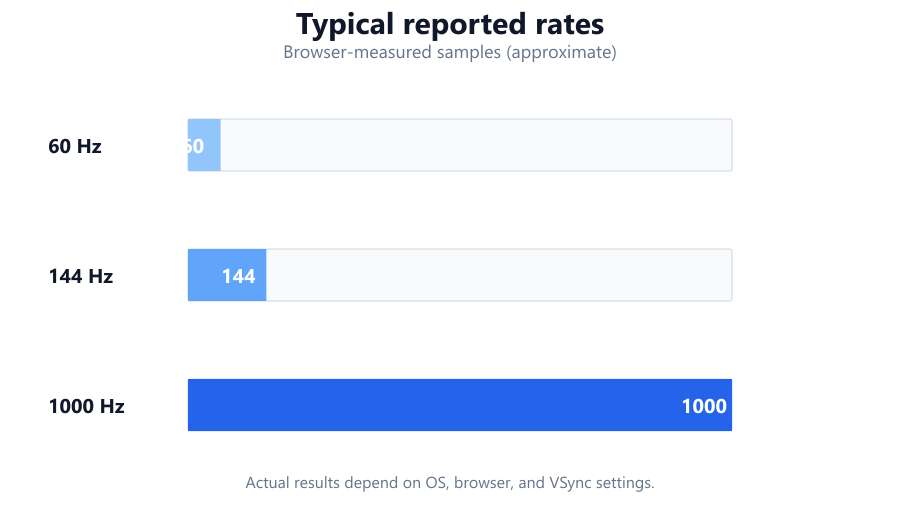
gpu resolution refresh chart

Gaming Preference

3. Resolution Recommendation: If GPU Mark > 22000 and 'Visual' selected → Recommend 4K up to 120Hz. If GPU Mark 16000 - 22000 and 'Balanced' → Recommend 1440p up to 165Hz. If GPU Mark < 14000 or 'Competitive' → Recommend 1080p up to 240Hz.

Competitive
Prioritizes refresh rate and frame time. Calculator targets 144Hz - 360Hz monitors where the GPU can reliably output >144 FPS.
Balanced
Targets 100 - 165Hz, matching GPU output and a mix of visuals/speed.
Visual
Suggests higher resolutions and panel types with better color depth, even if FPS is lower (60 - 100Hz typical).

Formula (simplified)

Recommended FPS = (GPU Mark / Reference GPU Mark) × Reference FPS at Target Resolution

Refresh Rate

Detail 1
Calculator checks if GPU can sustain 80% of monitor’s refresh rate in target games.
Detail 2
Suggests refresh rate tier (60Hz, 75Hz, 120Hz, 144Hz, 165Hz, 240Hz, 360Hz) that matches GPU output.

Panel Type

TN
Fastest response, lower color/contrast, best for esports.
IPS
Best color, good speed, ideal for mixed use.
VA
High contrast, good for dark scenes, some ghosting.
OLED
Best contrast and response, premium price.
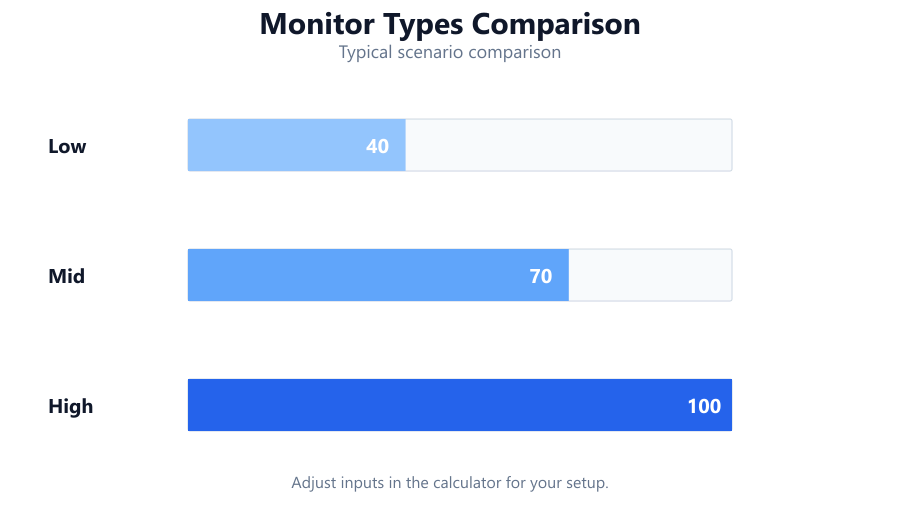
monitor types comparison

Size

Detail 1
24 - 27" for 1080p/144Hz+
Detail 2
27 - 32" for 1440p/165Hz
Detail 3
32"+ for 4K or immersive visuals
Assumptions
Standard desktop viewing distance (60 - 90cm), typical modern game workloads, single-monitor setups. Custom tweaks (ultrawide, curved, etc.) are considered in advanced options.

Understanding Your Results

Your results will include:

  • Resolution: The pixel count your GPU can handle without major frame drops or loss of clarity. Higher resolutions demand more GPU resources but offer sharper images.
  • Refresh Rate: The maximum number of times per second the display can update. High refresh rates (144Hz, 240Hz, 360Hz) benefit fast-paced games by reducing motion blur and input lag.
  • Panel Type: Determines color accuracy, viewing angles, response time, and price. IPS and OLED are preferred for visuals, TN for speed, VA for contrast.
  • Screen Size: Impacts immersion, pixel density, and ergonomics. Too large for your resolution can lead to visible pixels; too small reduces immersion.

Example result:

  • 1440p, 165Hz, IPS, 27 inch

This means your GPU can handle 1440p at up to 165 FPS in most games, and the IPS panel gives you excellent color reproduction suitable for all genres.

resolution size pixel density

Examples

RTX 4070, Competitive FPS Gamer

GPU Mark
~24000
Preference
Competitive
Result
1080p, 360Hz, TN/IPS, 24 inch

RTX 3060 Ti, Balanced Player

GPU Mark
~17500
Preference
Balanced
Result
1440p, 144Hz, IPS, 27 inch

RX 7900 XTX, Visual First

GPU Mark
~32500
Preference
Visual
Result
4K, 120Hz, OLED/IPS, 32 inch

GTX 1660 Super, Budget Esports

GPU Mark
~9700
Preference
Competitive
Result
1080p, 144Hz, TN/IPS, 24 inch

RTX 2080 Super, Mixed Genre

GPU Mark
~19800
Preference
Balanced
Result
1440p, 144Hz, IPS, 27 inch

RTX 4060, RPG/Adventure Focused

GPU Mark
~15500
Preference
Visual
Result
1440p, 75Hz - 100Hz, VA/IPS, 27 inch

Common Use Cases

Esports/Competitive FPS:

  • Fast response and high refresh (144 - 360Hz) matter most.
  • 1080p, 24 - 25 inch, TN or fast IPS recommended.

Story-Driven/AAA Visuals:

  • Resolution and color depth prioritized.
  • 1440p or 4K, 27 - 32 inch, IPS or OLED ideal.

Simulation/Racing:

  • Ultrawide or curved panels for immersion.
  • 1440p ultrawide (3440x1440), 34+ inch, VA or IPS.

Budget Builds:

  • Value for money, avoid bottlenecks.
  • 1080p, 75 - 144Hz, 24 inch, IPS or TN.

Streaming/Content Creation:

  • Color accuracy, screen real estate.
  • 1440p or 4K, 27 - 32 inch, high-end IPS or OLED.

Multi-Purpose Home Use:

  • Balanced specs.
  • 1440p, 75 - 144Hz, 27 inch, IPS.

Tips for Better Results

  1. Always match your monitor’s refresh rate to what your GPU can sustain in your favorite games. Overbuying on refresh rate provides little benefit if your GPU can’t keep up.
  2. For competitive play, prioritize low input lag and response time over color depth.
  3. For visually rich games, focus on resolution and panel quality - even a 60 - 100Hz screen is fine for many genres.
  4. Consider your viewing distance: Large screens at low pixel densities (e.g., 32 inch 1080p) look pixelated up close.
  5. Adaptive sync (G-Sync/FreeSync) is recommended for smoothness, especially if your FPS fluctuates.
  6. Don’t forget ergonomics: Height, tilt, and VESA mount compatibility can improve comfort.
  7. Check real-world reviews for color accuracy, response time, and ghosting - not all panels are equal even with similar specs.
  8. If you’re unsure, 1440p 144Hz IPS at 27 inch hits the sweet spot for most mid-to-high-end PCs.

Conclusion

The right gaming monitor amplifies your hardware investment and gaming experience. By aligning your GPU’s capabilities and your gaming style, this calculator helps you avoid wasted potential or mismatched specs. Remember: resolution, refresh rate, panel technology, and size should be chosen for your specific needs, not just what’s trending.

Use this tool as a starting point, then check user reviews and real-world benchmarks for specific models before buying. If your needs change - new GPU, new genres, or a multi-monitor setup - return and recalculate. Your ideal display is out there, and the right data makes all the difference.

Frequently Asked Questions

What is the most important factor when choosing a gaming monitor?

The most critical factor is matching your monitor’s resolution and refresh rate to your GPU’s performance in your favorite games. If your GPU can’t consistently output enough frames for a high-refresh-rate display or struggles with a high resolution, you won’t see the full benefit of your monitor. Start with what your graphics card can handle, and balance it with your preferred game genres and visual expectations.

How do I know if my GPU can handle 1440p or 4K gaming?

Check your GPU’s average frame rates at 1440p and 4K in the games you play most. Mid-range cards like the RTX 3060 Ti or RX 6700 XT can handle 1440p at 60 - 100 FPS in many titles, but may struggle at 4K. High-end GPUs (RTX 4070 Ti, RX 7900 XTX) are better suited for 4K. The calculator estimates your FPS and recommends the highest resolution your GPU can handle smoothly.

Is a higher refresh rate always better?

A higher refresh rate (120Hz, 144Hz, 240Hz, or higher) can make motion look smoother and reduce input lag, especially in fast-paced games. However, your GPU needs to consistently output enough frames per second to take advantage of it. For RPGs or strategy games, refresh rates above 100Hz may offer little benefit. The calculator recommends a refresh rate based on your GPU’s realistic performance.

What’s the difference between IPS, TN, VA, and OLED panels?

TN panels have the fastest response times and lowest input lag, but poorer color reproduction and viewing angles. IPS panels offer excellent color accuracy and good speed, making them ideal for mixed gaming and content creation. VA panels provide high contrast and deep blacks but may have some ghosting in fast scenes. OLED panels deliver perfect blacks, top-tier color, and instant response, but are expensive and may risk burn-in.

Should I get a 27-inch or a 32-inch monitor?

It depends on your resolution and desk space. 27-inch is ideal for 1440p, offering a balance between pixel density and size. 32-inch works well for 4K, providing a more immersive experience without visible pixels. For 1080p, 24 - 25 inches keeps images sharp. Larger sizes at lower resolutions can look pixelated up close.

How does adaptive sync (G-Sync/FreeSync) affect gaming?

Adaptive sync technologies like G-Sync (NVIDIA) and FreeSync (AMD) synchronize the monitor’s refresh rate with your GPU’s frame output. This eliminates screen tearing and stutter, especially when FPS fluctuates below the refresh rate. It’s highly recommended for smoother gameplay, particularly if your GPU can’t always reach the monitor’s maximum refresh rate.

Can I use a 4K monitor with a budget GPU?

You can, but your experience may be limited. Budget GPUs (e.g., GTX 1650, RX 6500 XT) may struggle to deliver playable frame rates at 4K, especially in modern AAA games. You might need to lower settings or use resolution scaling. The calculator flags when your GPU isn’t suited for high resolutions and suggests alternatives for smoother gameplay.

Is ultrawide worth it for gaming?

Ultrawide monitors (21: 9 or 32:9) provide a more immersive field of view, especially for racing, simulation, and open-world games. However, they require more GPU power to drive the extra pixels. Some competitive games may not fully support ultrawide resolutions. The calculator considers ultrawide options in advanced settings and factors in your GPU’s capability.

How much does response time matter?

Response time refers to how quickly pixels change color. Lower response times (1 - 3ms) reduce ghosting and blur in fast-moving scenes, which is crucial for fast-paced shooters and competitive games. For casual gaming or slower genres, slightly higher response times (up to 5ms) are fine. TN and OLED panels have the fastest response, but modern IPS displays are now very competitive.

Will a high refresh rate monitor make me a better gamer?

Higher refresh rates can improve your experience by making motion smoother and reducing input lag, which may help in competitive games. However, skill, game knowledge, and practice are more important. A 144Hz or 240Hz monitor gives you a technical edge, but it won’t replace technique. The calculator ensures you don’t overinvest in refresh rate if your GPU or play style won’t utilize it.

What’s the ideal monitor for content creation and gaming?

If you split your time between gaming and creative work, prioritize color-accurate IPS or OLED panels with at least 1440p resolution. Aim for a 27 - 32 inch screen for better workspace and immersion. Refresh rates of 75 - 144Hz balance smoothness with accurate visuals. The calculator’s ‘Balanced’ or ‘Visual’ preferences are best for this use case.

How does viewing distance affect monitor choice?

The closer you sit, the higher the pixel density you’ll want to avoid visible pixels or screen door effect. For typical desk distance (60 - 90cm), 24 - 27 inch at 1080p or 1440p is optimal. For 32 inch or larger, 1440p or 4K is recommended. The calculator bases its size suggestions on average viewing distances for best clarity and comfort.

Can I use a TV as a gaming monitor?

It’s possible, especially with modern 4K TVs that support low input lag and high refresh rates (HDMI 2.1). However, TVs may have higher latency, less sharp text, and limited ergonomic options compared to dedicated monitors. For desktop use, true monitors generally provide a better experience. The calculator is tailored for PC monitors but its recommendations can help with TV selection as well.

Do I need HDR for gaming?

High Dynamic Range (HDR) enhances contrast and color range, offering more vibrant visuals in supported games. True HDR requires a monitor with high peak brightness and wide color gamut. While nice to have, HDR is not essential for competitive gaming, and many budget monitors offer mediocre HDR. The calculator focuses on core specs but flags if your GPU and preference would benefit from a quality HDR monitor.

Is curved better than flat for gaming?

Curved monitors can enhance immersion by wrapping the image around your field of view, especially on ultrawide or large displays. They’re excellent for simulation and racing games, but less critical for competitive FPS. The calculator considers curve options where relevant, but flat panels remain a solid, versatile choice for most users.

How accurate are the calculator’s recommendations?

The calculator uses real-world GPU benchmarks and display specs, but actual performance can vary by game, optimization, and system configuration. It’s most accurate for mainstream hardware and modern titles. For niche games or unusual setups (multi-GPU, custom cooling), check individual benchmarks to supplement the tool’s output.

What are the calculator’s limitations?

It assumes typical viewing distances, single-monitor setups, and standard desktop use. It doesn’t factor in every variable, like personal vision, exact desk layout, or rare hardware quirks. Game optimization and CPU bottlenecks are not directly analyzed. Use the results as a guideline, not an absolute rule, and always cross-reference with hands-on reviews where possible.

How often should I upgrade my gaming monitor?

Monitors tend to last longer than other PC components, often 5 - 7 years or more. Upgrade when your current screen bottlenecks your GPU, you want better visuals (e.g., moving from 1080p to 1440p/4K), or you need features like higher refresh rates or adaptive sync. Using the calculator after a GPU upgrade helps ensure your display keeps pace with your system’s potential.

Benchmark data from PassMark and publisher specs. Calculators run locally in your browser — we never upload your hardware info.