
Guide
Common Problems This Test Finds
Discover the most common problems this test finds in your GPU. Learn how to identify and address graphics card issues using our free GPU stress test.
Updated 2026-07-05
What Does a GPU Stress Test Reveal?
Running a GPU stress test is one of the fastest ways to expose hidden hardware issues before they cause crashes or permanent damage. Whether you are troubleshooting random freezes, planning to overclock, or just want to be sure your system is stable for gaming, a stress test can deliver crucial insights.
Check Your GPU Stability with Our Free GPU Stress Test is designed to push your graphics card to its limits directly in your browser, simulating demanding workloads similar to modern games or GPU-intensive software. By monitoring your GPU during these high-load periods, you can quickly detect common problems that might not appear during normal use.
The main issues uncovered by a stress test often include overheating, unstable overclocks, thermal throttling, and even hardware defects that only show up under heavy load. Identifying these problems early can save you from frustrating crashes, graphical glitches, or unexpected system shutdowns.
Unlike basic benchmarks, a stress test sustains maximum GPU load for extended periods, making it much more likely to reveal instability. This is especially important after hardware upgrades, driver changes, or tweaking your system for better performance.
Detailed Look: Issues Detected by GPU Stress Testing
- Instability and Crashes: One of the most important outcomes of running a GPU stress test is discovering if your graphics card can handle maximum workload without crashing. Instability can manifest as sudden program exits, blue screens, or complete system reboots. These symptoms often indicate issues with the GPU itself, the power supply, or system memory.
- Thermal Throttling: When a GPU gets too hot, it will automatically reduce its clock speeds to prevent damage. This is called thermal throttling and it leads to noticeable performance drops. If your stress test shows a sharp decline in performance or fluctuating frame rates, thermal throttling is likely to blame.
- Overheating: Excessive heat can damage a GPU over time. The stress test helps you monitor temperature spikes and determine if your cooling solution is adequate. If temperatures quickly rise above safe limits (usually 80-85°C for most cards), you may need to clean your fans, reapply thermal paste, or upgrade your cooling setup.
- Artifacting and Display Glitches: Artifacting refers to strange visual errors, such as flickering, random colors, or texture corruption on your screen. These problems usually point to memory faults, VRAM issues, or a failing GPU core. The test’s intense graphics rendering makes these glitches more obvious.
- Power Delivery Problems: A GPU under heavy load draws more power. If your power supply struggles to keep up, you may see instability or even complete shutdowns. Testing with Check Your GPU Stability with Our Free GPU Stress Test can reveal if your PSU is a weak link in your system.
- Unstable Overclocks: Pushing your GPU beyond its rated speeds can improve performance, but only if it remains stable. Stress testing is essential after any overclock to ensure your new settings will not cause unexpected crashes or errors during gaming or creative work.
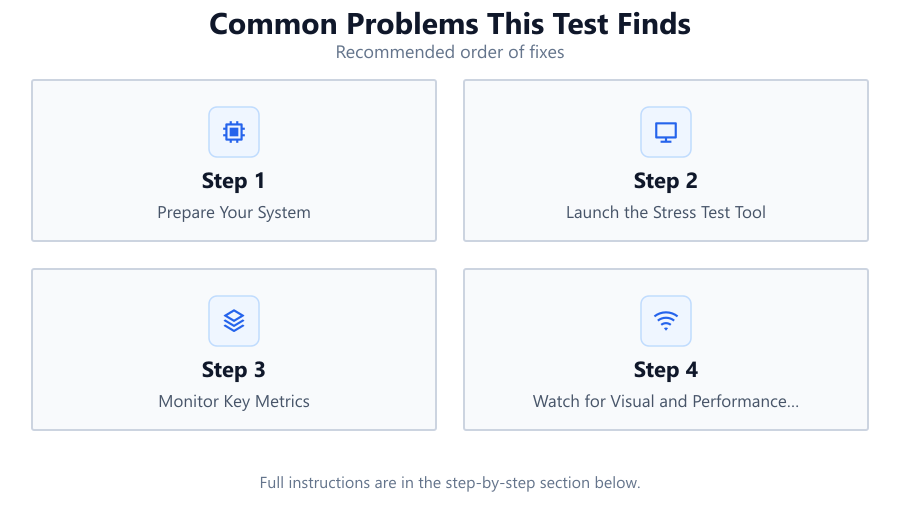
Step-by-step
Prepare Your System
Close all unnecessary applications before starting the test. Ensure your drivers are up to date and your system is free from dust or obstructions around fans and vents.
Launch the Stress Test Tool
Open Check Your GPU Stability with Our Free GPU Stress Test in your browser. Allow the tool to access your GPU and display the test environment.
Monitor Key Metrics
Keep an eye on temperature, GPU usage, and clock speeds during the test. Use built-in monitoring tools or third-party software for more detailed readings.
Watch for Visual and Performance Issues
Look for signs of artifacting, sudden crashes, or any unexpected behavior. Take notes on when and how these issues occur during the test.
Interpret the Results
Once the test is complete, review the data. If you notice high temperatures, instability, or artifacting, take steps to address these issues before using your PC for demanding tasks.
Comparison
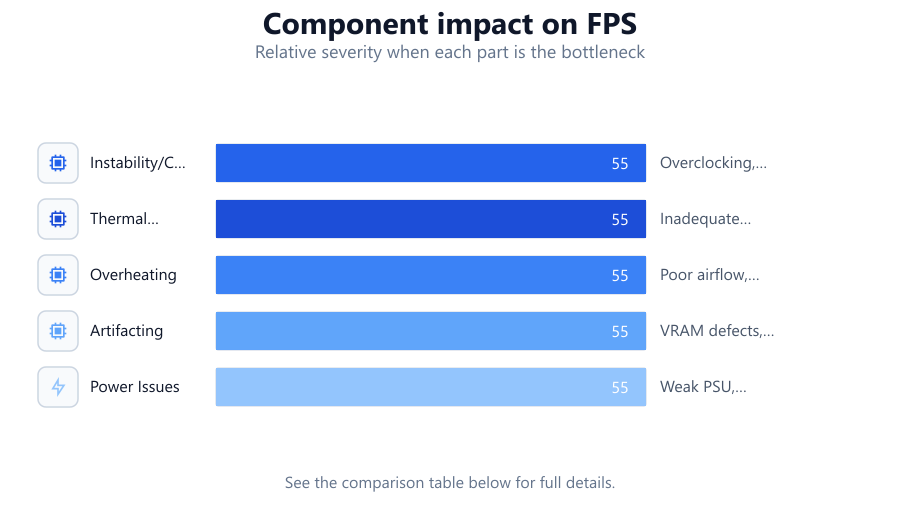
| Problem Detected | Symptoms | Potential Causes |
|---|---|---|
| Instability/Crashes | Freezes, reboots, blue screens | Overclocking, faulty hardware, driver issues |
| Thermal Throttling | Sudden frame drops, fluctuating speeds | Inadequate cooling, dust buildup |
| Overheating | High temp readings, loud fans | Poor airflow, failing thermal paste |
| Artifacting | Flickering, visual glitches | VRAM defects, GPU damage |
| Power Issues | System shutdowns, crashes | Weak PSU, power cable problems |
Common mistakes
Mistake
Ignoring High Temperatures
Fix: Monitor your GPU temps during the test and take action if they exceed safe limits. Clean fans and consider better cooling if needed.
Mistake
Overclocking Without Testing
Fix: Always run a stress test after overclocking to ensure stability. Roll back settings if you encounter crashes or errors.
Mistake
Assuming No Issues Means Perfect Health
Fix: Run the test regularly, especially after hardware changes. Some issues may only appear under specific conditions.
Mistake
Not Monitoring Power Supply
Fix: Ensure your PSU can handle peak GPU loads. Upgrade if you notice shutdowns or instability during the test.
Troubleshooting
System crashes during the test
Likely cause: GPU instability or insufficient power
What to do: Check for overclocking and revert to stock settings. Test with a more powerful PSU if needed.
GPU temperatures rise above 85°C
Likely cause: Inadequate cooling or dust buildup
What to do: Clean dust from fans and heatsinks. Improve airflow or consider a better cooling solution.
Visual artifacts or flickering
Likely cause: VRAM errors or GPU hardware issues
What to do: Lower memory clocks, update drivers, or test with another GPU to confirm the problem.
Performance drops after a few minutes
Likely cause: Thermal throttling
What to do: Monitor cooling and ensure case fans are working. Replace thermal paste if necessary.
Recommendations
- Use Check Your GPU Stability with Our Free GPU Stress Test after any hardware upgrade or driver update.
- Monitor temperatures closely and keep your GPU clean to prevent overheating.
- Always test system stability after overclocking before using your PC for important tasks.
- If you notice any issues during testing, address them immediately to avoid long-term damage.
- Repeat the stress test every few months to catch new problems early.
Frequently asked questions
What is the main purpose of a GPU stress test?
A GPU stress test pushes your graphics card to its limits to reveal instability, overheating, and other hidden issues that might not show up during normal use.
How long should I run a GPU stress test?
Most issues will appear within 10-30 minutes, but for thorough testing, let the stress test run for at least an hour if temperatures remain safe.
Is it safe to use a browser-based GPU stress test?
Yes, tools like Check Your GPU Stability with Our Free GPU Stress Test are designed to safely push your GPU without causing permanent damage, provided your cooling is adequate.
Can stress testing damage my GPU?
If your cooling is sufficient and you monitor temperatures, stress testing is safe. However, ignoring high temps or unstable settings can risk hardware damage.
What should I do if my system crashes during the test?
Revert any overclocking, check your power supply, and ensure drivers are up to date. Persistent crashes may indicate hardware issues.