
Guide
Troubleshooting Guide
Struggling with GPU crashes, artifacts, or overheating? This troubleshooting guide will help you quickly diagnose and resolve graphics card issues using proven methods and tools.
Updated 2026-07-05
Understanding GPU Problems: An Overview
Modern graphics cards are complex pieces of hardware that can experience a variety of issues, from sudden crashes to persistent screen artifacts. Whether you are a gamer, creator, or general PC user, encountering GPU instability can be frustrating and disruptive.
The first step in any troubleshooting guide is to recognize the symptoms. Instability may present as application crashes, system freezes, graphical glitches, or even complete system restarts. Causes can range from overheating and inadequate power delivery to outdated drivers or failed overclocks.
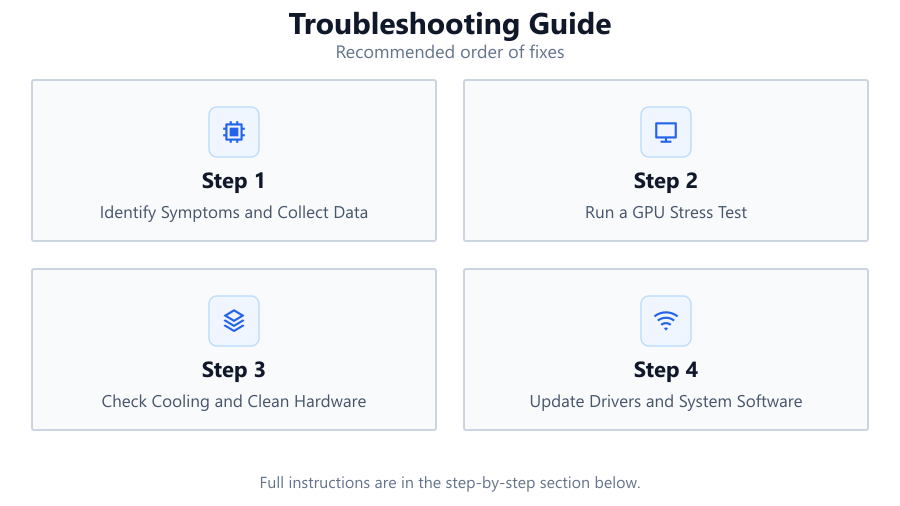
To systematically address these problems, it is crucial to use reliable diagnostic tools. Check Your GPU Stability with Our Free GPU Stress Test is designed to push your graphics card to its limits, helping you identify instability, thermal throttling, and overclocking issues directly from your browser. This guide will provide you with a step-by-step approach to diagnosing and resolving the most common GPU problems so you can get back to smooth, stable performance.
Detailed Troubleshooting Steps and Advanced Diagnostics
Once you have identified that your GPU is exhibiting signs of instability, it is time to dig deeper. Begin by running Check Your GPU Stability with Our Free GPU Stress Test. This tool leverages WebGL to stress your GPU, revealing weaknesses or faults without installing additional software. Monitor for any crashes, artifacts, or sudden temperature spikes during the test.
If issues occur, check your system's physical condition. Dust buildup in fans or heatsinks can impair cooling, and poor airflow may raise temperatures. Inspect power connectors and ensure your PSU delivers adequate wattage. Also, verify that your drivers are up to date by downloading the latest version from your GPU manufacturer.
Advanced users may want to check for BIOS updates, lower overclock settings, or even test the GPU in a different system. Remember, troubleshooting is a process of elimination: address each potential cause systematically. Document changes and retest after each step using the stress test tool. This methodical approach increases your chances of pinpointing the root issue without introducing new problems.
Step-by-step
Identify Symptoms and Collect Data
Observe the exact symptoms your system is experiencing, such as crashes, graphical artifacts, or unexpected restarts. Note when and how often these issues occur. This information will help narrow down the causes.
Run a GPU Stress Test
Use Check Your GPU Stability with Our Free GPU Stress Test to stress your graphics card. Monitor for instability, artifacts, or sudden temperature spikes during the test. Record how the GPU behaves under load.
Check Cooling and Clean Hardware
Turn off your PC and inspect the GPU and case fans. Remove any dust buildup from heatsinks and ensure all fans are spinning freely. Good airflow is essential for stable GPU operation.
Update Drivers and System Software
Download and install the latest drivers from your GPU manufacturer. Also, ensure your operating system is up to date to prevent compatibility issues.
Test Power Supply and Connections
Ensure your PSU provides enough power for your GPU. Check all power cables for secure connections and look for signs of wear or damage. Consider testing with a different PSU if stability problems persist.
Reset or Lower Overclocks
If you have overclocked your GPU, revert to default settings or lower the clock speeds and voltage. Overclocking can cause instability if not properly managed.
Comparison
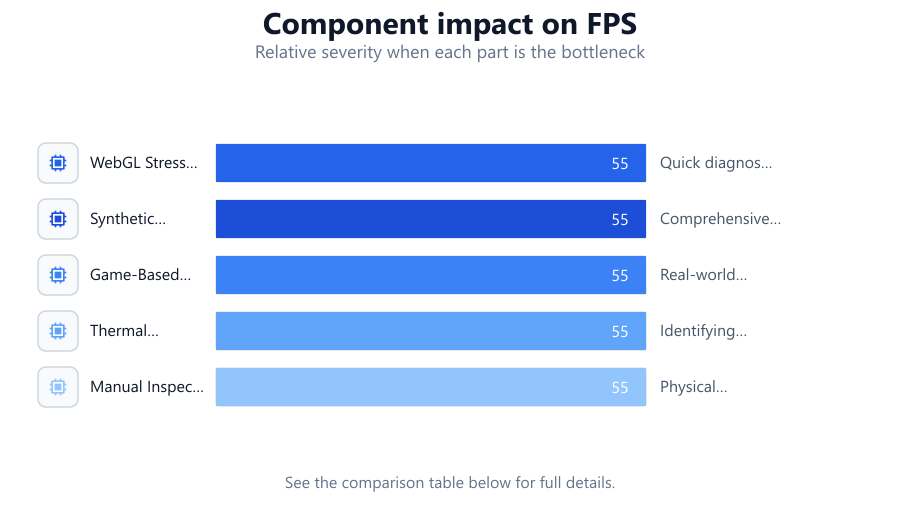
| Test Method | Tools Needed | Best For |
|---|---|---|
| WebGL Stress Test | Browser, Check Your GPU Stability with Our Free GPU Stress Test | Quick diagnostics, no downloads |
| Synthetic Benchmarks | 3DMark, Unigine Heaven | Comprehensive performance and stress testing |
| Game-Based Testing | Installed game, monitoring software | Real-world stability under typical use |
| Thermal Camera Inspection | Thermal camera | Identifying hot spots and cooling issues |
| Manual Inspection | Screwdriver, cleaning tools | Physical issues like dust or loose cables |
Common mistakes
Mistake
Ignoring temperature readings during stress testing
Fix: Always monitor GPU temperatures with reliable software or built-in tools to prevent overheating and potential damage.
Mistake
Skipping driver updates
Fix: Regularly update your GPU drivers to ensure compatibility with new applications and to resolve known bugs.
Mistake
Assuming the GPU is at fault without testing other components
Fix: Test your RAM, PSU, and motherboard to rule out other hardware issues that can mimic GPU instability.
Mistake
Not resetting overclocks before troubleshooting
Fix: Return to stock settings before diagnosing to eliminate overclock instability as a possible cause.
Troubleshooting
Random crashes or reboots during gaming
Likely cause: Overheating or inadequate power supply
What to do: Clean the GPU and case, ensure proper airflow, and check if your PSU meets the recommended wattage for your GPU.
Screen artifacts or graphical glitches
Likely cause: Driver issues or unstable overclock
What to do: Update GPU drivers and reset any overclock settings to default.
High GPU temperatures at idle
Likely cause: Fan malfunction or dust buildup
What to do: Inspect and clean fans and heatsinks, replace faulty fans if necessary.
Stress test freezes the browser or computer
Likely cause: Severe GPU instability or system incompatibility
What to do: Lower GPU load, update all system drivers, and test the GPU in another system if possible.
Recommendations
- Regularly clean your GPU and PC to maintain optimal airflow and cooling.
- Use Check Your GPU Stability with Our Free GPU Stress Test after any hardware or driver change to ensure stable operation.
- Keep all system drivers and BIOS up to date to prevent compatibility issues.
- Avoid excessive overclocking unless you have robust cooling and a quality power supply.
- Document any changes made during troubleshooting to easily revert if new issues arise.
Frequently asked questions
What is the fastest way to check if my GPU is unstable?
The fastest method is to use Check Your GPU Stability with Our Free GPU Stress Test. It runs directly in your browser and quickly identifies instability, overheating, or other issues.
Can overheating cause permanent GPU damage?
Yes, consistent overheating can degrade components and shorten your GPU's lifespan. Always monitor temperatures and clean your hardware regularly.
Should I update my GPU drivers even if everything seems fine?
Yes, updating drivers ensures compatibility with new software and games and often improves stability and performance.
What should I do if stress testing crashes my PC?
Start by lowering any overclock settings, updating your drivers, and checking your PSU. If problems persist, try running the GPU in another system to rule out broader hardware issues.