
Guide
Common Buying Mistakes
Avoid the most common buying mistakes when upgrading your graphics card. Get actionable tips and expert advice to make your next GPU purchase smarter.
Updated 2026-07-05
Understanding Common Buying Mistakes in GPU Upgrades
Upgrading your GPU is one of the most effective ways to boost your PC’s gaming or productivity performance. However, many users fall into common buying mistakes that can result in wasted money and disappointing results. Whether you are building a new system or simply looking to get more frames per second in your favorite games, it is crucial to understand the potential pitfalls before making a purchase.
One of the biggest mistakes is not properly assessing the compatibility of the new graphics card with your existing hardware. Power supply limitations, case size restrictions, and even motherboard slot compatibility are often overlooked. Another frequent error is overestimating the real-world performance gains from a new GPU, especially if your CPU or other components are bottlenecks. This is where tools like the GPU Upgrade Calculator become invaluable, as they help you estimate not just raw performance, but also power usage and value for money based on trusted benchmarks.
Some buyers are swayed by marketing hype or peer recommendations without considering their actual needs. For example, a high-end GPU may be overkill for 1080p gaming, while a budget card might not suffice for demanding workloads. Additionally, future-proofing is often misunderstood. Many users spend extra on features or power they will never utilize, tying up budget that could go toward other meaningful upgrades.
Digging Deeper: How to Avoid the Biggest Mistakes
The first step in avoiding common buying mistakes is to clearly define your upgrade goals. Are you looking to play the latest AAA games at ultra settings, improve frame rates in eSports titles, or accelerate creative workflows? Each of these goals may require a different class of GPU, and understanding your needs is key to making a smart choice.
Next, research the real-world performance differences between your current GPU and potential upgrades. Manufacturer specifications and synthetic benchmarks can be misleading. Use the GPU Upgrade Calculator to get a realistic projection of average FPS gains, power consumption changes, and value metrics tailored to your existing setup. This helps you avoid overpaying for marginal improvements or missing out on significant performance boosts.
Budget planning is another critical area. Do not just focus on the GPU’s sticker price. Consider the total cost of ownership, including possible upgrades to your power supply unit (PSU), cooling solutions, or even your case if the new card is physically larger. Also, factor in the potential resale value of your old GPU to offset the upgrade cost. Timing can also play a major role. GPU prices can fluctuate due to new product launches, supply chain issues, or seasonal sales. Patience and research can save you a significant amount of money.
Lastly, always check compatibility and read user reviews. Manufacturer websites, online forums, and community feedback can provide valuable insights into real-world issues such as driver stability, coil whine, or known compatibility problems with certain motherboards. Taking these steps will help you avoid the most common buying mistakes and ensure your GPU upgrade is a success.
Step-by-step
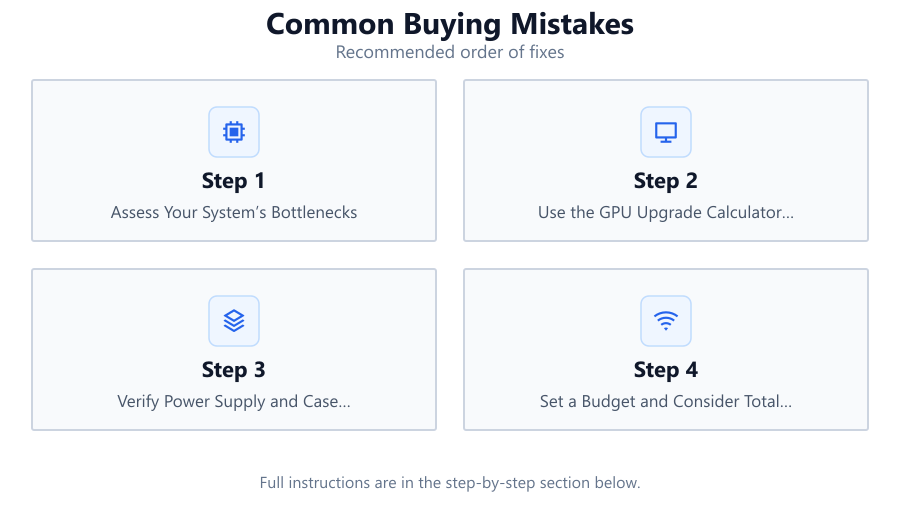
Assess Your System’s Bottlenecks
Check if your CPU, RAM, or other components might limit the effectiveness of a new GPU. Upgrading the graphics card alone may not yield the performance boost you expect if other parts of your system are outdated.
Use the GPU Upgrade Calculator for Realistic Estimates
Leverage the GPU Upgrade Calculator to compare your current and target GPUs. It provides average FPS, power usage, and value metrics using benchmark data, helping you make an informed decision.
Verify Power Supply and Case Compatibility
Ensure your power supply can handle the new GPU’s wattage and that your case has enough physical space. Check the recommended PSU wattage and GPU dimensions before purchasing.
Set a Budget and Consider Total Upgrade Costs
Factor in all related expenses, such as potential PSU or cooling upgrades. Assess if your old GPU can be resold to help offset the cost of your new card.
Research Real-World User Feedback
Read reviews and forum posts about your chosen GPU model. Look for common issues like driver problems, noise levels, and compatibility reports.
Comparison
| Mistake | Impact | Prevention |
|---|---|---|
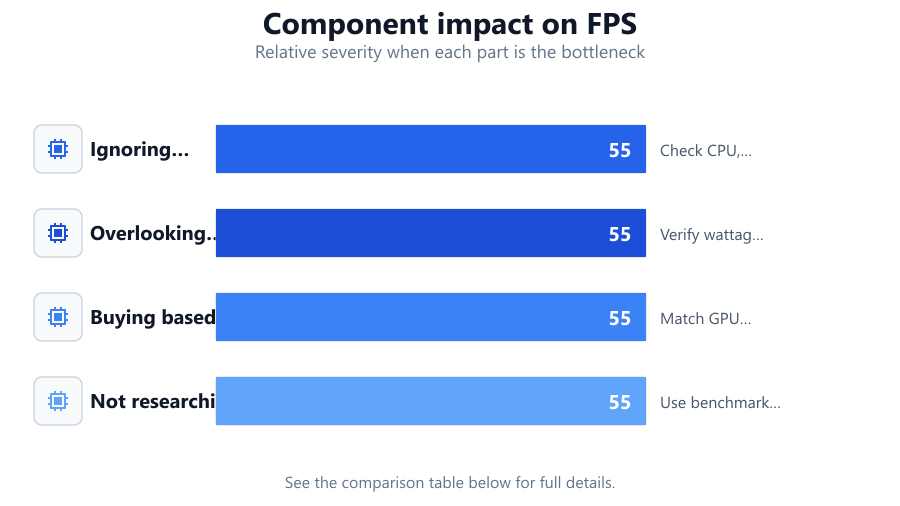
| Ignoring system bottlenecks | Low FPS despite upgrade | Check CPU, RAM, and storage performance |
| Overlooking PSU requirements | System instability or failure | Verify wattage and power connectors |
| Buying based on marketing hype | Overpaying for unnecessary features | Match GPU to your actual needs |
| Not researching real-world performance | Disappointing results | Use benchmark-based tools like GPU Upgrade Calculator |
Common mistakes
Mistake
Focusing only on GPU specs and ignoring system bottlenecks
Fix: Evaluate your entire system, especially CPU and RAM, to ensure the new GPU will not be limited by older components.
Mistake
Neglecting power supply and case compatibility
Fix: Check your PSU wattage and GPU physical dimensions before buying. Upgrade these components if necessary.
Mistake
Relying solely on synthetic benchmarks or marketing claims
Fix: Use real-world benchmarks and the GPU Upgrade Calculator for more accurate performance projections.
Troubleshooting
New GPU underperforms or shows minimal FPS improvement
Likely cause: CPU or RAM bottleneck
What to do: Upgrade CPU or add more RAM to balance your system.
PC crashes or will not power on after installing new GPU
Likely cause: Insufficient PSU wattage or wrong connectors
What to do: Install a higher wattage power supply and ensure all required connectors are used.
New GPU does not fit inside the case
Likely cause: Case is too small for the card length or thickness
What to do: Measure your case’s available space before purchasing. Consider a smaller GPU or a new case if needed.
Recommendations
- Always use the GPU Upgrade Calculator before purchasing to set realistic expectations.
- Balance your GPU choice with your CPU and RAM to avoid bottlenecks.
- Double-check PSU wattage and connector compatibility before upgrading.
- Monitor GPU prices and wait for sales or new product launches for the best value.
- Read user reviews and forum discussions to identify potential issues with specific models.
Frequently asked questions
How do I know if my CPU will bottleneck a new GPU?
Compare your CPU’s performance to recommended specs for your target GPU. Use the GPU Upgrade Calculator to see if your CPU might limit your new card’s performance.
Is it safe to use my existing power supply with a more powerful GPU?
Check your PSU’s wattage and ensure it meets the recommended requirements for your new GPU. Replace it if it lacks sufficient power or connectors.
How can I accurately estimate FPS gains from a GPU upgrade?
Use the GPU Upgrade Calculator, which leverages up-to-date benchmark data to project average FPS gains based on your current and target GPUs.
Should I wait for new GPU releases before upgrading?
Waiting for new releases can lead to better performance or lower prices on current models. Monitor announcements and use the GPU Upgrade Calculator to evaluate your options.