
Guide
Optimization Guide
Looking to get the most out of your GPU upgrade? This optimization guide walks you through every step, from choosing the right card to maximizing in-game performance with the GPU Upgrade Calculator.
Updated 2026-07-05
Why Optimization Matters for GPU Upgrades
Upgrading your graphics card is one of the most impactful ways to improve your PC gaming or creative workflow. However, a successful upgrade is not just about buying the latest hardware: it is about optimizing your system for the best real-world results. This optimization guide focuses on actionable steps you can take before, during, and after a GPU upgrade to ensure you get the maximum benefit from your investment.
The GPU Upgrade Calculator is a powerful tool that helps you estimate exactly how much performance you can expect from a new card. By comparing benchmark data, average FPS gains, power consumption, and value metrics, you can make an informed decision that matches your needs and budget.
Many users overlook crucial optimization steps, leading to disappointing performance or wasted money. We will cover every stage: analyzing your current setup, selecting the right GPU, optimizing software and drivers, and fine-tuning performance after the upgrade. With the right approach, you will avoid common mistakes and achieve a smoother, faster system tailored for your favorite games and applications.
Detailed Steps for GPU Upgrade Optimization
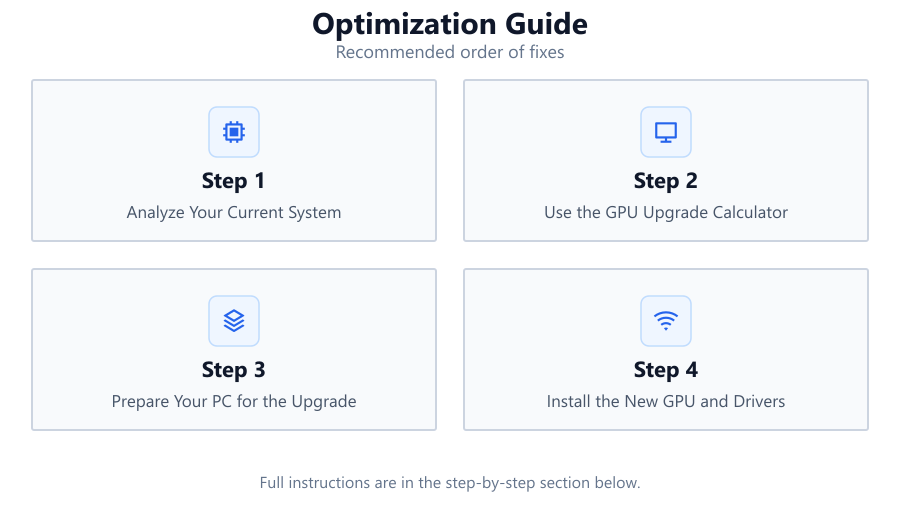
A well-optimized GPU upgrade is more than plugging in new hardware. Start by evaluating your entire system: your CPU, RAM, power supply, and even your case airflow can impact how much benefit you see from a new graphics card. Use the GPU Upgrade Calculator to simulate different upgrade scenarios. This helps you spot bottlenecks like CPU limitations or PSU incompatibility before you buy.
After choosing the right GPU, prepare your system. Update your motherboard BIOS and chipset drivers, and uninstall old GPU drivers completely using a tool like Display Driver Uninstaller. Once your new card is installed, download the latest drivers directly from the GPU manufacturer for optimal compatibility and performance.
Post-upgrade, optimize your in-game settings and system software. Fine-tune graphics settings for the best balance of visuals and performance. Monitor your system temperatures and power usage, especially if your new card draws more power than your previous model. Consider undervolting or custom fan curves if noise or heat becomes an issue. Finally, benchmark your system before and after the upgrade using trusted tools to measure your real-world gains and ensure everything is running as expected.
Step-by-step
Analyze Your Current System
Start by identifying your existing hardware. List your CPU, GPU, RAM, motherboard, and power supply specifications. Use system info tools or your motherboard manual if needed. This helps you understand potential bottlenecks and compatibility issues before upgrading.
Use the GPU Upgrade Calculator
Access the GPU Upgrade Calculator to compare your current GPU with potential upgrades. Examine projected FPS gains, power usage, and price-to-performance ratios. This allows you to make a data-driven decision and avoid overpaying for negligible improvements.
Prepare Your PC for the Upgrade
Update your BIOS and all critical system drivers. Uninstall your old GPU drivers using a dedicated tool. Ensure your power supply meets the requirements for your new GPU, and check that your case has enough physical space and airflow.
Install the New GPU and Drivers
Carefully install the new GPU following manufacturer instructions. Connect all necessary power cables. Boot into Windows, then install the latest GPU drivers from the official NVIDIA or AMD website. Restart your PC after installation.
Optimize System and Game Settings
Adjust your in-game graphics settings for your desired balance of performance and visuals. Enable features like G-Sync or FreeSync if supported. Use GPU monitoring tools to fine-tune fan curves and check for thermal or power issues.
Comparison
| Upgrade Scenario | Projected FPS Gain | Power Usage Change |
|---|---|---|
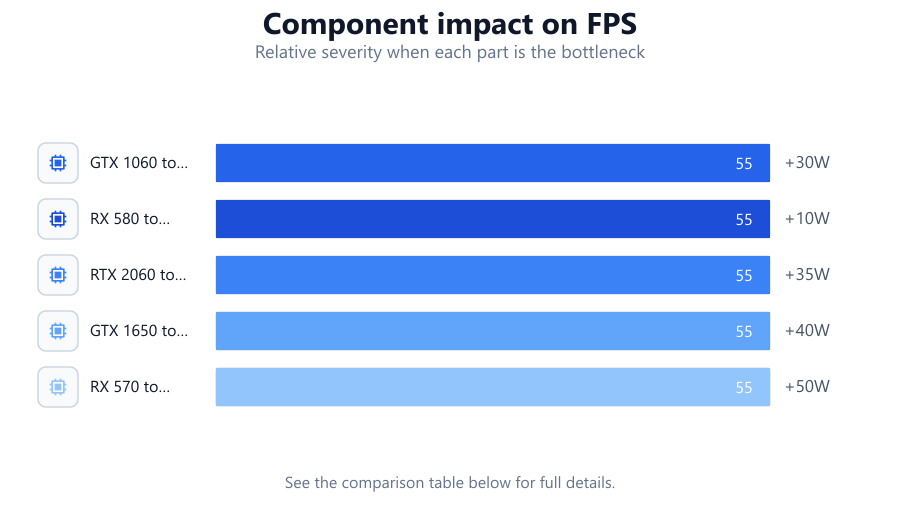
| GTX 1060 to RTX 4060 | +120% Avg FPS | +30W |
| RX 580 to RX 7600 | +90% Avg FPS | +10W |
| RTX 2060 to RTX 4070 | +85% Avg FPS | +35W |
| GTX 1650 to RTX 3060 | +110% Avg FPS | +40W |
| RX 570 to RX 6700 XT | +140% Avg FPS | +50W |
Common mistakes
Mistake
Ignoring system bottlenecks like an outdated CPU or insufficient RAM.
Fix: Use the GPU Upgrade Calculator to assess if your system can utilize the new GPU fully. Upgrade other components if necessary.
Mistake
Not uninstalling old GPU drivers before installing the new card.
Fix: Use a tool like Display Driver Uninstaller to remove old drivers completely before installing new ones.
Mistake
Overestimating power supply capabilities.
Fix: Check the wattage and connector requirements of your new GPU. Upgrade your PSU if it does not meet the recommended specs.
Mistake
Skipping BIOS and chipset driver updates.
Fix: Always update your motherboard BIOS and chipset drivers for maximum compatibility and stability with new GPUs.
Troubleshooting
System does not boot after GPU installation.
Likely cause: Power cables may be disconnected or PSU is insufficient.
What to do: Double-check all GPU power connections and ensure your PSU meets the minimum wattage requirement.
No display output after upgrade.
Likely cause: Monitor cable connected to wrong port or incompatible settings.
What to do: Connect your monitor directly to the new GPU, not the motherboard. Reset BIOS if needed.
Lower than expected FPS after upgrading.
Likely cause: Old drivers, CPU bottleneck, or thermal throttling.
What to do: Update all drivers, monitor CPU usage during gaming, and improve case airflow or lower GPU temperatures.
Random crashes or system instability.
Likely cause: Incompatible drivers or insufficient power delivery.
What to do: Perform a clean driver installation and verify your PSU can handle the new GPU's load.
Recommendations
- Always research your upgrade thoroughly using the GPU Upgrade Calculator before purchasing.
- Benchmark your system before and after upgrading to measure real performance gains.
- Keep your drivers and system BIOS updated for optimal compatibility.
- Monitor power usage and thermals to prevent hardware issues.
- Consider future-proofing by selecting a GPU that exceeds your current needs by at least one tier.
Frequently asked questions
How do I know if my CPU will bottleneck my new GPU?
Use the GPU Upgrade Calculator to simulate your upgrade and check for CPU bottleneck warnings. If your CPU usage is consistently maxed out in games, it may limit GPU performance.
Can I upgrade my GPU without changing my power supply?
It depends on your new GPU’s power requirements. Always compare your PSU wattage and connectors to the GPU manufacturer’s recommendations before upgrading.
Is a clean driver install necessary for a GPU upgrade?
Yes, removing old drivers ensures better stability and compatibility. Use a tool like Display Driver Uninstaller before installing new drivers.
How can I maximize the value of my GPU upgrade?
Use the GPU Upgrade Calculator to find the best price-to-performance ratio and avoid spending on unnecessary features. Adjust your system and settings for optimal performance after upgrading.