
Guide
Optimization Guide
Looking to run large language models efficiently on your PC or server? This optimization guide will help you estimate and optimize GPU VRAM usage with actionable steps, troubleshooting tips, and expert recommendations.
Updated 2026-07-05
Understanding LLM Optimization and VRAM Requirements
Optimizing large language models (LLMs) for local or server deployment requires a clear understanding of GPU VRAM needs. The right balance between model size, quantization, and context length helps you achieve the best performance without unnecessary hardware upgrades or wasted resources.
LLM VRAM Calculator is a specialized tool designed to estimate the VRAM requirements for running LLMs like Llama, GPT, and Mistral. By adjusting model size, quantization level, and context length, you can visualize the real impact on your GPU VRAM consumption before committing to a setup.
When planning your deployment, consider factors like available GPU memory, the specific LLM architecture, and intended use cases. Underestimating VRAM needs leads to crashes or slowdowns, while overestimating results in overspending on hardware.
This guide covers step-by-step optimization, practical troubleshooting, and actionable tips to help you make informed decisions. Whether you are setting up a single desktop or managing a cluster, these principles will ensure you maximize every gigabyte of VRAM.
Advanced Strategies for LLM VRAM Optimization
Beyond basic configuration, optimizing LLM deployment requires you to consider advanced techniques. Quantization is a powerful method that reduces model precision, shrinking memory usage with minimal impact on accuracy. For instance, switching from FP32 to INT8 quantization can cut VRAM needs by up to 75 percent, allowing you to run larger models or increase your context length significantly.
Another key factor is managing context length. While longer contexts enable more sophisticated reasoning, they also multiply memory requirements. Assess your application's real needs and reduce context length where possible to free up VRAM for other tasks. Batch size is another lever: smaller batches lower instantaneous VRAM usage, though at the cost of throughput.
Use the LLM VRAM Calculator to simulate different scenarios. Adjust quantization levels, model sizes, and context lengths to find the optimal configuration for your hardware.
Regularly reassess your setup as new models and quantization methods emerge, as staying updated can yield substantial efficiency gains.
Finally, monitor system performance during real-world use. Tools like NVIDIA's nvidia-smi or AMD's Radeon Software provide real-time VRAM and GPU utilization data, helping you catch bottlenecks early. Combine these insights with the LLM VRAM Calculator's projections to keep your deployment running at peak efficiency.
Step-by-step
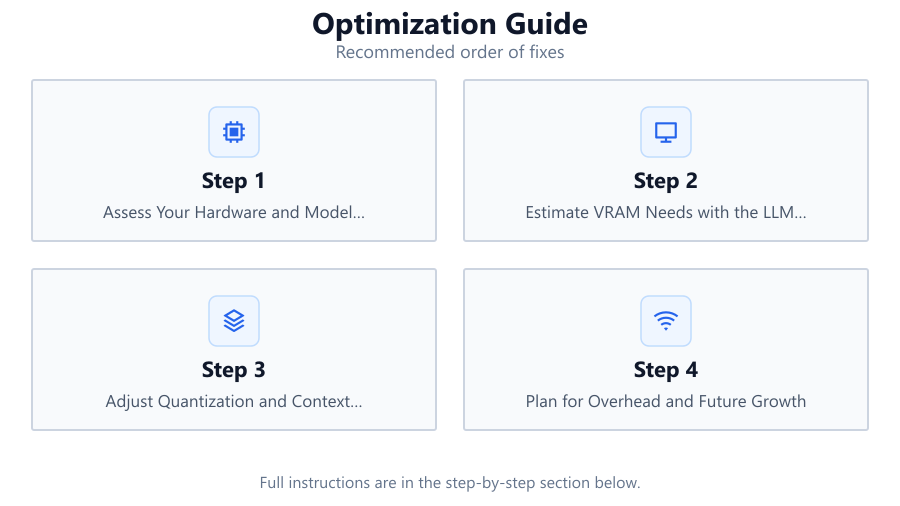
Assess Your Hardware and Model Requirements
Start by listing your available GPUs, their VRAM capacities, and the specific LLMs you plan to deploy. Note the architecture, baseline VRAM requirements, and supported quantization formats for each model.
Estimate VRAM Needs with the LLM VRAM Calculator
Input your chosen model, quantization type, and context length into the LLM VRAM Calculator. Review the estimated VRAM usage, and compare it to your available hardware to determine feasibility.
Adjust Quantization and Context Length
Experiment with lower-precision quantization and shorter context lengths in the calculator. Observe how these changes affect VRAM usage, and iterate until you find an optimal configuration.
Plan for Overhead and Future Growth
Always leave at least 10 to 20 percent of VRAM unused to accommodate runtime overhead, driver usage, and potential model updates. Factor in possible future increases in context length or model size.
Validate with Real-World Testing
Deploy your chosen configuration on the target hardware. Use monitoring tools to track VRAM usage during typical workloads, and compare real results to the LLM VRAM Calculator's estimates. Adjust as needed.
Comparison
| Configuration | VRAM Usage (GB) | Performance Impact |
|---|---|---|
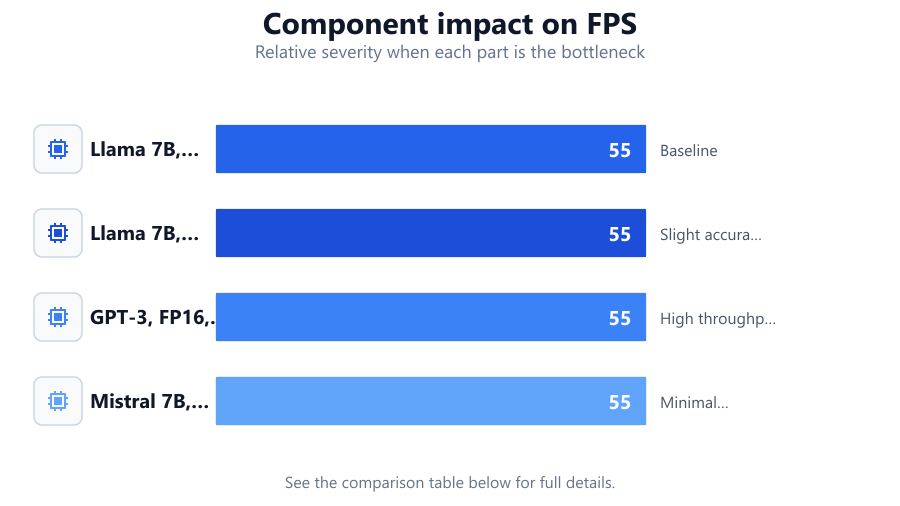
| Llama 7B, FP32, 2048 ctx | 26 | Baseline |
| Llama 7B, INT8, 2048 ctx | 7 | Slight accuracy loss, faster load |
| GPT-3, FP16, 4096 ctx | 40 | High throughput, high VRAM |
| Mistral 7B, INT4, 1024 ctx | 4 | Minimal VRAM, moderate speed |
Common mistakes
Mistake
Ignoring quantization options
Fix: Always evaluate lower-precision quantization in the LLM VRAM Calculator to reduce VRAM needs.
Mistake
Overestimating context length requirements
Fix: Match context length to your application's real needs. Excessively long contexts waste VRAM with little gain.
Mistake
Neglecting runtime and driver overhead
Fix: Reserve at least 10 percent of your GPU VRAM for system and driver overhead to avoid out-of-memory errors.
Mistake
Not validating estimates with real workloads
Fix: Always test your setup under realistic conditions and compare actual VRAM usage to calculator projections.
Troubleshooting
Model fails to load or crashes at launch
Likely cause: Insufficient VRAM for the selected model and context length
What to do: Use the LLM VRAM Calculator to reduce model size, quantization, or context length, or upgrade your GPU.
Performance is sluggish or inconsistent
Likely cause: VRAM is nearly full, causing swapping or throttling
What to do: Lower batch size, reduce context length, or switch to a more aggressive quantization level.
Unexpected out-of-memory errors during inference
Likely cause: Not accounting for driver and runtime overhead
What to do: Reserve more VRAM in your calculations by leaving an overhead buffer in the LLM VRAM Calculator.
Recommendations
- Use the LLM VRAM Calculator before every deployment to avoid costly trial and error.
- Regularly reassess your VRAM needs as models, quantization techniques, and workloads evolve.
- Monitor GPU utilization in real time to catch and address bottlenecks early.
- Maintain documentation of your tested configurations for faster troubleshooting and scaling.
Frequently asked questions
How accurate is the LLM VRAM Calculator?
The LLM VRAM Calculator provides highly accurate VRAM estimates based on model size, quantization, and context length. However, real usage may vary slightly due to system overhead and runtime factors.
What is quantization, and how does it affect VRAM usage?
Quantization reduces the precision of model weights, significantly lowering VRAM requirements with minimal impact on inference quality. INT8 and INT4 quantization are especially effective for large models.
How much VRAM do I need for Llama 13B?
VRAM needs depend on quantization and context length. For example, Llama 13B in FP32 may require over 50 GB, while INT8 can run on as little as 13 GB at standard context lengths. Use the LLM VRAM Calculator for precise estimates.
Can I run multiple LLMs on a single GPU?
Yes, but you must ensure total VRAM usage for all models and their context lengths stays within the GPU's capacity. Use the LLM VRAM Calculator to estimate combined usage before deployment.