For presets
7B Model = 7 billion parameters 13B Model = 13 billion parameters 34B Model = 34 billion parameters 70B Model = 70 billion parameters

FREE LLM VRAM CALCULATOR
Quickly estimate how much GPU VRAM you need to run large language models (LLMs) like Llama, GPT, or Mistral on your PC or server. Adjust model size, quantization, and context length to see the real VRAM impact - no guesswork required.
Enter model details, then calculate
The LLM VRAM calculator helps you determine the minimum and recommended VRAM required to run large language models (LLMs) locally on your hardware. This tool supports various model sizes - such as 7B, 13B, 34B, and 70B parameter models - and lets you configure quantization levels (FP16, INT8, INT4) and context lengths.
Whether you're experimenting with AI chatbots, deploying a local inference server, or tuning models for research, knowing your VRAM requirements is critical. The calculator translates complex LLM memory demands into actionable numbers for GPU selection and system planning.
By demystifying VRAM usage for different configurations, it prevents costly hardware mistakes and helps you decide if your RTX 3060 is enough or if you really need enterprise-class cards like the RTX 4090 or A100.
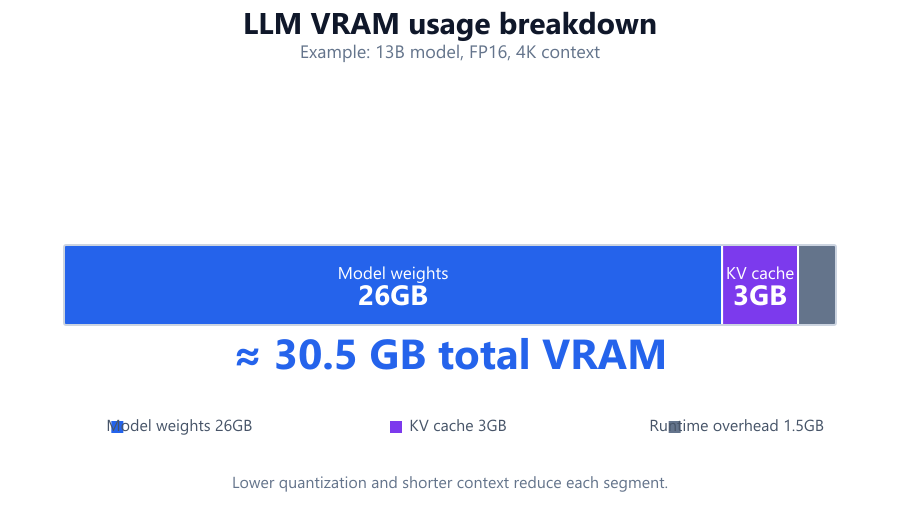
Start by selecting your target LLM from the provided presets (7B, 13B, 34B, 70B). Choose the quantization level - FP16 for maximum accuracy, INT8 or INT4 for lower memory usage at some cost to precision. Next, set your desired context length (number of tokens the model can attend to in a single prompt).
The calculator instantly updates the estimated VRAM required. Compare this number with your GPU's actual VRAM (e.g., 8GB on an RTX 3070 or 24GB on an RTX 4090) to check if your hardware is up to the task.
If you plan on running multiple models, or need room for other processes (like web servers or additional inference tasks), consider the 'multi-instance' options or add a buffer to your calculations.
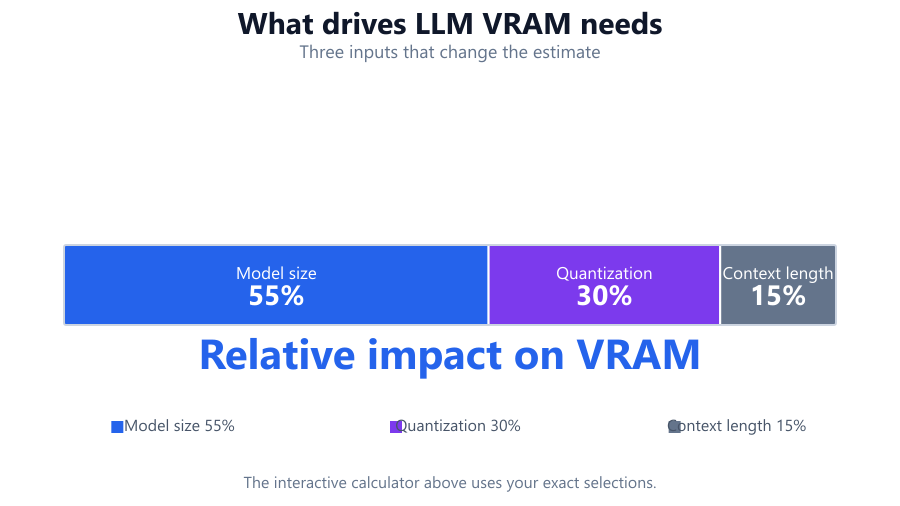
VRAM usage for LLMs is determined primarily by the model size, quantization, and context length (which affects the KV cache). The calculator uses the following logic:
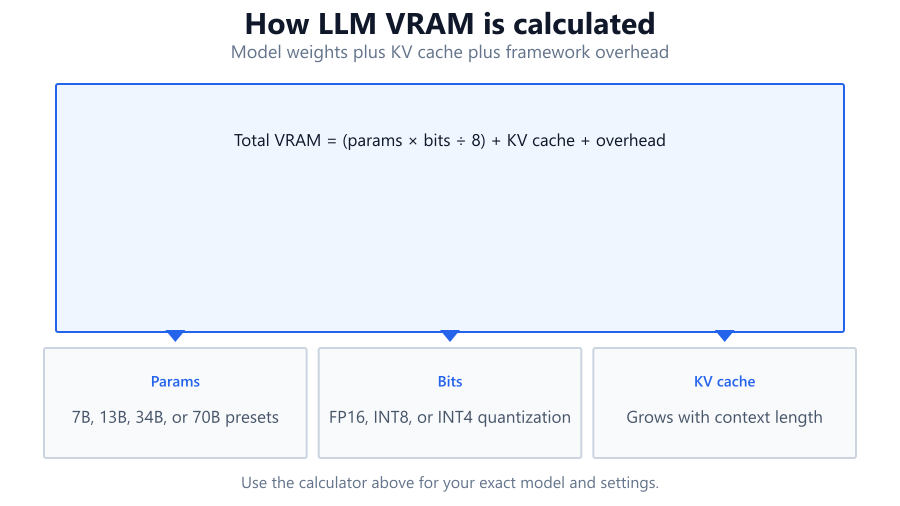
Model Weights VRAM (in bytes) = (Number of Parameters) × (Bits per parameter) / 8
KV Cache VRAM (in bytes) = (Number of Layers) × (Batch Size) × (Context Length) × (KV Elements per token) × (Bits per element) / 8
Total VRAM = Model Weights VRAM + KV Cache VRAM + Overheads (activation buffers, framework overhead, etc.)
7B Model = 7 billion parameters 13B Model = 13 billion parameters 34B Model = 34 billion parameters 70B Model = 70 billion parameters
FP16 = 16 bits per parameter INT8 = 8 bits per parameter INT4 = 4 bits per parameter Context length increases KV cache linearly. Overheads are estimated based on typical PyTorch/Transformers usage. Actual numbers can vary slightly depending on implementation and runtime environment. Example (13B, FP16, 4096 context):
The calculator provides two values: minimum required VRAM (bare minimum to load and run a single instance of the model) and recommended VRAM (allowing for smoother operation, longer context, and some headroom for other processes).
If your GPU VRAM matches or exceeds the minimum value, you can technically run the model - but performance may be limited, and you’ll have little room for other tasks. The recommended value is what you should aim for to avoid out-of-memory errors, support higher context, or run multiple sessions.
Keep in mind that VRAM usage can spike during inference due to temporary allocations. It’s best to have at least 10 - 20% VRAM headroom above the minimum value, especially if you want to avoid crashes or run other GPU workloads simultaneously.
If your GPU falls short, you can:
Here are practical examples for different configurations and GPUs:
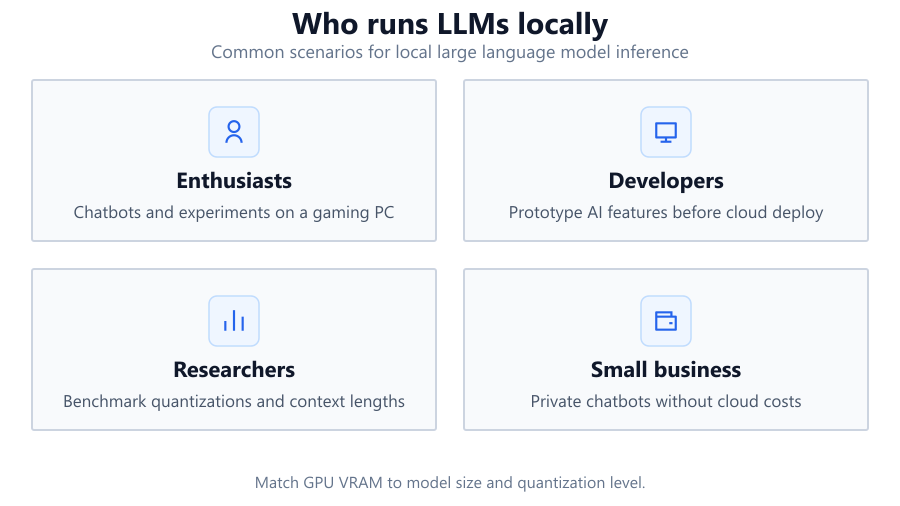
AI Enthusiasts: Running chatbots or experimenting with LLMs locally. E.g., using Llama.cpp or text-generation-webui on a gaming PC with an RTX 4070.
Researchers: Benchmarking different quantizations/context lengths, validating new model architectures, or evaluating inference efficiency.
Developers: Testing AI-powered features before cloud deployment. Rapid iteration is possible on local hardware if VRAM is sufficient.
Small Businesses: Deploying private LLMs for chatbots, document search, or knowledge bases without cloud costs or privacy risks.
Enterprise: Planning server infrastructure for on-premise AI workloads, sizing GPU clusters for scalable inference.
Gamers: Exploring AI NPCs, dialogue, and mods powered by LLMs directly on a gaming rig.
Running large language models locally is more accessible than ever, but VRAM remains the key hardware constraint. The LLM VRAM calculator takes the guesswork out of planning, letting you balance model size, quantization, and context for your specific GPU.
Use this tool to confidently choose the right hardware, avoid frustrating out-of-memory errors, and maximize the performance of your AI workflows - whether you're an enthusiast, developer, or enterprise IT planner.
For best results, always validate with real-world benchmarking and keep an eye on actual VRAM usage during operation. As LLM and GPU technology advances, recalibrate your expectations and check back for updated presets and estimation logic.
The calculator provides well-researched estimates based on publicly available model specifications, typical framework overheads, and common deployment scenarios. While it’s highly accurate for most users, actual VRAM usage may vary by a few percent due to implementation details, driver versions, or custom architectures. Always allow for extra headroom and monitor real-world usage with tools like nvidia-smi.
Minimum VRAM is the absolute lowest amount required to load and run a single model instance, with no room for error or multitasking. Recommended VRAM includes headroom for temporary allocations, larger context, and other processes, ensuring more stable operation and better multitasking, especially in production or multi-user setups.
Quantization reduces the number of bits used to represent each model parameter. FP16 uses 16 bits, INT8 uses 8 bits, and INT4 uses 4 bits per parameter. Lower quantization (e.g., INT4) dramatically reduces VRAM requirements, making it possible to run larger models on mid-range GPUs. However, extreme quantization can affect model accuracy or output quality.
Context length directly affects the size of the KV cache, which stores token histories for attention mechanisms. Doubling your context length roughly doubles the VRAM used by the KV cache. For large models or extended conversations, this can add several GB of VRAM usage, making it important to balance context needs with your GPU’s capacity.
A 13B model typically requires more than 8GB VRAM, even with INT4 quantization and minimal context. You may be able to load certain highly optimized quantized models with reduced context, but performance will likely be slow and unstable. For reliable operation, a 13B LLM is best run on GPUs with at least 12 - 16GB VRAM.
Exceeding available VRAM during LLM inference usually results in out-of-memory errors, causing your process to crash or the framework to fall back to much slower CPU RAM, if supported. You should always stay below your GPU’s VRAM limit to avoid severe performance drops or application failures.
Not necessarily. Many consumer GPUs (like RTX 4070, 4080, or 4090) are capable of running 7B or 13B models with proper quantization. Data center GPUs (A100, H100) are required only for very large models (34B, 70B) or multi-user/high-throughput scenarios. The calculator helps you match your use case to the right hardware tier.
Each concurrent model instance or user session typically requires its own copy of the KV cache and some framework overhead. The total VRAM required is the sum of the main model weights (often shared) and the per-instance KV cache. The calculator provides multi-instance estimates to help you plan for this scenario.
Apple Silicon uses unified memory, so VRAM is shared with system RAM. You can use the calculator as a guideline, but real-world performance and memory availability can differ. Typically, MacBook Pros with 16 - 32GB unified memory can handle 7B INT4 models at moderate context, but struggle with larger models. Always test with your specific configuration.
Yes. System RAM is also important, especially if you offload parts of the model or KV cache to the CPU. Additionally, some frameworks use disk caching, which can impact performance if your SSD is slow. For best results, ensure you have ample system RAM and a fast SSD in addition to sufficient VRAM.
Yes. The calculator includes typical overheads from common frameworks like PyTorch and Hugging Face Transformers, but actual usage may vary slightly depending on the version and customizations. If you’re using highly optimized runtimes (like llama.cpp), VRAM usage may be a bit lower than the estimate.
Yes, if you know your model’s parameter count and architecture. Enter these values manually or select the closest preset. For unusual architectures (e.g., Mixture-of-Experts, multi-modal models), the calculator offers a rough estimate, but actual VRAM use may differ. Always validate with real-world profiling.
For NVIDIA GPUs on Windows, use tools like GPU-Z or check Task Manager’s Performance tab. On Linux, use the command 'nvidia-smi'. For AMD GPUs, use Radeon Software. Mac users can check 'About This Mac' > 'Graphics'. Always check manufacturer specs for your exact model (e.g., RTX 4070 = 12GB VRAM).
The calculator is designed for mainstream LLMs using transformer architectures and does not account for highly specialized models or rare hardware setups. Estimates may be off for atypical frameworks, stackable adapters (like LoRA), or extreme multi-GPU configurations. Use as a planning tool, and always verify with real-world tests.
Most integrated GPUs or older gaming cards do not have sufficient VRAM for anything beyond small 7B models at low context and quantization. Inference will be extremely slow and may not work at all. For practical use, a recent dedicated GPU with at least 8 - 12GB VRAM is recommended.
Yes. Training requires significantly more VRAM than inference due to gradient storage, optimizer state, and batch processing. This calculator is intended for inference planning. If you’re training LLMs, you’ll likely need 2 - 4× more VRAM than for inference alone.
You can reduce VRAM usage by lowering context length, switching to a more aggressive quantization (e.g., INT4), or using a smaller LLM preset. Some frameworks also allow offloading KV cache to system RAM (with a speed penalty). Avoid running additional GPU-heavy apps concurrently.
Differences in model architecture, implementation, or framework version can result in higher-than-estimated VRAM usage. Some models include extra embeddings, adapters, or components that increase total memory needs. Always use the calculator as a guideline and validate with real hardware monitoring.
Free tools to analyze, compare, and optimize your PC gaming performance
Check if your PC meets the requirements for these popular games
Benchmark data from PassMark and publisher specs. Calculators run locally in your browser — we never upload your hardware info.