
Guide
Common Buying Mistakes
Avoid costly errors when buying a monitor or TV. This guide reveals the most common buying mistakes and explains how the Monitor Viewing Distance Calculator helps you make smarter choices.
Updated 2026-07-05
Understanding Common Buying Mistakes
Buying a new monitor, ultrawide, or TV is an exciting investment, but many shoppers make avoidable mistakes that impact their experience for years. From choosing the wrong size to overlooking key specs, these errors can result in eye strain, poor image quality, and wasted money.
One of the most common buying mistakes is failing to consider how far you will sit from your screen. This affects sharpness and comfort more than most realize. The Monitor Viewing Distance Calculator helps you find the optimal distance based on your display's size and resolution, ensuring you avoid this critical error.
Aside from viewing distance, many buyers focus on price or brand rather than actual needs. This can lead to a display that is too large for a small room, or one with insufficient resolution for close-up work. Understanding your usage, space, and eyesight needs is vital to making a smart purchase.
Ignoring refresh rates, connectivity options, and panel types are other common buying mistakes. By being aware of these pitfalls, you can select a monitor or TV that provides clear visuals, reduces eye fatigue, and fits seamlessly into your setup.
How to Avoid Costly Monitor and TV Mistakes
To avoid the most common buying mistakes, start with a clear assessment of your space and intended use. Ask yourself how far you will sit from the screen and what you primarily use it for: gaming, productivity, or entertainment. The optimal viewing distance is not a guess, using the Monitor Viewing Distance Calculator ensures you get this right.
A too-large display viewed up close can show individual pixels, leading to a grainy image and eye strain. Conversely, a small monitor viewed from far away can make details hard to see. Matching your screen size and resolution to your seating distance is essential for clarity and comfort.
Consider the panel type when choosing a display. TN panels are fast but have limited color and viewing angles, while IPS panels offer better color accuracy. VA panels boast high contrast but may have slower response times. Skipping this research is a frequent buying error.
Do not overlook connectivity. Check for enough HDMI, DisplayPort, and USB ports for your devices. Buying a monitor without the right inputs leads to frustration and extra adapters. Also, confirm the refresh rate matches your needs: 60Hz is standard, but gamers benefit from 120Hz or higher.
Finally, balance your budget with your requirements. Spending extra for features you will never use is as wasteful as cutting corners on essentials like resolution and ergonomics. Review user feedback and expert reviews, but always validate your decision with trusted tools like the Monitor Viewing Distance Calculator.
Step-by-step
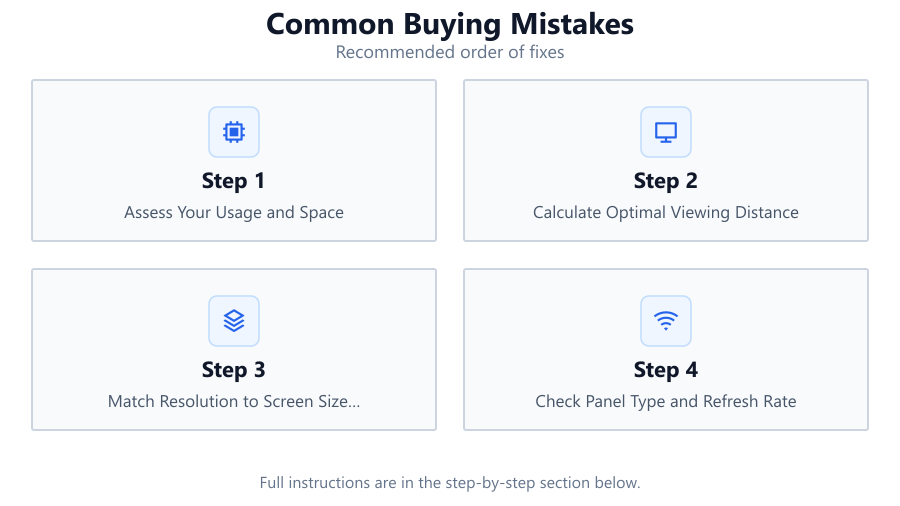
Assess Your Usage and Space
Decide whether your primary use is gaming, productivity, or entertainment. Measure your available desk or room space. This helps narrow down size and feature requirements before you browse.
Calculate Optimal Viewing Distance
Use the Monitor Viewing Distance Calculator to determine the best sitting distance for your chosen screen size and resolution. This prevents eye strain and ensures sharp visuals.
Match Resolution to Screen Size and Distance
Consider higher resolutions for larger screens or closer viewing. A 27 inch monitor at 1080p may look pixelated up close, while 4K is ideal for both clarity and workspace.
Check Panel Type and Refresh Rate
Research TN, IPS, and VA panels to find the best fit for your color, speed, and contrast needs. Match refresh rate to your usage, with 120Hz+ preferred for gaming.
Confirm Connectivity and Ergonomics
Ensure your monitor or TV has enough HDMI, DisplayPort, and USB ports for your setup. Look for adjustable stands or VESA mounting for better comfort.
Comparison
| Screen Size (inches) | Recommended Resolution | Optimal Viewing Distance (ft) |
|---|---|---|
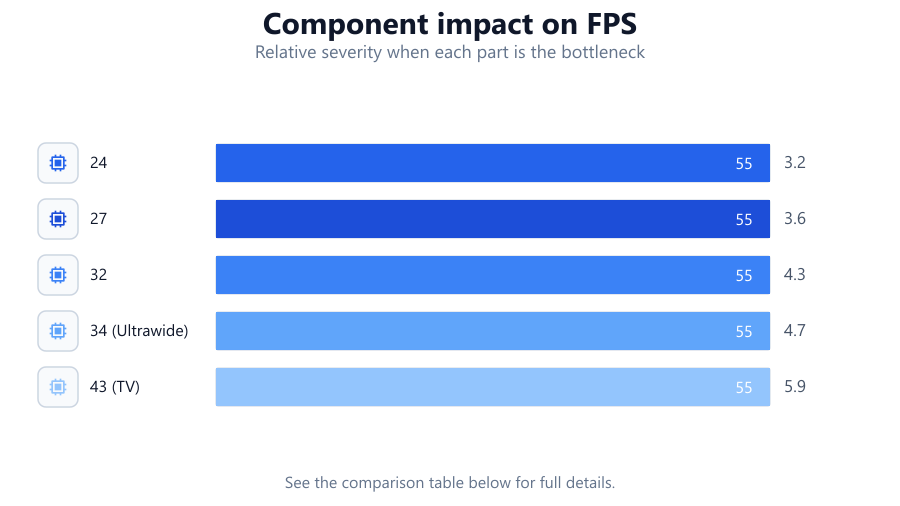
| 24 | 1080p (FHD) | 3.2 |
| 27 | 1440p (QHD) | 3.6 |
| 32 | 2160p (4K UHD) | 4.3 |
| 34 (Ultrawide) | 1440p (UWQHD) | 4.7 |
| 43 (TV) | 2160p (4K UHD) | 5.9 |
Common mistakes
Mistake
Choosing a screen size without considering viewing distance
Fix: Always use the Monitor Viewing Distance Calculator to determine the ideal size for your space and resolution.
Mistake
Ignoring panel type and refresh rate
Fix: Research panel technologies and choose based on your color, contrast, and speed needs. Opt for higher refresh rates if you game.
Mistake
Overlooking connectivity options
Fix: Check for sufficient HDMI, DisplayPort, and USB ports to avoid needing adapters or hubs.
Mistake
Prioritizing price or brand over needs
Fix: Focus on features and specifications that match your actual usage and environment, not just marketing or cost.
Troubleshooting
Image appears blurry or pixelated
Likely cause: Screen is too large for the resolution at your sitting distance
What to do: Reduce viewing distance or upgrade to a higher resolution display using recommendations from the Monitor Viewing Distance Calculator.
Eyes feel strained after short use
Likely cause: Improper viewing distance or poor panel quality
What to do: Adjust your sitting distance to the recommended range and consider a monitor with flicker-free technology and blue light filtering.
Not enough ports for devices
Likely cause: Bought a monitor with limited connectivity
What to do: Use adapters or a docking station, but plan future purchases by checking port options in advance.
Colors look washed out or uneven
Likely cause: Low quality panel or incorrect panel type for your needs
What to do: Choose an IPS or high-quality VA panel for better color accuracy and viewing angles.
Recommendations
- Measure your viewing area before shopping for a new monitor or TV.
- Use the Monitor Viewing Distance Calculator to match screen size, resolution, and distance.
- Prioritize panel type and refresh rate based on your primary activities.
- Double-check connectivity to ensure compatibility with all your devices.
- Set a realistic budget that covers essential features, not just brand or appearance.
Frequently asked questions
What is the most common mistake when buying a monitor?
The most common mistake is choosing a screen size without considering the optimal viewing distance and resolution, which can lead to blurry images or eye strain.
How does the Monitor Viewing Distance Calculator help?
It calculates the ideal distance to sit from your monitor or TV based on screen size and resolution, ensuring sharp visuals and comfortable viewing.
Is higher resolution always better?
Not always. Higher resolution is only beneficial if your screen size and viewing distance allow you to perceive the extra detail. Otherwise, it may be unnecessary.
What panel type should I choose for gaming?
For gaming, look for IPS or fast VA panels with high refresh rates for a balance of color accuracy, speed, and smooth motion.
Do I need a 120Hz or higher refresh rate?
A refresh rate of 120Hz or higher is recommended for gaming and fast-paced content. For general productivity or media, 60Hz is usually sufficient.