
Guide
Optimization Guide
Unlock the sharpest visuals and most comfortable viewing experience by optimizing your monitor or TV setup. Our optimization guide explains how to achieve the ideal viewing distance for any screen using actionable steps.
Updated 2026-07-05
Understanding Monitor Viewing Distance Optimization
Optimizing your monitor viewing distance is essential for achieving sharp image quality, minimizing eye strain, and ensuring long-term comfort during extended use. Sitting at the right distance allows you to see all the details your screen can deliver without needing to squint or adjust your posture repeatedly. Whether you are using a standard monitor, ultrawide, or large-screen TV, understanding the factors that affect optimal distance is the first step toward a better visual experience.
The main variables that influence your ideal viewing distance are screen size, resolution, and your own eyesight. High-resolution displays allow you to sit closer without noticing individual pixels, while larger screens may require you to sit farther away for a comfortable field of view. Many people unknowingly sit too close or too far from their screens, causing unnecessary discomfort and missing out on the full visual fidelity their hardware can provide.
By using the Monitor Viewing Distance Calculator, you can quickly determine the recommended distance for your specific setup. This tool takes into account your display's size and resolution, ensuring you get the clearest image and the least amount of eye strain. Implementing these recommendations will help you create an ergonomic and visually pleasing workspace or entertainment area.
Key Principles and Practical Adjustments
The science behind optimal viewing distance is rooted in both visual acuity and ergonomics. Your eyes can resolve only a certain level of detail at a given distance. Sitting too close to a low-resolution display can make pixels painfully obvious, while sitting too far from a high-resolution screen wastes its potential. The goal is to find a sweet spot where you perceive a crisp image without having to constantly move your head or strain your vision.
Ergonomics also play a significant role. The ideal viewing distance reduces the need for excessive eye movement and maintains a healthy posture, minimizing neck and back pain. The Monitor Viewing Distance Calculator helps you establish this balance by computing the recommended range based on your setup.
After determining the right distance, it is important to physically adjust your workspace. This may involve moving your monitor, adjusting your chair, or even changing your desk layout. The process is iterative: measure, adjust, and test until you find the most comfortable position. Remember to combine optimal distance with good lighting and regular breaks for the best results.
Step-by-step
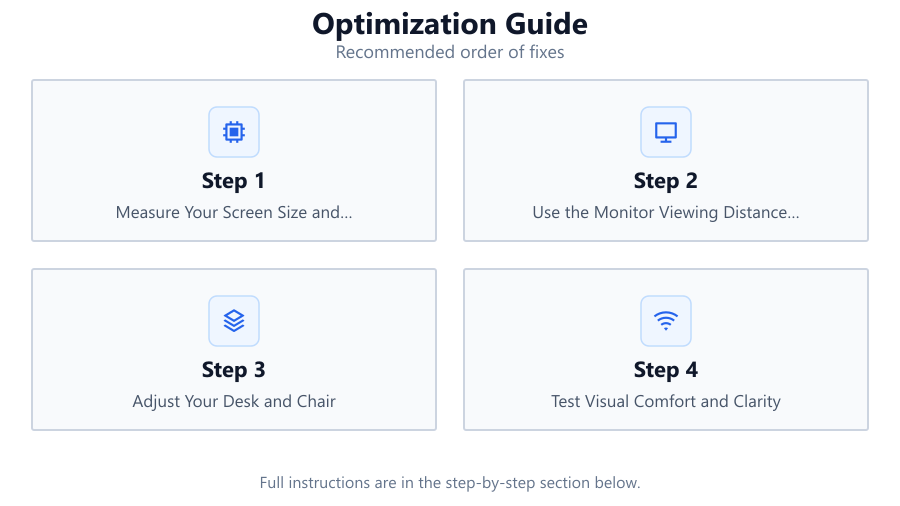
Measure Your Screen Size and Resolution
Start by noting your monitor or TV's diagonal size in inches and its native resolution. This information is usually available in your device's manual or on the manufacturer's website. Accurate measurements are crucial for precise optimization.
Use the Monitor Viewing Distance Calculator
Navigate to the Monitor Viewing Distance Calculator and input your screen size and resolution. The tool will instantly generate the recommended viewing distance range, tailored for your setup.
Adjust Your Desk and Chair
Rearrange your workspace to match the suggested distance. Move your monitor or TV to the correct spot and adjust your chair so your eyes are approximately level with the top third of the screen.
Test Visual Comfort and Clarity
Spend some time at the new distance. Check if you can see text and images sharply across the entire screen without straining your eyes or neck. Make small adjustments as needed for maximum comfort.
Combine with Ergonomic Best Practices
Ensure your workspace is well-lit, avoid glare, and take regular breaks. These habits, combined with optimal viewing distance, help maintain eye health and overall comfort during long sessions.
Comparison
| Screen Size (inches) | Resolution | Recommended Distance (ft) |
|---|---|---|
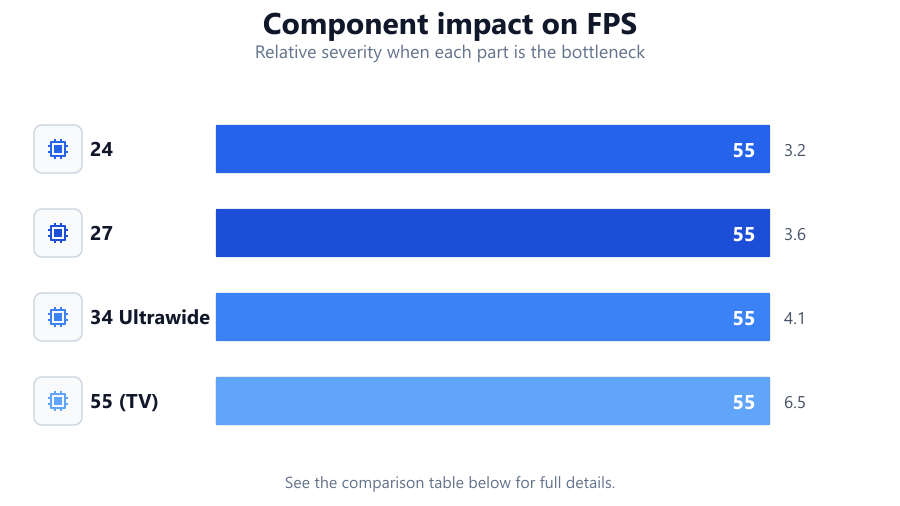
| 24 | 1920x1080 | 3.2 |
| 27 | 2560x1440 | 3.6 |
| 34 Ultrawide | 3440x1440 | 4.1 |
| 55 (TV) | 3840x2160 (4K) | 6.5 |
Common mistakes
Mistake
Sitting too close to a low-resolution screen
Fix: Increase your viewing distance or upgrade to a higher-resolution display to reduce visible pixelation.
Mistake
Ignoring ergonomic posture while adjusting distance
Fix: Adjust both your chair and monitor height so your eyes align with the top third of the screen.
Mistake
Using default desk positions without measuring
Fix: Always measure and reference the recommended distance from the Monitor Viewing Distance Calculator instead of relying on guesswork.
Troubleshooting
Persistent eye strain after adjusting viewing distance
Likely cause: Distance may not match your visual acuity or lighting conditions are poor.
What to do: Re-check the recommended distance, improve lighting, and consider an eye exam if discomfort persists.
Blurry or pixelated images at recommended distance
Likely cause: Screen resolution may be too low for your screen size or you are sitting too close.
What to do: Use the Monitor Viewing Distance Calculator to verify your setup and consider a higher-resolution display if needed.
Neck or back pain after workspace adjustment
Likely cause: Monitor height or chair position may be incorrect.
What to do: Adjust your chair and monitor so your eyes are level with the top third of the screen and maintain a neutral posture.
Recommendations
- Always use the Monitor Viewing Distance Calculator when setting up or rearranging your workspace.
- Upgrade to a higher-resolution monitor if you need to sit closer for detail-intensive work.
- Maintain proper posture and ergonomic practices alongside optimal viewing distance.
- Regularly review your setup and make small adjustments as your needs or equipment change.
Frequently asked questions
Why is monitor viewing distance important?
The correct viewing distance ensures sharp visuals, reduces eye strain, and helps maintain ergonomic comfort during long sessions.
Does screen resolution affect optimal distance?
Yes. Higher resolutions allow you to sit closer without seeing pixels, while lower resolutions require more distance to maintain clarity.
How can I quickly find my ideal monitor distance?
Use the Monitor Viewing Distance Calculator. Input your screen size and resolution to get an instant recommendation.
What other factors should I consider besides distance?
Consider monitor height, chair adjustment, lighting, and taking regular breaks to maximize comfort and visual health.