
Guide
How to Choose the Right Hardware
Choosing the right hardware for your NAS ensures reliability, performance, and cost-effectiveness. Discover what matters most and avoid common pitfalls.
Updated 2026-07-05
Understanding NAS Hardware: The Essentials
Building or upgrading a NAS starts with a clear understanding of your storage needs and the hardware options available. The right hardware affects not only storage capacity, but also speed, longevity, and data safety. Picking components blindly can lead to wasted money or unreliable performance. Instead, focus on your actual use case: will your NAS serve as a simple file server, a media streaming hub, or a backup solution for multiple users? Each scenario demands different priorities in hardware selection.
A NAS is more than just a box of hard drives. It is a system with a motherboard, CPU, RAM, network interface, and potentially hot-swappable bays and redundant power supplies. Every component interacts, so bottlenecks in one area can impact the entire system. For example, a fast CPU is wasted if the network speed is low, and ample RAM is useless if your drives are slow.
Before you start buying parts, use the NAS Storage Calculator to estimate how much usable storage you will actually get with your chosen drives and RAID configuration. This step prevents overbuying or underestimating your needs. With a clear goal and the right tools, you can select hardware tailored to your requirements.
Key Factors in Choosing the Right NAS Hardware
When learning how to choose the right hardware, several factors must be weighed:
- Storage Drives: Not all hard drives are suitable for NAS use. Choose drives rated for 24/7 operation and RAID compatibility. NAS-specific models (like WD Red or Seagate IronWolf) offer better vibration tolerance and reliability. Consider SSDs for cache or high-speed tiers, but be aware of their cost per gigabyte.
- RAID and Usable Capacity: RAID protects your data but impacts usable storage. For instance, RAID 5 offers a good balance of protection and space, while RAID 6 offers more redundancy at the cost of usable capacity. The NAS Storage Calculator helps you visualize the trade-offs between RAID types and drive counts, so you can make informed decisions before purchase.
- CPU and RAM: If your NAS will handle more than file storage (such as media transcoding or running virtual machines), prioritize a faster CPU and more RAM. Entry-level NAS units may use ARM processors, but for heavier tasks, look for Intel or AMD chips with higher core counts.
- Network Interface: Gigabit Ethernet is standard, but multi-gig (2.5G, 5G, 10G) adapters are vital for high-speed environments or multiple users. Ensure your switch and cabling match the NAS's capabilities.
- Expandability and Futureproofing: Consider how easy it is to add drives, upgrade RAM, or install PCIe cards. Hot-swap bays and tool-less designs save time. Some NAS models allow expansion units for future growth.
- Power Supply and Cooling: Redundant power supplies and efficient cooling extend hardware life and prevent downtime. Look for models with quiet, high-quality fans and easily replaceable power units.
In summary, the right hardware balances current needs, budget, and future growth. Avoid the temptation to overbuild or underspend, and always cross-check your planned build with real-world requirements using tools like the NAS Storage Calculator.
Step-by-step
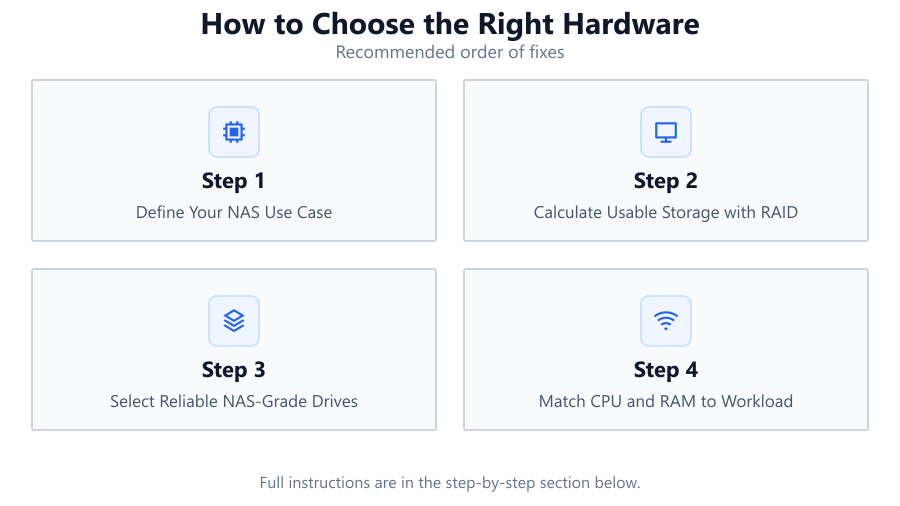
Define Your NAS Use Case
Identify whether your NAS will be used for file storage, media streaming, business backups, virtualization, or a mix. Each use case affects hardware priorities, such as CPU power or network speed.
Calculate Usable Storage with RAID
Before buying drives, use the NAS Storage Calculator to determine how much usable capacity you will have after formatting and RAID overhead. This step ensures you buy the right number and size of drives for your needs.
Select Reliable NAS-Grade Drives
Choose hard drives or SSDs specifically designed for NAS systems. These are engineered for continuous operation and RAID environments. Avoid desktop drives, as they may fail prematurely under NAS workloads.
Match CPU and RAM to Workload
For basic file sharing, a low-power CPU and 2-4GB RAM may suffice. For media transcoding or virtualization, prioritize multi-core CPUs and 8GB or more RAM. Ensure your NAS allows for future upgrades if your needs grow.
Plan for Network and Expansion
Choose a network interface that matches your performance expectations: 1GbE for most home users, or 2.5GbE and above for high-speed or multi-user scenarios. Check for available PCIe slots or expansion bays to futureproof your investment.
Comparison
| Component | Entry-Level NAS | Performance NAS | Enterprise NAS |
|---|---|---|---|
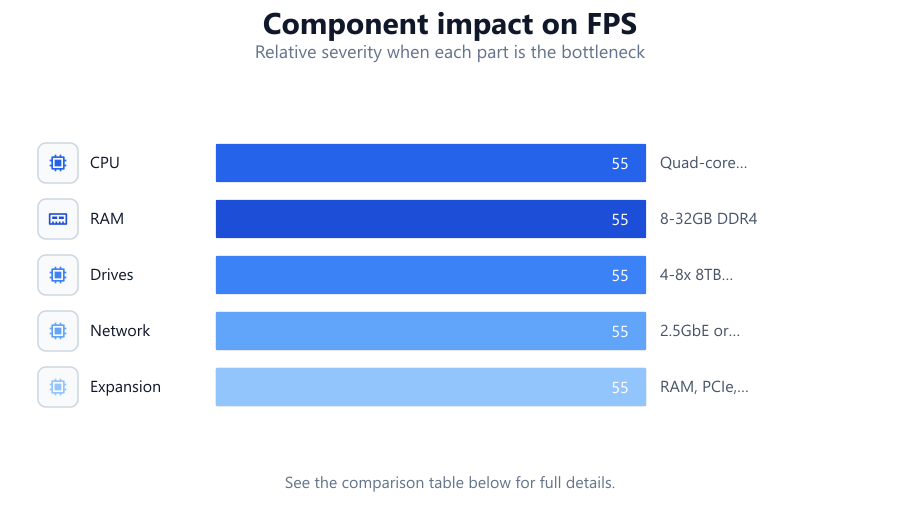
| CPU | Dual-core ARM | Quad-core Intel/AMD | Xeon/EPYC multi-core |
| RAM | 2-4GB DDR4 | 8-32GB DDR4 | 32GB+ ECC DDR4 |
| Drives | 2-4x 4TB HDD | 4-8x 8TB HDD/SSD | 12+ x 16TB HDD/SSD |
| Network | 1GbE | 2.5GbE or 10GbE | Dual 10GbE/40GbE |
| Expansion | Limited | RAM, PCIe, drive bays | Full modular hot-swap, redundant PSU |
Common mistakes
Mistake
Underestimating usable storage after RAID setup.
Fix: Always use the NAS Storage Calculator to determine real usable capacity before purchasing drives.
Mistake
Choosing desktop hard drives instead of NAS-rated drives.
Fix: Select drives specifically designed for NAS environments to ensure reliability and warranty support.
Mistake
Neglecting network speed bottlenecks.
Fix: Match your NAS network interface with your router and switch capabilities to avoid slow transfer speeds.
Mistake
Ignoring future expansion needs.
Fix: Buy a NAS with extra drive bays, RAM slots, or PCIe slots to accommodate future growth.
Troubleshooting
Slow file transfer speeds.
Likely cause: Network interface mismatch or outdated cabling.
What to do: Upgrade to Cat6 or higher cables and ensure both NAS and network hardware support faster speeds.
Frequent drive failures.
Likely cause: Using non-NAS-rated or incompatible drives.
What to do: Replace drives with NAS-rated models and check manufacturer compatibility lists.
NAS crashes during heavy use.
Likely cause: Insufficient RAM or weak CPU for workload.
What to do: Upgrade RAM and, if possible, choose a more powerful CPU or NAS model suited for your tasks.
Cannot expand storage as planned.
Likely cause: NAS lacks extra bays or expansion support.
What to do: Verify NAS model specifications before purchase and select units with scalable architecture.
Recommendations
- Use the NAS Storage Calculator to accurately plan your RAID and drive purchases.
- Invest in NAS-rated hard drives or SSDs for maximum reliability.
- Choose a NAS with sufficient RAM and CPU for your intended applications.
- Prioritize future expansion by selecting models with extra drive bays and upgrade paths.
- Check compatibility lists for all components before buying.
Frequently asked questions
Why should I use NAS-rated drives instead of regular desktop drives?
NAS-rated drives are built for continuous operation, vibration resistance, and RAID compatibility, making them more reliable in a NAS environment than standard desktop drives.
How do I calculate how much usable storage I will have after setting up RAID?
Use the NAS Storage Calculator to input your drive size, number, and RAID type. The tool will show your real usable capacity after formatting and redundancy.
Is it worth investing in a multi-gigabit network for my NAS?
If you transfer large files frequently or support multiple users, upgrading to 2.5GbE, 5GbE, or 10GbE can significantly improve performance. Ensure your other network hardware matches these speeds.
Can I upgrade my NAS hardware later?
Many NAS models allow upgrades to RAM, drives, and network cards. Check your NAS’s specifications for available expansion slots and compatibility before buying.