
Guide
Common Buying Mistakes
Avoid costly errors when buying monitors, laptops, or phones. Learn the most common buying mistakes and how to dodge them using our expert guide and the PPI Calculator.
Updated 2026-07-05
Understanding Common Buying Mistakes
Most shoppers want the best value and performance when purchasing a new monitor, laptop, or phone. However, even experienced buyers fall into common traps that lead to disappointment or wasted money. Common buying mistakes are often the result of skipping research, misunderstanding specifications, or being swayed by marketing.
For example, many users focus on screen size or resolution alone, without considering how these factors interact to create the best viewing experience. Others overlook pixel density, which can lead to blurry images or eye strain, especially if you spend long hours in front of your device.
One of the most overlooked aspects is pixel density, measured in pixels per inch (PPI). This value determines how sharp and clear your screen appears. The PPI Calculator on SystemRequirements.net helps you compare screens accurately by entering your device’s size and resolution. Using this tool, you can avoid regret from buying a device that looks good on paper but fails to impress in real use.
In-Depth Look: How to Avoid Costly Mistakes
To steer clear of common buying mistakes, it is essential to look beyond flashy advertisements and focus on the features that matter most for your needs. Start by identifying your primary use case: gaming, productivity, content creation, or general use. Each scenario requires different specifications for the best experience.
Another frequent error is ignoring the relationship between resolution and screen size. A 4K resolution on a 27-inch monitor delivers stunning clarity, but the same resolution on a 15-inch laptop could result in tiny text and icons, making it harder to use without scaling. The PPI Calculator is invaluable for determining if a device’s resolution matches its size for comfortable viewing.
Also, consider refresh rate, color accuracy, and connectivity options. Some buyers get tempted by high refresh rates but forget to check if their graphics card can handle it or if the device has the necessary ports. Failing to verify compatibility with your existing hardware can lead to frustration and unexpected expenses. Always research real-world reviews and consult comparison tools before making a final decision.
Step-by-step
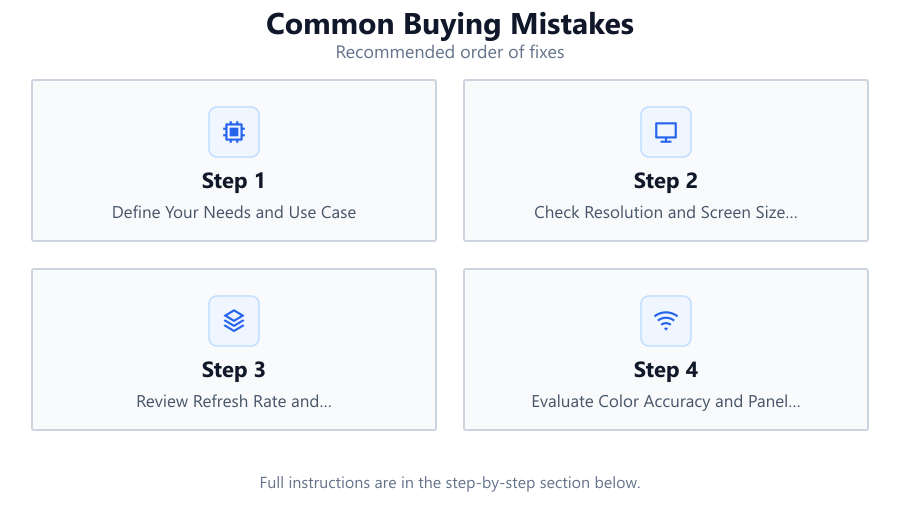
Define Your Needs and Use Case
List your main activities: gaming, office work, design, or media consumption. This will guide your priorities for display features and performance.
Check Resolution and Screen Size Together
Do not rely on resolution or size alone. Use the PPI Calculator to ensure the combination delivers sharp images and comfortable scaling for your eyes.
Review Refresh Rate and Compatibility
If you want smooth gameplay or video, confirm the device’s refresh rate matches your graphics card output and connection types.
Evaluate Color Accuracy and Panel Type
For creative work or media, prioritize color-accurate IPS or OLED panels. Research sRGB and DCI-P3 coverage, not just brightness or contrast.
Read Real-World Reviews and Comparisons
Look for user experiences and professional tests, not just specs. This helps you uncover hidden flaws or common complaints before buying.
Comparison
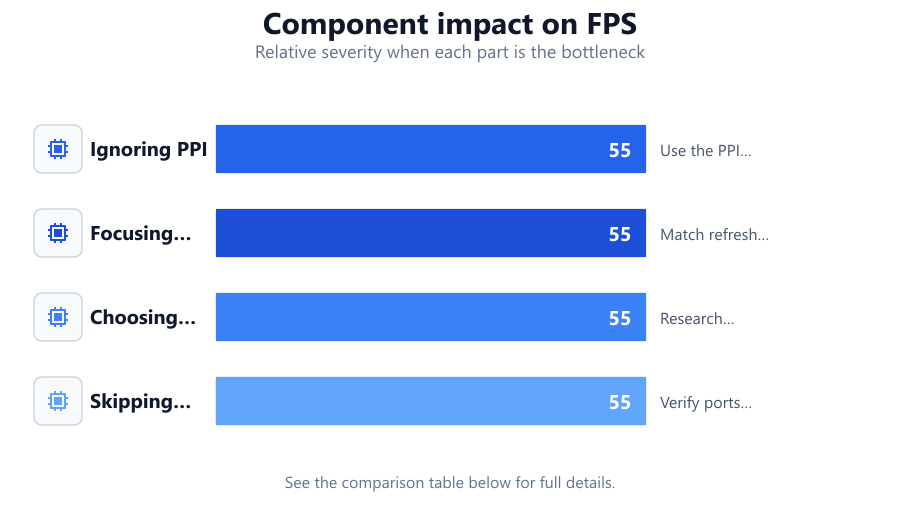
| Mistake | Consequence | How to Avoid |
|---|---|---|
| Ignoring PPI | Blurry or pixelated images | Use the PPI Calculator to compare options |
| Focusing only on refresh rate | High cost without visible benefit | Match refresh to your actual usage |
| Choosing wrong panel type | Poor color or viewing angles | Research IPS, VA, and OLED pros and cons |
| Skipping compatibility check | Device does not work with existing hardware | Verify ports and supported features |
Common mistakes
Mistake
Buying based on screen size alone
Fix: Always check both size and resolution, then calculate the PPI to ensure visual sharpness.
Mistake
Ignoring pixel density (PPI)
Fix: Use the PPI Calculator to compare devices and pick one with sufficient pixel density for your needs.
Mistake
Choosing the highest specs without considering use case
Fix: Prioritize features that matter for your specific tasks, such as color accuracy for designers or refresh rate for gamers.
Troubleshooting
Text and icons are too small or blurry
Likely cause: Low PPI or mismatched resolution and screen size
What to do: Use the PPI Calculator to find a better combination or adjust scaling settings in your operating system.
Monitor does not display high refresh rates
Likely cause: Incompatible graphics card or wrong cable type
What to do: Check GPU capabilities and ensure you use the correct cable, such as DisplayPort or HDMI 2.0+.
Colors look washed out or inaccurate
Likely cause: Poor panel quality or insufficient color gamut
What to do: Choose monitors with high sRGB or DCI-P3 coverage and consider calibrating your display.
Recommendations
- Always use the PPI Calculator before purchasing to ensure you get the ideal pixel density for your needs.
- Balance resolution, screen size, and refresh rate according to your primary use case.
- Double-check compatibility with your existing hardware, especially ports and output formats.
- Read detailed user and professional reviews to avoid surprises post-purchase.
Frequently asked questions
Why is pixel density (PPI) important?
Pixel density affects how sharp and clear your display looks. Higher PPI means more detail and less pixelation, especially at close viewing distances.
How do I calculate the PPI of my screen?
Enter your device’s screen size and resolution into the PPI Calculator on SystemRequirements.net to get the exact pixel density.
What happens if I buy a monitor with the wrong refresh rate?
If the refresh rate is too low, motion may appear choppy. If it is too high for your graphics card, you will not benefit from the extra smoothness.
Is bigger always better when it comes to screens?
Not always. Larger screens with low resolution can look blurry. Always check the PPI to ensure sharpness, especially for work and media.