
Guide
How to Choose the Right Hardware
Choosing the right hardware for your build or upgrade can be overwhelming. This guide shows you exactly what to consider and how to compare specs, so you get the best performance and value.
Updated 2026-07-05
Understanding Hardware Choices: The Basics
When building or upgrading a PC, knowing how to choose the right hardware is crucial. Hardware directly impacts your system's speed, efficiency, and longevity. The right choices ensure smooth gaming, productive work, and future-proofing against new software demands.
Start by outlining your main goals: Are you gaming, editing video, or just browsing? Each use case requires different priorities. For example, gamers need top-tier graphics cards, while content creators benefit from more RAM and faster storage. Budget also plays a key role, so set your maximum spend early. Remember that spending more does not always mean better results for your specific needs.
It is essential to understand the major components: CPU, GPU, RAM, storage, motherboard, power supply, and display. Each part must be compatible with the others. Research the minimum and recommended specs for the software or games you plan to use. This helps you target the ideal hardware tier for your requirements.
Key Hardware Specs and How They Affect Performance
Now let us break down each component. The CPU (Central Processing Unit) is the brain of your system, responsible for general speed and multitasking. High core counts and fast clock speeds are important for demanding tasks. The GPU (Graphics Processing Unit) drives visuals and gaming performance. For gaming and professional creative work, prioritize a strong GPU.
RAM (Random Access Memory) determines how many tasks you can handle at once. Most users should aim for at least 16GB, but 32GB or more is ideal for heavy multitasking or creative workloads. Storage comes in two main flavors: SSDs (Solid State Drives) and HDDs (Hard Disk Drives). SSDs are much faster, making your system feel more responsive.
Motherboards connect all components and define your PC’s expansion options. Make sure it is compatible with your chosen CPU and RAM. Power supplies (PSUs) must deliver stable, sufficient power to all parts. Always choose a reputable brand with enough wattage to support upgrades.
Displays are often overlooked, but they make a huge impact on your experience. Factors like size, resolution, refresh rate, and pixel density (PPI) all affect visual clarity and comfort. Use the PPI Calculator to compare monitors or laptops and ensure you get sharp, accurate images. This is especially important for professional work or high-resolution gaming.
Do not forget about cooling and case compatibility. Proper airflow keeps temperatures down and extends hardware life. Always check clearances for large graphics cards or CPU coolers.
Step-by-step
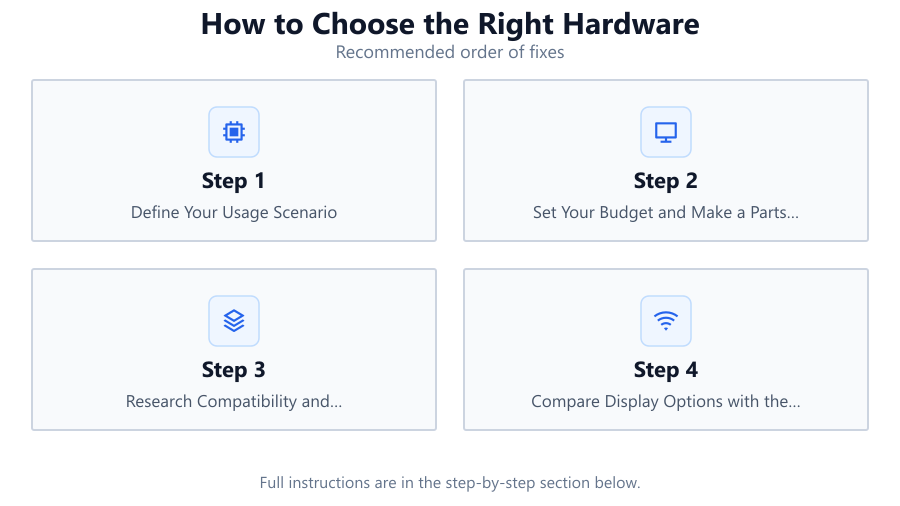
Define Your Usage Scenario
List your primary tasks: gaming, office work, media editing, or general use. This helps prioritize which components matter most. For gaming, focus on GPU and display. For productivity, CPU and RAM are key.
Set Your Budget and Make a Parts List
Determine your maximum spend and allocate funds according to your priorities. Include every part: CPU, GPU, RAM, storage, motherboard, PSU, case, cooling, and display. Leave room for quality peripherals.
Research Compatibility and Minimum Requirements
Check that all components fit and work together. Use motherboard and case manufacturer resources. Verify power supply wattage and connector types. Review software or game requirements to avoid bottlenecks.
Compare Display Options with the PPI Calculator
Choose display size and resolution based on your workspace and visual needs. Higher PPI means sharper images. Use the PPI Calculator to compare monitors, laptops, or phone screens for the best viewing experience.
Balance Performance, Features, and Future-Proofing
Pick hardware that meets your needs today but consider potential upgrades. Opt for slightly better specs if your budget allows, especially for CPU, GPU, and RAM. This prevents early obsolescence.
Comparison
| Component | Entry-Level | Mid-Range | High-End |
|---|---|---|---|
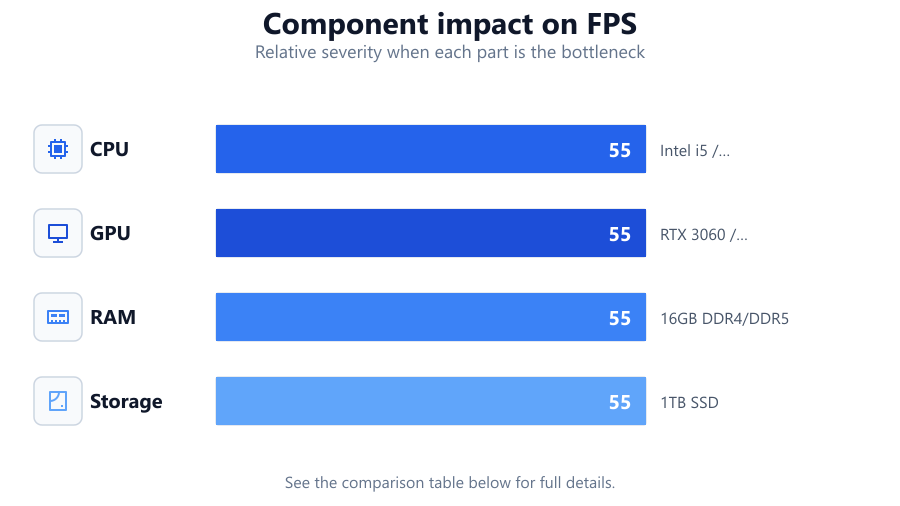
| CPU | Intel i3 / Ryzen 3 | Intel i5 / Ryzen 5 | Intel i7+ / Ryzen 7+ |
| GPU | GTX 1650 / RX 6400 | RTX 3060 / RX 6700 XT | RTX 4090 / RX 7900 XTX |
| RAM | 8GB DDR4 | 16GB DDR4/DDR5 | 32GB+ DDR5 |
| Storage | 256GB SSD | 1TB SSD | 2TB NVMe SSD |
Common mistakes
Mistake
Ignoring component compatibility
Fix: Double-check motherboard, CPU, RAM, and GPU compatibility before purchase. Use manufacturer support tools and compatibility lists.
Mistake
Underestimating power supply needs
Fix: Calculate your total system wattage and choose a PSU with at least 20 percent headroom. Choose a reputable brand with good reviews.
Mistake
Overlooking display quality and pixel density
Fix: Do not focus only on screen size. Use the PPI Calculator to ensure your display has adequate sharpness for your tasks.
Troubleshooting
System does not power on after assembly
Likely cause: Loose cables or incompatible components
What to do: Recheck all connections and compatibility. Ensure the PSU is turned on and all power cables are securely attached.
Display looks blurry or text is not sharp
Likely cause: Low PPI or incorrect resolution settings
What to do: Verify your display's native resolution. Use the PPI Calculator to check if your monitor meets recommended pixel density.
Games or software run slowly
Likely cause: Hardware does not meet minimum requirements
What to do: Compare your specs to software requirements. Upgrade components as needed, prioritizing CPU, GPU, and RAM.
Recommendations
- Prioritize components based on your primary use case and budget.
- Use the PPI Calculator to compare monitor sharpness, especially for creative or professional work.
- Choose reputable brands for power supplies and motherboards to ensure stability.
- Leave room for future upgrades, especially for RAM and storage.
Frequently asked questions
What is the most important component for gaming?
The graphics card (GPU) is the most crucial for gaming, followed by the CPU. Make sure your display has a suitable refresh rate and PPI for your chosen resolution.
How much RAM do I really need?
For most users, 16GB is sufficient. If you do heavy multitasking or creative work, 32GB or more is recommended.
How do I know if a monitor will look sharp enough?
Use the PPI Calculator to compare pixel density. Higher PPI means sharper images, which is important for reading text and editing photos or videos.
Can I upgrade components later?
Yes, but always check that your motherboard supports newer CPUs or RAM. Choose a case and power supply that can handle future upgrades.