
Guide
Troubleshooting Guide
Struggling with random PC crashes, freezes, or instability? This troubleshooting guide will walk you through diagnosing and fixing CPU-related issues using proven methods and tools.
Updated 2026-07-05
Understanding CPU Troubleshooting
Modern CPUs are incredibly powerful, but even the best processors can experience crashes, overheating, and instability. Whether you are overclocking, building a new system, or encountering unexpected restarts, pinpointing the cause can be tricky.
A structured troubleshooting guide is essential to efficiently diagnose and resolve CPU issues. By systematically testing your hardware and configuration, you can save time and avoid unnecessary part replacements. This guide focuses on identifying symptoms, understanding root causes, and applying targeted solutions to restore system stability.
Common triggers for CPU instability include thermal throttling, insufficient power delivery, BIOS misconfigurations, and memory errors. Tools like CPU Stress Test allow you to push your processor to its limits, revealing hidden weaknesses and helping you verify if your cooling solution and voltage settings are up to the task.
Advanced Troubleshooting Techniques
After establishing the basics, it is time to dive deeper. Advanced troubleshooting involves monitoring voltage fluctuations, analyzing error logs, and running targeted stress tests. Begin by checking system event logs for critical errors related to hardware. Next, inspect your motherboard BIOS settings for any unusual configurations, especially if you have recently updated firmware or changed overclocking profiles.
Run the CPU Stress Test for extended periods, gradually increasing load levels. Observe temperature readings, fan speeds, and system responsiveness. If instability occurs, note the exact conditions and duration. This information is crucial for narrowing down the issue, whether it is temperature spikes, power delivery drops, or software conflicts.
For persistent problems, consider reverting your system to default settings and retesting. If stability returns, reapply custom tweaks one at a time to isolate the trigger. Document each change and result. This methodical approach minimizes downtime and ensures you do not overlook subtle causes.
Step-by-step
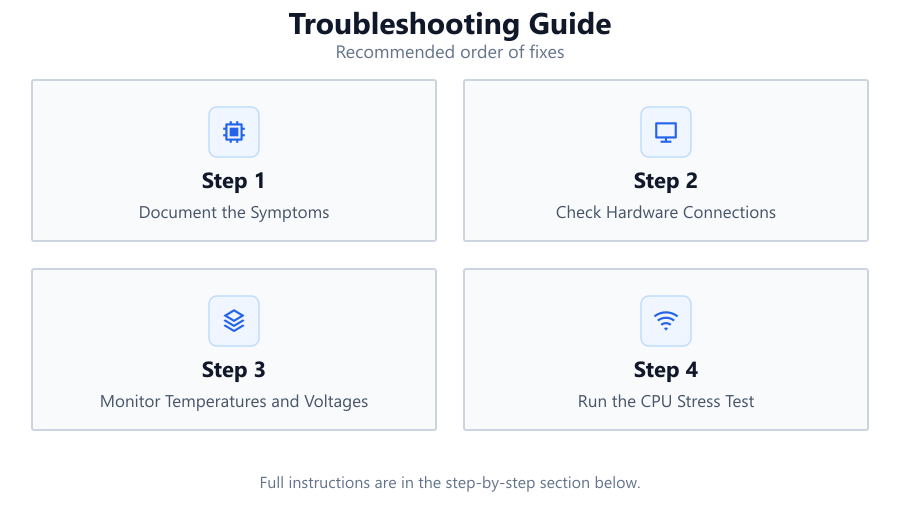
Document the Symptoms
Record every instance of crashing, freezing, or abnormal behavior. Note what applications are running, how long the system has been active, and any error messages. This information will help correlate symptoms with possible causes.
Check Hardware Connections
Ensure that your CPU, RAM, and power cables are seated securely. Loose connections can cause intermittent failures and are one of the simplest issues to check.
Monitor Temperatures and Voltages
Use monitoring software to track CPU temperatures, core voltage, and fan speeds. High temperatures or fluctuating voltages often signal cooling or power delivery problems.
Run the CPU Stress Test
Use the CPU Stress Test tool to apply a heavy workload to your processor. Observe how your system responds under load. Unexpected shutdowns or throttling indicate possible cooling or stability issues.
Restore Default BIOS Settings
If you have made custom BIOS or UEFI changes, revert to factory defaults. Custom settings can sometimes introduce instability. Test the system again to see if stability improves.
Test with Minimum Hardware
Remove non-essential components such as extra RAM sticks, GPUs, and storage drives. Run the system with only the CPU, one RAM stick, and boot drive. This helps isolate faulty parts.
Comparison
| Test Type | Purpose | Best For |
|---|---|---|
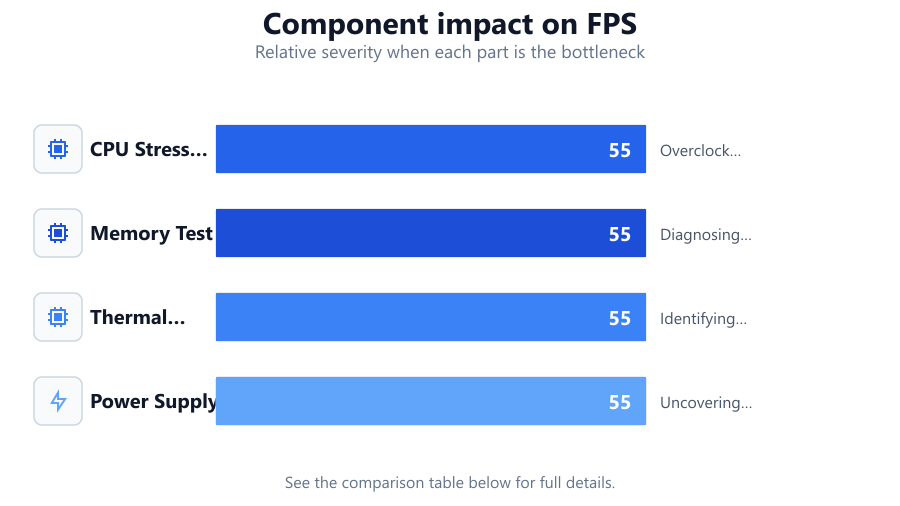
| CPU Stress Test | Max load to reveal stability issues | Overclock verification |
| Memory Test | Detects RAM errors | Diagnosing crashes |
| Thermal Benchmark | Measures cooling efficiency | Identifying overheating |
| Power Supply Test | Assesses voltage stability | Uncovering power delivery issues |
Common mistakes
Mistake
Ignoring temperature monitoring during stress testing
Fix: Always monitor CPU temperatures throughout stress tests to prevent overheating and potential hardware damage.
Mistake
Making multiple BIOS changes at once
Fix: Change one BIOS setting at a time and document the impact to accurately identify the cause of instability.
Mistake
Overlooking the power supply unit as a problem source
Fix: Test with a known good power supply if crashes persist. Power issues can mimic CPU or motherboard faults.
Mistake
Failing to update chipset drivers and BIOS
Fix: Keep your motherboard BIOS and chipset drivers up to date for better hardware compatibility and stability.
Troubleshooting
Random system restarts under load
Likely cause: CPU overheating or inadequate power delivery
What to do: Check CPU cooler installation, clean dust from fans, ensure power cables are secure, and run CPU Stress Test to confirm stability.
Blue screen errors (BSOD) during gaming or heavy tasks
Likely cause: Faulty RAM or unstable CPU overclock
What to do: Run memory diagnostics, revert CPU to stock clocks, and retest using CPU Stress Test.
System fails to boot after BIOS updates
Likely cause: Corrupted BIOS settings or incompatible firmware
What to do: Clear CMOS to reset BIOS to defaults and update firmware if needed.
High CPU temperatures at idle
Likely cause: Poor thermal paste application or blocked airflow
What to do: Reapply thermal paste and ensure case fans and heatsinks are free of dust.
Recommendations
- Use CPU Stress Test regularly after hardware upgrades or BIOS changes to catch issues early.
- Keep your system clean and ensure proper airflow inside your PC case.
- Update motherboard BIOS and chipset drivers to the latest versions.
- Replace thermal paste every few years for optimal cooling performance.
- Document all hardware and BIOS changes to speed up future troubleshooting.
Frequently asked questions
How long should I run a CPU stress test to confirm stability?
A minimum of 30 minutes is recommended for basic checks. For overclocked systems, 2 to 8 hours of stress testing provides a better guarantee of stability.
Can high temperatures during a stress test harm my CPU?
Yes, excessive heat can permanently damage your CPU. Always monitor temperatures and stop the test if they approach your processor's maximum safe limit.
What should I do if my PC crashes during the CPU Stress Test?
Note the conditions of the crash, check cooling and power connections, revert any recent overclocking changes, and retest at stock settings.
Is the CPU Stress Test tool safe to use on laptops?
Yes, but ensure your laptop is on a hard surface with good airflow. Monitor temperatures closely, as laptops have less robust cooling than desktops.