
Guide
Common Buying Mistakes
Avoid common buying mistakes when upgrading your PC RAM. This guide explains the pitfalls, how to get real performance, and why using a RAM Latency Calculator matters.
Updated 2026-07-05
Understanding Common Buying Mistakes for RAM
Upgrading your system's RAM can seem simple, but many buyers fall into traps that cost money and performance. The market is full of choices, with different memory speeds, CAS latencies, and module generations like DDR3, DDR4, and DDR5. Without a clear understanding of what actually matters, you might end up with memory that looks fast on paper but underperforms in real-world tasks.
A frequent mistake is relying solely on advertised MHz numbers, ignoring factors like latency and compatibility. Many users also fail to consider their system's limitations, such as motherboard support or CPU memory controller bottlenecks. This leads to wasted money or even hardware that cannot be used at its full potential.
Another common error is neglecting to check for dual channel support or mismatching RAM modules. These mistakes can cause your system to run slower than expected, even with seemingly high-end RAM. Understanding these pitfalls is vital before making a purchase. Our RAM Latency Calculator can help you compare true latency values across different modules, ensuring you pick memory that delivers real speed improvements.
Detailed Look: How to Avoid Common Buying Mistakes
To make informed decisions when buying RAM, you must look beyond flashy specs. The most common buying mistakes stem from misunderstanding how speed and latency work together. For example, a higher MHz module with a high CAS latency can be slower than a lower MHz module with a tighter latency. That's why our RAM Latency Calculator is an essential tool for comparing real-world delay in nanoseconds, not just marketing numbers.
Another issue is failing to check compatibility with your motherboard or CPU. Even quality RAM can be bottlenecked if your platform does not support its rated speed. Always consult your motherboard's Qualified Vendor List (QVL) and CPU datasheet before buying.
Mixing RAM kits with different speeds, timings, or brands can also cause instability or force all modules to run at the lowest common denominator. This is a frequent oversight for those upgrading piecemeal. Instead, buy matched kits whenever possible to guarantee stability and performance.
Finally, some buyers ignore the importance of memory capacity versus speed. In many workloads, having more RAM is better than slightly faster RAM. Use the RAM Latency Calculator to weigh speed and latency, but do not sacrifice capacity if your workflows demand it.
Step-by-step
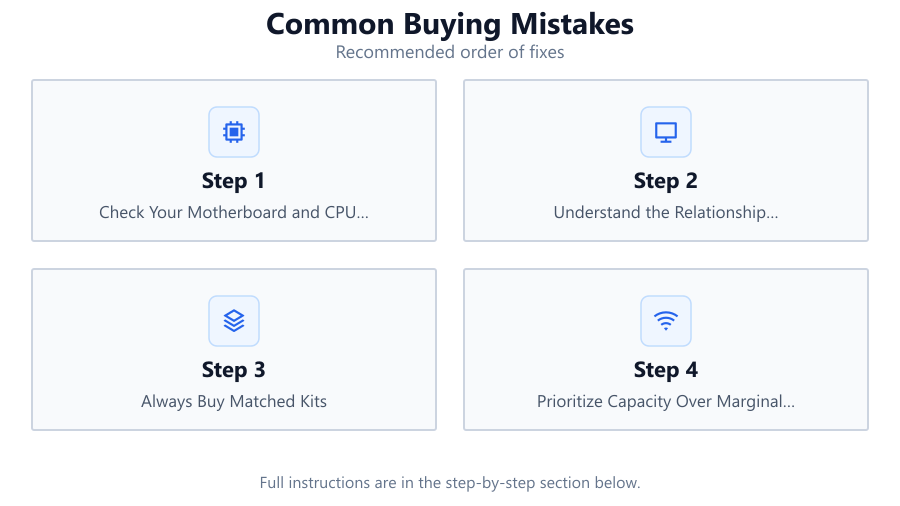
Check Your Motherboard and CPU Compatibility
Before buying RAM, verify what your motherboard and CPU support for maximum speed, type, and capacity. Consult your motherboard manual and CPU documentation. This will prevent mismatches and wasted money.
Understand the Relationship Between Speed and Latency
A common buying mistake is focusing on MHz alone. Use the RAM Latency Calculator to compare real latency in nanoseconds between different modules. This reveals true performance differences.
Always Buy Matched Kits
Mixing different RAM brands, speeds, or timings can cause instability. Purchase RAM as a matched kit to ensure compatibility and optimal dual channel or quad channel performance.
Prioritize Capacity Over Marginal Speed Gains
For most users, having enough RAM for your workload is more important than squeezing out a few more MHz. Do not sacrifice capacity for slightly better latency unless your use case justifies it.
Check for BIOS and Firmware Updates
Motherboards often add better RAM support with BIOS updates. Before and after installing new memory, check for updates to maximize stability and compatibility.
Comparison
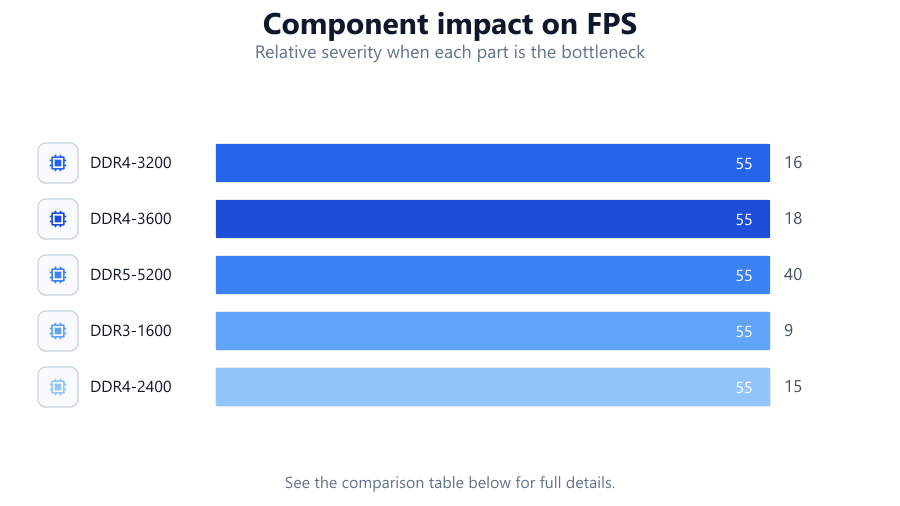
| Module Type | Advertised Speed (MHz) | CAS Latency (CL) | True Latency (ns) |
|---|---|---|---|
| DDR4-3200 | 3200 | 16 | 10.0 |
| DDR4-3600 | 3600 | 18 | 10.0 |
| DDR5-5200 | 5200 | 40 | 15.4 |
| DDR3-1600 | 1600 | 9 | 11.25 |
| DDR4-2400 | 2400 | 15 | 12.5 |
Common mistakes
Mistake
Focusing only on MHz and ignoring CAS latency
Fix: Always check both speed and latency. Use the RAM Latency Calculator to compare real-world performance.
Mistake
Buying incompatible RAM for your motherboard or CPU
Fix: Consult your motherboard QVL and CPU specs to ensure support for the RAM you plan to buy.
Mistake
Mixing RAM kits from different brands or specs
Fix: Buy RAM in matched kits to ensure stability and maximum performance.
Mistake
Overlooking the importance of total capacity
Fix: Assess your real memory needs and prioritize capacity before chasing minor speed improvements.
Troubleshooting
System fails to boot after installing new RAM
Likely cause: Incompatible module or incorrect installation
What to do: Double-check RAM seating, confirm compatibility, and consult motherboard manual for slot placement.
Frequent system crashes or BSODs after upgrade
Likely cause: Mixed RAM kits or unstable memory overclock
What to do: Return to default memory settings or use only matched RAM kits.
RAM running at lower speed than advertised
Likely cause: Motherboard or CPU does not support higher speeds by default
What to do: Enable XMP/DOCP profile in BIOS and verify maximum supported speed in your motherboard and CPU documentation.
Recommendations
- Use the RAM Latency Calculator before making a purchase to compare true latency numbers.
- Always buy RAM as a matched kit for best compatibility and performance.
- Check for the latest BIOS updates to improve memory compatibility.
- Do not mix RAM with different speeds or brands unless absolutely necessary.
- Balance your need for speed and capacity based on your real workloads.
Frequently asked questions
Why does my RAM not run at its advertised speed?
Many motherboards default to lower speeds for compatibility. Enable XMP/DOCP in BIOS and check your hardware supports the rated speed.
Is higher MHz always better for RAM?
Not always. True performance depends on both speed and latency. Use the RAM Latency Calculator to see real-world differences.
Can I mix different RAM kits in my PC?
Mixing RAM kits can cause instability and force modules to run at the slowest speed and loosest timings. It's best to use matched kits.
How do I know how much RAM I need?
Assess your typical workload and check system requirements for your applications. For gaming, 16GB is usually enough, but content creation may need 32GB or more.