
Guide
Optimization Guide
Unlock your PC's true performance by optimizing RAM latency. This optimization guide explains how to analyze, tune, and measure real-world memory delay using clear steps.
Updated 2026-07-05
Understanding RAM Latency and Its Impact on Performance
RAM latency is the time your memory takes to respond to a command, measured in nanoseconds (ns). Lower latency means the CPU waits less for data, leading to faster application loads, smoother multitasking, and more responsive gaming or content creation. While memory speed (MHz) is widely discussed, true latency is influenced by both frequency and CAS latency (CL), making it critical to measure real-world performance rather than just reading labels.
The RAM Latency Calculator is designed to instantly show you the effective delay of any memory module by inputting its speed and CAS latency. This allows you to directly compare DDR3, DDR4, and DDR5 modules, regardless of generation. Understanding these values helps you make informed upgrades and tweak settings for the best possible system responsiveness.
Deep Dive: Measuring, Comparing, and Reducing RAM Latency
To truly optimize your system, you need to look beyond advertised MHz and focus on what your applications experience: the real latency in nanoseconds. The RAM Latency Calculator translates technical specifications into actionable numbers, making it easy to identify bottlenecks.
For example, a DDR4-3200 CL16 module and a DDR4-3600 CL18 module may seem quite different, but their real-world latency is nearly identical. This insight can save you money during upgrades or help you prioritize lower latency kits for workloads that benefit most, such as gaming or real-time editing.
Reducing RAM latency can involve lowering CAS latency in your BIOS, increasing memory frequency, or enabling XMP/DOCP profiles. However, stability and compatibility must be considered. Testing each change with real benchmarks and latency measurements ensures reliable improvements. This guide will walk you through each step, including using the RAM Latency Calculator to verify your progress.
Step-by-step
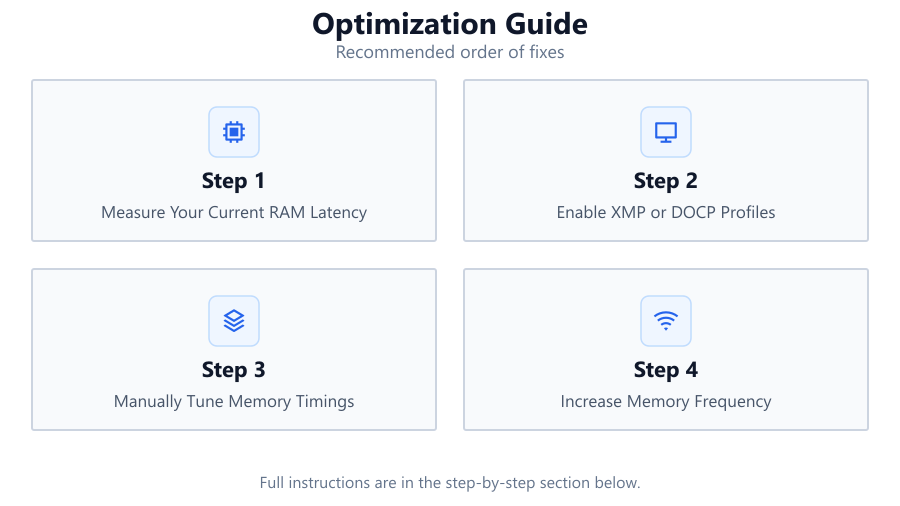
Measure Your Current RAM Latency
Record your current memory speed (MHz) and CAS latency (CL) from your system BIOS or system information software. Enter these values into the RAM Latency Calculator to get your actual latency in nanoseconds. This baseline helps you compare improvements as you optimize.
Enable XMP or DOCP Profiles
Most modern RAM modules support XMP (Intel) or DOCP (AMD) profiles, which automatically set optimal speed and timings. Enable this feature in your BIOS to instantly boost both speed and lower latency. After enabling, recheck your latency using the RAM Latency Calculator.
Manually Tune Memory Timings
For advanced optimization, manually reduce CAS latency and other primary timings in the BIOS. Lower values can decrease latency, but require stability testing. Incrementally adjust and stress test after each change, then recalculate true latency with the RAM Latency Calculator.
Increase Memory Frequency
Raising the memory frequency can lower effective latency, especially when combined with lower timings. Adjust frequency in small steps, testing for stability and compatibility. Use the RAM Latency Calculator after each change to ensure you are achieving real-world improvements.
Compare and Benchmark
After each adjustment, use real benchmarks (such as AIDA64, MemTest, or game benchmarks) alongside the RAM Latency Calculator to confirm that your changes deliver measurable gains. Document each setting and result to find the optimal balance between speed, latency, and stability.
Comparison
| Memory Type | Speed (MHz) | CAS Latency (CL) | Latency (ns) |
|---|---|---|---|
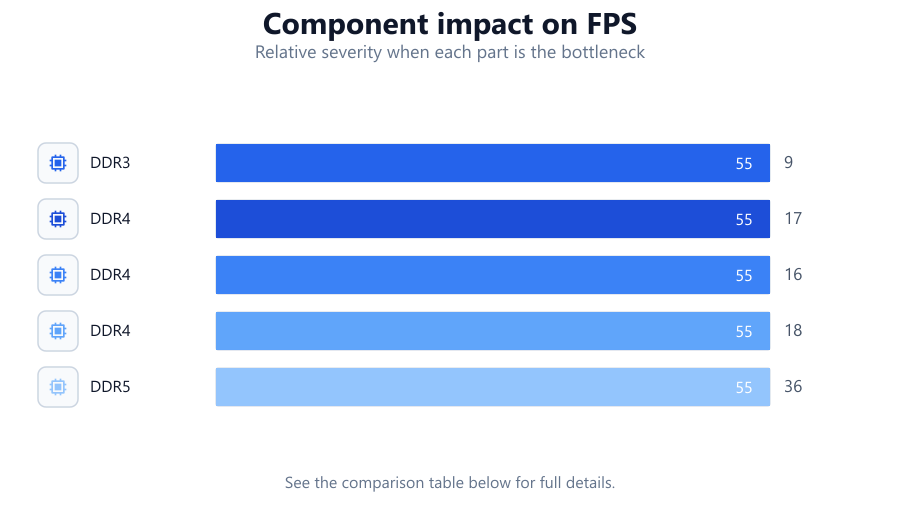
| DDR3 | 1600 | 9 | 11.25 |
| DDR4 | 2400 | 17 | 14.17 |
| DDR4 | 3200 | 16 | 10.00 |
| DDR4 | 3600 | 18 | 10.00 |
| DDR5 | 5600 | 36 | 12.86 |
Common mistakes
Mistake
Assuming higher MHz always means better performance
Fix: Always check actual latency in nanoseconds with the RAM Latency Calculator, as higher MHz with higher CAS latency can result in similar or worse performance.
Mistake
Ignoring stability when lowering timings
Fix: After every timing change, run memory stress tests to ensure your system remains stable and avoid data corruption or crashes.
Mistake
Not enabling XMP/DOCP profiles
Fix: Always enable these profiles in BIOS to run your RAM at advertised speeds and timings instead of default (often slower) JEDEC settings.
Mistake
Comparing only by RAM generation
Fix: Use the RAM Latency Calculator to compare across DDR3, DDR4, and DDR5, as generational differences are less important than true latency.
Troubleshooting
System becomes unstable after changing timings
Likely cause: Timings are set too aggressively for your RAM or motherboard
What to do: Revert to previous stable settings, then adjust timings more gradually, testing for stability after each change.
PC fails to boot after increasing memory frequency
Likely cause: Frequency exceeds RAM or motherboard specification
What to do: Clear CMOS or use BIOS safe mode to restore defaults. Increase frequency in smaller increments, and check manufacturer compatibility lists.
No performance improvement after enabling XMP/DOCP
Likely cause: Profile is not properly applied or system reverts to defaults
What to do: Ensure the profile is saved in BIOS. Check for BIOS updates, and verify with the RAM Latency Calculator that values have changed.
Benchmarks show lower performance after optimization
Likely cause: Latency may have increased or system is unstable
What to do: Double-check all settings with the RAM Latency Calculator. If latency increased, revert changes or try different timing/frequency combinations.
Recommendations
- Use the RAM Latency Calculator before and after each change to measure actual improvements.
- Enable XMP/DOCP profiles as your first optimization step for reliable gains.
- Document all BIOS changes and test results to quickly identify optimal settings.
- Prioritize lower latency modules for tasks sensitive to memory delay, such as gaming or real-time applications.
- Regularly update your motherboard BIOS for improved compatibility and memory support.
Frequently asked questions
What is RAM latency and why does it matter?
RAM latency is the time it takes for memory to respond to a command, measured in nanoseconds. Lower latency means your CPU spends less time waiting for data, which improves overall system performance.
How do I calculate true RAM latency?
True RAM latency can be calculated using the formula: (CAS latency x 2000) / RAM speed (MHz). The easiest way is to use the RAM Latency Calculator, which instantly gives you the result.
Is higher MHz always better for RAM?
Not always. Higher MHz can be offset by higher CAS latency, resulting in similar or even worse real-world latency. Always compare modules using actual nanosecond latency.
How do I safely optimize RAM timings?
Start by enabling XMP/DOCP profiles, then manually lower timings in small steps while testing for stability. Use the RAM Latency Calculator and stress-test tools to ensure reliability.
Can I compare DDR3, DDR4, and DDR5 using latency?
Yes. The RAM Latency Calculator allows you to input speed and CAS latency for any DDR generation, providing a direct latency comparison in nanoseconds.