
Guide
Complete Beginner's Guide
This complete beginners guide explains how to check and understand your RAM speed so you can boost your PC’s performance. Learn step by step using our free RAM Speed Checker.
Updated 2026-07-05
What Is RAM Speed and Why Does It Matter?
Random Access Memory, or RAM, is a crucial component in every computer. It temporarily stores data that your processor needs to access quickly. The speed of your RAM determines how fast your system can read and write this data, directly impacting performance in gaming, multitasking, and heavy workloads.
Many beginners overlook RAM speed when building or upgrading a PC. However, slow memory can create bottlenecks, making even high-end CPUs and GPUs underperform. That is why understanding RAM speed is essential for getting the most out of your hardware.
RAM speed is measured in megahertz (MHz) and megabytes per second (MB/s). The higher the speed, the faster your system can handle demanding tasks. By knowing your RAM’s read and write speeds, you can compare your system’s performance and decide if an upgrade is needed.
How to Measure and Optimize Your RAM Speed
Checking your RAM speed is simple with the right tools. Test Your Memory with Our Free RAM Speed Checker instantly measures your memory’s read and write speeds in MB/s. This helps you spot bottlenecks and compare your results to typical values for your RAM type.
To get accurate results, close unnecessary programs before testing. The tool gives you easy-to-read outputs so you can see if your system is performing as expected. If your speeds are lower than average, it could be due to mismatched DIMMs, outdated BIOS settings, or running your memory below its rated specifications.
Optimizing RAM speed often involves enabling XMP profiles in your motherboard’s BIOS, upgrading to faster modules, or adding more RAM if you frequently run out. Always check compatibility with your motherboard and CPU before upgrading. Use Test Your Memory with Our Free RAM Speed Checker after any changes to confirm improvements.
Step-by-step
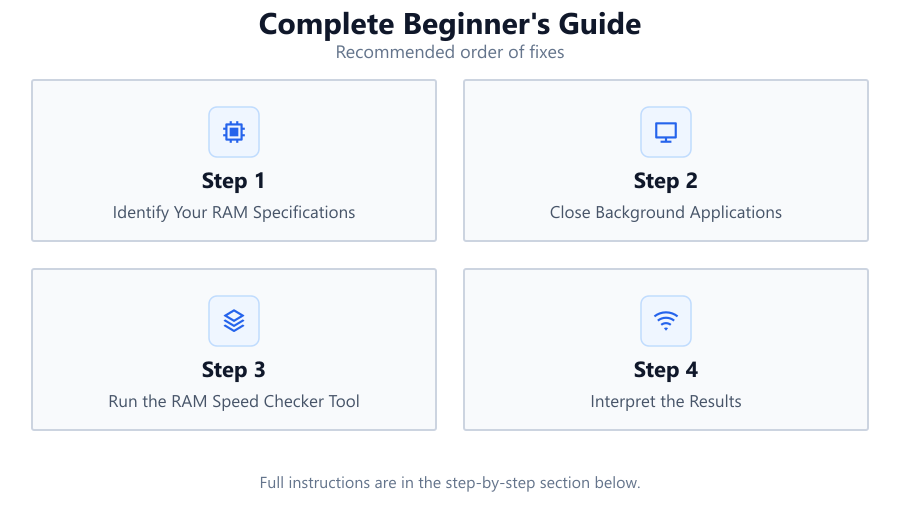
Identify Your RAM Specifications
Before testing, find out your RAM’s rated speed, type, and capacity. This information is usually available in your system specs or using utilities like CPU-Z.
Close Background Applications
Shut down unnecessary programs and background processes. This ensures the RAM speed test reflects true performance without interference.
Run the RAM Speed Checker Tool
Open Test Your Memory with Our Free RAM Speed Checker. Follow the on-screen instructions to initiate the test. The tool will measure both read and write speeds in MB/s.
Interpret the Results
Compare your read and write speeds to typical values for your RAM type. Look up manufacturer specs or check online benchmarks to see if your results are normal.
Optimize and Re-Test
If your speeds are lower than expected, enable XMP in BIOS, reseat memory modules, or update system firmware. Re-run the RAM Speed Checker to verify improvements.
Comparison
| RAM Type | Typical Read Speed (MB/s) | Typical Write Speed (MB/s) |
|---|---|---|
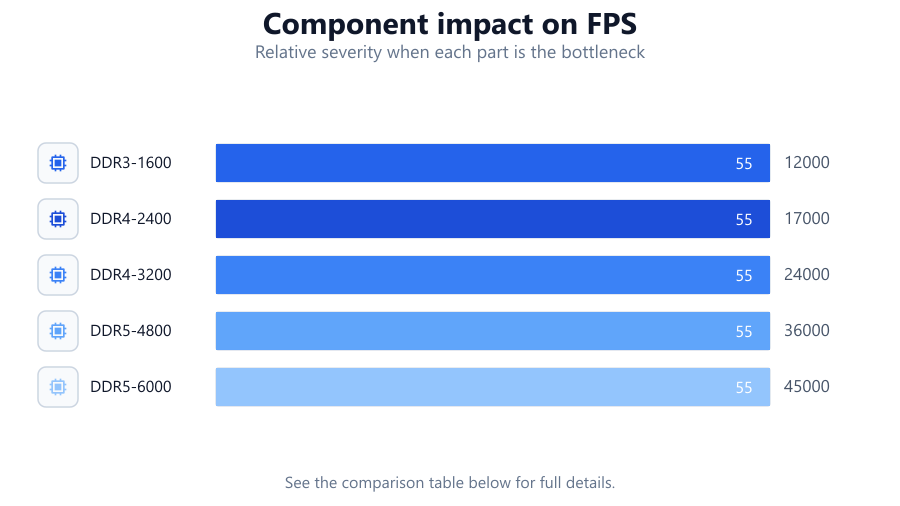
| DDR3-1600 | 12000 | 12000 |
| DDR4-2400 | 18000 | 17000 |
| DDR4-3200 | 25000 | 24000 |
| DDR5-4800 | 38000 | 36000 |
| DDR5-6000 | 47000 | 45000 |
Common mistakes
Mistake
Not enabling XMP or DOCP profiles in BIOS.
Fix: Enter your motherboard BIOS and enable XMP or DOCP to run RAM at its rated speed.
Mistake
Mixing RAM modules of different speeds or brands.
Fix: Use identical RAM sticks for best compatibility and performance.
Mistake
Ignoring BIOS and firmware updates.
Fix: Keep your motherboard BIOS and system drivers updated to support the latest memory features.
Mistake
Testing RAM speed with background apps running.
Fix: Close all unnecessary applications before running the RAM speed checker.
Troubleshooting
RAM speed results are much lower than expected.
Likely cause: XMP profile is disabled in BIOS.
What to do: Enable XMP or DOCP in BIOS and re-test using the RAM Speed Checker.
System crashes during RAM speed test.
Likely cause: RAM modules may be unstable at current speeds or timings.
What to do: Reset RAM settings to default or slightly lower speed, then test stability.
RAM speed varies between tests.
Likely cause: Background tasks or thermal throttling.
What to do: Ensure all background apps are closed and system is cool before testing.
Recommendations
- Use Test Your Memory with Our Free RAM Speed Checker regularly to monitor performance.
- Enable XMP or DOCP profiles in BIOS to maximize RAM speed.
- Upgrade to faster or higher-capacity RAM if you notice frequent slowdowns.
- Always match RAM modules in terms of speed, capacity, and brand for best results.
Frequently asked questions
What is a good RAM speed for gaming?
For modern gaming, DDR4 RAM at 3200 MHz or higher is recommended. Faster speeds can improve frame rates and reduce stuttering in some games.
How do I check my RAM speed without opening my PC?
You can use software tools like Test Your Memory with Our Free RAM Speed Checker to instantly measure your RAM’s speed without physically accessing your hardware.
Can I mix different brands or speeds of RAM?
Mixing RAM from different brands or with different speeds is possible, but the system will run at the speed of the slowest module. For best stability and performance, use identical RAM sticks.
What should I do if my RAM speed is below the manufacturer’s rating?
Check your BIOS settings and enable XMP or DOCP profiles. This will allow your RAM to run at its rated speed. Re-test using Test Your Memory with Our Free RAM Speed Checker to confirm.