
Guide
Optimization Guide
Unlock your PC's full potential with our optimization guide. Discover proven strategies and tools like the Test Your Memory with Our Free RAM Speed Checker to enhance your system's speed and stability.
Updated 2026-07-05
Understanding PC Optimization
Optimizing your PC means making deliberate changes to improve speed, responsiveness, and efficiency. Whether you are a gamer, content creator, or everyday user, small tweaks can yield big performance gains. This optimization guide covers best practices, actionable steps, and essential tools for evaluating and enhancing your system's performance.
A key area often overlooked is memory speed. RAM can become a bottleneck, limiting how quickly your CPU processes data. By identifying and resolving these bottlenecks, you create a smoother computing experience and extend the lifespan of your hardware. Using the Test Your Memory with Our Free RAM Speed Checker, you can instantly assess your memory's read and write speeds. This data helps you compare your current performance to industry standards and guides your next optimization moves.
Throughout this guide, you will learn to spot performance drains, optimize your PC's configuration, and use diagnostic tools to verify improvements.
How to Optimize Your PC: Practical Steps and Insights
The optimization process starts with understanding your current hardware and software landscape. Begin by benchmarking your system's performance. The Test Your Memory with Our Free RAM Speed Checker is invaluable for assessing RAM speeds, which are critical for multitasking and gaming.
Once you have a baseline, address common areas that impact PC performance: memory, storage, CPU, software, and cooling. Upgrading RAM or enabling XMP profiles can improve memory throughput. Cleaning up storage and running scheduled maintenance prevents slowdowns due to drive fragmentation or excess background processes. Adjusting system settings, like disabling unnecessary startup programs and updating drivers, further enhances speed.
Hardware upgrades are effective, but software tweaks often deliver significant results with no extra cost. Regularly update your operating system and drivers to benefit from security patches and performance enhancements. Monitor your system's temperature and ensure adequate airflow to prevent thermal throttling, which can drastically reduce performance.
Finally, re-test your system using the RAM Speed Checker to verify that your changes are producing measurable improvements. This cyclical approach of testing, tweaking, and re-testing is the cornerstone of effective optimization.
Step-by-step
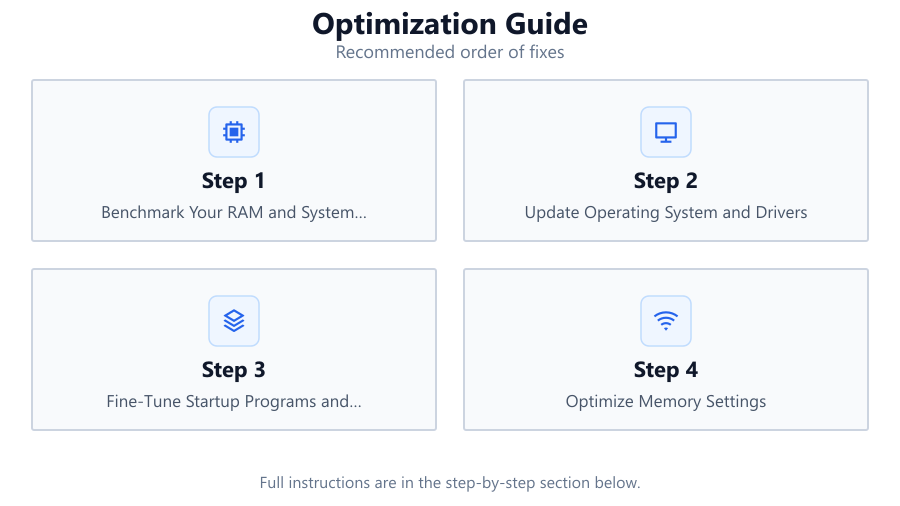
Benchmark Your RAM and System Performance
Start by measuring your current RAM read and write speeds with Test Your Memory with Our Free RAM Speed Checker. Record these results to use as a baseline for future comparisons.
Update Operating System and Drivers
Ensure your OS and all hardware drivers are up to date. Updates often include security patches, bug fixes, and performance improvements that can noticeably boost system efficiency.
Fine-Tune Startup Programs and Services
Disable unnecessary startup programs and background services using Task Manager or MSConfig. Fewer background processes translate to faster boot times and more available resources.
Optimize Memory Settings
Enable XMP or DOCP profiles in your BIOS to allow your RAM to run at its rated speed. Check for dual-channel configuration to maximize bandwidth. Re-run the RAM Speed Checker to confirm improvements.
Clean and Maintain Storage Drives
Regularly defragment HDDs (if applicable) and run optimization tools for SSDs. Remove unnecessary files and applications to free up space and prevent slowdowns due to storage bottlenecks.
Monitor Temperatures and Improve Cooling
Overheating can cause performance drops. Use hardware monitoring tools to check CPU and GPU temperatures. Clean dust from fans and ensure your case has proper airflow.
Comparison
| Component | Optimization Action | Expected Improvement |
|---|---|---|
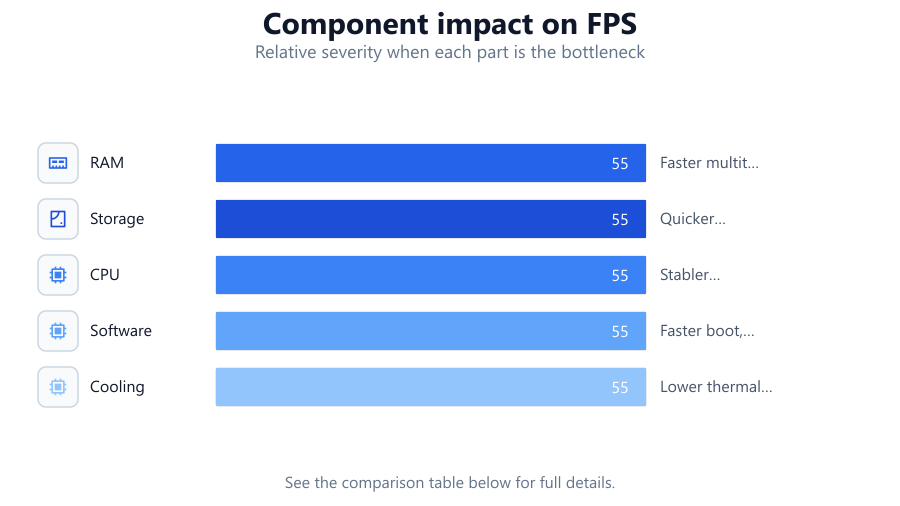
| RAM | Enable XMP, upgrade modules | Faster multitasking, better gaming |
| Storage | Defragment HDD, optimize SSD | Quicker load times, reduced lag |
| CPU | Update drivers, improve cooling | Stabler performance, less throttling |
| Software | Disable startup apps, update OS | Faster boot, smoother operation |
| Cooling | Add case fans, clean dust | Lower thermal throttling risk |
Common mistakes
Mistake
Ignoring RAM speed and configuration
Fix: Test your RAM with the RAM Speed Checker and enable XMP or dual-channel mode if available.
Mistake
Neglecting regular software and driver updates
Fix: Schedule monthly checks for operating system and driver updates to maintain optimal performance.
Mistake
Running too many background applications
Fix: Use Task Manager to disable unnecessary apps and free up system resources.
Mistake
Overlooking system temperatures
Fix: Monitor temperatures and clean your PC regularly to prevent heat-related slowdowns.
Troubleshooting
System feels slow during multitasking
Likely cause: RAM speed or capacity is insufficient
What to do: Check RAM speed with Test Your Memory with Our Free RAM Speed Checker and consider upgrading or reconfiguring your memory.
Long boot times
Likely cause: Too many startup programs or outdated drivers
What to do: Disable unnecessary startup programs and update all drivers.
Frequent system crashes or freezes
Likely cause: Overheating or unstable RAM settings
What to do: Monitor temperatures, clean cooling components, and revert RAM settings to stable values if needed.
Slow file transfers
Likely cause: Fragmented HDD or failing SSD
What to do: Defragment HDDs, run SSD health checks, and consider upgrading storage.
Recommendations
- Use Test Your Memory with Our Free RAM Speed Checker regularly to monitor memory performance.
- Enable XMP or DOCP in BIOS for optimal RAM speeds.
- Keep your system and drivers updated to benefit from the latest performance improvements.
- Periodically clean your PC and ensure adequate cooling to prevent thermal throttling.
- Remove or disable unnecessary apps and services for a leaner, faster system.
Frequently asked questions
How do I know if my RAM is a performance bottleneck?
Use Test Your Memory with Our Free RAM Speed Checker to compare your RAM's speed to typical values for your hardware. If your results are below average, consider upgrading or adjusting your RAM configuration.
Is it better to upgrade RAM or switch to an SSD first?
If you have less than 16GB of RAM, upgrading memory may help multitasking. However, switching from an HDD to an SSD typically yields the most noticeable improvement in overall system speed.
How often should I run optimization checks?
Run a full optimization check every 3 to 6 months, or after major hardware or software changes. Regular checks help identify emerging bottlenecks before they impact performance.
Will enabling XMP profiles harm my system?
Enabling XMP allows your RAM to run at its rated speed, which is safe for most modern systems. Ensure your motherboard and RAM both support XMP and monitor stability after enabling.
What is the easiest way to improve PC performance?
Disable unnecessary startup programs, keep your system updated, and use tools like the RAM Speed Checker to spot and fix bottlenecks.