
Guide
Common Buying Mistakes
Avoid the most common buying mistakes when choosing a monitor. Learn how to make informed decisions and use the Refresh Rate Calculator for precise comparisons.
Updated 2026-07-05
Understanding Common Monitor Buying Mistakes
Choosing the right monitor can be overwhelming, especially with countless specifications and marketing terms competing for your attention. Whether you are a gamer, creative professional, or everyday user, the wrong purchase can lead to wasted money or disappointing performance. Many buyers focus on headline specs like size or resolution, overlooking essential details such as refresh rate, input lag, and panel technology.
One of the most frequent mistakes is ignoring how refresh rate actually impacts your experience. While 144Hz or higher refresh rates are promoted as must-haves for gaming, not all users will benefit equally. Some buyers also misinterpret what a high refresh rate guarantees, assuming it always means smoother gameplay or better visuals. This is where understanding the relationship between refresh rate and frame time becomes crucial.
The Refresh Rate Calculator is a valuable tool that helps you see exactly how long each frame is displayed on your screen. By converting Hertz (Hz) to frame time in milliseconds, you get a clear understanding of what each refresh rate delivers. This data-driven approach helps you compare monitors more effectively and avoid relying solely on marketing claims.
How to Avoid Common Buying Mistakes When Choosing a Monitor
Before making any purchase, it is critical to match your needs with the right specifications. Many people buy monitors with features they will never use or overlook specs that actually matter for their workflow. For instance, some prioritize a 4K resolution even though their graphics card cannot drive games at high settings, leading to suboptimal performance. Others buy a high refresh rate monitor without checking if their system can consistently output enough frames to take advantage of it.
Another trap is misunderstanding panel types. IPS, TN, and VA panels each have strengths and weaknesses, such as color accuracy, response time, and contrast ratios. Choosing the wrong panel for your primary use case can result in poor color reproduction for creative work or ghosting effects in fast-paced games. It is also easy to overlook connectivity options, such as HDMI 2.1 or DisplayPort, which can limit your ability to use higher refresh rates or resolutions with certain devices.
Use the Refresh Rate Calculator to check how refresh rate translates into frame times for different models. This ensures you are not just buying the highest number on the box but selecting a monitor that fits your hardware and user profile. Armed with this knowledge, you can confidently choose a display that matches your expectations and avoids common pitfalls.
Step-by-step
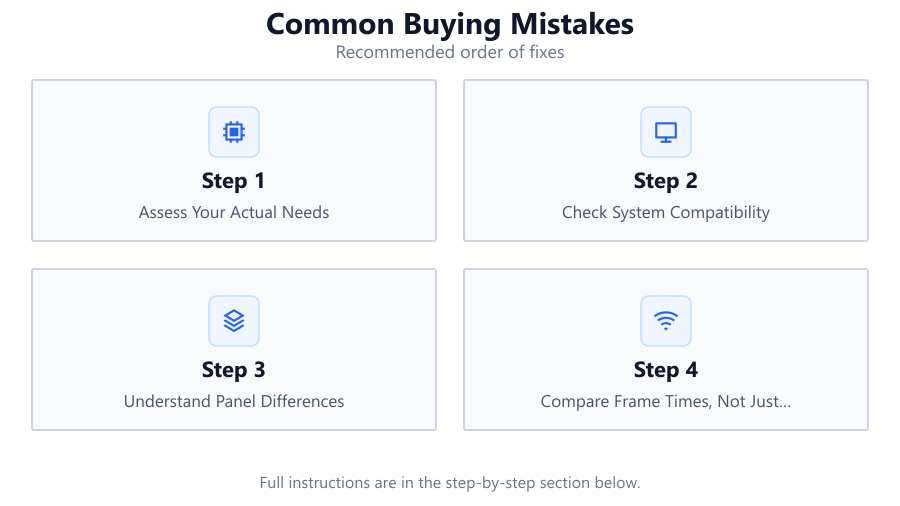
Assess Your Actual Needs
Determine how you will use your monitor. Gamers, content creators, and office workers all have different requirements. Write down your primary tasks, such as gaming at high frame rates, editing photos, or browsing the web. This will guide your decision-making and help you avoid overpaying for features you do not need.
Check System Compatibility
Ensure your graphics card and other components can support the monitor's specifications, especially refresh rate and resolution. For example, buying a 240Hz monitor is unnecessary if your PC can only output 120 frames per second. Use the Refresh Rate Calculator to see the real impact of your hardware limitations.
Understand Panel Differences
Research the pros and cons of IPS, TN, and VA panels. IPS panels offer better color accuracy and viewing angles, while TN panels have faster response times. VA panels provide high contrast but may suffer from slower pixel transitions. Choose a panel that matches your main activities.
Compare Frame Times, Not Just Refresh Rate
Use the Refresh Rate Calculator to convert advertised refresh rates into frame times. This makes it easier to compare monitors and understand how much smoother a 165Hz monitor is compared to 144Hz, for example. Small differences in frame time can be more noticeable in fast-paced games than raw refresh rate numbers suggest.
Double-Check Connectivity and Features
Verify the monitor has the necessary ports for your setup, such as HDMI 2.1 or DisplayPort 1.4. Consider extra features like adjustable stands, built-in speakers, and USB hubs. Make sure the included cables match your needs so you do not have to buy extras after unboxing.
Comparison
| Monitor Spec | Potential Mistake | Better Approach |
|---|---|---|
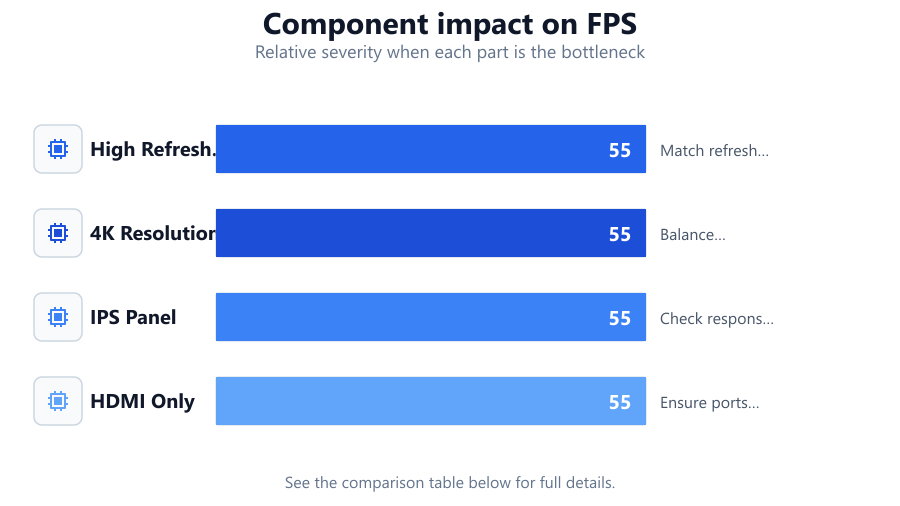
| High Refresh Rate (240Hz+) | Buying without checking GPU capability | Match refresh rate to system output using Refresh Rate Calculator |
| 4K Resolution | Prioritizing resolution over refresh rate for gaming | Balance resolution and refresh rate for intended use |
| IPS Panel | Assuming all IPS panels are fast for gaming | Check response time as well as panel type |
| HDMI Only | Ignoring DisplayPort for high refresh rates | Ensure ports support desired refresh rate and resolution |
Common mistakes
Mistake
Focusing solely on refresh rate numbers
Fix: Use the Refresh Rate Calculator to understand the actual frame time difference between monitors.
Mistake
Ignoring system limitations
Fix: Check your graphics card and CPU capabilities to ensure they can support the monitor's specs.
Mistake
Overlooking panel type and features
Fix: Choose a panel based on your main activities and verify additional features like adjustable stands or color calibration.
Troubleshooting
Monitor not displaying at advertised refresh rate
Likely cause: Incorrect cable or port selection, such as using HDMI 1.4 instead of HDMI 2.1
What to do: Use the appropriate cable and port that support your monitor's maximum refresh rate.
Games feel choppy despite high refresh rate monitor
Likely cause: System hardware cannot maintain high frame rates
What to do: Lower game settings or upgrade your graphics card to match the monitor's capabilities.
Colors appear washed out or inaccurate
Likely cause: Incorrect panel type or poor factory calibration
What to do: Choose the right panel for your use and calibrate the display using software or hardware tools.
Recommendations
- Always use the Refresh Rate Calculator to compare frame times before buying a monitor.
- Match your monitor's refresh rate to your PC's realistic output to avoid overpaying for unused features.
- Research panel types and choose one that fits your workflow, whether it is gaming, content creation, or general use.
- Check all connectivity options to ensure compatibility with your devices and future upgrades.
- Read user reviews and expert benchmarks to confirm real-world performance, especially for input lag and color accuracy.
Frequently asked questions
Why does refresh rate matter when buying a monitor?
Refresh rate determines how often your screen updates per second. Higher rates mean smoother motion, especially in gaming. Use the Refresh Rate Calculator to see frame time differences.
Can my PC run a 240Hz monitor at full speed?
Only if your graphics card can output 240 frames per second at your chosen resolution. Check your hardware and use the Refresh Rate Calculator to find the actual frame time.
Is a higher resolution always better?
Not necessarily. Higher resolutions demand more from your GPU and may reduce frame rates. Balance resolution and refresh rate for your primary tasks.
What is the difference between HDMI and DisplayPort for high refresh rates?
DisplayPort often supports higher refresh rates and resolutions than older HDMI versions. Always check your monitor and graphics card specifications for compatibility.