
Guide
Optimization Guide
Unlock the full potential of your gaming and work setup by mastering refresh rates and frame times. This optimization guide shows you how to use the Refresh Rate Calculator to fine-tune visuals for smooth, responsive performance.
Updated 2026-07-05
Understanding Display Optimization Fundamentals
Optimizing your PC display involves more than just buying a high-end monitor. To truly achieve buttery-smooth visuals, you need to understand how refresh rate and frame time affect what you see on screen. The refresh rate, measured in Hertz (Hz), indicates how many times your monitor refreshes the image per second. A higher refresh rate results in smoother motion, reducing blur and tearing, especially in fast-paced games or detailed animations.
Frame time, on the other hand, is the duration each frame is shown. This is the real-world effect you can perceive: the lower the frame time, the less latency you experience between each frame. For instance, a 144Hz monitor refreshes every 6.94 milliseconds, while a 60Hz monitor refreshes every 16.67 milliseconds. Knowing these numbers helps you set realistic expectations and optimize your graphics settings for the best balance between visual fidelity and performance.
Using tools like the Refresh Rate Calculator, you can instantly convert any refresh rate into frame time in milliseconds. This helps you compare monitors and troubleshoot issues such as stutter, lag, or screen tearing. By understanding these core principles, you lay the groundwork for effective display optimization, whether you’re gaming, editing video, or simply aiming for a smoother desktop experience.
Advanced Techniques for Display Optimization
Once you master the basics, it’s time to dive deeper. Optimizing your display requires a holistic approach that considers hardware capabilities, software settings, and your specific use case. Begin by ensuring your monitor is set to its highest supported refresh rate via your operating system’s display settings. Many monitors default to lower refresh rates out of the box, so manual configuration is essential.
Next, align your PC’s graphics settings with your monitor’s capabilities. For gaming, enable technologies such as G-Sync or FreeSync if supported, as they synchronize the monitor’s refresh rate with your GPU’s output to eliminate tearing and stutter. Adjust in-game frame rate caps to match (or slightly exceed) your monitor’s refresh rate for the smoothest experience.
Pay attention to frame pacing: inconsistent frame delivery can cause micro-stutter, even at high refresh rates. Use the Refresh Rate Calculator to identify the optimal frame targets for your setup. Finally, regularly update your graphics drivers and monitor firmware to benefit from performance improvements and bug fixes. These advanced steps ensure you’re not just relying on hardware specs, but actively shaping your display experience for peak performance.
Step-by-step
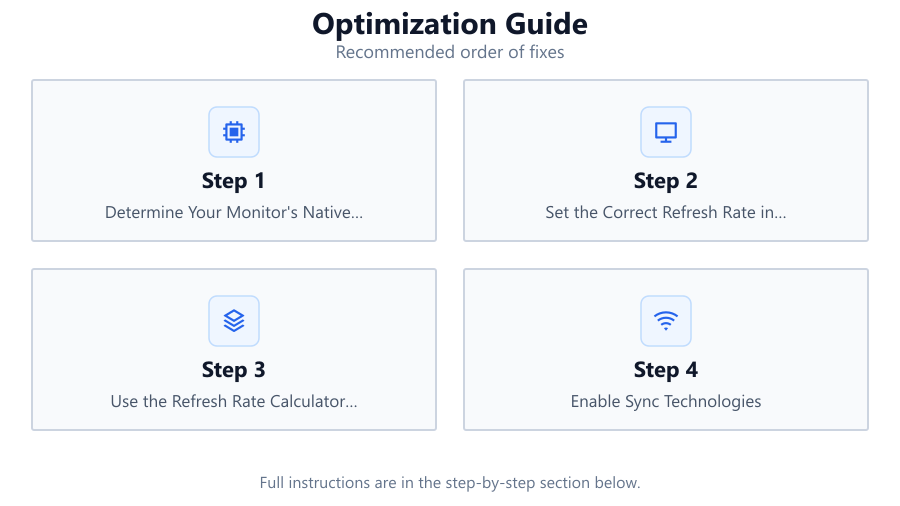
Determine Your Monitor's Native Refresh Rate
Check your monitor’s specifications or on-screen display to find its native refresh rate. This is the highest rate at which your monitor can reliably refresh images.
Set the Correct Refresh Rate in Your OS
Navigate to your display settings in Windows, macOS, or Linux and ensure you’ve selected the maximum supported refresh rate. Monitors often default to lower rates.
Use the Refresh Rate Calculator for Frame Time
Enter your monitor’s refresh rate into the Refresh Rate Calculator to instantly see the corresponding frame time in milliseconds. This helps you match in-game frame caps and troubleshoot latency.
Enable Sync Technologies
If your monitor supports G-Sync, FreeSync, or Adaptive Sync, activate these features through your GPU control panel. This synchronizes frame delivery and reduces tearing.
Fine-Tune Graphics Settings for Balance
Adjust in-game settings like resolution, texture quality, and effects to maintain a consistent frame rate that matches or slightly exceeds your monitor’s refresh rate. Use the frame time as a guide for optimal performance.
Comparison
| Refresh Rate (Hz) | Frame Time (ms) | Ideal Use Case |
|---|---|---|
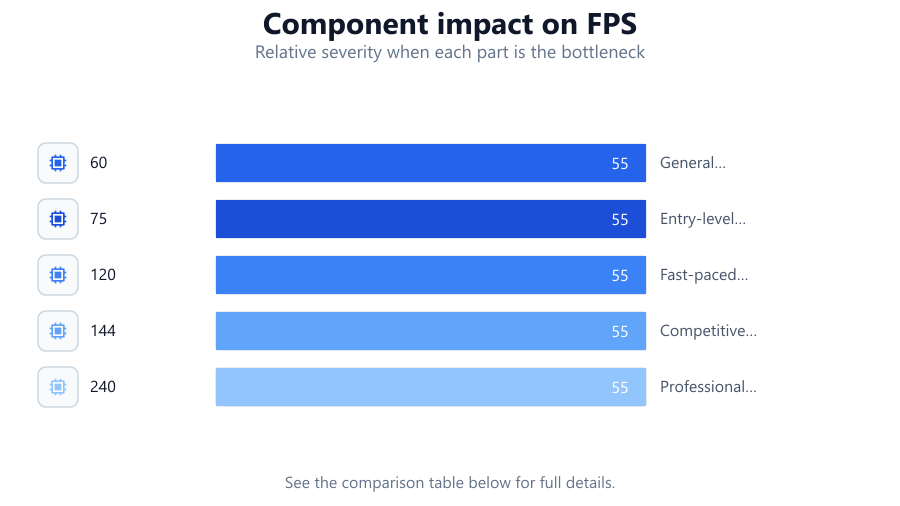
| 60 | 16.67 | General productivity, casual gaming |
| 75 | 13.33 | Entry-level gaming, office work |
| 120 | 8.33 | Fast-paced gaming, esports |
| 144 | 6.94 | Competitive gaming, high refresh scenarios |
| 240 | 4.17 | Professional esports, ultra-smooth motion |
Common mistakes
Mistake
Forgetting to set the monitor to its highest refresh rate in display settings
Fix: Always manually select the highest supported refresh rate in your operating system’s display settings after connecting your monitor.
Mistake
Ignoring frame time when configuring games
Fix: Use the Refresh Rate Calculator to convert refresh rate to frame time, then set in-game frame rate caps accordingly for smooth, low-latency gameplay.
Mistake
Overlooking the impact of outdated drivers
Fix: Regularly update your GPU drivers and monitor firmware to ensure compatibility and benefit from the latest performance enhancements.
Troubleshooting
Screen tearing during fast motion
Likely cause: Mismatch between your GPU output and monitor refresh rate
What to do: Enable G-Sync, FreeSync, or V-Sync, and cap your frame rate to match your monitor’s refresh rate using the Refresh Rate Calculator for precise numbers.
Noticeable input lag or stutter
Likely cause: Frame rate is too low or inconsistent compared to monitor refresh rate
What to do: Reduce in-game graphics settings to achieve a stable frame rate that matches or slightly exceeds your refresh rate for minimal input lag.
Blurry or smeared motion
Likely cause: Low refresh rate or response time limitations of the monitor
What to do: Increase your monitor’s refresh rate and enable any motion clarity features available in your monitor’s settings.
Recommendations
- Always verify and set your monitor to its maximum refresh rate after installation.
- Use the Refresh Rate Calculator to determine the most responsive frame time for your gaming or productivity needs.
- Match your in-game frame cap to your monitor’s refresh rate for the smoothest experience.
- Regularly update all display-related drivers and firmware for the latest optimizations.
- Enable adaptive sync technologies for the best tear-free performance.
Frequently asked questions
Why does refresh rate matter for gaming?
A higher refresh rate allows the monitor to display more frames per second, resulting in smoother motion and reduced input latency, which is crucial for fast-paced games.
How can I check my current refresh rate?
Open your operating system’s display settings and look for the refresh rate option. You can also use third-party utilities or your monitor’s on-screen display.
What does frame time mean, and why is it important?
Frame time is the duration each frame is displayed on screen. Lower frame times mean smoother visuals and less latency. Use the Refresh Rate Calculator to convert between refresh rate and frame time.
Is there any point in exceeding my monitor's refresh rate?
No. Frame rates higher than your monitor's refresh rate will not be displayed and may cause unnecessary GPU load. Cap your frame rate to match your monitor for optimal performance.