
Guide
Troubleshooting Guide
Having trouble getting your monitor to run at its advertised refresh rate? This troubleshooting guide will help you diagnose, test, and fix common refresh rate issues using the Refresh Rate Test tool.
Updated 2026-07-05
Understanding Refresh Rate Issues
Refresh rate problems can cause stutter, input lag, and disappointing visuals, even on high-end monitors. Many users expect their display to run at 60Hz, 120Hz, or 144Hz as advertised, only to discover that their operating system, graphics drivers, or cable setup are limiting their experience. The difference between a smooth desktop and a choppy one often comes down to configuration mistakes or hardware limitations.
The Refresh Rate Test is an essential browser-based tool that instantly measures your display’s actual refresh rate in real time. It provides visual demos and key stats, including dropped frames and refresh rate stability, helping you quickly compare your current settings to your monitor’s specifications. If you suspect you are not getting the most from your monitor, using this tool is the first step.
This troubleshooting guide will walk you through the most common refresh rate issues, explain how to use the Refresh Rate Test effectively, and provide actionable steps to resolve problems. Whether you are a gamer seeking the smoothest experience or a professional needing crisp motion, this guide is your starting point for diagnosing and fixing refresh rate problems.
Diagnosing and Solving Refresh Rate Problems
To troubleshoot refresh rate issues, you need a systematic approach. Start by confirming your monitor’s rated refresh rate and ensure your system is capable of supporting it. Sometimes, the bottleneck comes from outdated cables, incorrect display settings, or mismatched GPU configurations. Even small oversights, such as using HDMI instead of DisplayPort on high-refresh monitors, can lock you to lower refresh rates.
The Refresh Rate Test provides real-time feedback on your current setup and reveals discrepancies between your monitor’s true performance and what your operating system reports. By running the test while adjusting your display settings, you can instantly see the effect of each change.
This guide covers step-by-step troubleshooting, from checking OS display settings to advanced GPU control panel tweaks. You will also learn how to identify frame drops, diagnose cable or port issues, and recognize when a hardware upgrade is needed. Follow the sections below to systematically resolve your refresh rate challenges and achieve the smooth, high-fidelity visuals your hardware is capable of.
Step-by-step
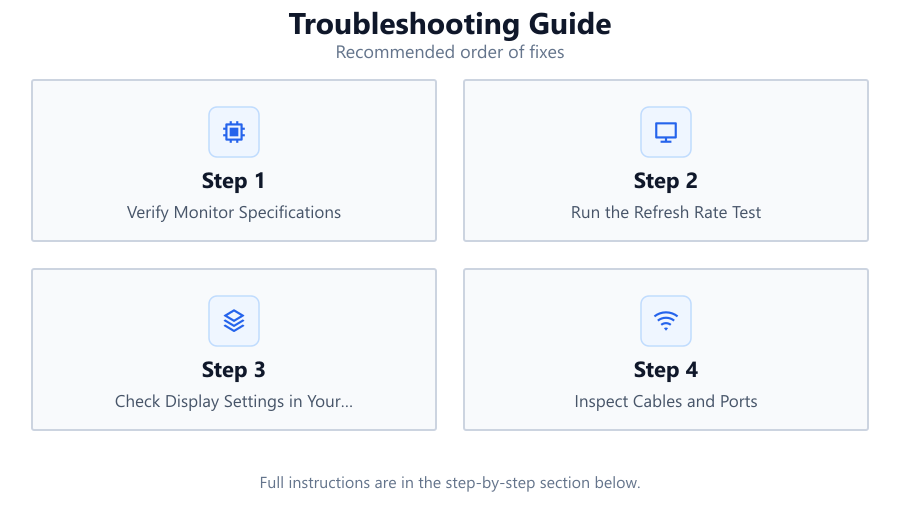
Verify Monitor Specifications
Check your monitor’s rated refresh rate using the manufacturer’s documentation or product page. Make sure you know the maximum supported refresh rate for your specific model and panel size.
Run the Refresh Rate Test
Open the Refresh Rate Test and observe the real-time Hz reading, dropped frames, and stability stats. Compare the measured refresh rate to your monitor’s advertised value.
Check Display Settings in Your Operating System
Go to your OS display settings (Windows: Settings > System > Display > Advanced display) and ensure the refresh rate is set to your monitor’s maximum. Apply changes and re-run the Refresh Rate Test.
Inspect Cables and Ports
Make sure you are using a cable that supports your desired refresh rate (for example, DisplayPort 1.2 or HDMI 2.0 for 144Hz). Plug directly into your GPU and avoid adapters that may limit bandwidth.
Update GPU Drivers and Monitor Firmware
Outdated drivers can prevent your system from recognizing high refresh rates. Download the latest GPU drivers from the manufacturer’s website and check if your monitor offers firmware updates.
Configure GPU Control Panel Settings
Open your GPU control panel (NVIDIA Control Panel, AMD Radeon Software, or Intel Graphics Command Center) and set the refresh rate to the highest supported value. Save changes and test again.
Comparison
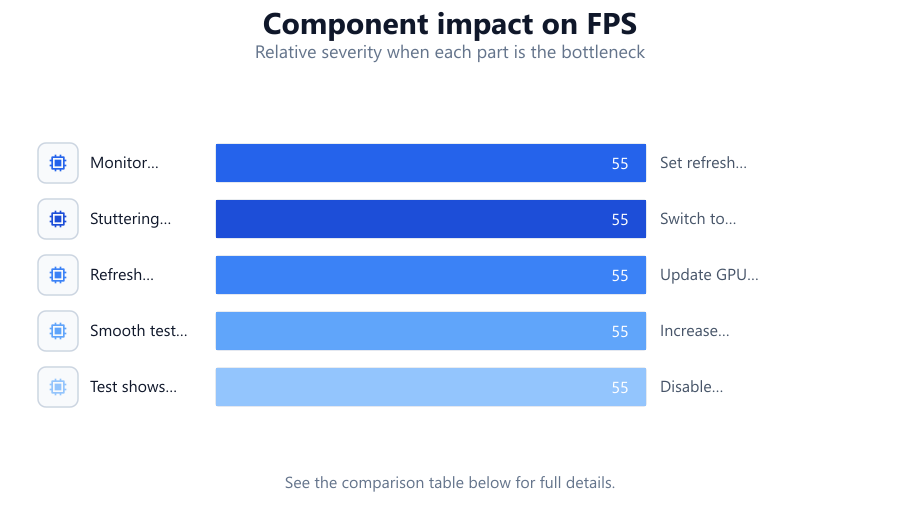
| Symptom | Possible Cause | Recommended Action |
|---|---|---|
| Monitor stuck at 60Hz | Incorrect OS settings | Set refresh rate manually in display settings |
| Stuttering or frame drops | Weak cable or port | Switch to higher-bandwidth cable or port |
| Refresh rate not detected | Outdated drivers | Update GPU and monitor drivers |
| Smooth test but low frame rate in games | In-game settings capped | Increase refresh rate limit in game options |
| Test shows variable Hz | Power-saving features enabled | Disable adaptive sync or power-saving modes |
Common mistakes
Mistake
Assuming the monitor automatically runs at its highest refresh rate out of the box
Fix: Always manually set the refresh rate in your operating system and GPU control panel.
Mistake
Using an HDMI cable that does not support high refresh rates
Fix: Check your cable version and switch to DisplayPort or high-speed HDMI if needed.
Mistake
Ignoring dropped frames in the Refresh Rate Test results
Fix: Use the tool’s frame drop stats to identify stability issues and adjust hardware or settings accordingly.
Mistake
Using adapters or splitters that limit bandwidth
Fix: Connect your monitor directly to the GPU using a compatible, high-quality cable.
Troubleshooting
Refresh Rate Test shows lower Hz than expected
Likely cause: Operating system or GPU settings are set to a lower refresh rate
What to do: Manually set the refresh rate to the maximum supported value in both OS and GPU control panel.
Dropped frames detected during test
Likely cause: Cable or port does not support the desired bandwidth
What to do: Replace with a higher-bandwidth cable (DisplayPort or HDMI 2.0+) and use the correct port on both monitor and GPU.
Refresh Rate Test shows unstable Hz readings
Likely cause: Power-saving or adaptive sync features causing variable refresh
What to do: Disable power-saving modes and adaptive sync in both monitor menu and GPU settings.
Games run at high FPS but desktop feels choppy
Likely cause: Different refresh rate applied to desktop and fullscreen apps
What to do: Set refresh rate globally and check both desktop and in-game settings to match.
Recommendations
- Use the Refresh Rate Test regularly after system updates or hardware changes to verify optimal monitor performance.
- Always use certified high-speed cables and avoid daisy-chaining or adapters unless necessary.
- Update your GPU drivers and monitor firmware at least every few months.
- Consult your monitor’s manual for specific refresh rate and port compatibility information.
- If you continue to experience issues, test your monitor on another system to rule out hardware faults.
Frequently asked questions
Why does the Refresh Rate Test show a lower Hz than my monitor’s spec?
Your operating system or GPU may be set to a lower refresh rate. Double-check all display settings and set the refresh rate to the maximum supported value.
Can I use any cable to achieve 120Hz or higher?
No, you must use a cable and port that support the required bandwidth, such as DisplayPort 1.2 or HDMI 2.0 or higher for 120Hz or 144Hz.
Why do I see frame drops in the Refresh Rate Test?
Frame drops can be caused by unstable connections, incompatible cables, or system resource limitations. Try different ports, use a higher-quality cable, and close background applications.
Do I need to adjust refresh rate settings after a GPU driver update?
Yes, it is a good practice to verify and, if necessary, reapply your preferred refresh rate after updating GPU drivers, as settings can be reset.
Is it safe to use the Refresh Rate Test on any monitor?
Yes, the tool is browser-based and does not stress your hardware. It simply reads and displays your monitor’s current refresh rate and performance in real time.