
FREE DISPLAY TEST
Refresh Rate Test: Measure Your Monitor Hz Online
Need to check if your monitor is really running at 60Hz, 120Hz, 144Hz, or higher? This browser-based refresh rate test gives you live measurements of your display's actual Hz, visual feedback with motion demos, and key stats like dropped frames and stability. Instantly compare your settings to advertised specs and get OS setup tips to ensure you get the smoothest desktop or gaming experience.
What Does This Tool Do?
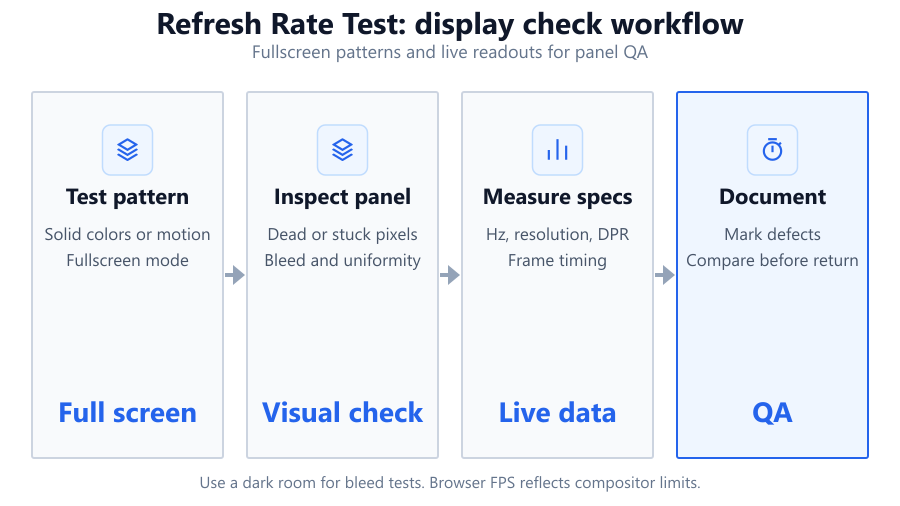
This refresh rate test measures your monitor's actual refresh rate using your browser. It calculates frame intervals by timing requestAnimationFrame events, then displays your live Hz in real time. Alongside the main Hz value, you'll see a stability score, a graph of detected refresh rates, and a dropped frame count. The animated UFO demo helps confirm motion smoothness visually. There’s also a chart comparing detected versus advertised refresh rates and a table of common Hz values to help you interpret your results. This tool is perfect if you want to double-check your monitor settings, troubleshoot stutter, or confirm your desktop and browser are using the intended refresh rate. It’s designed for any display type, including gaming monitors from brands like ASUS, Alienware, Samsung, and Dell, as well as laptops and TVs connected to your PC.
How to Use This Tool
Open the refresh rate test page in your browser. The test starts automatically, measuring your monitor’s refresh rate using requestAnimationFrame timing. Watch as your current Hz value updates live, accompanied by a graph tracking changes over time and a histogram of frame intervals. You’ll see a stability score that reflects how consistent your refresh rate is, along with a count of dropped frames. Use the UFO motion demo to visually confirm if animation appears smooth and free of stutter. Compare the detected Hz against your monitor’s advertised specs, listed right below the results. For the most accurate measurement, set your browser window to full screen and avoid moving other windows or running heavy background apps. If your result is lower than expected, check your operating system’s display settings and confirm your cable supports the desired refresh rate. The tool works on Chrome, Edge, Firefox, and other major browsers, though some may cap animation at 60Hz by default. No download or installation is needed.
Understanding Your Results
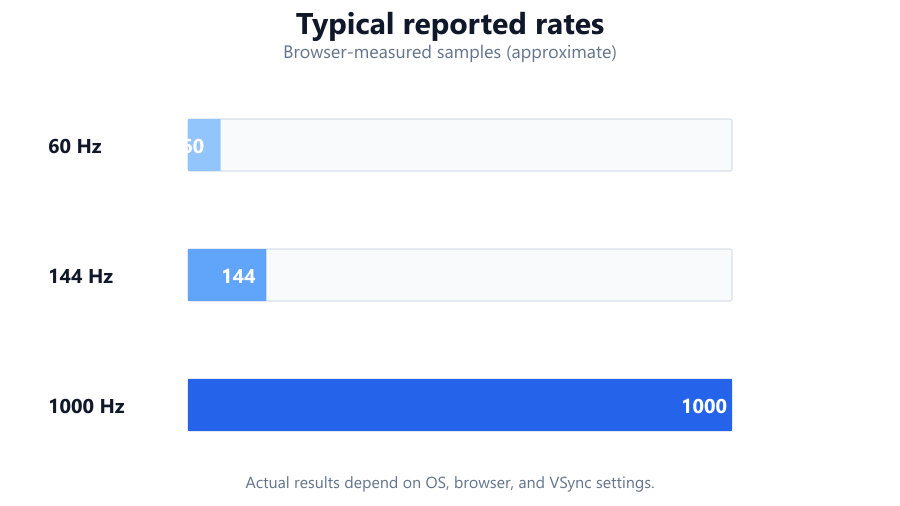
The main value displayed is your measured refresh rate in Hertz (Hz), which represents how many times per second your monitor redraws the screen. A perfectly stable 60Hz display will show a value close to 60.00Hz, while high-refresh monitors should report 120Hz, 144Hz, 165Hz, or 240Hz, depending on your settings and hardware. The stability score reflects how steady your refresh rate is: a higher score means fewer fluctuations and a better user experience. Dropped frame count indicates how often frames are missed or delayed, usually due to performance issues, background activity, or browser limitations. The graph and histogram help you spot periodic dips or spikes, which might signal configuration or hardware problems. If your detected Hz is lower than your monitor’s advertised rate, double-check your system settings and cables, as well as browser or OS power-saving modes. The UFO animation acts as a visual reference: smooth, artifact-free movement means your refresh rate is consistent with minimal dropped frames. Use the common Hz table to see how your result compares to standard refresh rates for common displays and gaming monitors.
Common Problems This Helps Diagnose
This tool is ideal for spotting refresh rate mismatches, stutter, and browser limitations. If your gaming laptop or desktop monitor is supposed to support 144Hz but the test shows 60Hz, you may have a cable issue, display settings misconfiguration, or browser VSync limitation. Frequent dropped frames and low stability scores can point to background CPU or GPU utilization, energy-saving modes, or outdated drivers. If the UFO motion demo appears choppy, your refresh rate might be capped, or your system may not be delivering frames in time. The tool also helps identify when Windows or macOS is set to a lower refresh rate than your monitor supports. For users with multi-monitor setups, it can confirm which display is active and ensure your browser is running on the intended high-refresh screen. For high-end monitors like Alienware AW2521H or Samsung Odyssey G7, this test helps validate that you’re getting the maximum advertised Hz, not a fallback value. It’s also helpful after system updates, GPU swaps, or cable changes.
Examples and Scenarios
Scenario 1: 144Hz Gaming Monitor Reports 60Hz
You connect an ASUS VG248QE to your PC, expecting 144Hz. The refresh rate test shows only 60Hz. Checking your display settings, you find Windows is set to 60Hz. You switch to 144Hz in Display Settings, rerun the test, and now see a stable 143.99Hz with a high stability score. Problem solved.
Scenario 2: Dropped Frames on a Laptop with 120Hz Panel
A user with a Razer Blade 15 runs the test and sees frequent dropped frames and a fluctuating Hz graph. Closing background apps improves stability. The test now shows 119.97Hz with minimal dropped frames, confirming the issue was system load, not the panel.
Scenario 3: Browser Caps Refresh Rate at 60Hz on 240Hz Display
You have a Dell Alienware AW2521H (advertised 360Hz), but the browser test reports 60Hz. The browser’s VSync or OS settings are capping animation. Switching to Chrome Canary or Edge Beta, or using full-screen mode, allows the test to measure up to 240Hz. You confirm your cable supports high bandwidth.
Scenario 4: Multi-Monitor Setup with Mixed Refresh Rates
A user has a dual-monitor setup: a 60Hz Dell U2412M and a 165Hz Gigabyte M27Q. Running the test on the wrong screen reports 60Hz. Moving the browser to the 165Hz monitor shows 164.97Hz, matching expectations. This confirms the active display is correct for gaming.
Scenario 5: Stutter on External TV Over HDMI
You connect your Lenovo Legion laptop to a Samsung TV, expecting 120Hz. The test only shows 60Hz. You check HDMI cable specs and find the cable is HDMI 1.4, which maxes out at 60Hz at 4K. Upgrading to an HDMI 2.1 cable and enabling 120Hz in Windows fixes the problem, confirmed by the tool.
Scenario 6: Visual Confirmation of Smoothness
A user with a BenQ Zowie XL2546K sees a stable 239.99Hz in the test. The UFO animation appears smooth, and the dropped frame count remains at zero. The user feels confident competitive games are running at the intended refresh rate.
Tips for Accurate Testing
To get the most precise results, maximize your browser window or use full-screen mode. Close unnecessary tabs and background apps to reduce dropped frames. If using a laptop, plug in the power adapter to avoid power-saving modes that can throttle refresh rate. Check that your operating system’s display settings match your monitor’s advertised Hz. Use high-quality cables: DisplayPort 1.2 or higher for most gaming monitors, or HDMI 2.0/2.1 for TVs and high-refresh panels. Avoid using remote desktop or virtualization, as they may not pass through real refresh rates. Some browsers (notably older versions of Firefox or Chrome) may cap animations at 60Hz regardless of your monitor’s capabilities. Try using Chrome, Edge, or an updated Firefox for best results. On macOS, browser refresh rate detection can also be limited by system-level VSync, especially on external displays. If you’re running a G-Sync or FreeSync display, ensure adaptive sync is turned off or set to a fixed rate for the test. Always compare the detected Hz to both your monitor’s specs and your OS settings.
Browser vs Desktop Software
Browser-based refresh rate tests are quick, safe, and require no installation. They use requestAnimationFrame to estimate Hz, which is generally accurate for detecting common issues, but not lab-grade precise. Many desktop programs like Nvidia Control Panel, AMD Radeon Settings, or third-party tools like Custom Resolution Utility (CRU) can provide more detailed diagnostics, including color depth, pixel clock, and advanced timing. Dedicated apps like Blur Busters’ TestUFO or Windows’ built-in display settings are more reliable for deep troubleshooting, especially when testing G-Sync, FreeSync, or variable refresh rates. Browser tools may be limited by system VSync, browser caps, or OS power management, which can mask the monitor’s real capabilities. For most users, browser tests are accurate enough to confirm setup and spot common problems. For advanced users, especially those overclocking displays or running multi-GPU setups, desktop software gives more control and a full picture. Always use both methods when chasing elusive problems or verifying high-end hardware.
Summary
This refresh rate test lets you confirm your display’s real Hz instantly, right in your browser. It provides live graphs, stability scores, dropped frame counts, and clear visual confirmation with animated demos. While browser-based testing is not as precise as dedicated desktop tools, it’s fast, safe, and ideal for most troubleshooting and setup checks. Use it to spot misconfigured settings, cable or browser limitations, and ensure you’re getting the smooth, high-refresh experience your hardware promises. Whether you’re running a 60Hz office monitor or a 240Hz gaming beast, this tool helps you get the most out of your setup.
Frequently Asked Questions
How can I check my monitor refresh rate online?
You can check your monitor’s refresh rate online using browser-based tools like this refresh rate test. These tools use JavaScript timing (requestAnimationFrame) to estimate how many frames per second your display is actually updating. Just open the tool in your browser and it will automatically detect and display your current refresh rate. This approach is quick, requires no installation, and works on most desktops, laptops, and external monitors. For best accuracy, maximize your browser window and close background apps. Note that browser-based tests may be limited by browser or OS settings, so always compare with your monitor’s advertised specifications.
Why does my 144Hz monitor only show 60Hz in the browser test?
If your 144Hz monitor is only reporting 60Hz during the test, check your operating system’s display settings first. Windows or macOS may be set to 60Hz by default, especially after a driver update or system restart. Also, confirm you are using a compatible cable, such as DisplayPort 1.2+ or HDMI 2.0/2.1. Some browsers cap animation at 60Hz due to VSync limitations. Try Chrome or Edge, or use the browser in full-screen mode. If the issue persists, update your GPU drivers and double-check that your monitor’s profile is set to the correct refresh rate.
Is browser-based refresh rate testing accurate?
Browser-based refresh rate tests are generally accurate for confirming your monitor’s active refresh rate, but they are not lab-grade precise. They rely on timing browser animation frames, which can be influenced by browser VSync, OS power management, and background processes. Some browsers may cap animation at 60Hz even if your monitor supports higher rates. For most home and office users, these tools are accurate enough to spot misconfigurations or confirm smooth operation. For advanced troubleshooting or overclocking, use dedicated desktop software or hardware-based measurement tools.
How do I fix dropped frames or low stability score in the test?
Dropped frames and low stability scores usually point to system or browser resource issues. Close unnecessary tabs and background applications to free up CPU and GPU resources. Plug in your laptop to avoid power-saving modes that may throttle performance. Switch to a modern browser like Chrome or Edge, and ensure your drivers are up to date. If you’re using a high-refresh monitor, check that your cable and port support the necessary bandwidth. Also, avoid remote desktop sessions, as they can limit refresh rate detection. Consistent dropped frames may also be a sign of hardware problems or overheating.
Why does the UFO animation look choppy even at high Hz?
A choppy UFO animation means your refresh rate is either unstable, capped, or your system is dropping frames. This may result from browser limitations, background activity, or OS power-saving features. Make sure the browser window is active and maximized. Close other apps that may use the GPU, and check your display settings for the correct refresh rate. Try different browsers if the issue persists, as some handle animation timing better than others. If you’re using adaptive sync (G-Sync or FreeSync), try switching to a fixed refresh rate for the test.
Can I use this tool on MacBooks or Apple monitors?
Yes, you can use this refresh rate test on MacBooks and Apple desktop monitors, including the Pro Display XDR. However, macOS sometimes restricts browser-based animation to 60Hz, even if your display supports higher rates. Safari may be more limited than Chrome or Firefox. For MacBook Pro models with ProMotion displays (120Hz), try Chrome or Edge for more accurate detection. Always check your System Preferences to confirm your display is set to the intended refresh rate before testing.
Does refresh rate affect gaming performance?
Refresh rate directly impacts gaming smoothness and responsiveness. A higher Hz value means the screen updates more often, reducing motion blur and input lag. Competitive gamers prefer 120Hz, 144Hz, or 240Hz monitors, like the ASUS ROG Swift or BenQ Zowie series, for smoother animation and faster reaction times. However, your GPU must deliver enough frames per second to match the monitor’s refresh rate. Using a tool like this can help confirm you’re getting the refresh rate you paid for, which is crucial for high-performance gaming setups.
What cables do I need for high refresh rates?
For refresh rates above 60Hz, use high-quality cables: DisplayPort 1.2 or higher for PC monitors, or HDMI 2.0/2.1 for TVs and some gaming monitors. Older HDMI cables (1.4) may be limited to 60Hz at 1080p or 4K. Always check your monitor’s specs and your GPU’s outputs. If you’re using a docking station or adapter, confirm it supports the full bandwidth required for your desired Hz. A mismatched or low-quality cable is a common reason for being stuck at 60Hz, even on high-end displays.
Can browser tests detect G-Sync or FreeSync variable refresh?
Browser-based tests like this one are designed to report your monitor’s fixed refresh rate, not the dynamic range of adaptive sync technologies like G-Sync or FreeSync. While the tool may show fluctuations if your refresh rate is changing rapidly, it won’t confirm proper adaptive sync function. To thoroughly test G-Sync or FreeSync, use dedicated desktop software or manufacturer utilities, and monitor for screen tearing or stutter in real games. Browser tests are still useful for confirming your display’s maximum fixed refresh rate.
Why does my monitor’s refresh rate fluctuate during the test?
Small fluctuations in detected Hz are common due to background processes, browser VSync implementation, or OS-level interrupts. If the stability score remains high and the graph shows minor dips, your system is performing normally. Large, frequent drops may indicate resource contention, background updates, or power-saving features. Try closing unnecessary apps, updating your drivers, and ensuring your browser is up to date. On laptops, plug in the power adapter to avoid throttling. Persistent or large fluctuations might point to hardware problems or cable issues.
How do I check my refresh rate on a multi-monitor setup?
To check refresh rate on a multi-monitor setup, open the tool and move the browser window to the display you want to test. The tool will measure the refresh rate of the active display. If you have monitors with different refresh rates (such as a 60Hz office monitor and a 144Hz gaming screen), this test helps confirm which display is currently active for your applications. Make sure your OS settings are configured to run each monitor at its intended refresh rate. For gaming, ensure your primary monitor is set as the main display in Windows or macOS.
Can I trust the test results if I’m using remote desktop?
No, remote desktop software usually transmits video at a lower or variable frame rate, often capped at 30Hz or 60Hz regardless of your local hardware. Running this refresh rate test over remote desktop will reflect the remote session’s refresh rate, not your physical monitor’s true capabilities. For accurate measurements, always test directly on the target machine and display. If you must check remotely, use desktop software that can report physical display settings, not browser-based animation timing.
Why is my browser capping the refresh rate at 60Hz?
Some browsers and operating systems enforce a 60Hz cap on JavaScript animation for compatibility and power-saving reasons. Older versions of Chrome, Firefox, and Safari are especially prone to this. Try updating your browser, using Chrome Canary or Edge Beta, or switching to full-screen mode. On some laptops, power-saving or hybrid graphics modes enforce a 60Hz limit in the browser. Always check your OS display settings and GPU control panel to verify your selected refresh rate. If the cap persists, dedicated software may be needed for deeper diagnostics.
Does refresh rate matter for non-gaming tasks?
A higher refresh rate benefits all types of computer use, not just gaming. Scrolling, video playback, and even desktop animations appear smoother at 120Hz or above. Creators and professionals who work with video or animation often prefer 120Hz or 144Hz displays for reduced eye strain and more fluid visuals. Office users may notice less flicker and smoother cursor movement. However, for basic tasks, 60Hz is still adequate. This tool helps you verify that you’re using your monitor’s full capabilities, regardless of your workload.
How do I improve browser refresh rate detection accuracy?
For best accuracy, run the test in a maximized or full-screen browser window. Close other tabs and background applications that use system resources. Plug in your laptop to avoid power-saving throttling. Use modern browsers like Chrome, Edge, or updated Firefox, as older browsers may cap refresh rate at 60Hz. Make sure your OS display settings and cable connections support your desired refresh rate. If using adaptive sync (G-Sync or FreeSync), temporarily switch to a fixed refresh rate for the test. If results still seem off, check for browser updates or try another browser.
What are some common monitors this tool supports?
This refresh rate test works with nearly any monitor, including gaming models like ASUS ROG Swift PG259QN, BenQ Zowie XL2546K, Alienware AW2521H, Samsung Odyssey G7, LG UltraGear, Dell S2721DGF, and office monitors like Dell U2412M or HP Z24n. It's also compatible with laptop screens from Lenovo Legion, Razer Blade, and MacBook Pro, as well as TVs connected over HDMI. For best results, ensure your monitor and cable support your intended refresh rate, and adjust your system settings as needed.
Related Tools
Free tools to analyze, compare, and optimize your PC gaming performance
Frame Rate Test
Test your browser's frame rate and rendering performance in real time. Measure FPS, stress test your device and analyze
Use Tool →Refresh Rate Calculator
Compare 60Hz, 144Hz, 240Hz and more
Use Tool →Gaming Monitor Calculator
Find the best gaming monitor for your GPU
Use Tool →Display Test
Test your monitor for dead pixels, color accuracy, gradients, response time, sharpness and display quality in one place.
Use Tool →Popular Game System Requirements
Check if your PC meets the requirements for these popular games
Benchmark data from PassMark and publisher specs. Calculators run locally in your browser — we never upload your hardware info.