
Guide
Common Buying Mistakes
Avoid the most common buying mistakes when building or upgrading your video editing workstation. Save money and ensure your system delivers fast, reliable rendering times.
Updated 2026-07-05
Understanding Common Buying Mistakes for Video Rendering PCs
Buying or upgrading a PC for video rendering is a major investment, but many users make avoidable mistakes that hurt performance and productivity. The right hardware choices are crucial for smooth workflows, especially as project demands grow and software evolves.
One of the biggest pitfalls is focusing on flashy specs instead of real-world performance. For example, choosing the highest-core-count CPU or the most expensive GPU does not always yield the best results for your specific workflow. Similarly, neglecting bottlenecks like slow storage or underpowered RAM can grind even powerful systems to a halt.
Video editors, animators, and content creators must match their hardware to their software, codec, and resolution needs. Overlooking compatibility or ignoring the true requirements of your rendering pipeline can lead to frustration, wasted money, and missed deadlines. This guide will help you spot and avoid these common buying mistakes so you get the most value and performance from your investment.
In-Depth Analysis: What to Look For and What to Avoid
Before making any purchase, it is essential to map out your actual workflow. Consider the following: Which software do you use most? What codecs and resolutions do you work with? Do you rely heavily on GPU-accelerated effects or CPU-based rendering? These factors should guide all purchasing decisions.
Mistake #1 is assuming that more is always better. For instance, a workstation-class CPU with dozens of cores may be slower than a high-frequency consumer CPU for certain editing tasks. Many programs, such as Adobe Premiere Pro, benefit more from higher clock speeds and faster single-core performance than sheer core count.
Mistake #2 is neglecting RAM. If your system runs out of memory during a render, it will resort to slow disk swapping, causing render times to skyrocket. For 4K or higher resolutions, 32GB is a minimum, but complex projects may require 64GB or more.
Another common mistake is underestimating the role of storage. Slow HDDs will bottleneck your workflow, especially when working with large footage files or complex timelines. NVMe SSDs offer significantly faster read and write speeds, which directly impacts caching, scrubbing, and export times.
Lastly, users often overlook power supply quality and cooling. A system that overheats or is underpowered can throttle performance, crash, or even damage components. Always invest in a reliable PSU and adequate cooling to protect your investment.
Step-by-step
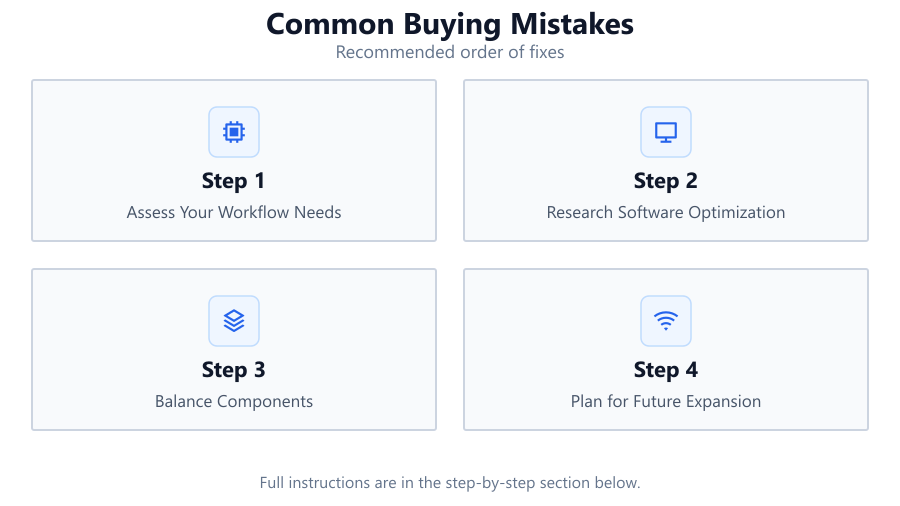
Assess Your Workflow Needs
List the software, codecs, and resolutions you routinely use. Identify whether your workflow is CPU or GPU intensive. This foundational step ensures that your hardware choices align with your actual needs and prevents overspending on unnecessary components.
Research Software Optimization
Check official documentation and benchmarks for your primary editing software. Some programs prioritize CPU speed, others leverage GPU acceleration. Match your hardware choices to these requirements for optimal performance.
Balance Components
Avoid bottlenecks by ensuring your CPU, GPU, RAM, and storage are balanced. Investing heavily in one component while neglecting others will limit your system's overall speed. Use tools like the Video Rendering Time Calculator to simulate potential weak points before purchasing.
Plan for Future Expansion
Choose a motherboard and power supply that allow for upgrades. Leave room for more RAM, additional drives, or a better GPU in the future. This extends your system's lifespan and protects your investment.
Test and Benchmark Your System
After building or upgrading, use real-world benchmarks and the Video Rendering Time Calculator to measure performance. Identify any bottlenecks early and adjust as needed to achieve the best rendering times.
Comparison
| Component | Common Mistake | Recommended Practice |
|---|---|---|
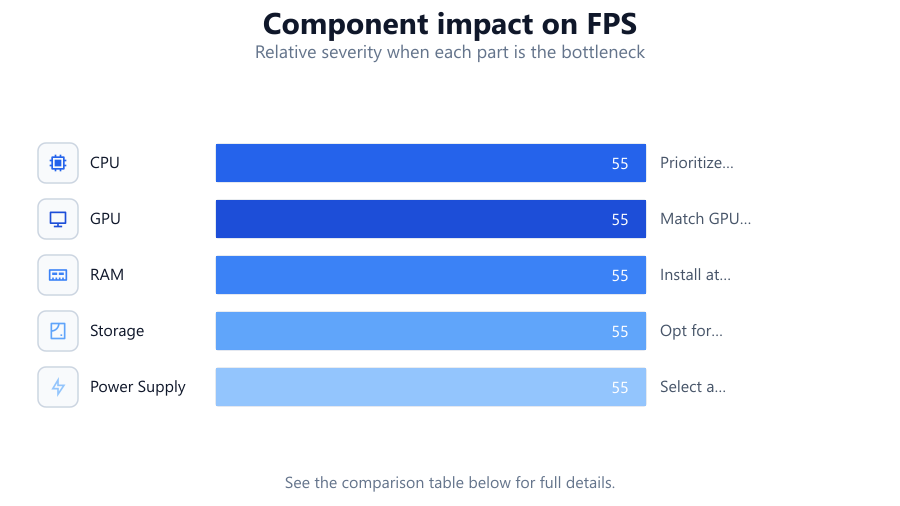
| CPU | Choosing max cores over clock speed | Prioritize higher clock speeds for most NLEs |
| GPU | Overspending on high-end models | Match GPU to software requirements |
| RAM | Installing too little memory | Install at least 32GB for 4K projects |
| Storage | Using slow HDDs | Opt for NVMe SSDs for primary cache and media |
| Power Supply | Buying low-quality units | Select a reliable, efficient PSU |
Common mistakes
Mistake
Prioritizing core count over clock speed
Fix: Check your main editing software's requirements and pick a CPU with strong single-core performance if needed.
Mistake
Underestimating RAM needs
Fix: For 4K and multi-layer projects, install 32GB or more RAM to avoid slowdowns and crashes.
Mistake
Ignoring storage speed
Fix: Use NVMe SSDs for your main drive and cache. Reserve slower HDDs for archival storage only.
Mistake
Neglecting power supply and cooling
Fix: Invest in a high-quality PSU and case cooling to ensure system stability and longevity.
Troubleshooting
Render times are much longer than expected
Likely cause: CPU or GPU is not optimized for your software, or a bottleneck exists elsewhere.
What to do: Use the Video Rendering Time Calculator to identify bottlenecks and consider upgrading the limiting component.
System crashes or freezes during rendering
Likely cause: Insufficient RAM or inadequate cooling leading to thermal throttling.
What to do: Upgrade RAM and improve cooling solutions to maintain stable operation.
Choppy timeline playback
Likely cause: Slow storage or insufficient GPU power.
What to do: Move footage and cache to an NVMe SSD and check if your GPU meets software recommendations.
Recommendations
- Research how your primary editing software utilizes hardware before purchasing.
- Balance your budget across CPU, GPU, RAM, and storage to avoid bottlenecks.
- Always use benchmarks and the Video Rendering Time Calculator to guide upgrade decisions.
- Plan for future expansion by choosing upgrade-friendly motherboards and power supplies.
- Do not overlook the importance of cooling and power delivery for stable rendering.
Frequently asked questions
How do I know if my CPU or GPU is the bottleneck in rendering?
Monitor system usage during rendering. If CPU usage is maxed out while GPU is idle, your CPU is likely the limit. Use the Video Rendering Time Calculator for a more precise estimate.
Is more RAM always better for video editing?
More RAM helps with larger projects, but after a certain point, adding more will not increase speed. For most 4K editing, 32GB is recommended. Only upgrade beyond that for complex timelines or effects-heavy projects.
Does storage speed really affect render times?
Yes. Slow drives can bottleneck both playback and rendering, especially with large files. NVMe SSDs offer the best performance for editing and caching.
Can I use a gaming GPU for video editing?
Many gaming GPUs perform well for editing, but always check compatibility and acceleration support for your editing software. Sometimes, pro GPUs offer better stability or driver support.