
Guide
How to Choose the Right Hardware
Choosing the right hardware is crucial for efficient video rendering and smooth editing workflows. This guide helps you match your needs and budget to the perfect system, so you can plan projects with confidence.
Updated 2026-07-05
Understanding Hardware for Video Rendering
Video rendering is a demanding task that puts your computer's CPU, GPU, memory, and storage through their paces. The right hardware can dramatically cut down render times, reduce frustration, and help you deliver projects faster. However, with so many options on the market, it can be overwhelming to decide what to prioritize.
When choosing hardware, consider the specific requirements of your editing software, the complexity of your projects, and your budget. Some tools rely more heavily on the CPU, while others take full advantage of modern GPUs. The resolution, codec, and effects you use also affect performance significantly. A balanced system ensures none of your components become a bottleneck.
Remember, the most expensive hardware is not always the best fit. By understanding how each component affects rendering performance, you can make informed decisions and avoid overspending.
Component Breakdown: What Matters Most
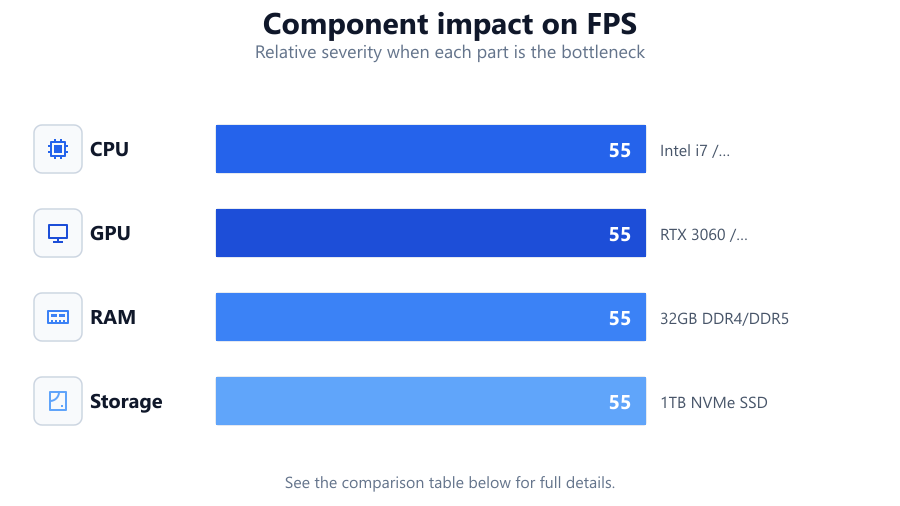
CPU: The processor is the heart of your system. For video editing and rendering, more cores and higher clock speeds generally mean faster performance, especially when using software optimized for multi-threading. Intel Core i7/i9 and AMD Ryzen 7/9 or Threadripper CPUs are popular for high-end workstations.
GPU: Graphics cards accelerate rendering, particularly for effects-heavy timelines or when using GPU-accelerated codecs like H.264 and H.265. NVIDIA GeForce RTX and AMD Radeon RX or Pro series offer excellent performance. Check your software's compatibility and hardware requirements for the best results.
RAM: Insufficient memory leads to stuttering playback and slow renders. For 1080p projects, 16GB is the minimum; for 4K or larger, aim for 32GB or more. Fast memory speeds can also help, especially in systems with integrated graphics.
Storage: Fast SSDs drastically reduce load and render times compared to traditional hard drives. NVMe SSDs are the gold standard for scratch disks and project files. Consider separating your OS, project, and cache drives for optimal performance.
Motherboard and Power Supply: Ensure your motherboard supports your chosen CPU and RAM, and that your PSU provides enough wattage for all components. A quality power supply prevents instability during demanding renders.
Monitor and Peripherals: Color-accurate monitors are essential for professional work. Ergonomic peripherals boost comfort during long editing sessions. While these do not affect render speed, they impact your overall workflow.
Step-by-step
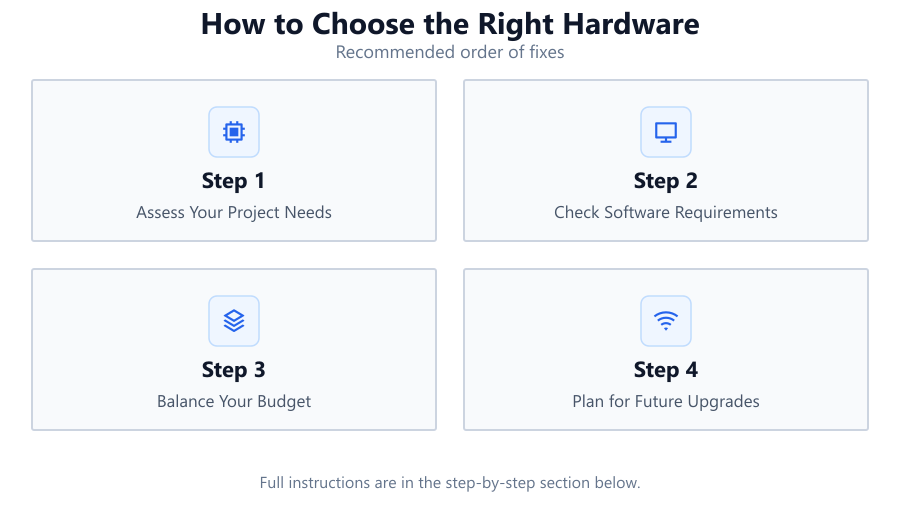
Assess Your Project Needs
Determine the types of videos you produce: resolution, codec, length, and effects. 4K and RAW footage require significantly more power than 1080p. Consider how often you render and your typical project timeline.
Check Software Requirements
Review the official hardware recommendations for your main editing and rendering tools. Some programs, like Adobe Premiere Pro or DaVinci Resolve, benefit more from GPU acceleration, while others rely mainly on the CPU.
Balance Your Budget
Allocate your budget across CPU, GPU, RAM, and storage. Avoid overspending on one component while neglecting others. A balanced system delivers better real-world performance than a lopsided build.
Plan for Future Upgrades
Choose a motherboard and power supply that support future hardware upgrades. Having extra RAM slots or PCIe lanes makes it easier to add memory or a faster GPU as your needs grow.
Test and Estimate Render Times
Use the Video Rendering Time Calculator to input your potential hardware, project resolution, and codec. Compare estimated render times before you buy, ensuring your new system meets your workflow demands.
Comparison
| Component | Entry Level | Professional | High-End |
|---|---|---|---|
| CPU | Intel i5 / Ryzen 5 | Intel i7 / Ryzen 7 | Intel i9 / Threadripper |
| GPU | GTX 1660 / RX 6600 | RTX 3060 / RX 6800 | RTX 4090 / Radeon Pro W7900 |
| RAM | 16GB DDR4 | 32GB DDR4/DDR5 | 64GB+ DDR5 |
| Storage | 500GB SATA SSD | 1TB NVMe SSD | 2TB+ NVMe SSD + HDD Archive |
Common mistakes
Mistake
Focusing only on the GPU and neglecting the CPU.
Fix: Ensure both CPU and GPU are balanced for your editing software and project needs.
Mistake
Choosing insufficient RAM for high-resolution projects.
Fix: Upgrade to at least 32GB RAM for 4K and multicam editing to avoid slowdowns.
Mistake
Overlooking storage speed and capacity.
Fix: Use fast NVMe SSDs for active projects and maintain ample free space to prevent bottlenecks.
Troubleshooting
Render times are much longer than expected.
Likely cause: CPU or GPU bottleneck, or outdated hardware drivers.
What to do: Update your drivers and consider upgrading the slowest component. Use the Video Rendering Time Calculator to identify which part is holding you back.
Timeline playback is choppy or unresponsive.
Likely cause: Insufficient RAM or slow storage.
What to do: Upgrade RAM and use an NVMe SSD for project files to improve real-time editing.
System crashes during rendering.
Likely cause: Insufficient power supply or overheating components.
What to do: Upgrade your PSU and check cooling solutions to ensure stable operation under load.
Recommendations
- Aim for a system with a balanced CPU and GPU for your editing software.
- Prioritize 32GB or more of fast RAM for 4K projects and complex timelines.
- Use NVMe SSDs for your active projects and scratch disks.
- Plan for future upgrades by choosing a motherboard with extra slots and a quality power supply.
- Test your configuration using the Video Rendering Time Calculator before making a purchase.
Frequently asked questions
How do I know if my CPU or GPU is the bottleneck?
Monitor CPU and GPU usage during rendering. If one is consistently at 100 percent while the other is low, that component is the bottleneck. The Video Rendering Time Calculator can help you compare potential improvements.
Is more RAM always better for video editing?
More RAM helps with larger projects and higher resolutions, but after 64GB, returns diminish for most workflows. Focus on a balance between RAM, CPU, and storage.
Do I need a workstation GPU for video editing?
Workstation GPUs provide certified drivers and stability for professional applications, but high-end consumer GPUs offer excellent performance for most editors. Check your software's compatibility.
How can I estimate rendering time before buying hardware?
Use the Video Rendering Time Calculator to simulate different hardware setups and project settings. This gives you realistic expectations for render times before you commit to a purchase.