
Guide
How to Choose the Right Hardware
Choosing the right hardware for your PC or laptop ensures the best performance and value for your needs. This guide shows you how to make informed decisions, avoid common mistakes, and use essential tools like the Storage Calculator to estimate your ideal storage requirements.
Updated 2026-07-05
Understanding Your Needs: The First Step in Hardware Selection
Before you can select the perfect hardware for your PC or laptop, you need to clearly identify your usage patterns and future goals. Are you building a gaming rig, a workstation for creative tasks, or a general-purpose home computer? Each use case demands different priorities in terms of CPU power, graphics capability, RAM, and storage.
Consider the software you will run daily. Modern games, video editing applications, and virtual machines all have specific requirements. If you plan to multitask heavily, prioritize more RAM and a multi-core processor. If your focus is gaming, a strong GPU and fast SSD are crucial.
Budget is also a key factor. High-end hardware offers top performance, but you can often achieve a balanced system by carefully matching components to your needs. Think about upgrade paths too. Choosing a motherboard with extra RAM slots or M.2 sockets can extend your system's lifespan.
No matter what, always factor in storage requirements. Your operating system, games, media files, and backups all take space. Underestimating storage can quickly lead to frustration and extra costs. That is where the Storage Calculator comes in handy: it helps you estimate the right SSD or HDD size for your current library and future growth.
Component-by-Component Analysis for Smart Hardware Choices
Every major PC component plays a unique role in system performance. Understanding their functions and how they interact is key to making informed choices.
The CPU (processor) is the central brain of your computer. For demanding multitasking or creative work, invest in a recent multi-core model. For gaming, balance CPU choice with your GPU: most modern games benefit more from a strong graphics card than the very top-end processor.
The GPU (graphics card) determines gaming performance and accelerates creative workloads like 3D rendering or video editing. If you are not gaming or editing videos, integrated graphics may be enough.
RAM (memory) affects system responsiveness and multitasking. 16GB is the current sweet spot for most users, but 32GB or more may be necessary for heavy content creation or running virtual machines. Always choose at least two sticks for best performance in dual-channel mode.
Storage is where the Storage Calculator shines. SSDs offer fast boot times and quick file access, while HDDs provide bulk storage at lower cost. For most users, a combination of SSD for the operating system and programs plus a larger HDD for media files is ideal. Use the Storage Calculator to estimate the space you need based on your software, games, and media habits. This prevents overbuying or running out of space too soon.
Motherboards determine compatibility and future upgrade options. Prioritize models with good VRMs, enough RAM slots, and support for the latest storage technologies. Power supplies should have enough wattage and quality certification (80 Plus Bronze or better). Cases influence airflow, noise, and ease of assembly, so choose one that fits your components and workspace.
Lastly, consider peripherals like monitors, keyboards, and mice. High-refresh displays benefit gamers, while color-accurate screens help creators. Wireless accessories may add flexibility, but wired versions often offer lower latency.
Step-by-step
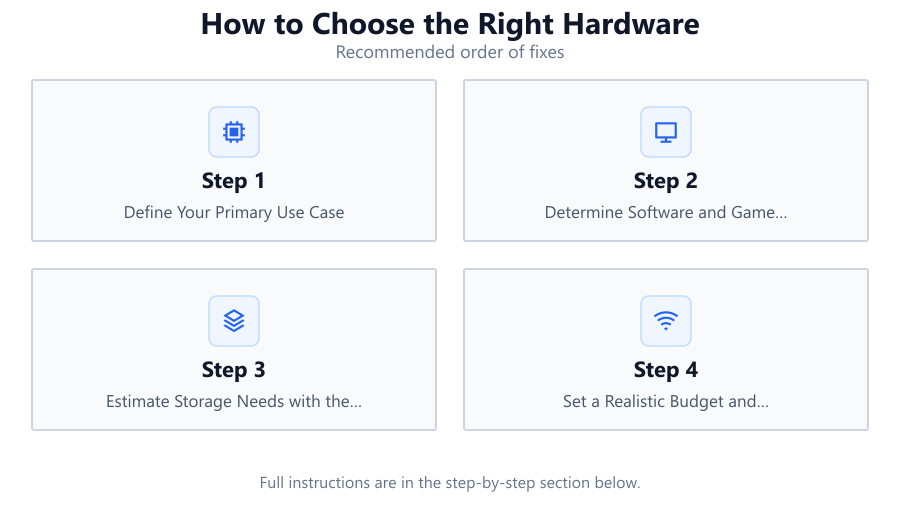
Define Your Primary Use Case
Start by listing your main activities: gaming, content creation, office work, or general browsing. This sets the foundation for all hardware choices and helps you prioritize components that matter most for your workflow.
Determine Software and Game Requirements
Check the recommended requirements for your favorite programs or games. Make a list of titles or applications you will use most. This ensures your hardware will meet real-world demands, not just theoretical benchmarks.
Estimate Storage Needs with the Storage Calculator
Use the Storage Calculator tool to input your game library, media files, and projected future growth. This helps you select the right size and type of SSD or HDD, preventing over- or under-buying.
Set a Realistic Budget and Prioritize Upgrades
Determine your maximum spend. Allocate more budget to components that cannot be easily upgraded later, such as the CPU or motherboard. For parts like RAM or storage, leave room for future expansion if possible.
Check Compatibility and Future-Proofing
Ensure all chosen parts are compatible: CPU and motherboard socket, RAM type and speed, PSU wattage, and case size. Opt for motherboards with extra slots and ports to allow for upgrades down the line.
Comparison
| Component | Entry-Level | Mid-Range | High-End |
|---|---|---|---|
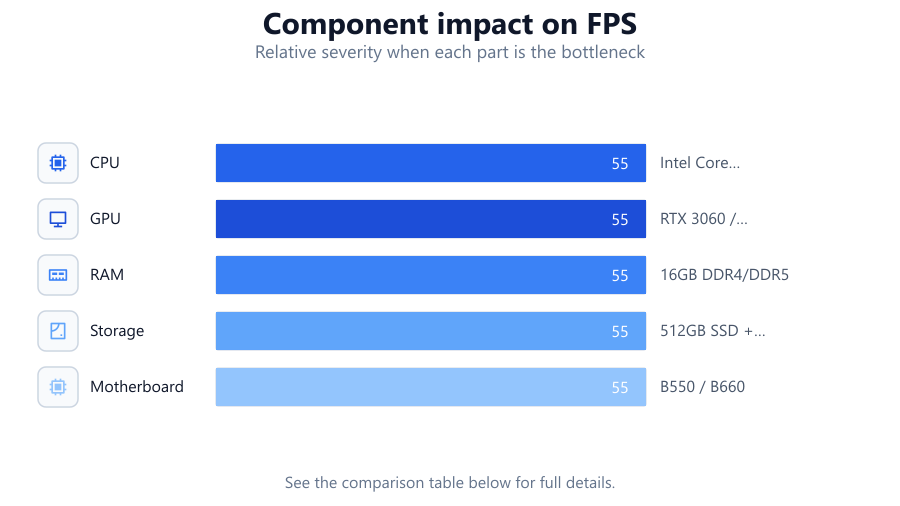
| CPU | Intel Core i3 / Ryzen 3 | Intel Core i5 / Ryzen 5 | Intel Core i7+ / Ryzen 7+ |
| GPU | Integrated / GTX 1650 | RTX 3060 / RX 6600 | RTX 4080 / RX 7900 XTX |
| RAM | 8GB DDR4 | 16GB DDR4/DDR5 | 32GB+ DDR5 |
| Storage | 256GB SSD | 512GB SSD + 1TB HDD | 1TB+ NVMe SSD |
| Motherboard | Basic B-series | B550 / B660 | X670 / Z790 |
| Power Supply | 400W Bronze | 550W Bronze/Gold | 750W+ Gold/Platinum |
Common mistakes
Mistake
Focusing only on one component, like GPU, and neglecting others
Fix: Balance your budget across CPU, RAM, GPU, storage, and power supply to avoid bottlenecks.
Mistake
Underestimating storage needs, leading to full drives quickly
Fix: Use the Storage Calculator to get a realistic estimate of your storage requirements before buying.
Mistake
Overpaying for features or specs you do not need
Fix: Match hardware to your actual use case and avoid top-tier parts unless they provide real benefits.
Mistake
Ignoring future upgrade paths
Fix: Select motherboards and cases that allow for adding more RAM, storage, or better cooling later.
Troubleshooting
PC runs slowly even with new hardware
Likely cause: Insufficient RAM or software bottleneck
What to do: Check memory usage. Upgrade RAM or optimize software settings for better performance.
Ran out of storage space soon after setup
Likely cause: Underestimated storage needs during planning
What to do: Revisit the Storage Calculator, then add or replace drives as required.
System will not power on after assembly
Likely cause: Incorrectly connected cables or insufficient PSU wattage
What to do: Double check all power connectors, ensure PSU meets system requirements, and consult your motherboard manual.
Incompatible parts (RAM not detected, CPU not supported)
Likely cause: Mismatched components or outdated BIOS
What to do: Verify compatibility before purchase. Update BIOS if needed, or exchange parts for compatible models.
Recommendations
- Always start with a clear understanding of your usage and future needs.
- Use the Storage Calculator to prevent running out of space or overspending on unnecessary capacity.
- Invest in a reliable power supply and quality motherboard for long-term stability.
- Balance your budget across all core components for the best overall experience.
- Leave room for future upgrades by choosing compatible and expandable hardware.
Frequently asked questions
How do I know what hardware I actually need?
Start by listing the software and games you use most. Check their recommended specs and use the Storage Calculator to estimate storage needs. Balance your budget across CPU, GPU, RAM, and storage accordingly.
Is SSD or HDD better for my system?
SSDs are much faster, making them ideal for your operating system and frequently used programs. HDDs offer cheaper bulk storage for media files and backups. Many users choose a combination of both.
How much RAM is enough for gaming or office work?
16GB is the current sweet spot for most users. Gamers and typical office workers will find this sufficient, but content creators or heavy multitaskers may benefit from 32GB or more.
How can I future-proof my PC build?
Choose a motherboard with extra RAM slots, M.2 storage options, and support for new CPUs. Select a power supply with extra wattage. Use the Storage Calculator to plan for storage growth over several years.