
Guide
Optimization Guide
Maximize your PC or laptop storage with this optimization guide. Learn how to use Storage Calculator for accurate SSD or HDD planning and avoid common pitfalls.
Updated 2026-07-05
Understanding Storage Optimization
When it comes to building or upgrading a PC or laptop, one critical factor is determining the right amount of storage. Too little storage leads to system slowdowns, constant file juggling, and premature upgrades. Too much, and you overspend without gaining any practical benefit. A well-optimized storage setup balances your current needs with future growth, ensuring you have enough space for games, applications, media files, and operating system updates.
The Storage Calculator on SystemRequirements.net is designed to simplify this process. By analyzing your usage patterns and forecasting future requirements, this tool helps you select the ideal SSD or HDD size. This optimization guide will walk you through the steps to assess your requirements, use the Storage Calculator effectively, and make smart decisions about storage upgrades.
Key Factors for Storage Optimization
To optimize your storage, start by evaluating your current and future file needs. Consider the types of files you store most frequently: games, high-resolution videos, music libraries, or work documents. Next, think about your usage patterns. Are you a gamer who installs multiple large titles, or a content creator managing massive video projects? Each scenario demands a different storage strategy.
The Storage Calculator can estimate your required storage by letting you input the number of games, size of your media library, and anticipated growth. It is important to consider not just the total size but also the speed requirements. SSDs offer faster load times and better performance for operating systems and applications, while HDDs supply higher capacity at a lower cost for bulk storage. Finally, always factor in a buffer, about 20 percent more than your current estimate, to account for unforeseen needs and future expansion.
Step-by-step
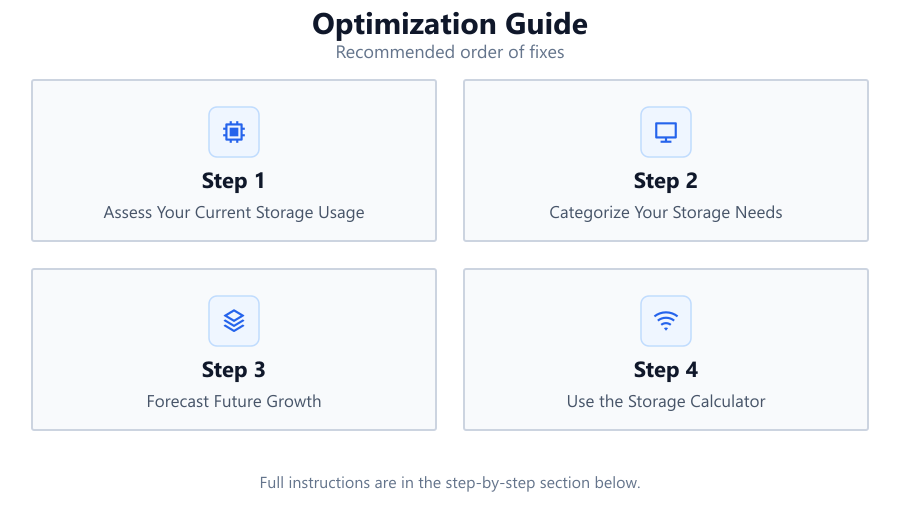
Assess Your Current Storage Usage
Begin by auditing your existing storage. Check your current drive's capacity and how much space is left. List out large files or folders, such as games, videos, and project files. This gives you a baseline to compare against future requirements.
Categorize Your Storage Needs
Divide your files into categories: essential (system files, work documents), entertainment (games, movies, music), and backup. Knowing what you store helps you prioritize which files require faster storage and which can be archived.
Forecast Future Growth
Estimate how your storage needs will change. For example, plan for new games, software, or expanding media collections. Add at least 20 percent extra space to your current requirements to ensure longevity.
Use the Storage Calculator
Input your file categories and future growth estimates into the Storage Calculator. The tool provides a recommended SSD or HDD size tailored to your usage, helping you avoid both overbuying and running out of space.
Choose and Implement Your Storage Solution
Based on the Storage Calculator's recommendation, select the right SSD or HDD. Install and configure your new drive, then migrate your files with care. Set up regular backups and monitor your storage health for ongoing optimization.
Comparison
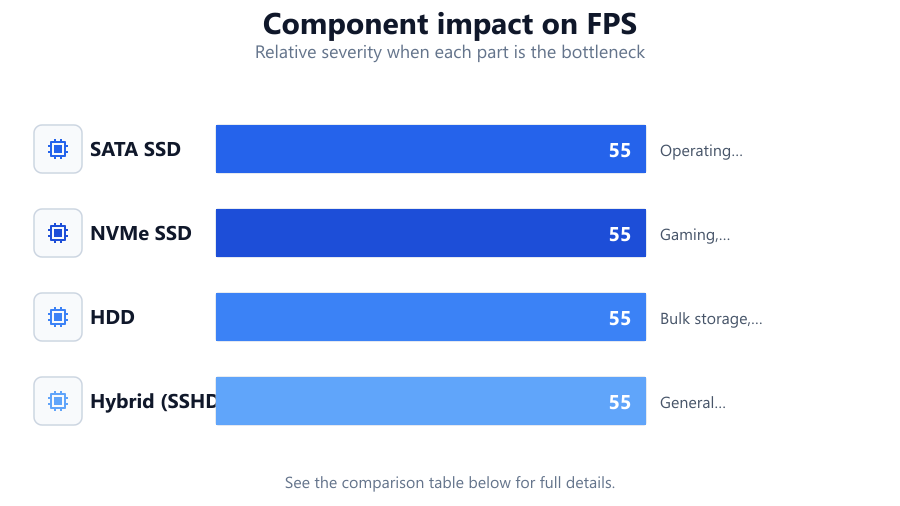
| Storage Type | Speed | Best Use Case |
|---|---|---|
| SATA SSD | Fast | Operating system, frequently used apps |
| NVMe SSD | Very Fast | Gaming, content creation, high-speed tasks |
| HDD | Moderate | Bulk storage, media libraries, backups |
| Hybrid (SSHD) | Balanced | General use, budget builds |
Common mistakes
Mistake
Underestimating future storage needs
Fix: Use the Storage Calculator to include at least 20 percent extra space for growth.
Mistake
Mixing incompatible drive types
Fix: Check your motherboard's compatibility for SATA, NVMe, or HDD before purchasing.
Mistake
Ignoring drive speed requirements
Fix: Choose SSDs for operating systems and games, and HDDs for large, infrequently accessed files.
Mistake
Not backing up important data
Fix: Set up automatic backups and consider cloud storage for critical files.
Troubleshooting
System running out of space quickly
Likely cause: Underestimated storage needs or unplanned file growth
What to do: Reevaluate your usage with the Storage Calculator and upgrade your drive accordingly.
Slow load times for games or apps
Likely cause: Using a slow HDD instead of an SSD for critical files
What to do: Move key applications or games to an SSD for improved performance.
Drive not recognized after upgrade
Likely cause: Incorrect installation or incompatible drive interface
What to do: Check connections, BIOS settings, and ensure the drive type matches your motherboard's supported interfaces.
Recommendations
- Always plan for at least 20 percent more storage than your current estimate.
- Use SSDs for your operating system and frequently accessed files for the best performance.
- Store large media libraries and backups on high-capacity HDDs to save on cost.
- Regularly use the Storage Calculator to reassess your needs as your usage grows.
Frequently asked questions
How much storage do I really need for my PC?
It depends on your usage. Gamers and content creators should target 1TB or more, while casual users can often manage with 512GB. The Storage Calculator provides a personalized estimate.
Should I choose an SSD or HDD?
SSDs offer faster performance and are best for your system and apps. HDDs are cost-effective for storing large files like videos or backups.
How often should I upgrade my storage?
Upgrade when you consistently have less than 15 percent free space, or if your drive is several years old and showing signs of failure.
Can I use both SSD and HDD together?
Yes, many systems support both. Use the SSD for your OS and main apps, and the HDD for bulk storage. The Storage Calculator can help you balance both types.