
Guide
How to Choose the Right Hardware
Choosing the right hardware ensures your computer runs smoothly and efficiently for your needs. This guide breaks down what to look for, whether you are upgrading or buying new.
Updated 2026-07-05
Understanding Your Hardware Needs
Selecting PC hardware starts with understanding your requirements. Are you editing videos, gaming, working with large files, or just browsing the web? The answer impacts every hardware choice you will make. For example, video editors need powerful CPUs and lots of RAM, while casual users may only need basic specs.
Consider your daily tasks and the software you use most often. For instance, if you upload large files frequently, your CPU, storage speed, and network card all matter. Using tools like the Upload Time Calculator can help you estimate how hardware upgrades will affect your workflow, especially for tasks involving big data transfers.
Budget is another crucial factor. Decide what you can spend, but remember that the cheapest option today may cost more in the long run if you need to upgrade sooner. Also, think about future-proofing. Buying hardware that is just powerful enough right now could mean you are forced to upgrade again in a year or two. Planning for growth keeps your system relevant longer.
Key Hardware Components Explained
Every computer is made up of several key components. Here is what you need to know about each one:
CPU (Processor): The brain of your computer. Faster CPUs handle more tasks at once and speed up demanding applications. For gaming or content creation, aim for modern multi-core processors.
RAM (Memory): More RAM allows your computer to multitask and handle large files smoothly. Power users should consider 16GB or more, while basic users can get by with 8GB.
Storage: SSDs are much faster than HDDs, making your system more responsive. NVMe SSDs offer even better performance, which is noticeable when loading large files or booting up.
Graphics Card (GPU): Critical for gaming, 3D modeling, and video editing. Integrated graphics are fine for everyday tasks, but dedicated cards are required for demanding visuals.
Motherboard: The foundation of your PC. Make sure it is compatible with your CPU, RAM, and any expansion cards you plan to use.
Power Supply (PSU): Do not overlook this component. A quality PSU ensures stability and protects your hardware from power surges.
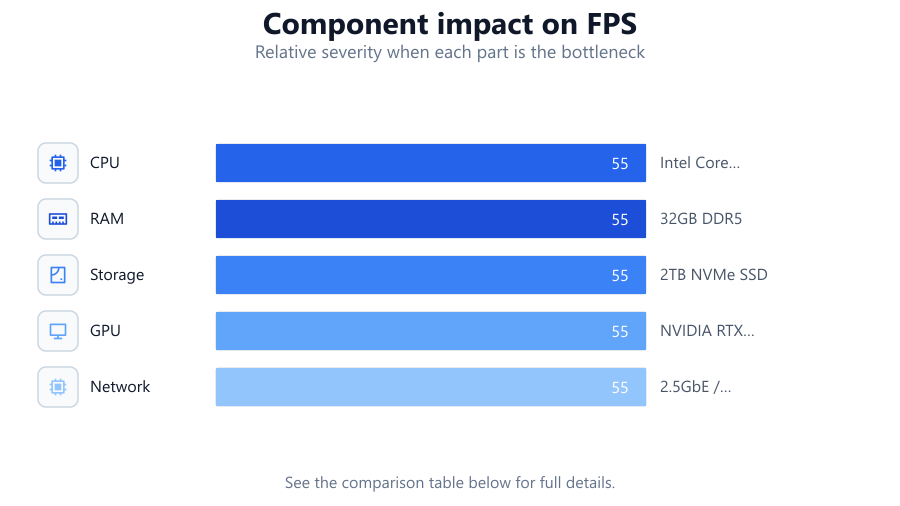
Networking: If you are uploading files often, invest in a fast Ethernet card or a reliable WiFi adapter. This, combined with the estimates from the Upload Time Calculator, can help you plan upgrades that directly affect your productivity.
Case and Cooling: Good airflow and cooling keep your components running efficiently. Choose a case that fits your hardware and provides ample ventilation.
Step-by-step
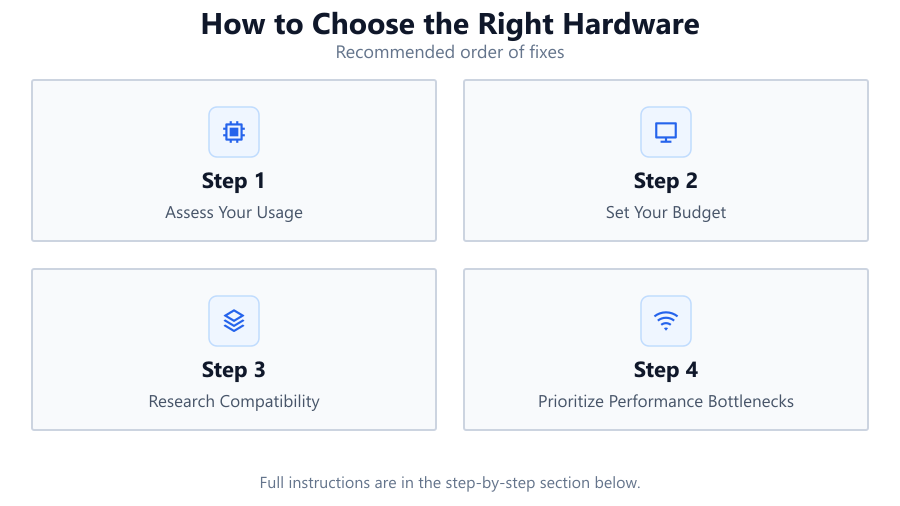
Assess Your Usage
Make a list of your most common tasks. Are you gaming, editing videos, or mainly browsing? Your workload determines which components matter most.
Set Your Budget
Determine how much you want to spend. Allocate more funds to the components that will have the biggest impact on your daily work.
Research Compatibility
Ensure all chosen parts work together. Check CPU and motherboard socket compatibility, RAM support, and case size for your selected components.
Prioritize Performance Bottlenecks
Identify which part of your current system is slowing you down. If file uploads are slow, consider upgrading your network card or using the Upload Time Calculator to estimate gains from faster internet hardware.
Plan for the Future
Select hardware that will serve you well for several years. Look for components with headroom for upgrades, such as extra RAM slots or additional drive bays.
Read Reviews and Benchmarks
Look at independent reviews and performance benchmarks for the hardware you are considering. This helps avoid poor-value products and ensures real-world performance matches your expectations.
Comparison
| Component | Entry-Level | High-End |
|---|---|---|
| CPU | Intel Core i3 / Ryzen 3 | Intel Core i7/i9 / Ryzen 7/9 |
| RAM | 8GB DDR4 | 32GB DDR5 |
| Storage | 500GB SATA SSD | 2TB NVMe SSD |
| GPU | Integrated Graphics | NVIDIA RTX 4080 / AMD RX 7900 |
| Network | Standard Ethernet | 2.5GbE / WiFi 6E Card |
Common mistakes
Mistake
Focusing on a single component and neglecting the rest
Fix: Balance your budget across all parts to avoid bottlenecks. A fast CPU cannot compensate for slow storage or insufficient RAM.
Mistake
Ignoring compatibility between parts
Fix: Check manufacturer specifications for CPU, motherboard, and RAM compatibility before purchasing.
Mistake
Underestimating power supply needs
Fix: Choose a PSU with enough wattage and quality certifications to support your components safely.
Mistake
Not considering future expansion
Fix: Pick a motherboard and case with room for upgrades, like extra RAM slots or drive bays.
Troubleshooting
Computer does not boot after hardware upgrade
Likely cause: Incompatible components or improper installation
What to do: Double-check compatibility and reseat all components. Consult the motherboard manual for correct installation procedures.
Slow file uploads despite fast internet
Likely cause: Outdated network card or slow storage
What to do: Upgrade to a modern Ethernet card or SSD. Use the Upload Time Calculator to estimate performance improvements.
System crashes or freezes under load
Likely cause: Insufficient cooling or inadequate power supply
What to do: Improve case airflow, upgrade cooling, or use a higher-wattage PSU to stabilize your system.
Recommendations
- Match your hardware to your most demanding tasks for the best experience.
- Invest in SSD storage and at least 16GB of RAM for smooth multitasking.
- Use the Upload Time Calculator to gauge the impact of networking or storage upgrades.
- Check for hardware compatibility and read recent user reviews before buying.
- Plan for future upgrades by selecting a case and motherboard with expansion options.
Frequently asked questions
How do I know if my current hardware needs upgrading?
If your computer struggles with everyday tasks, runs out of memory, or takes too long to upload files, it may be time to upgrade. Tools like the Upload Time Calculator can show if faster storage or a better network card would help.
Is it better to buy a prebuilt PC or build my own?
Building your own PC gives you more control over part selection and often better value. However, prebuilts are convenient and come with support. Choose based on your technical comfort level.
How much RAM do I need for modern tasks?
For most users, 16GB is sufficient. Heavy multitaskers, gamers, or content creators should consider 32GB or more.
Does a faster internet connection always speed up uploads?
Not always. Your upload speed also depends on your network card and storage performance. The Upload Time Calculator can help you see where your bottlenecks are.