
Guide
Common Buying Mistakes
Avoid the most common buying mistakes when upgrading your PC for video export and editing. Save money, boost performance, and get the best results with our actionable guide.
Updated 2026-07-05
Understanding Common Buying Mistakes
Every year, countless creators and professionals invest in new hardware hoping to speed up their video export and rendering workflows. However, many fall into common buying mistakes that can cost time, money, and productivity. Whether you are buying a new CPU, GPU, or storage device, missteps can leave you with a system that underperforms or fails to meet your workflow needs.
The Video Export Time Calculator is designed to help you make informed decisions by estimating how long your projects will take to export on your planned hardware. It is crucial to pair the right components with your workflow requirements to maximize efficiency and avoid bottlenecks.
Understanding your actual needs, researching component compatibility, and considering your upgrade path are all essential steps. Skipping these can lead to mismatched systems and disappointing results, especially for demanding tasks like 4K or 8K video exports.
How to Avoid Costly Mistakes When Buying PC Hardware
One of the most common buying mistakes is focusing on a single component, such as the GPU, while ignoring the importance of a balanced system. Video export speed depends on the interplay between your CPU, GPU, RAM, and storage. For example, a high-end GPU will not deliver its full potential if paired with a weak processor or slow storage.
Another misstep is neglecting to use tools like the Video Export Time Calculator before making a purchase. This leads to unrealistic expectations about performance improvements. Always benchmark your current setup and compare it to your planned upgrade to estimate the real-world time savings.
Upgradability and future-proofing are also frequently overlooked. Many users buy components that quickly become obsolete or are incompatible with future upgrades. Researching motherboard compatibility, power supply requirements, and case space can save you from expensive re-purchases. Lastly, do not underestimate the importance of reliable brands, warranties, and customer support. Saving a few dollars upfront can mean greater headaches down the road if your hardware fails or does not perform as promised.
Step-by-step
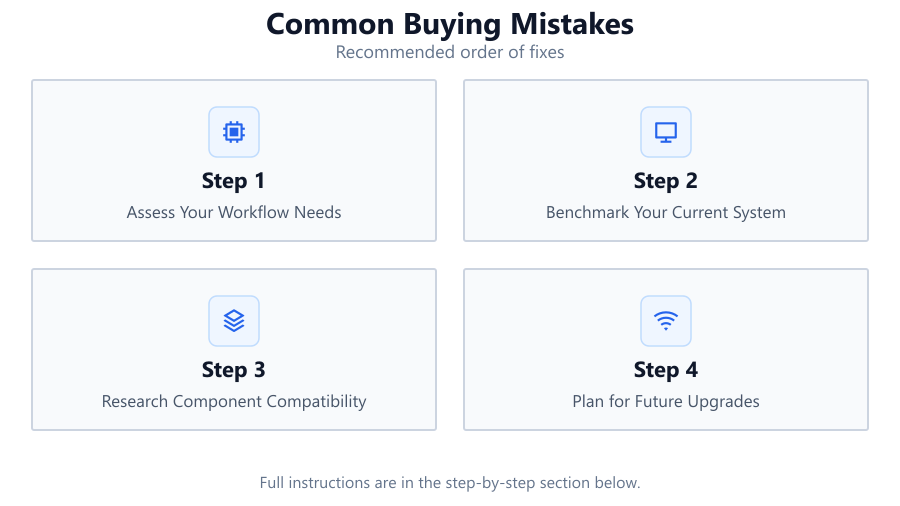
Assess Your Workflow Needs
Before buying any PC hardware, analyze the types of video projects you work on, such as 1080p, 4K, or 8K exports. Determine your typical project duration and the codecs you use most. This will guide your priorities when selecting components.
Benchmark Your Current System
Use your existing hardware to export a sample project. Measure how long it takes and identify any bottlenecks. Tools like the Video Export Time Calculator help you understand where upgrades will have the most impact.
Research Component Compatibility
Check that your chosen CPU, GPU, motherboard, RAM, and storage are compatible. Review manufacturer specifications and user forums to ensure there are no hidden issues. Incompatible parts can cause system instability or wasted investment.
Plan for Future Upgrades
Choose components that allow you to upgrade later. Select a motherboard with extra RAM slots, a case that fits larger GPUs, and a power supply with enough headroom. This approach prevents costly full-system replacements down the line.
Verify Vendor Reputation and Warranty
Buy from reputable vendors offering solid warranties and responsive support. Read reviews and check return policies. Reliable brands tend to offer better long-term value and peace of mind in case of hardware failure.
Comparison
| Scenario | Potential Mistake | Best Practice |
|---|---|---|
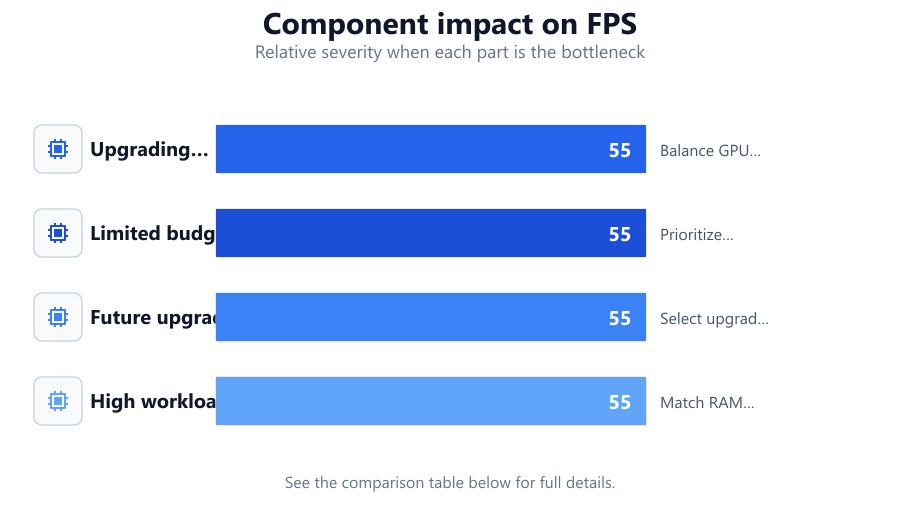
| Upgrading for 4K exports | Buying high-end GPU only | Balance GPU with fast CPU and SSD |
| Limited budget | Choosing cheapest parts | Prioritize key components for workflow |
| Future upgrades | Ignoring motherboard compatibility | Select upgradable platform |
| High workload | Underestimating RAM needs | Match RAM to project requirements |
Common mistakes
Mistake
Focusing on a single component for performance gains
Fix: Balance your investment across CPU, GPU, RAM, and storage for best results
Mistake
Not checking component compatibility
Fix: Consult manufacturer specs and compatibility lists before purchasing
Mistake
Ignoring real-world workflow needs
Fix: Use tools like the Video Export Time Calculator to estimate actual export times
Troubleshooting
Slow export times despite new GPU
Likely cause: CPU or storage bottleneck limiting performance
What to do: Upgrade CPU or switch to a faster SSD
System crashes during export
Likely cause: Incompatible or unstable hardware components
What to do: Verify compatibility and update drivers or firmware
Cannot install new component
Likely cause: Motherboard or power supply is incompatible
What to do: Check specs and replace incompatible parts if necessary
Recommendations
- Use the Video Export Time Calculator to estimate real-world benefits before buying
- Balance your hardware choices for your workflow, not just benchmarks
- Prioritize components that impact your specific export tasks
- Always check compatibility and plan for future upgrades
- Rely on established brands and vendors with proven support
Frequently asked questions
What are the most common buying mistakes for video editing PCs?
The most common buying mistakes include focusing solely on one component, ignoring compatibility, and not matching hardware to actual workflow needs.
How can I estimate the export time before upgrading my PC?
You can use the Video Export Time Calculator to input your project details and hardware specs for an accurate export time estimate.
Is it better to upgrade CPU or GPU for faster video exports?
It depends on your editing software and workflow. Balanced upgrades across CPU, GPU, and storage usually deliver the best results.
What should I check to avoid compatibility issues?
Always verify motherboard, RAM, power supply, and case compatibility with your chosen components before purchasing.